
Add what the shopper bought and how they paid. The sale counts towards your activation's targets straight away.
Before you start: you need to be signed in and working at a location. Products appear only if the activation has stock left.
Steps
- On the Dashboard, tap Record a sale.
Under Add Item, search for the product and tap it. Promo prices are applied for you.
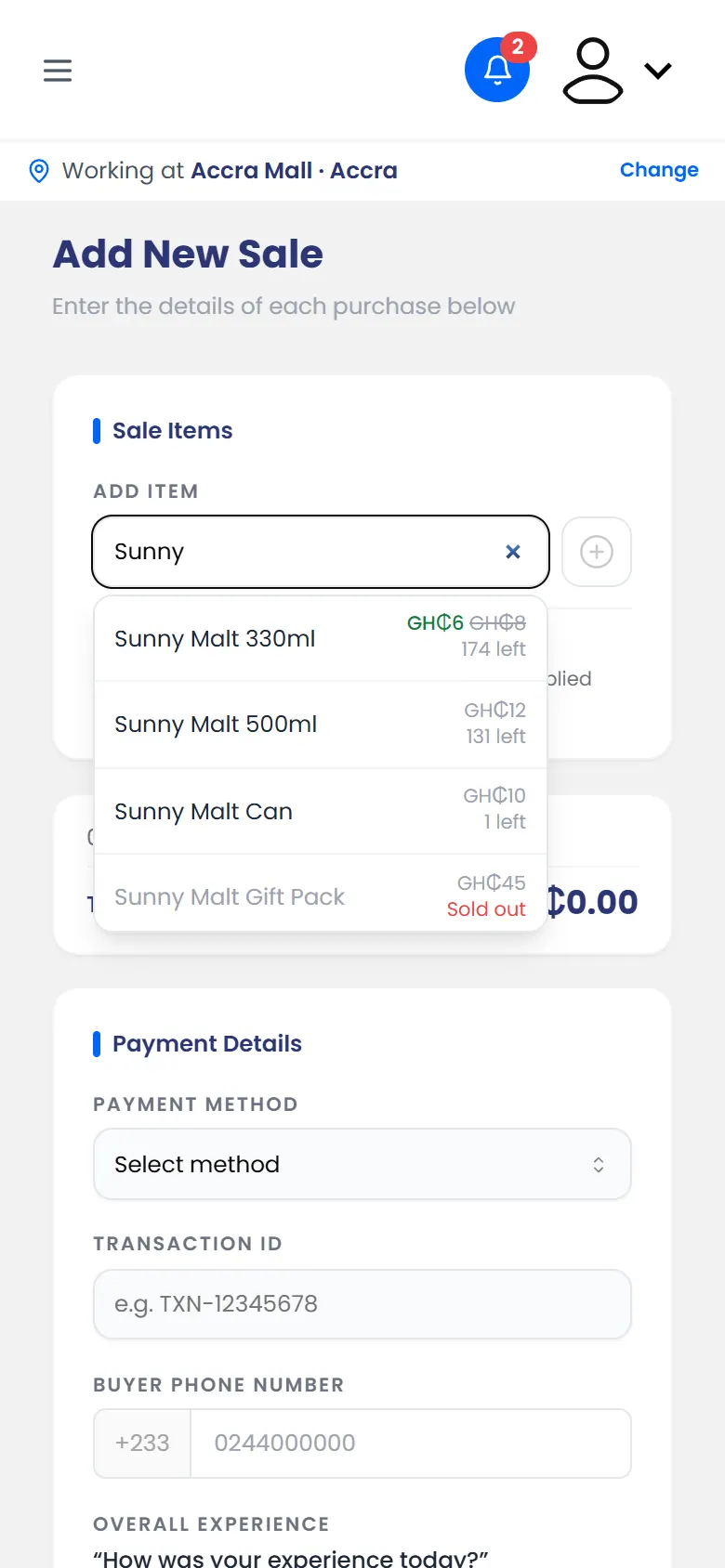
Searching for a product: its price and how many are left - Change the number with − and +. Add any other products the same way.
- Choose the Payment Method: Cash, Mobile Money or Card.
- For Mobile Money or card, type the Transaction ID from the payment message or slip.
- Type the Buyer Phone Number.
Ask the buyer to tap a star for their Overall experience, then tap Submit Sale.
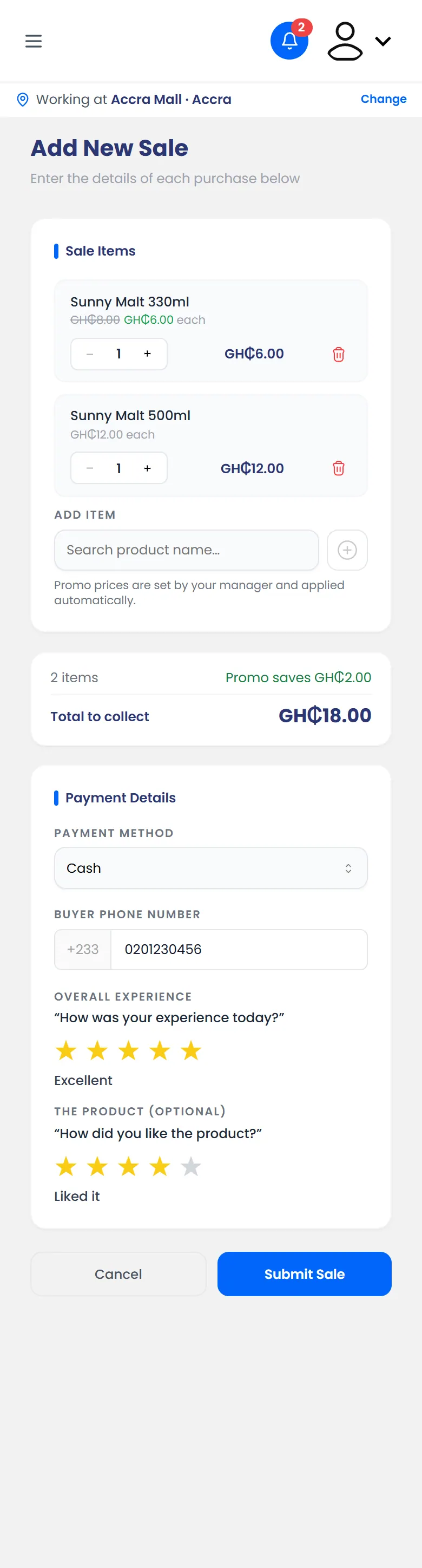
A filled-in sale: two products, paid in cash, with the buyer's phone and ratings
Rating the product is optional.
What happens next
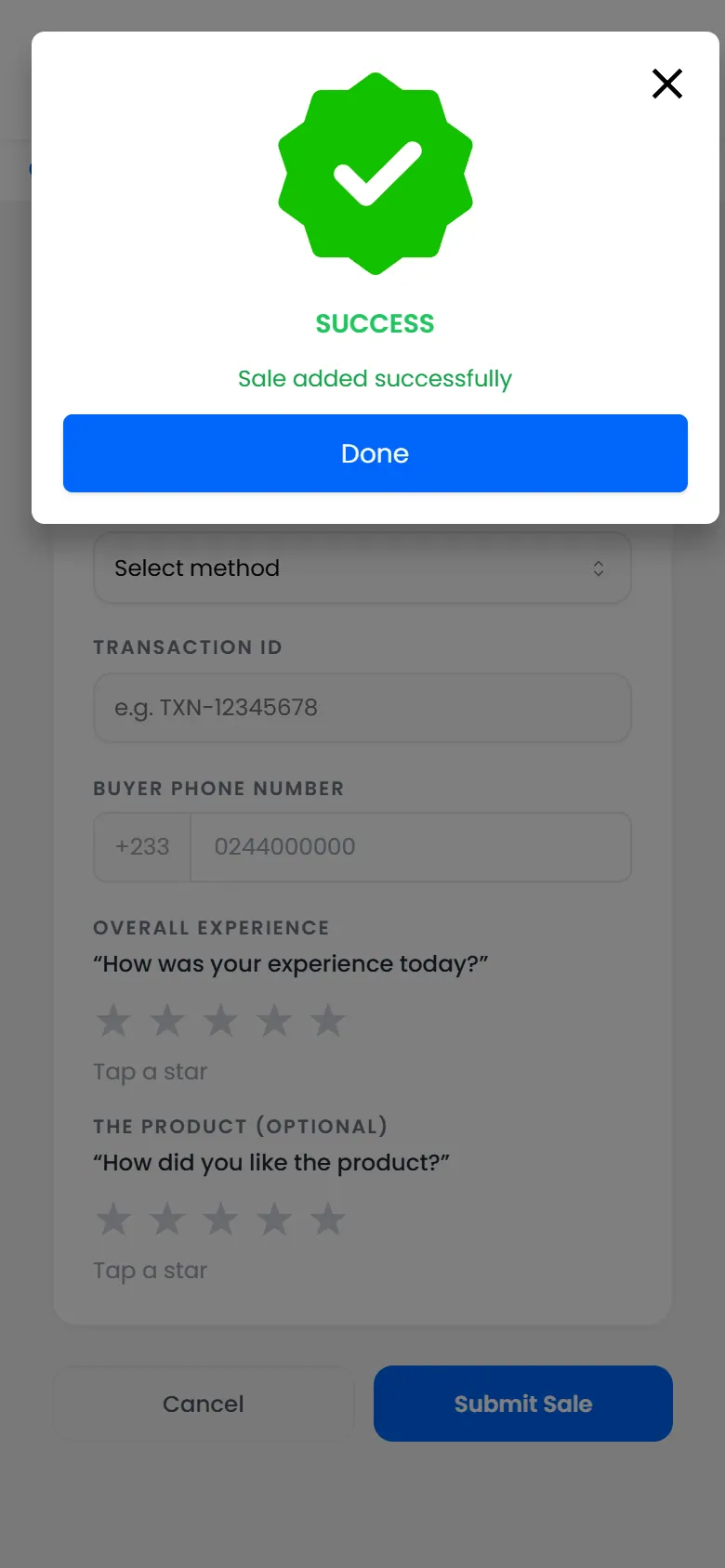
You see Sale added successfully. The sale shows in Sales history as Paid. The products' stock goes down, and the money is added to today's cash-up.
If it doesn't work
- "Transaction ID is required"
- "That transaction ID is already used by another sale"
- Red messages under the form, for example "Payment Method is required"