← Back to Promoters

Moments Analytics Help

Promoters

Record sales, give samples and merchandise, and run games at the stand.

Promoter Portal · 20 October 2026 · momentsanalytics.com/help/promoter

  1. 1. Your first day as a promoter
  2. 2. Sign in to the Promoter Portal
  3. 3. Choose where you're working today
  4. 4. Allow your location
  5. 5. Check your dashboard and today's cash-up
  6. 6. Find your way around
  7. 7. Record a sale
  8. 8. Record a sale that's waiting for payment
  9. 9. Mark a waiting sale paid
  10. 10. See your sales
  11. 11. Edit payment details
  12. 12. Void a sale
  13. 13. Ask for a correction
  14. 14. Give a product sample
  15. 15. Give brand merchandise
  16. 16. Resend a code, or cancel a promo item
  17. 17. Set up a game screen
  18. 18. Unlock a game
  19. 19. Send a game to a shopper's phone
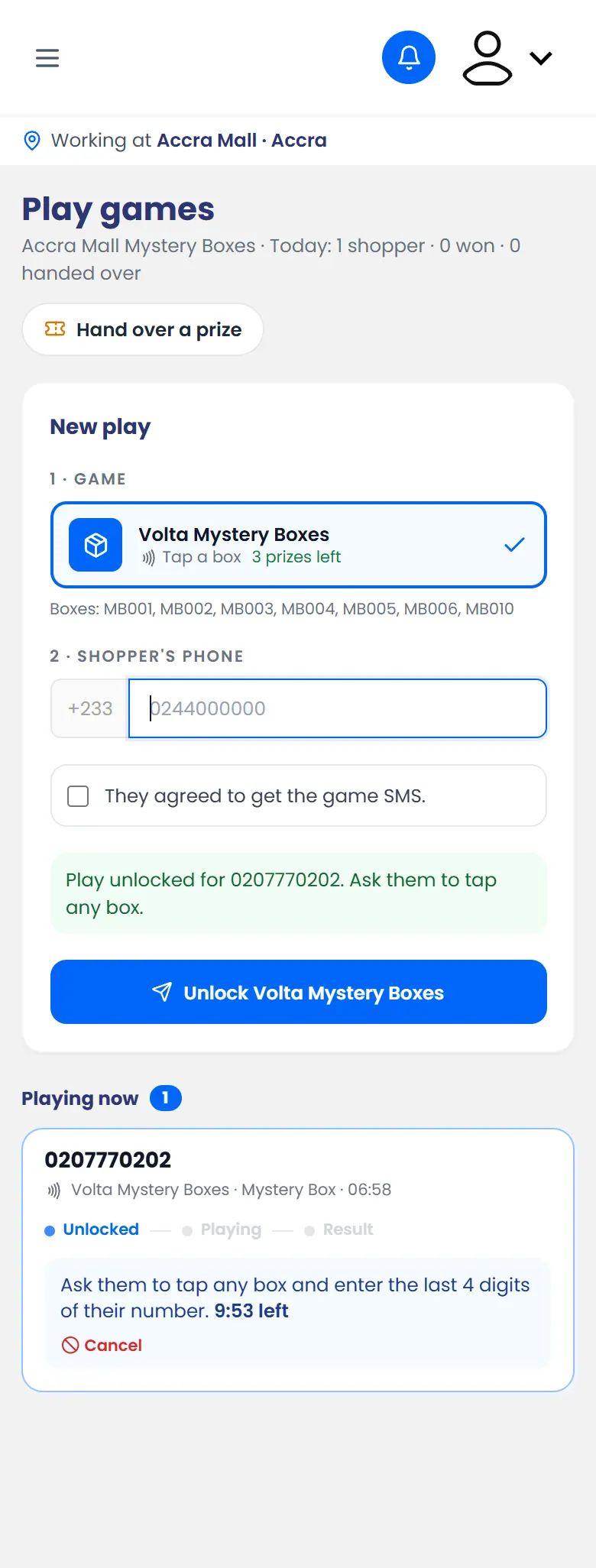
  20. 20. Unlock a Mystery Box
  21. 21. Hand over a prize
  22. 22. A button is greyed out
  23. 23. "Games aren't on right now"
  24. 24. "Location off"
  25. 25. "No games are on in this activation"
  26. 26. "Paused: subscription expired"
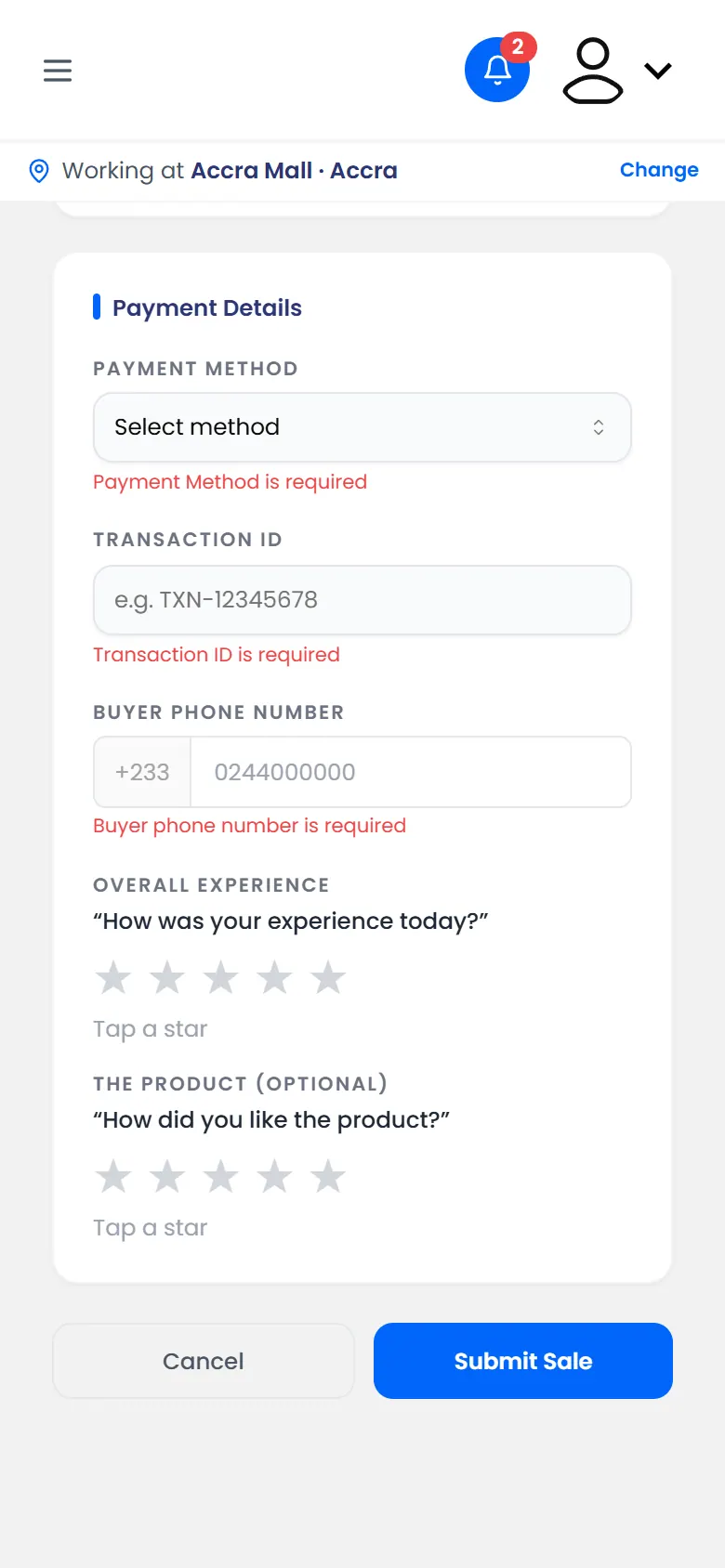
  27. 27. Red messages on the sale form
  28. 28. "That code is not correct"
  29. 29. "That code isn't right"
  30. 30. "That code wasn't found"
  31. 31. "That transaction ID is already used by another sale"
  32. 32. "The SMS could not be sent"
  33. 33. "This code has expired"
  34. 34. "This number has already received a product sample"
  35. 35. "This number has already won" or "already played"
  36. 36. "Transaction ID is required"
  37. 37. "You've been signed out"

1 of 37

Your first day as a promoter

Everything you need on your first day, from signing in to handing over at the end of the day.

The Promoter Portal is where you record what happens at your stand:

  • what you sell;
  • the promo items you give away;
  • the games shoppers play.

It runs on your phone. Your agency or brand has already added you, so you don't need to sign up.

Before you go

  • Use your own phone, with data or Wi-Fi. The Promoter Portal needs a connection to save anything. It doesn't work offline.
  • Your phone number must be the one your manager added. You sign in with it.
  • Charge your phone. You'll use it all day.

1. Sign in

Open promoters.momentsanalytics.com, type your phone number and tap Send code. Type the 6-digit code from the SMS.

See Sign in to the Promoter Portal. It also shows how to add the portal to your home screen so it opens like an app.

2. Say where you're working

If your activation runs in more than one place, choose today's location. Then allow your phone's location when it asks. It's noted only when you record something.

See Choose where you're working today and Allow your location.

3. Get to know your dashboard

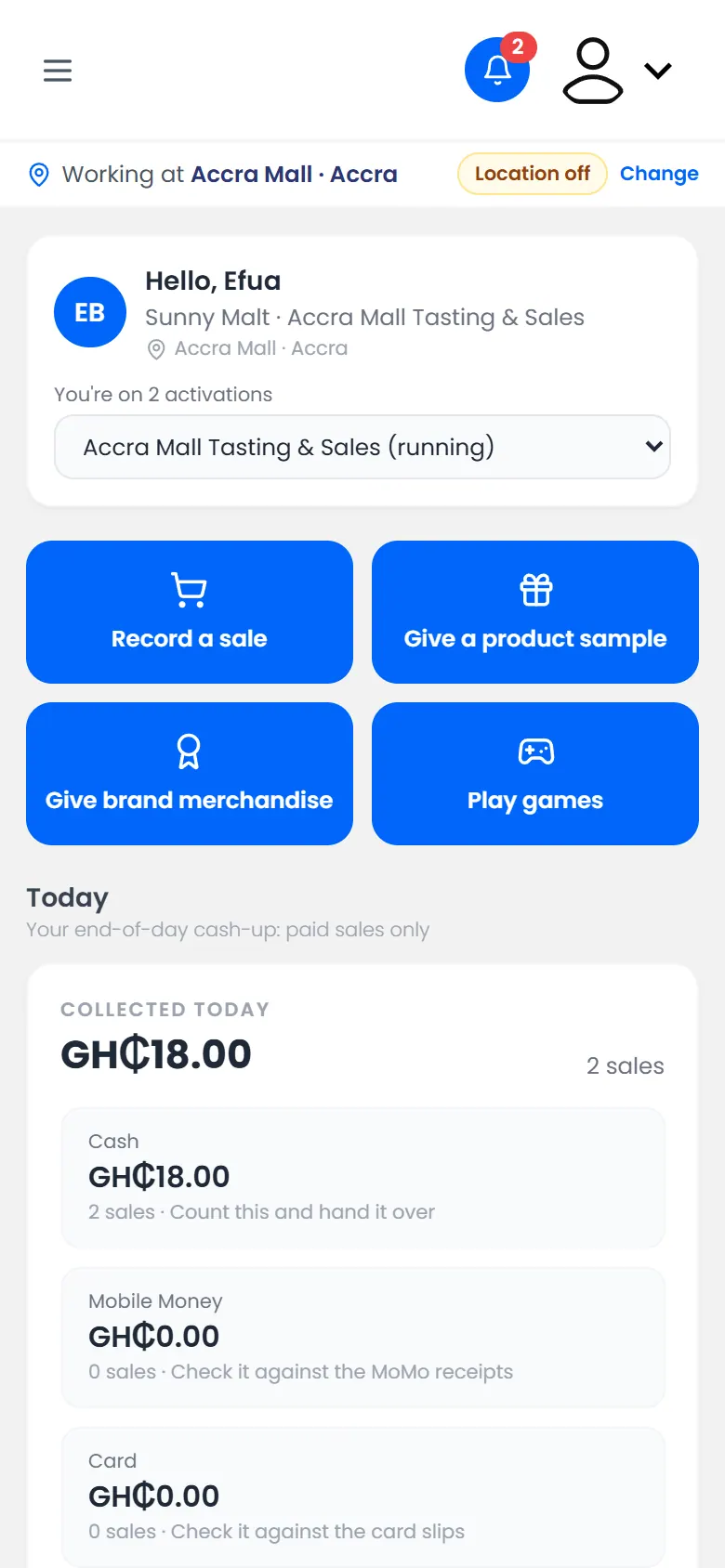
The Dashboard is your home page. It has a button for each job, today's cash-up, and the stock left.

The dashboard: the four action buttons, today's cash-up and stock left

See Check your dashboard and today's cash-up.

4. Do the work

When a shopper…Do this
Buys somethingRecord a sale
Pays by Mobile Money that hasn't come through yetRecord a sale that's waiting for payment
Gets a free sampleGive a product sample
Gets a cap, T-shirt or other branded itemGive brand merchandise
Wants to play a gameUnlock a game
Has won a prizeHand over a prize

5. Hand over at the end of the day

  1. Open the Dashboard and look at Today.
  2. Count the cash. It should match Cash.
  3. Check Mobile Money against the MoMo receipts, and Card against the card slips.
  4. Mark any sale still waiting for payment as Paid or Payment failed. See Mark a waiting sale paid.
  5. Hand over to your manager.

If you get stuck

2 of 37

Sign in to the Promoter Portal

Sign in with your phone number and a code sent by SMS. There's no password.

You sign in with your phone number and a 6-digit code sent by SMS. There's no password to remember.

Before you start: your agency or brand must have added you with this phone number. If they haven't, ask your manager.

Steps

  1. On your phone, open promoters.momentsanalytics.com.
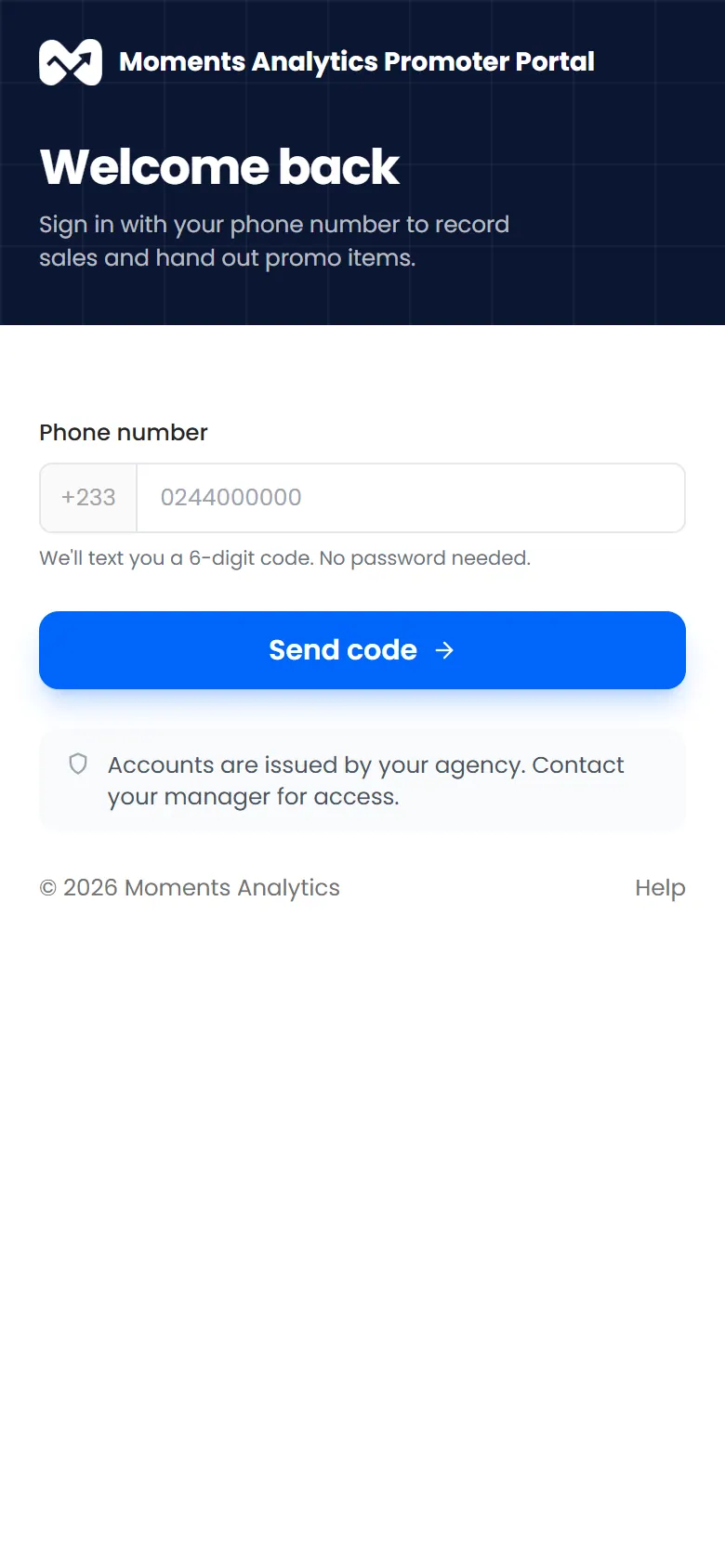
  2. Type your Phone number and tap Send code.

    The Promoter Portal sign-in page, asking for a phone number
    The Promoter Portal sign-in page, asking for a phone number
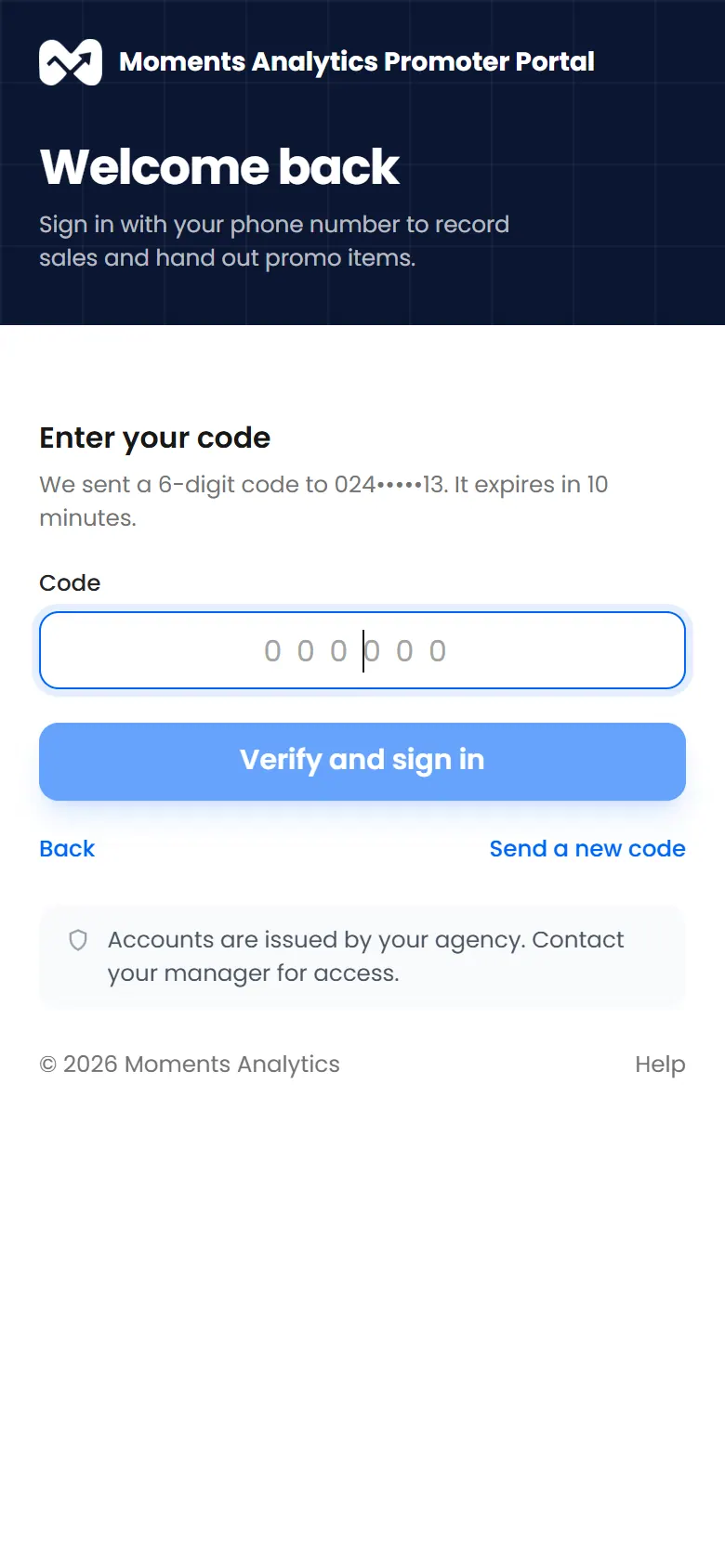
  3. Type the 6-digit code from the SMS.

    Entering the 6-digit code sent by SMS
    Entering the 6-digit code sent by SMS
  4. Tap Verify and sign in.

What happens next

The Dashboard opens. You stay signed in on this phone until you sign out.

Add it to your home screen

The Promoter Portal can sit on your home screen and open like an app.

  • Android (Chrome): tap the ⋮ menu, then Add to Home screen or Install app.
  • iPhone (Safari): tap the Share button, then Add to Home Screen.

If it doesn't work

3 of 37

Choose where you're working today

Pick today's location, or switch to another activation, so your work is counted in the right place.

Everything you record is counted at the location you're working at. If your activation runs in more than one place, you choose it each day.

Steps

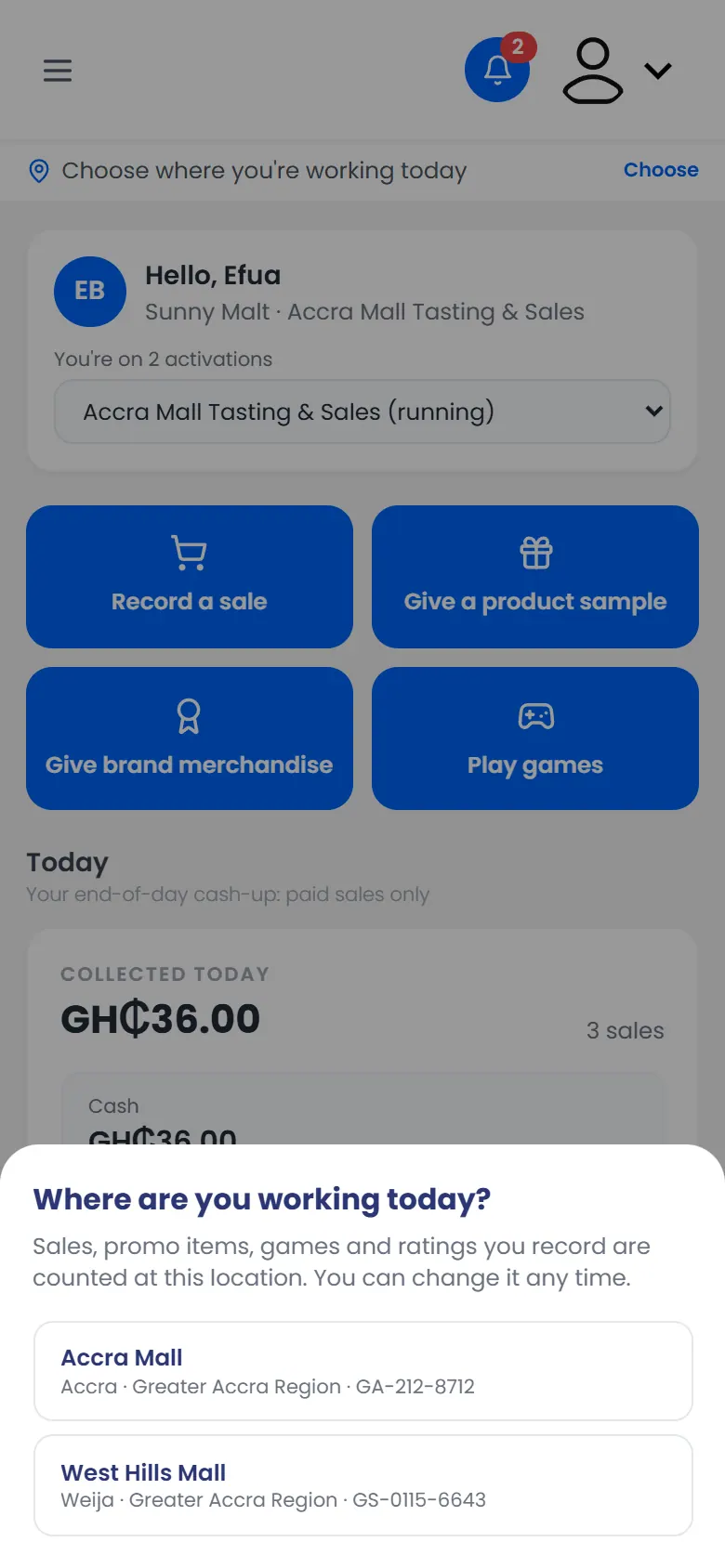
  1. After you sign in, Where are you working today? appears. Tap your location.

    Where are you working today? with two locations to choose from
    Where are you working today? with two locations to choose from
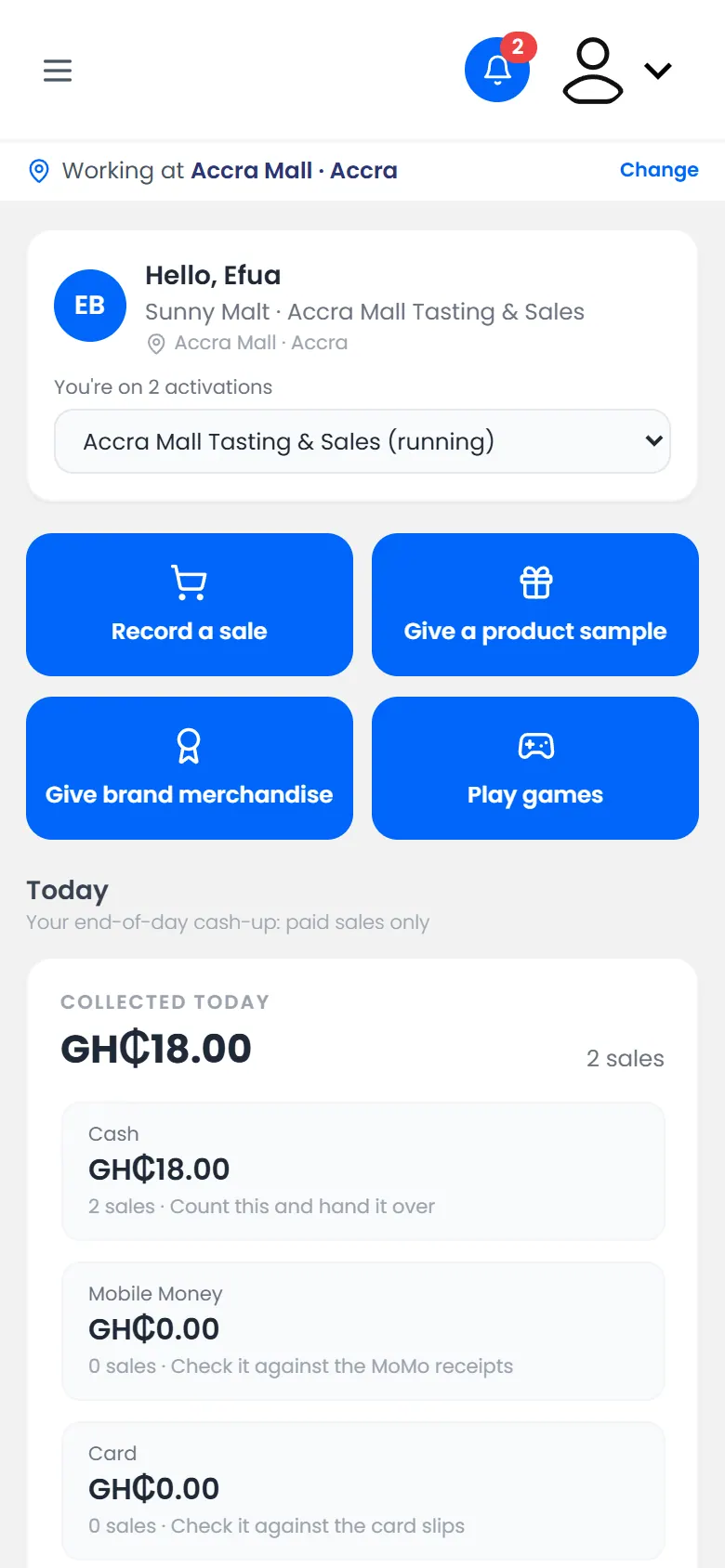
  2. Check the bar at the top. It now shows Working at and your location.

    The Working at bar showing Accra Mall
    The Working at bar showing Accra Mall

If your activation has only one location, it's chosen for you.

Change your location

Tap Change on the Working at bar and choose another location. What you record from then on counts there.

Switch to another activation

If you're on more than one activation, the Dashboard says how many, for example You're on 2 activations. Choose the other one from the list under your name.

4 of 37

Allow your location

Let the Promoter Portal note where you are when you record a sale, promo item or game.

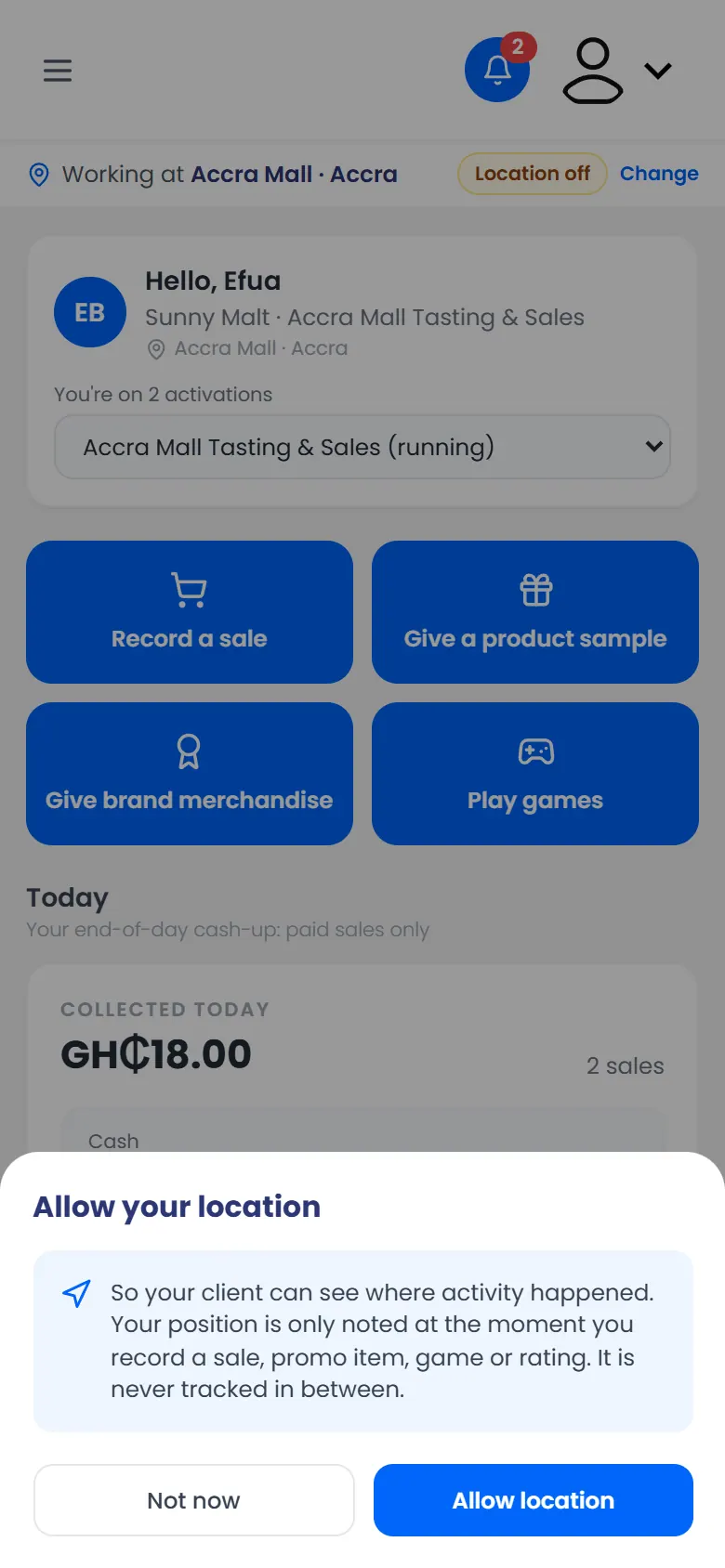
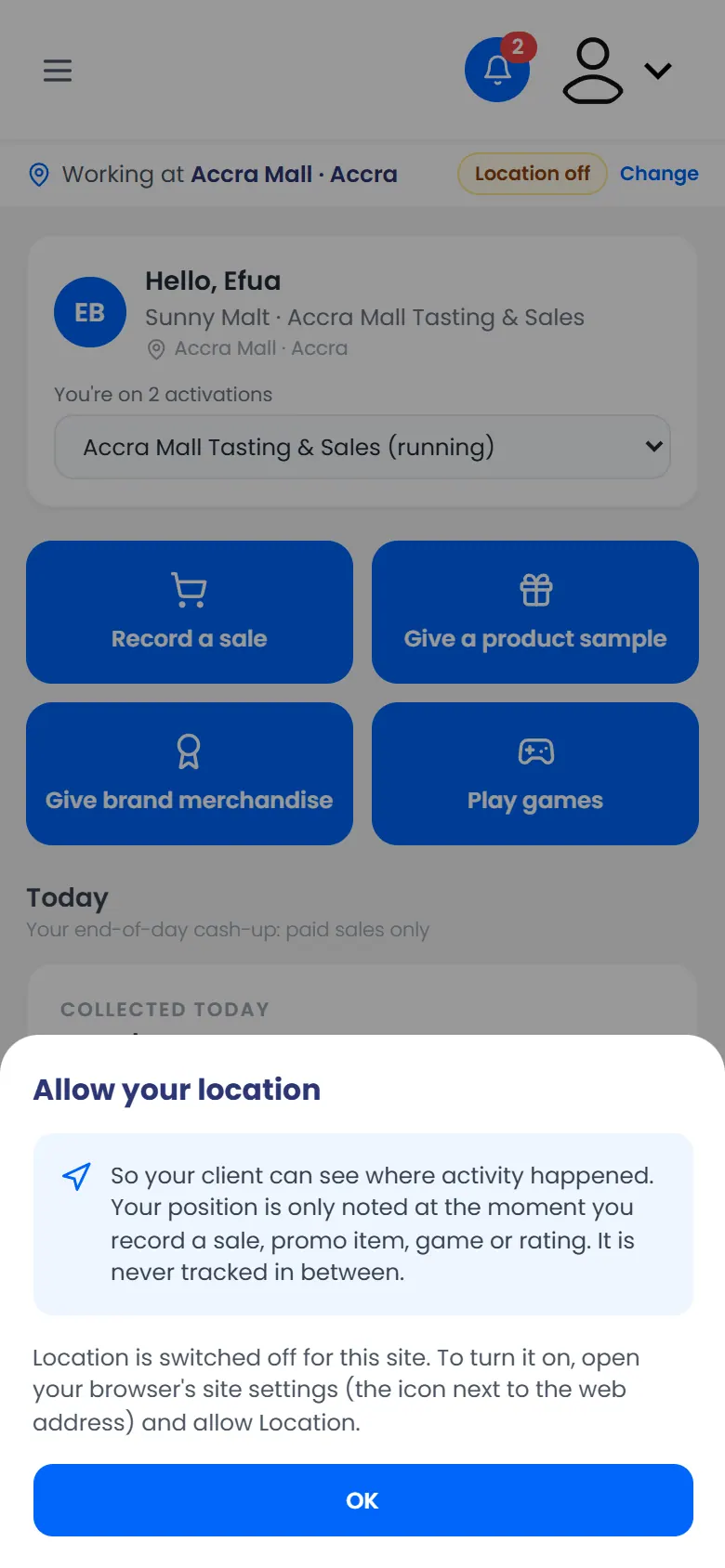
Your phone's location shows your team that sales, promo items and games happened at the stand. It's noted only when you record something. You're never tracked in between.

Steps

  1. When Allow your location appears, tap Allow location.

    Allow your location: noted only when you record something
    Allow your location: noted only when you record something
  2. When your phone asks too, tap Allow (or Allow while using the app).

If you tap Not now

You can still work. Your records just won't have a location. Your manager may ask you to turn it on.

If it doesn't work

5 of 37

Check your dashboard and today's cash-up

Your home page shows what you can do, today's money to hand over, and the stock left.

The Dashboard is the first page you see. You can come back to it any time from the menu.

The dashboard: action buttons, Today, Stock left and Your activity

What's on it

  • The four buttons:

    • Record a sale;
    • Give a product sample;
    • Give brand merchandise;
    • Play games.

    A button is greyed out when you can't use it, and it says why.

  • Today, your end-of-day cash-up:

    • the money from today's paid sales, split into Cash, Mobile Money and Card;
    • the promo items given, the people reached and the game plays.
  • Stock left: what's left for the whole activation, shared with the other promoters. A yellow note tells you when items are running low. When you see it, tell your manager so they can restock.
  • Your activity: everything you've recorded in this activation.

Hand over at the end of the day

  1. Count your cash. It should match Cash under Today.
  2. Check Mobile Money against the MoMo receipts.
  3. Check Card against the card slips.
  4. Settle any sale still waiting for payment. See Mark a waiting sale paid.
Today's cash-up, with a Mobile Money sale still waiting for payment

Only paid sales count in the cash-up.

6 of 37

Find your way around

The menu, your notifications, and how to sign out.

The menu

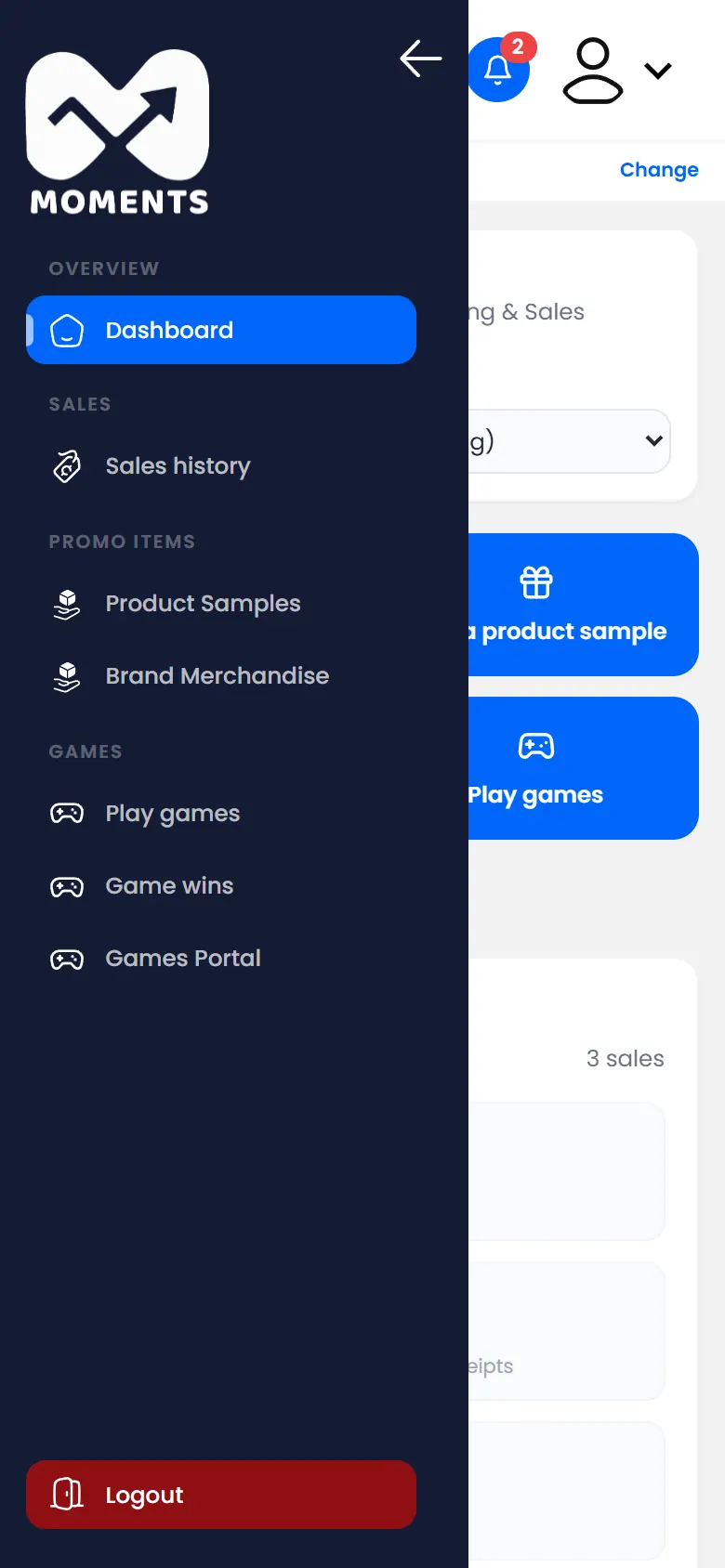
Tap ☰ at the top left to open the menu.

The menu: Dashboard, Sales history, Product Samples, Brand Merchandise, Play games, Game wins, Games Portal
Menu itemWhat it's for
DashboardYour home page and today's cash-up
Sales historyEvery sale you've recorded
Product SamplesSamples you've given, and their codes
Brand MerchandiseMerchandise you've given
Play gamesUnlock games and hand over prizes
Game winsEvery prize won, and whether it's been handed over
Games PortalOpens the game screen app

Notifications

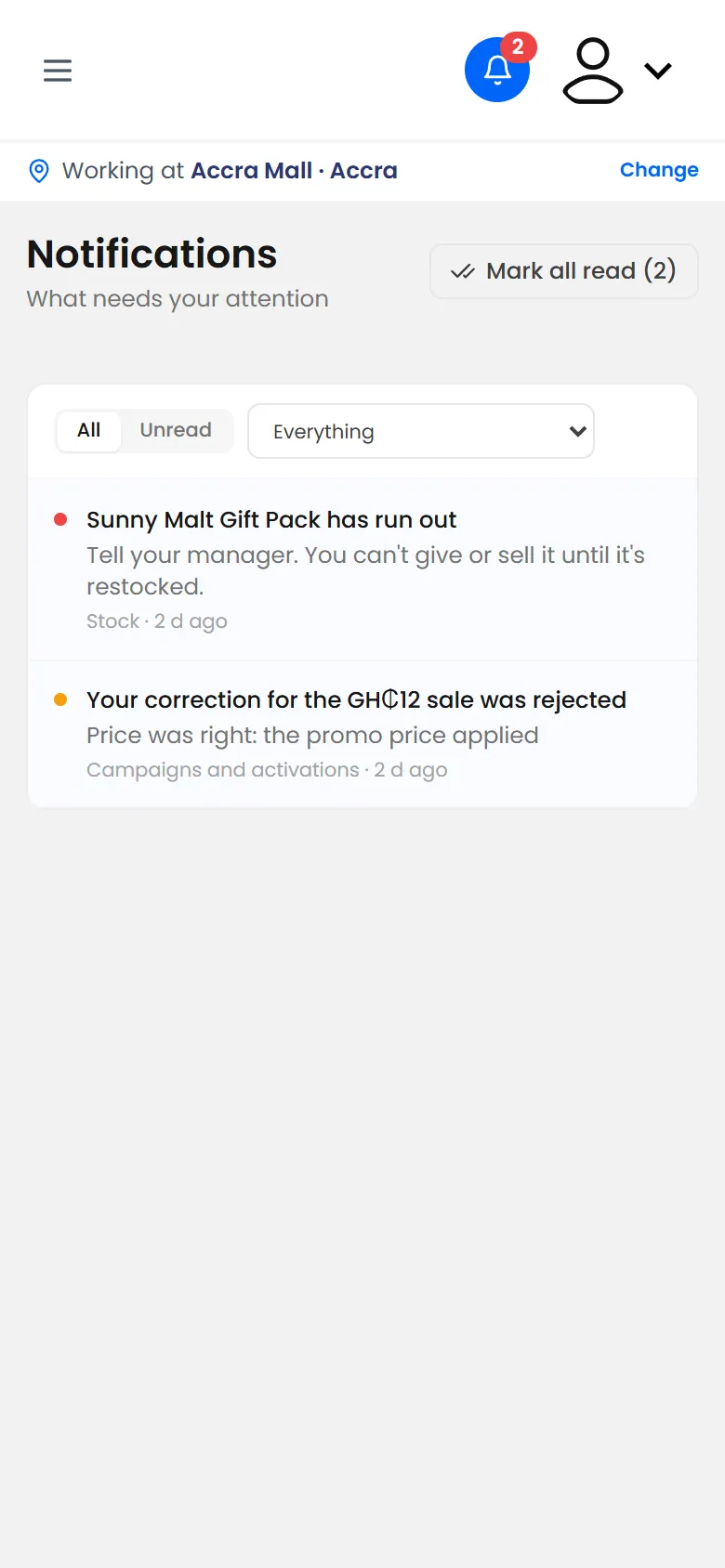
The bell at the top shows how many notifications you haven't read. For example, you get one when your manager decides on a correction you asked for.

Notifications, such as a correction decided

Sign out

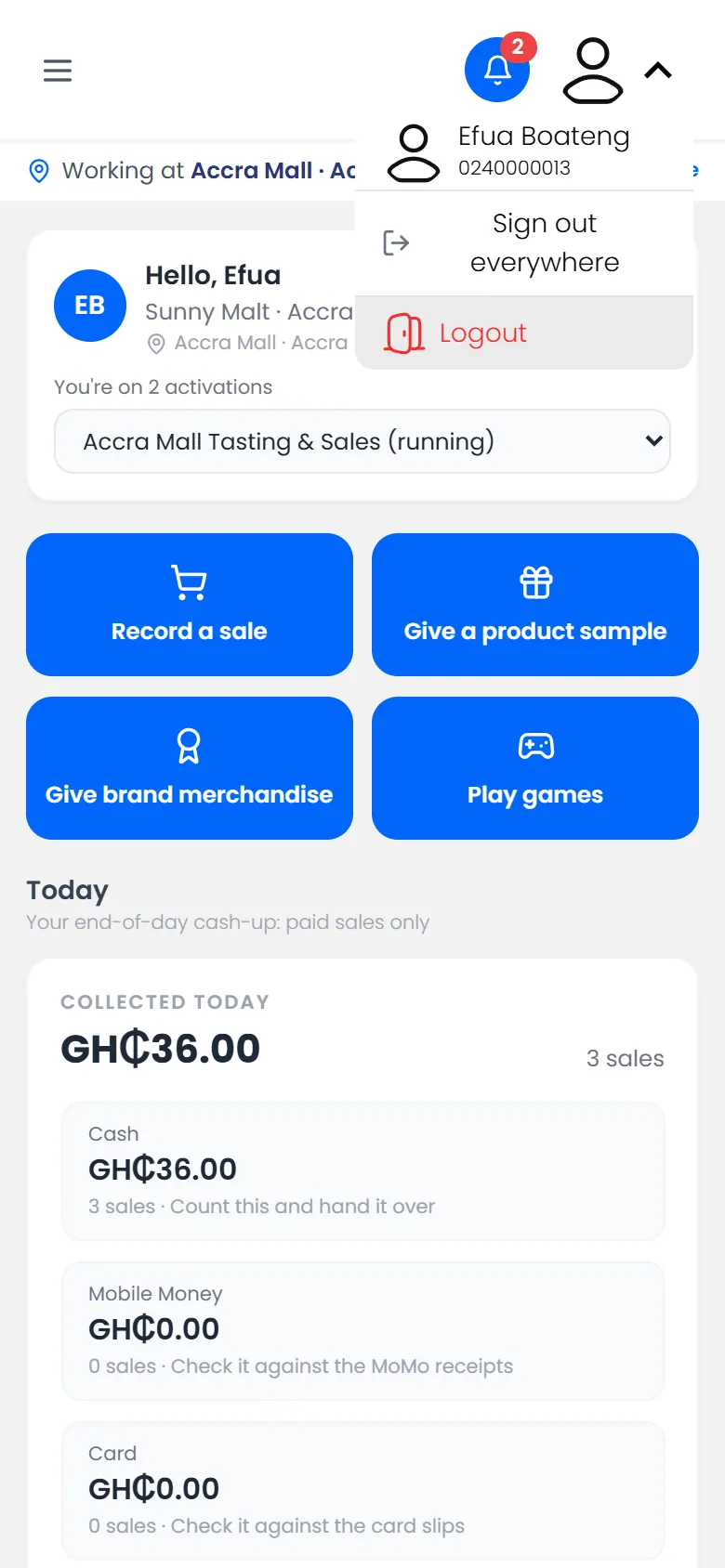
Tap your picture at the top right.

The account menu: your name and number, Sign out everywhere, Logout
  • Logout signs you out on this phone.
  • Sign out everywhere signs you out on every phone and tablet you've used. Use it if you've lost a phone, or signed in on someone else's.

7 of 37

Record a sale

Add what the shopper bought and how they paid, so it counts towards the activation's targets.

Add what the shopper bought and how they paid. The sale counts towards your activation's targets straight away.

Before you start: you need to be signed in and working at a location. Products appear only if the activation has stock left.

Steps

  1. On the Dashboard, tap Record a sale.
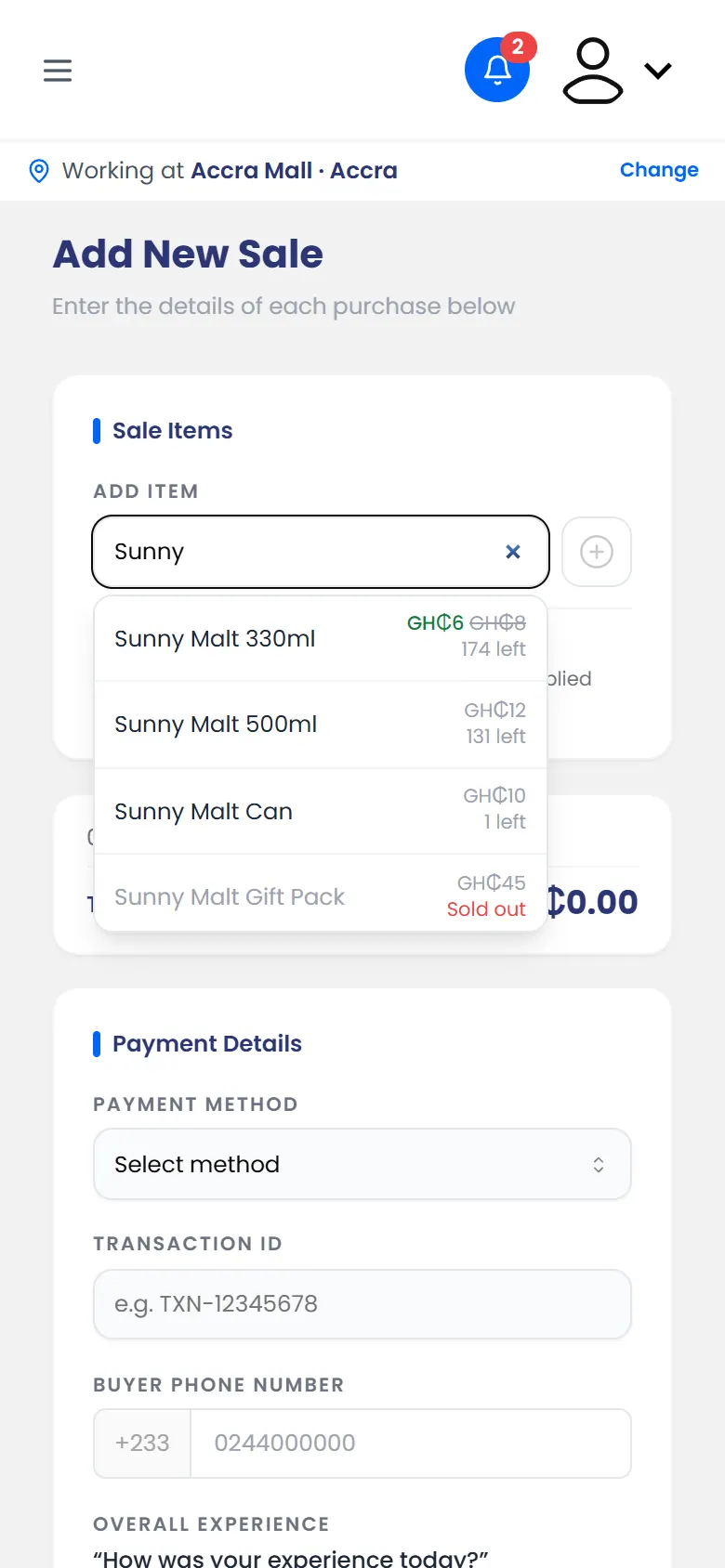
  2. Under Add Item, search for the product and tap it. Promo prices are applied for you.

    Searching for a product: its price and how many are left
    Searching for a product: its price and how many are left
  3. Change the number with − and +. Add any other products the same way.
  4. Choose the Payment Method: Cash, Mobile Money or Card.
  5. For Mobile Money or card, type the Transaction ID from the payment message or slip.
  6. Type the Buyer Phone Number.
  7. Ask the buyer to tap a star for their Overall experience, then tap Submit Sale.

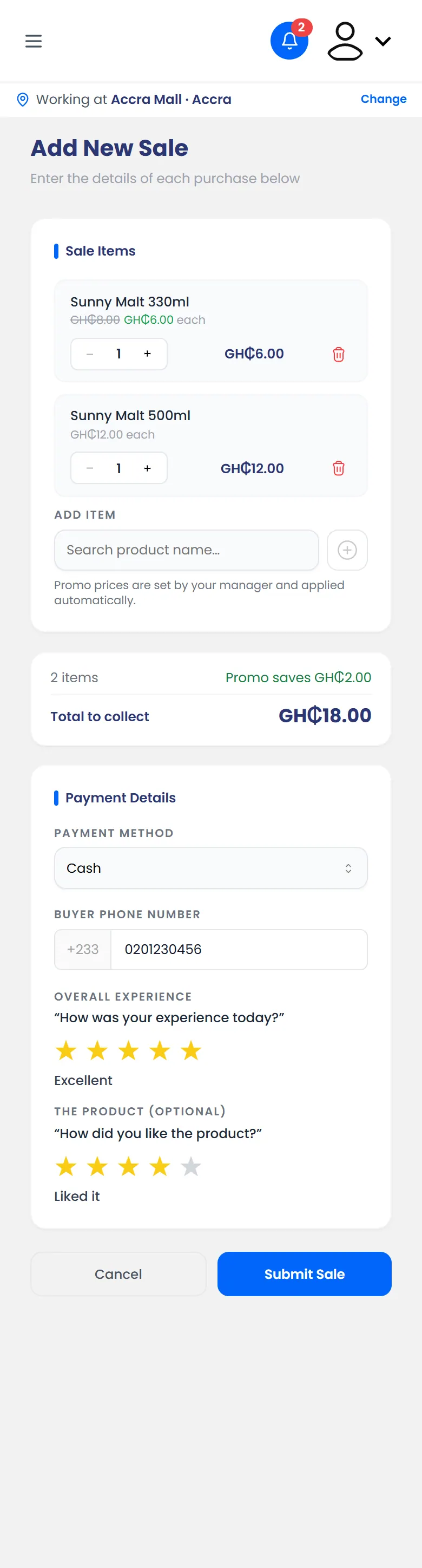
    A filled-in sale: two products, paid in cash, with the buyer's phone and ratings
    A filled-in sale: two products, paid in cash, with the buyer's phone and ratings

Rating the product is optional.

What happens next

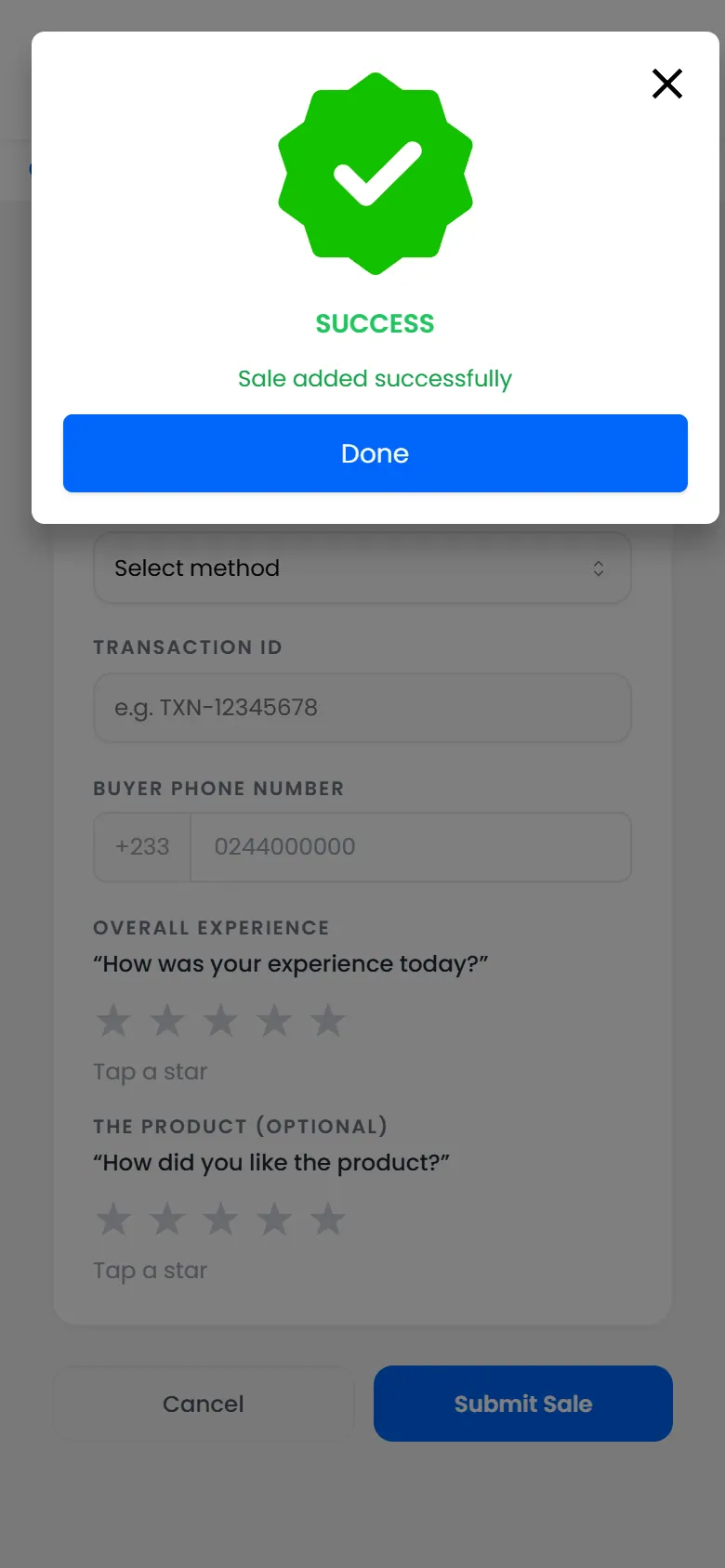
You see Sale added successfully. The sale shows in Sales history as Paid. The products' stock goes down, and the money is added to today's cash-up.

The sale is saved
The sale is saved

If it doesn't work

8 of 37

Record a sale that's waiting for payment

Save a Mobile Money or card sale that hasn't come through yet, and mark it paid later.

Sometimes a Mobile Money payment takes a while. Save the sale as waiting for payment so the shopper doesn't have to wait. It won't count until you mark it Paid.

Steps

  1. Record the sale as usual. See Record a sale.
  2. Choose Mobile Money or Card as the Payment Method.
  3. Type the Transaction ID from the payment prompt or slip.
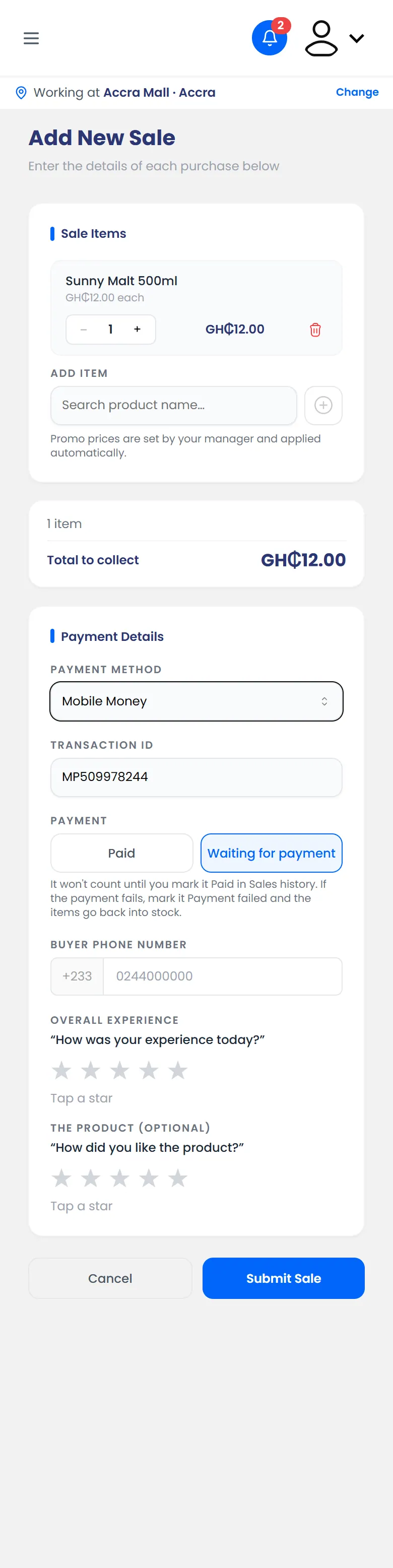
  4. Under Payment, tap Waiting for payment.

    Payment set to Waiting for payment
    Payment set to Waiting for payment
  5. Tap Submit Sale.

What happens next

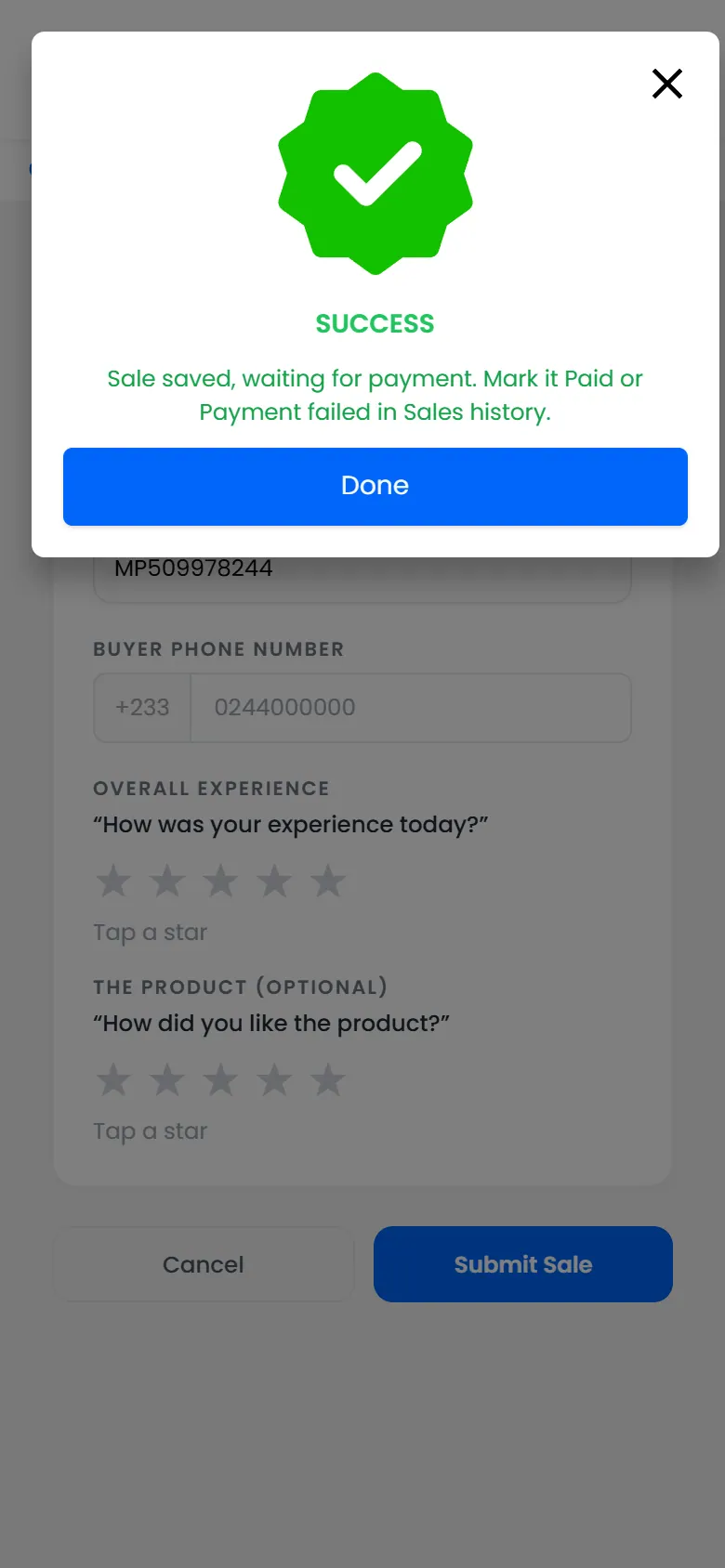
You see Sale saved, waiting for payment. The sale shows on the Dashboard under Today, but isn't added to the money collected.

Saved, waiting for payment

When the money comes through, mark the sale paid. Do it before you hand over at the end of the day.

9 of 37

Mark a waiting sale paid

When a Mobile Money or card payment comes through, or fails, update the sale.

A sale that's waiting for payment doesn't count until you mark it Paid. If the payment didn't go through, mark it Payment failed.

Steps

  1. Open the menu and tap Sales history.
  2. Find the sale. It's labelled as waiting for payment.
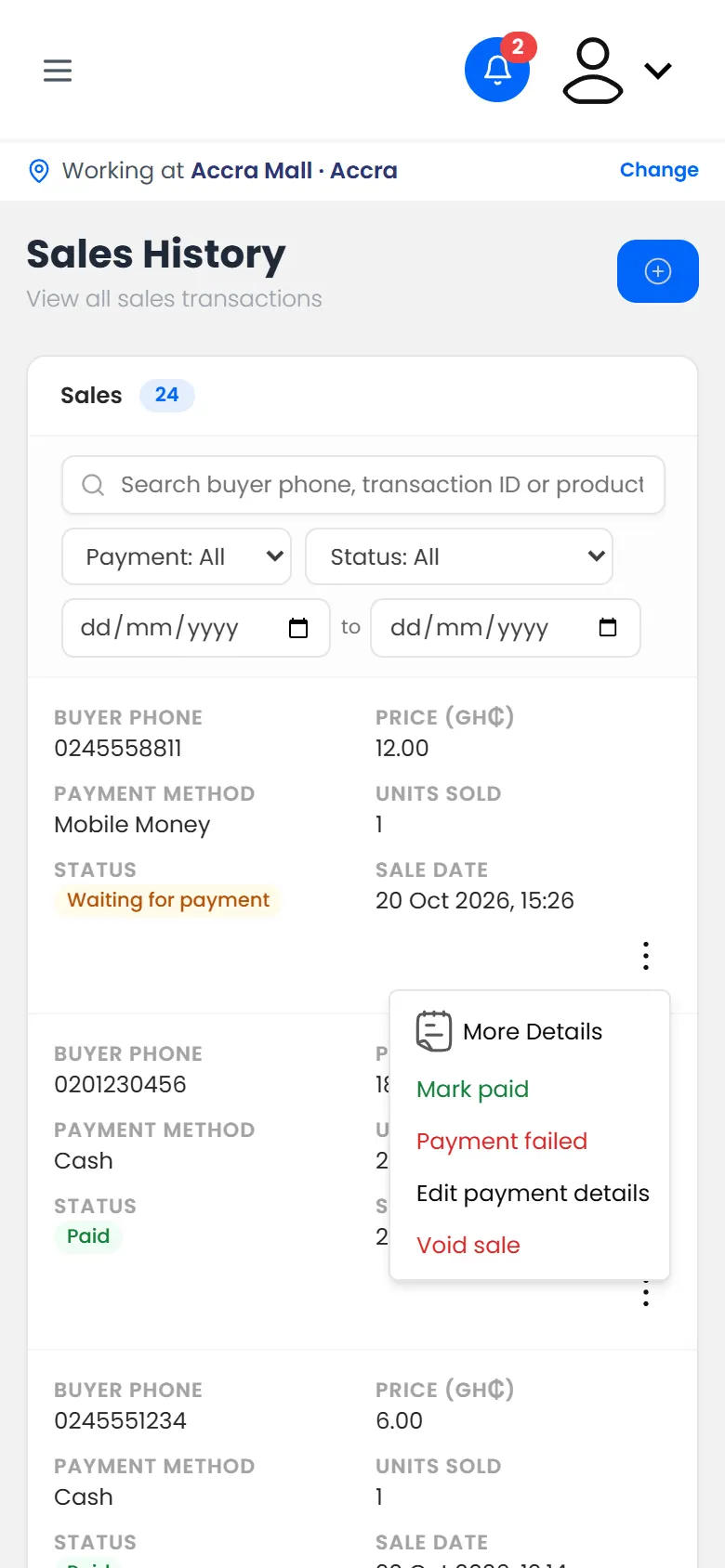
  3. Tap ⋮ on the sale.

    What you can do with a sale
    What you can do with a sale
  4. Tap Mark paid, or Payment failed if the money didn't come through.

What happens next

  • Paid: the sale counts, and its money is added to today's cash-up.
  • Payment failed: the sale doesn't count, and its items go back into stock.

10 of 37

See your sales

Find any sale you've recorded, check its status, and open its details.

Sales history lists every sale you've recorded in this activation, newest first.

Steps

  1. Open the menu and tap Sales history.

    Sales history: every sale and its status
    Sales history: every sale and its status
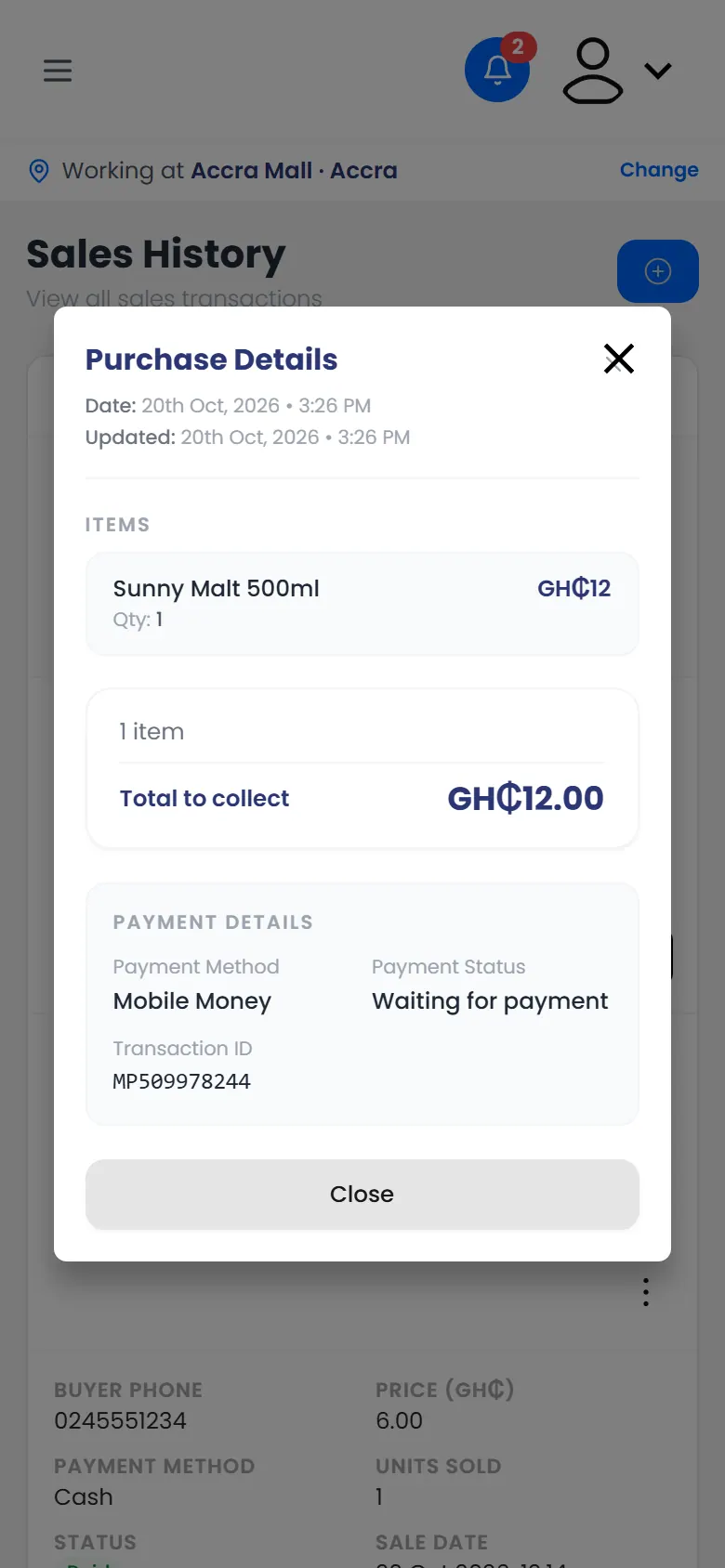
  2. To see everything about a sale, tap ⋮ on it, then More Details.

    More details: the items, total and payment
    More details: the items, total and payment

What you can do with a sale

What you see under ⋮ depends on the sale:

The sale is…You can
Waiting for paymentMark paid, or Payment failed
From todayEdit payment details, or Void sale
From an earlier dayAsk for a correction

11 of 37

Edit payment details

Fix the payment method, transaction ID or buyer's phone on one of today's sales.

You can fix how a sale was paid, its transaction ID or the buyer's phone number. This works on today's sales only.

To change the items or prices, void the sale and record it again.

Steps

  1. Open the menu and tap Sales history.
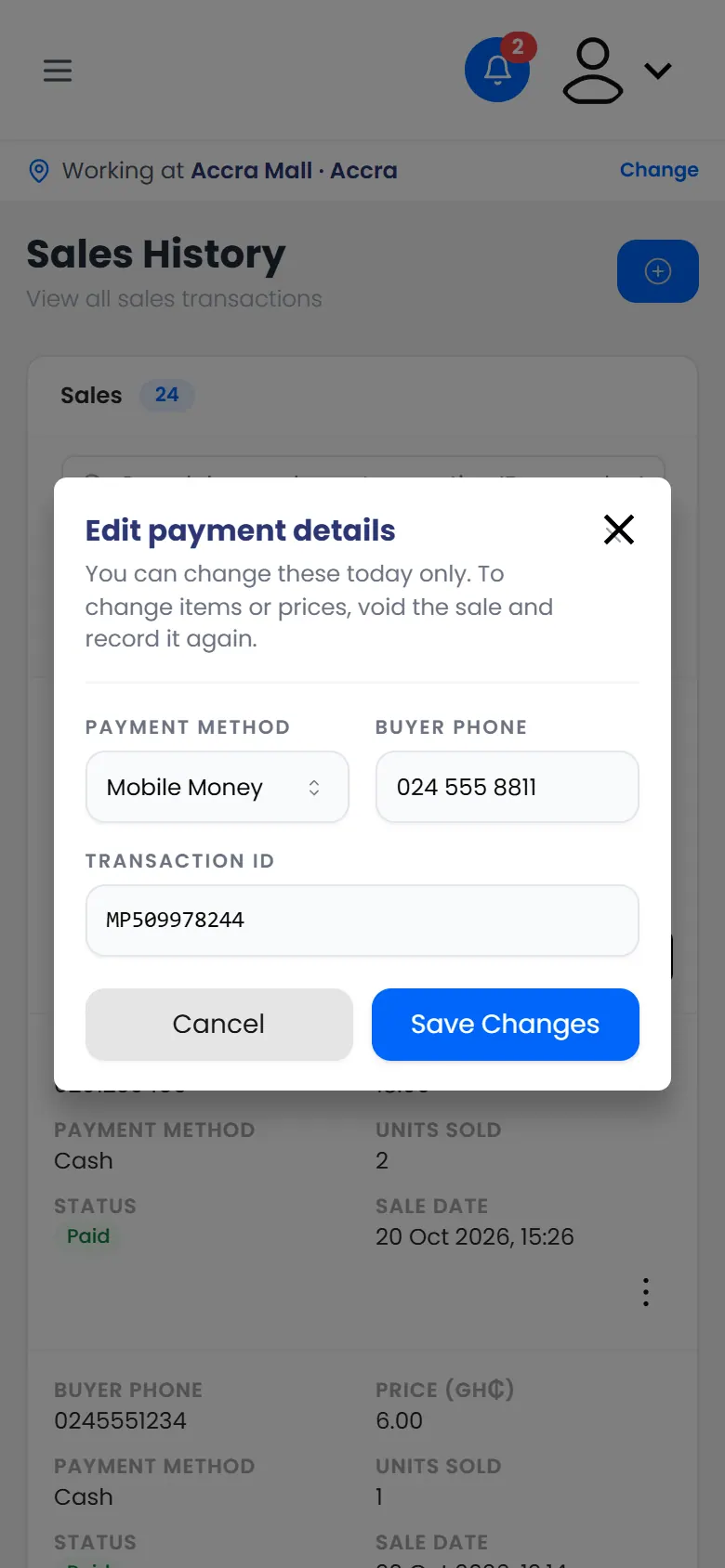
  2. Tap ⋮ on the sale, then Edit payment details.
  3. Change what's wrong.

    Edit payment details: payment method, buyer phone and transaction ID
    Edit payment details: payment method, buyer phone and transaction ID
  4. Tap Save Changes.

If the sale is from an earlier day

You can't edit it yourself. Ask for a correction instead.

12 of 37

Void a sale

Cancel one of today's sales, with a reason. Its items go back into stock.

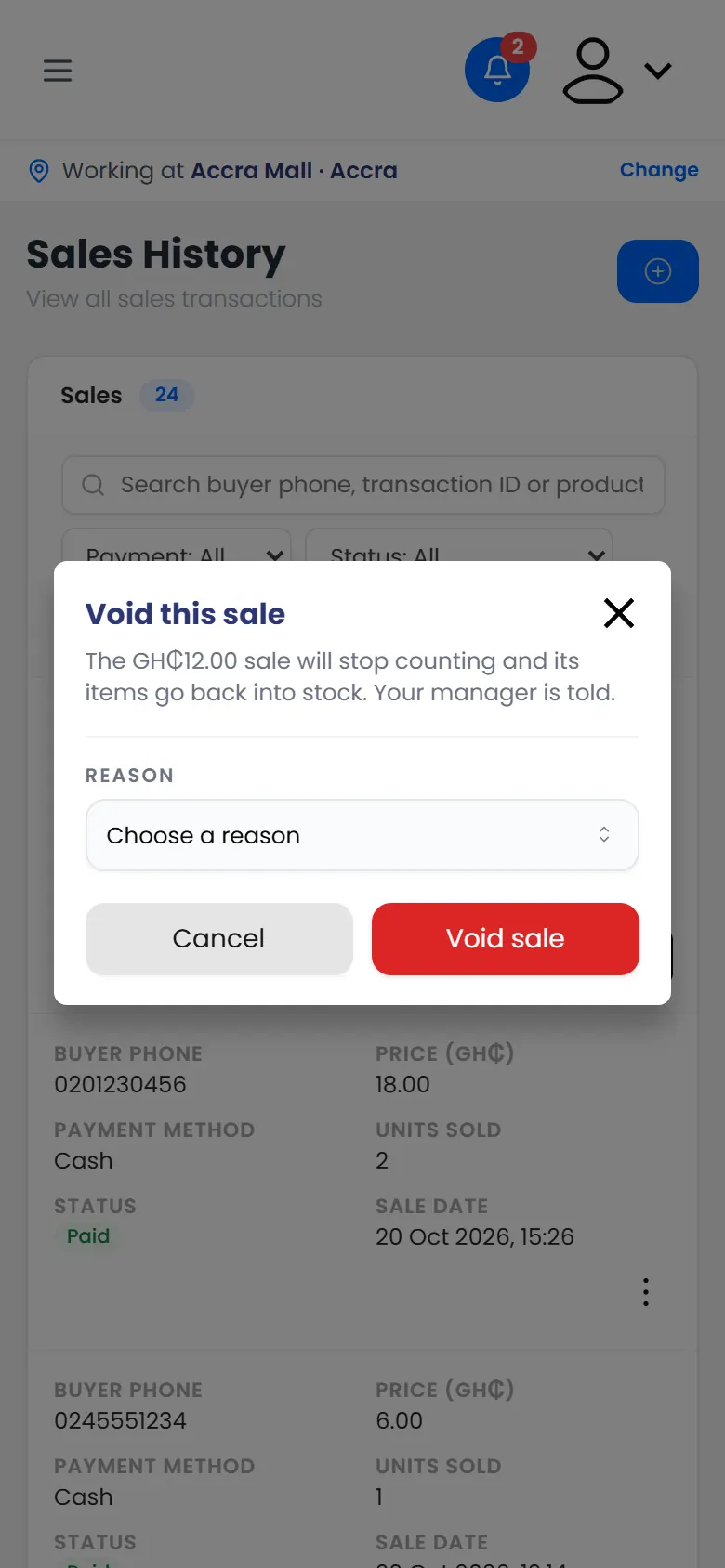
Void a sale that shouldn't count. For example, you entered it twice or the shopper changed their mind. You can void today's sales only.

Steps

  1. Open the menu and tap Sales history.
  2. Tap ⋮ on the sale, then Void sale.
  3. Choose a Reason. You can add a note.

    Void this sale, with a reason
    Void this sale, with a reason
  4. Tap Void sale.

What happens next

You see Sale voided. The sale stays in Sales history but no longer counts, and its items go back into stock.

If the sale was right but had the wrong items, record it again with the right ones. See Record a sale.

13 of 37

Ask for a correction

Something's wrong with a sale from an earlier day? Ask your manager to fix it.

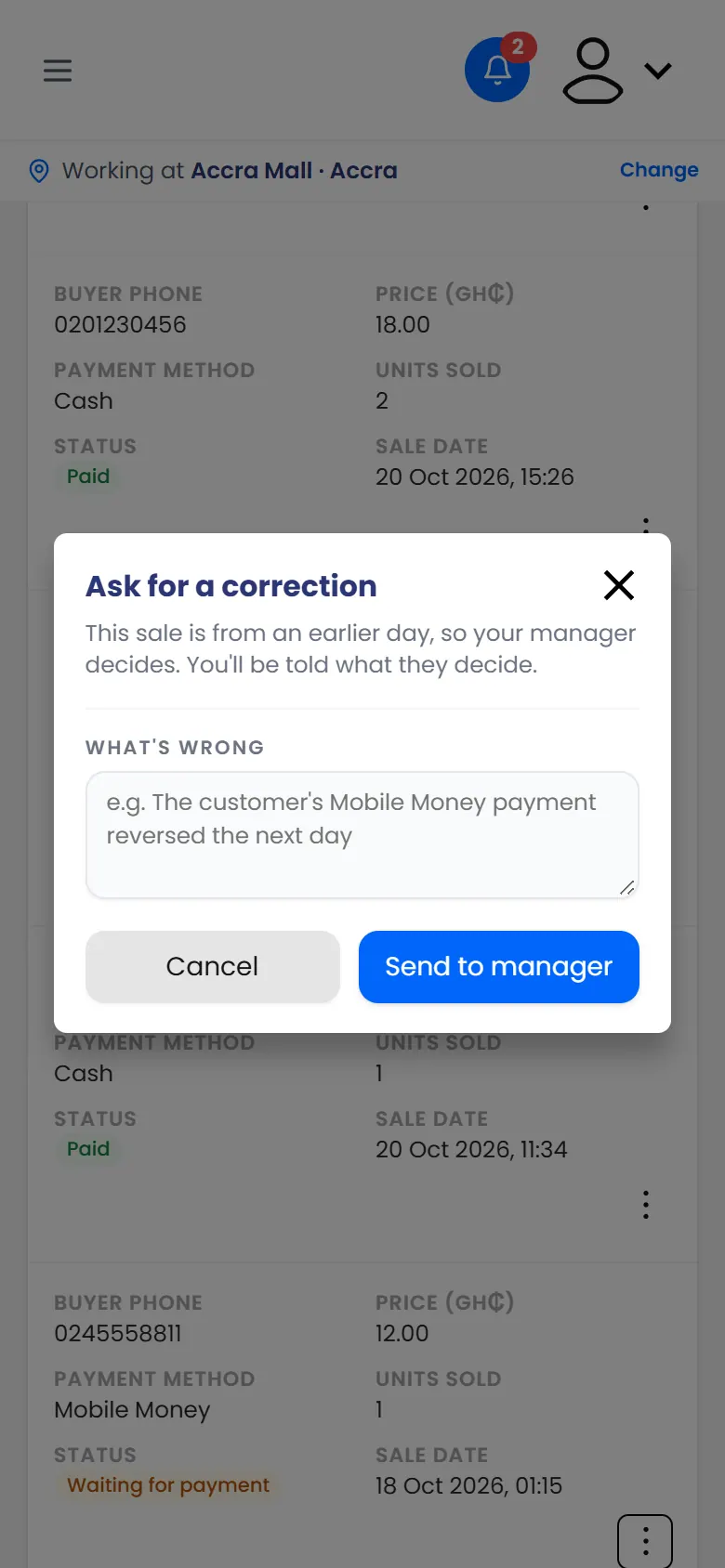
You can only change today's sales yourself. For a sale from an earlier day, ask your manager. They decide, and you're told what they decided.

Steps

  1. Open the menu and tap Sales history.
  2. Tap ⋮ on the sale, then Ask for a correction.
  3. Under What's wrong, say what needs fixing.

    Ask for a correction: say what's wrong with the sale
    Ask for a correction: say what's wrong with the sale
  4. Tap Send to manager.

What happens next

You see Sent to your manager. The sale shows Correction requested until they decide.

When they do, you get a notification, and the sale shows Correction approved or Correction rejected.

14 of 37

Give a product sample

Send the shopper a code by SMS, then type it in to hand over their free sample.

The shopper gets a 6-digit code by SMS. When you type it in, the sample is handed over and counted. The code proves a real person received it.

Each person can get one product sample in each activation.

Steps

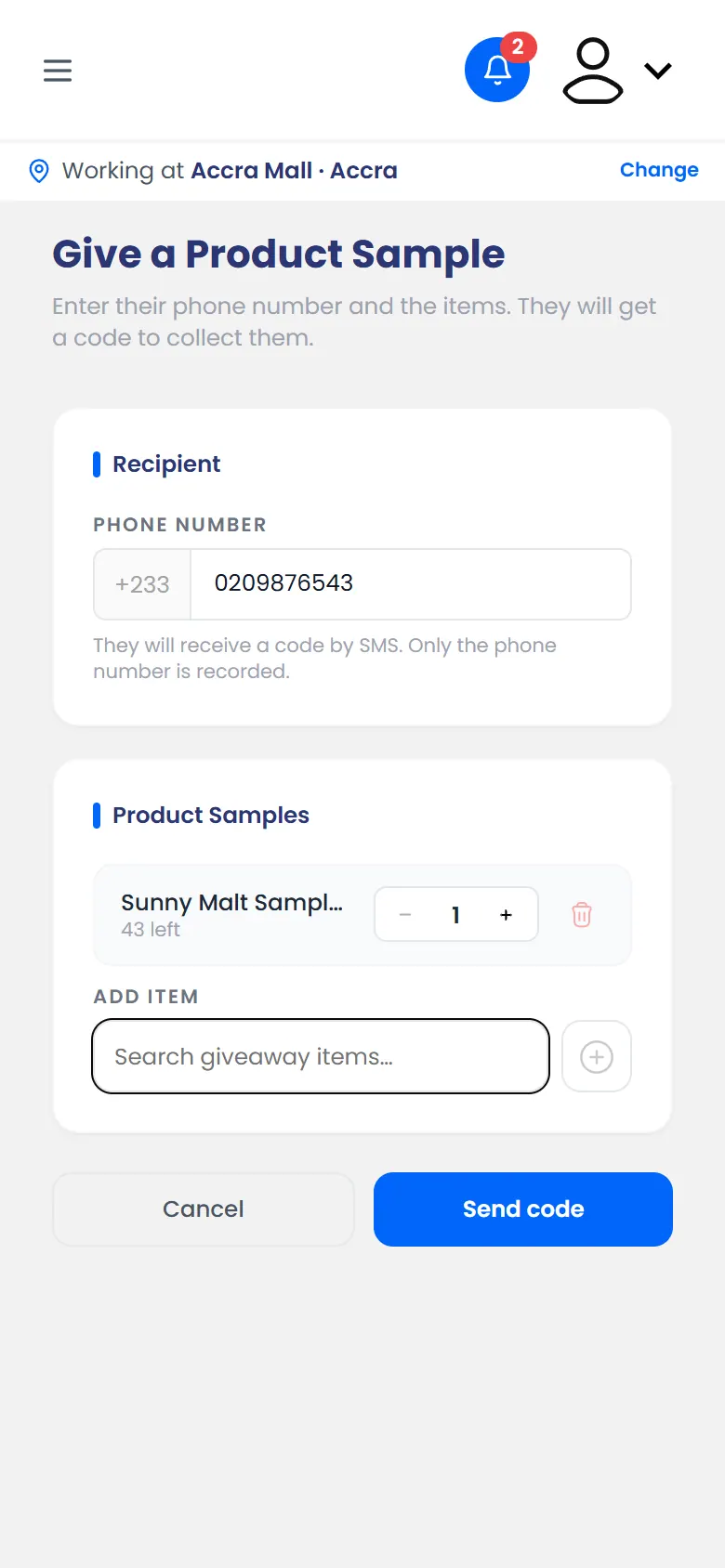
  1. On the Dashboard, tap Give a product sample.
  2. Type the shopper's Phone Number.
  3. Search for the sample, tap it, and set how many with − and +.
  4. Tap Send code.

    Give a product sample: the shopper's phone and the item
    Give a product sample: the shopper's phone and the item
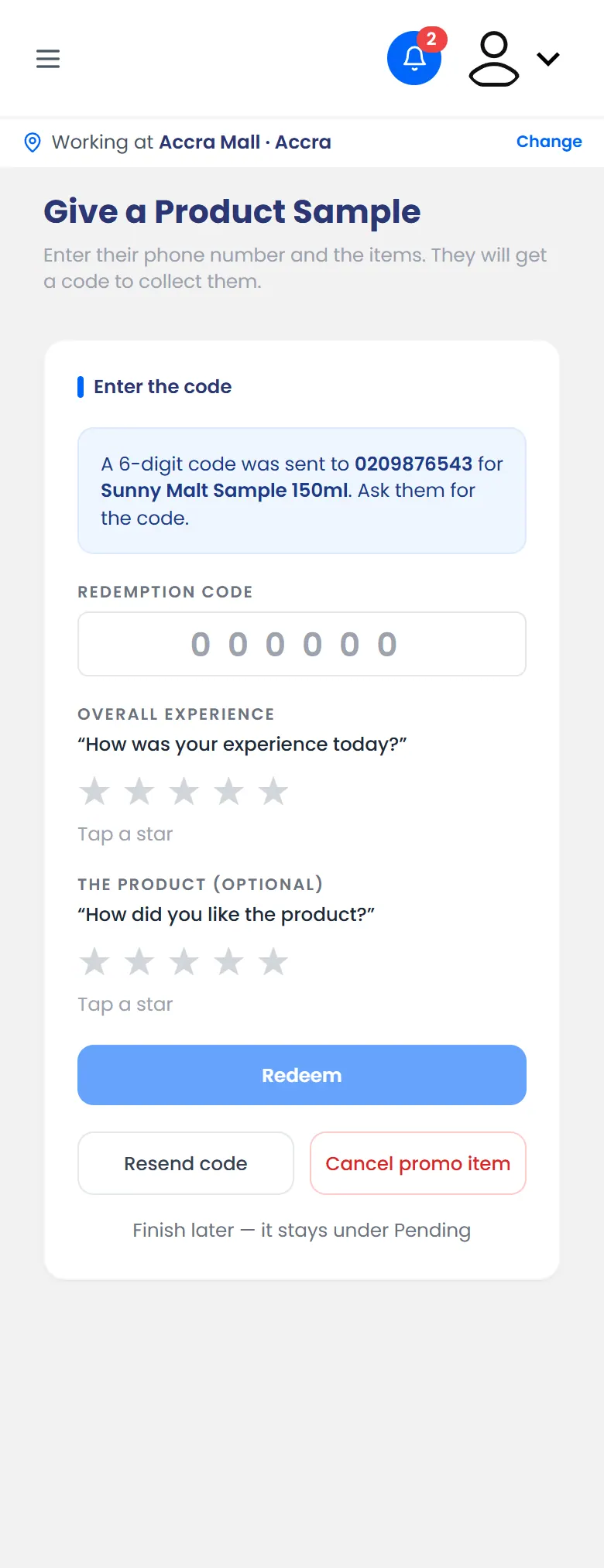
  5. Ask the shopper for the code in their SMS and type it in.
  6. Ask them to tap a star for their Overall experience.
  7. Tap Redeem and hand over the sample.

    Entering the code the shopper received, with their rating
    Entering the code the shopper received, with their rating

Rating the product is optional.

What happens next

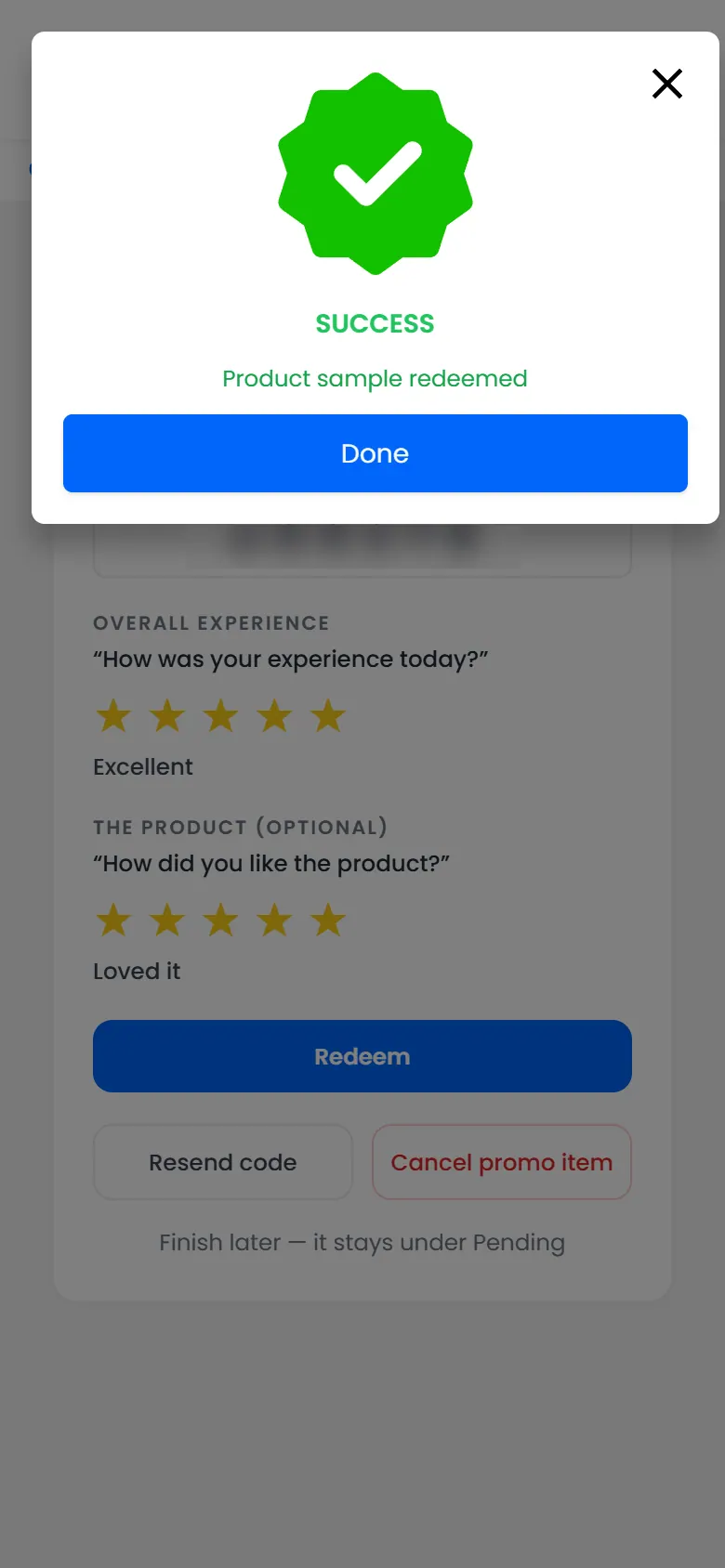
The sample is marked as handed over, and the stock goes down.

Handed over
Handed over

If the shopper needs to come back later

Tap Finish later. The sample stays under Pending in Product Samples. When they come back, open it there and tap Redeem.

Product samples: pending, collected, expired and cancelled

If it doesn't work

15 of 37

Give brand merchandise

Hand out caps, T-shirts and other branded items with a code, the same way as samples.

Brand merchandise works like a product sample. The shopper gets a code by SMS, and you type it in to hand the item over.

Steps

  1. On the Dashboard, tap Give brand merchandise.
  2. Type the shopper's Phone Number.
  3. Search for the item, tap it, and set how many with − and +.
  4. Tap Send code.

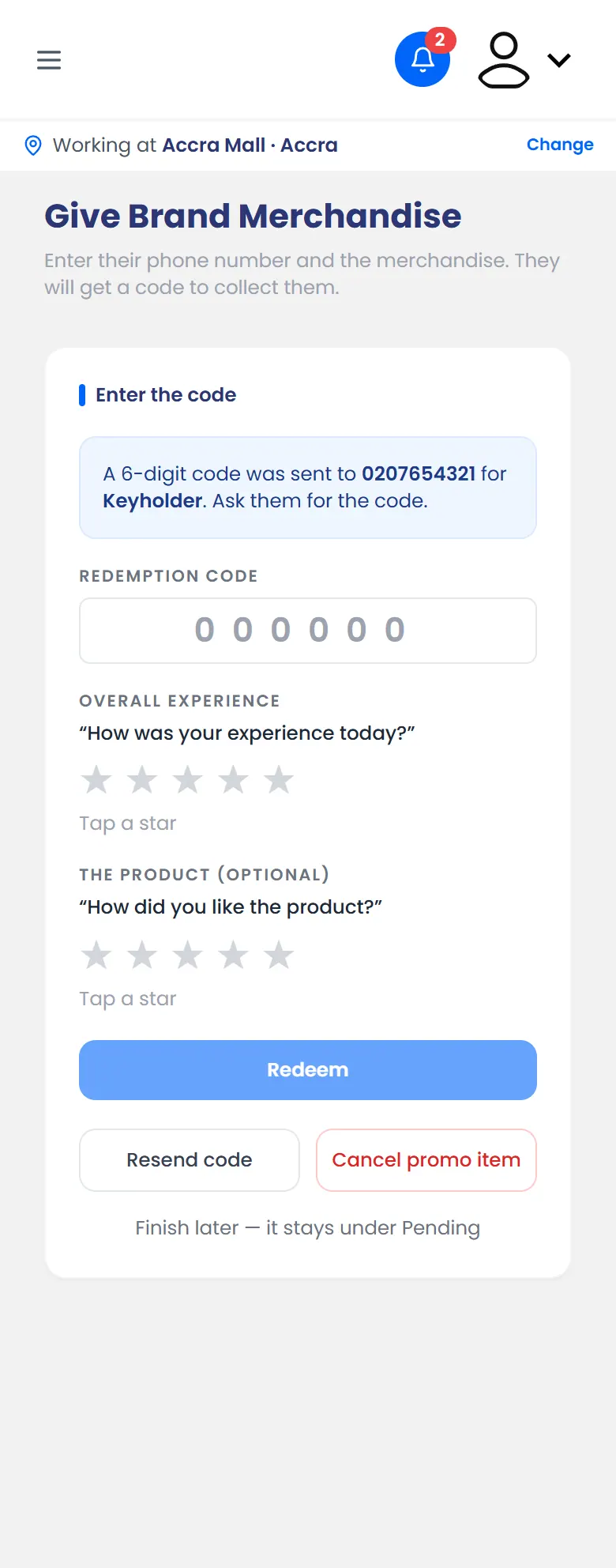
    Brand merchandise: the code has been sent
    Brand merchandise: the code has been sent
  5. Type the code from the shopper's SMS.
  6. Ask them to tap a star for their Overall experience.
  7. Tap Redeem and hand over the item.

What happens next

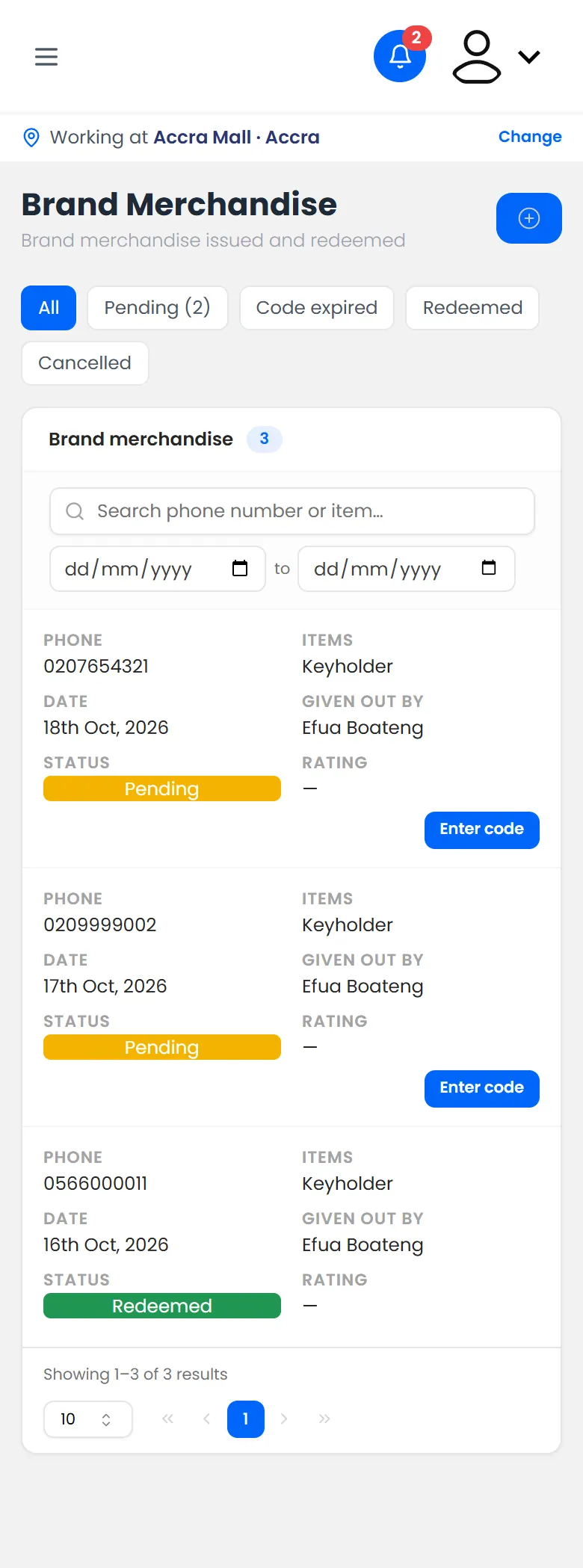
The item is marked as handed over, and the stock goes down. To see everything you've given, open Brand Merchandise from the menu.

Brand merchandise given out

If it doesn't work

16 of 37

Resend a code, or cancel a promo item

Send the shopper a new code, or cancel a promo item they won't collect.

Send a new code

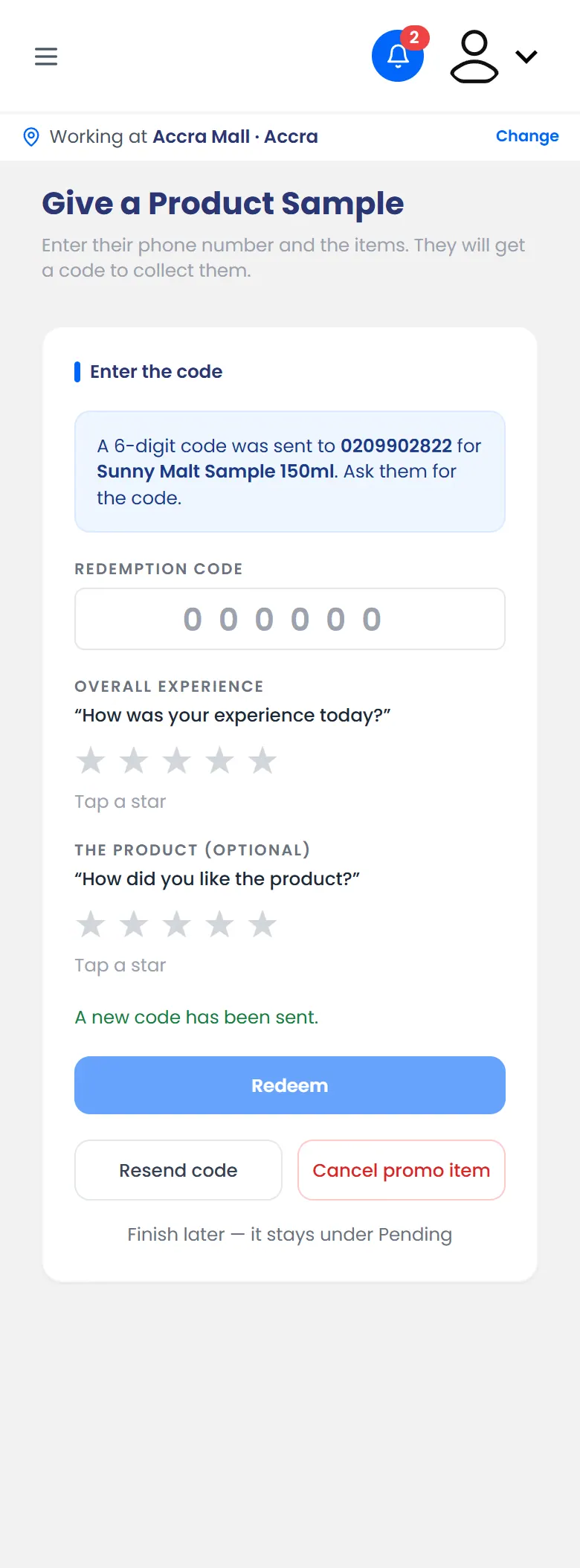
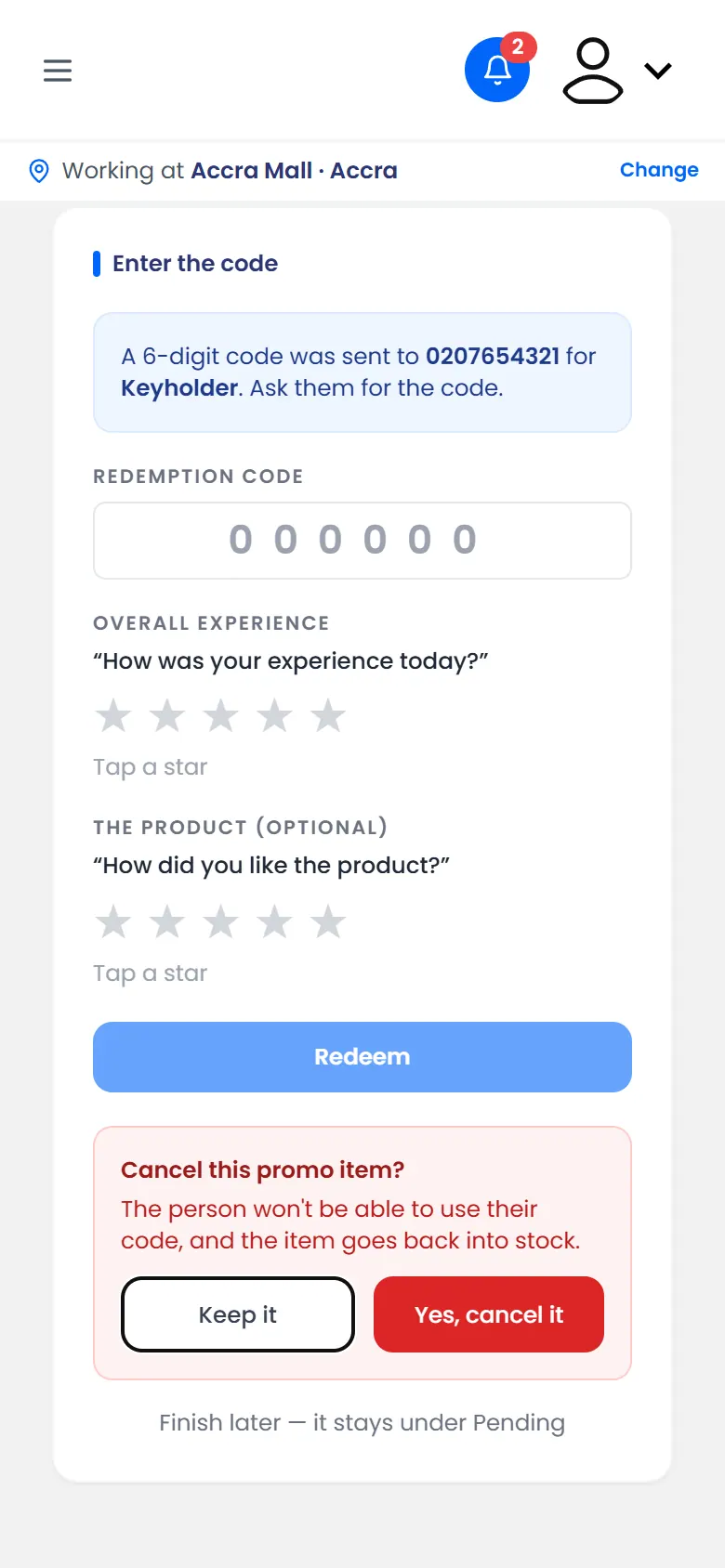
If the shopper didn't get the SMS, or their code has expired, tap Resend code on the code step. A new code goes to the same number, and the old one stops working.

A new code has been sent

Cancel a promo item

Cancel it if the shopper leaves without collecting it, or you chose the wrong item.

  1. On the code step, tap Cancel promo item.
  2. When Cancel this promo item? appears, confirm.

    Cancel this promo item? The item goes back into stock
    Cancel this promo item? The item goes back into stock

The shopper's code stops working, and the item goes back into stock.

17 of 37

Set up a game screen

Turn a tablet, TV, kiosk or laptop at your stand into a game screen for shoppers.

A game screen is the device at your stand that shoppers play on: a tablet, TV, kiosk or laptop. You set it up once, at the start of the day, with a code from your phone.

Before you start: the device needs a web browser and an internet connection.

Steps

  1. On your phone, open the menu and tap Play games.
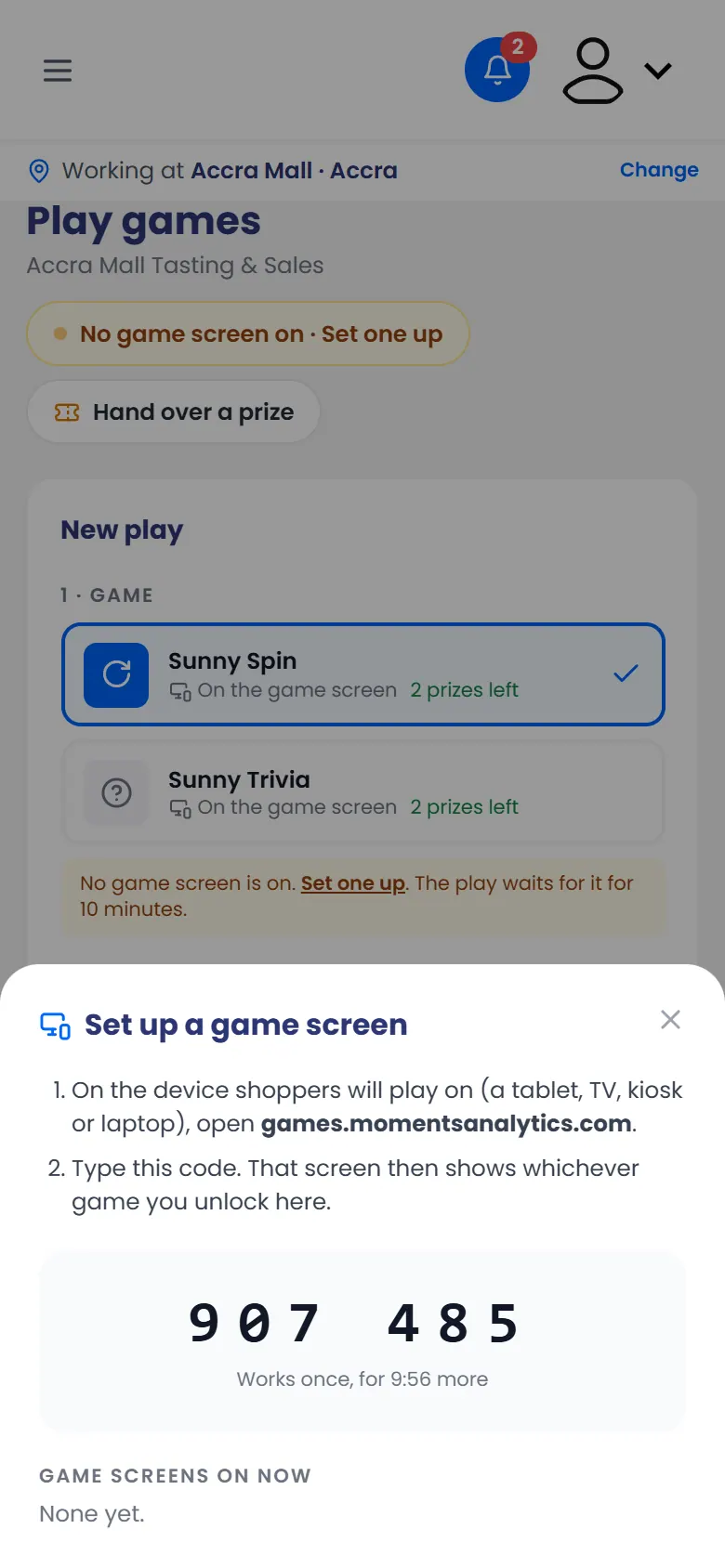
  2. Tap Set one up. A 6-digit code appears. It works once, for 10 minutes.

    Set up a game screen: the 6-digit code
    Set up a game screen: the 6-digit code
  3. On the device, open games.momentsanalytics.com.
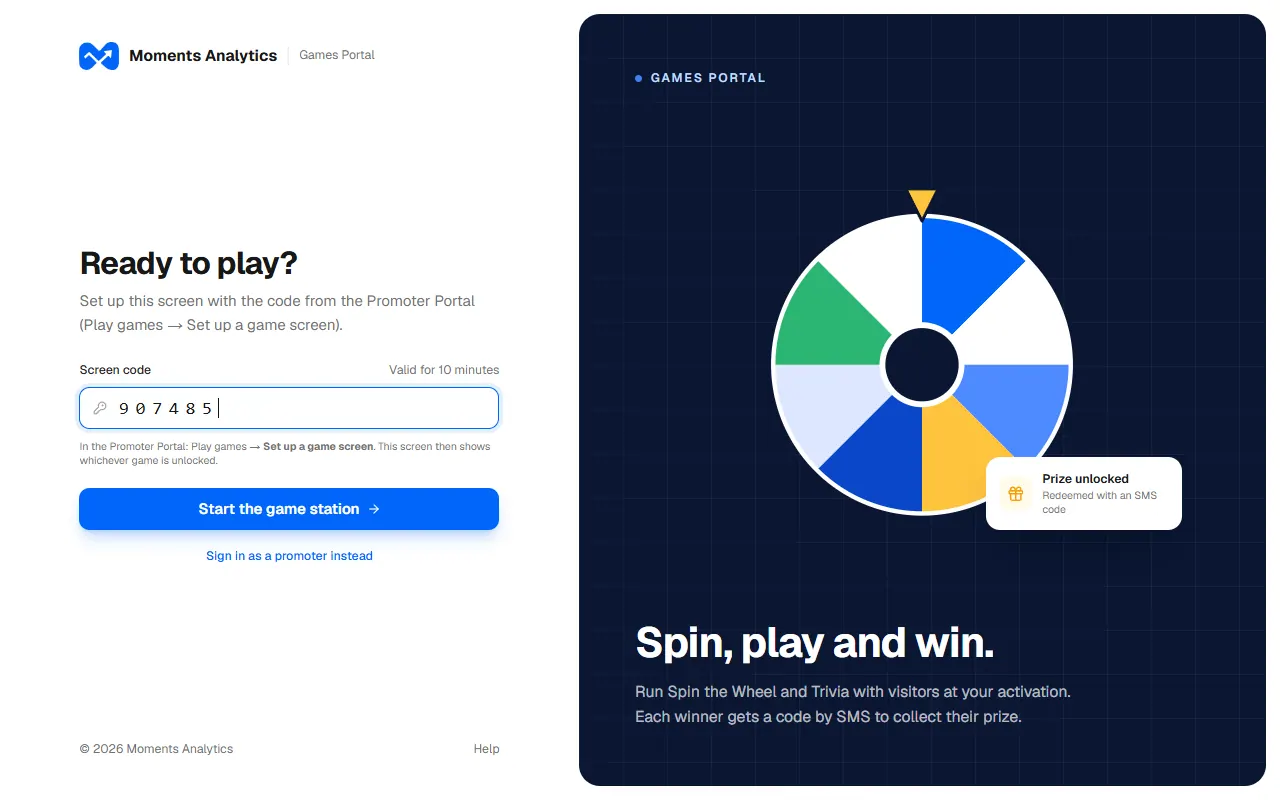
  4. Type the code under Screen code, then tap Start the game station.

    The game screen's sign-in, with the screen code typed in
    The game screen's sign-in, with the screen code typed in

What happens next

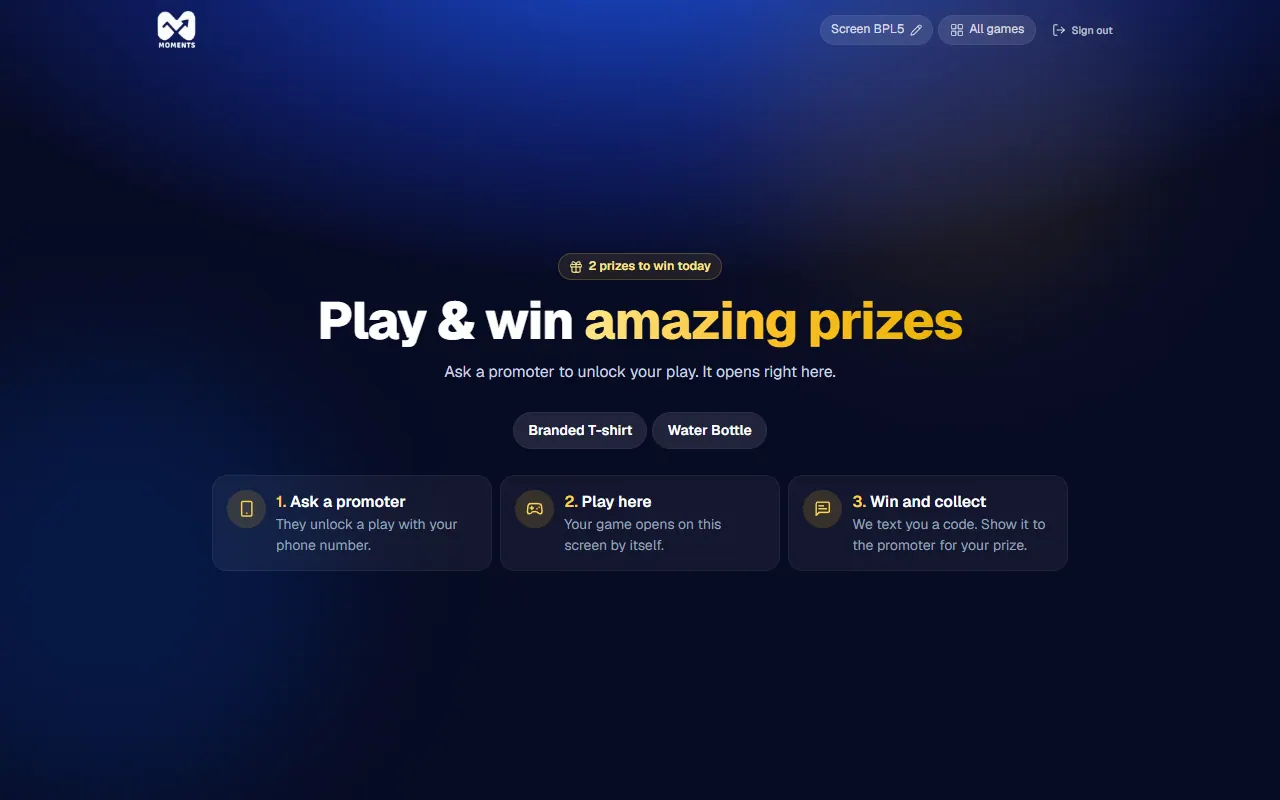
The device shows the game station, waiting for a play. On your phone, Play games shows the screen as on.

The game station, waiting: shoppers ask a promoter to unlock their play

Name the screen

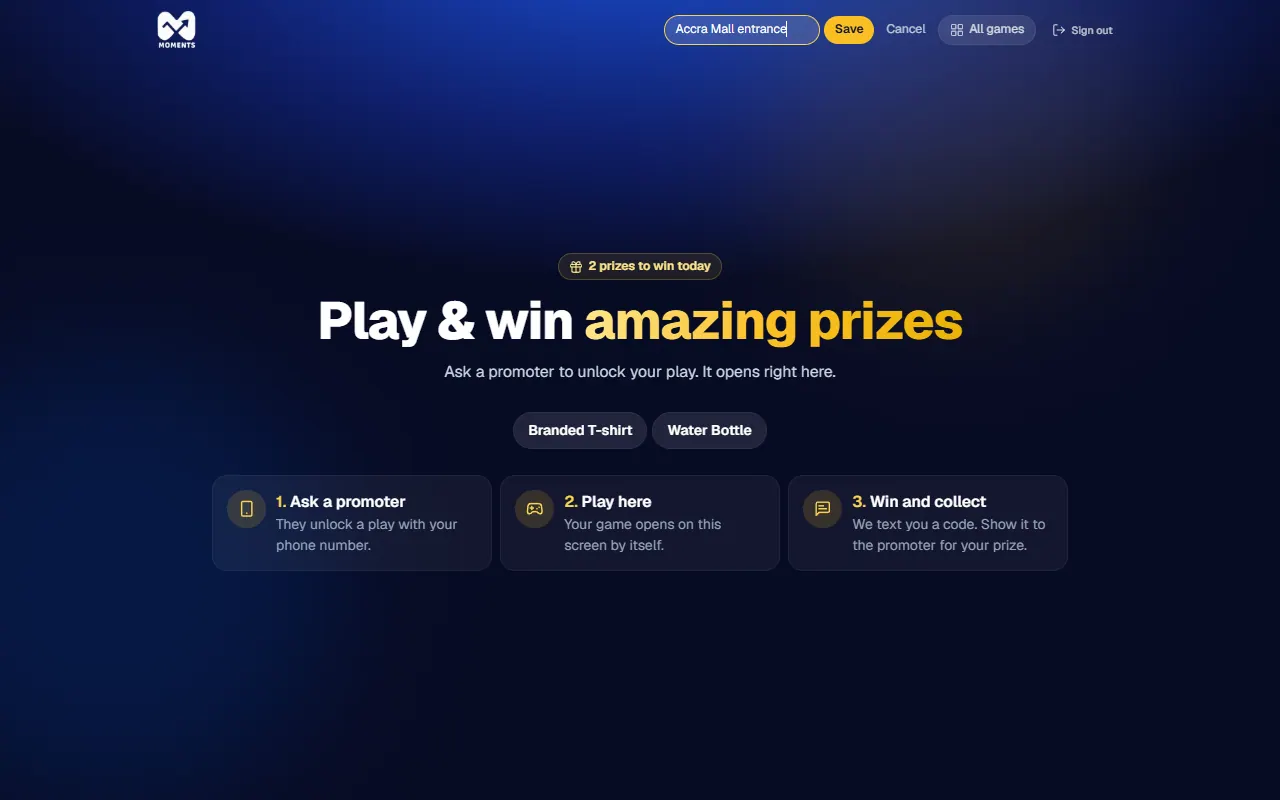
If your stand has more than one screen, give each one a name so you can tell them apart. On the game screen, tap its name at the top, type a new one, and tap Save.

Naming the screen
Naming the screen

Sign the screen out

At the end of the day, tap Sign out on the game screen, then tap it again. It takes two taps so a shopper can't sign it out by accident.

Another way: sign in as a promoter

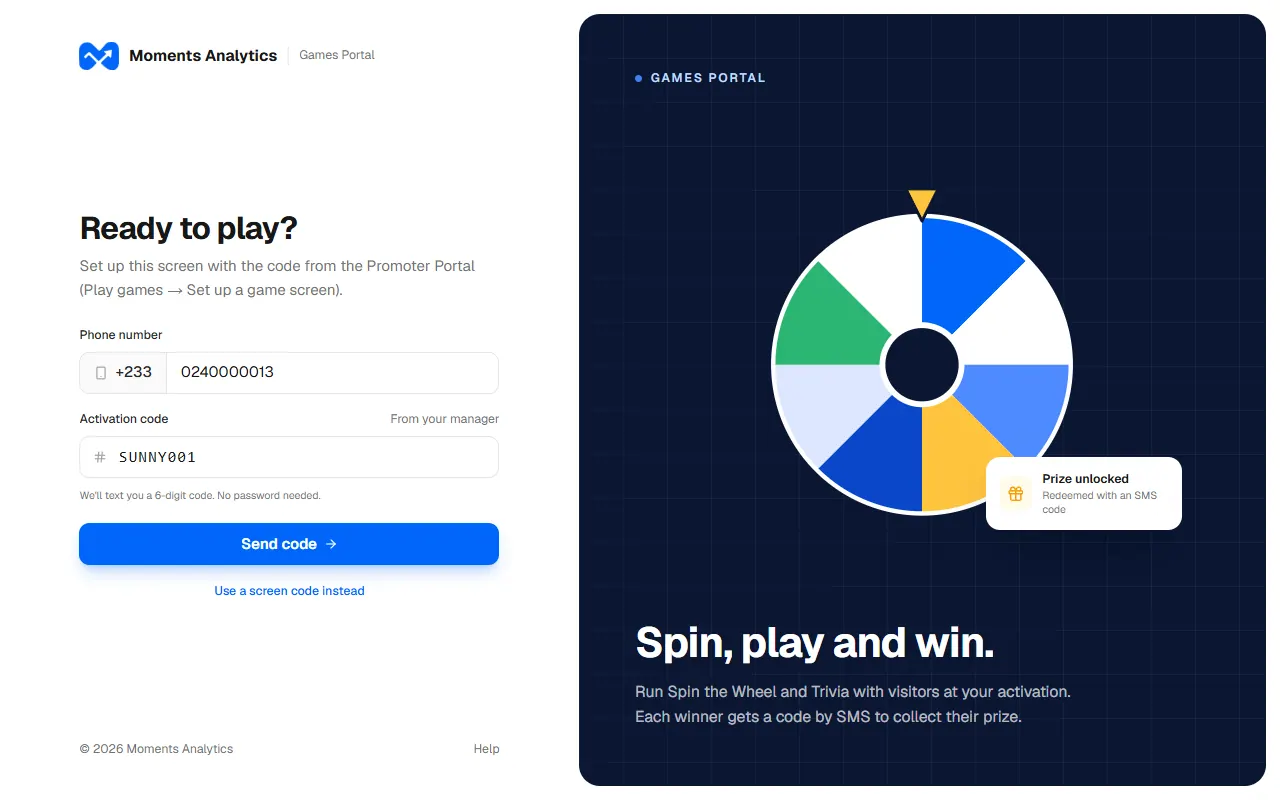
If you can't get a screen code, tap Sign in as a promoter instead on the game screen. Type your phone number and the Activation code from your manager, then the code sent to you by SMS.

Signing the screen in as a promoter: phone number and activation code

If it doesn't work

  • "That code didn't work": the code was already used, or more than 10 minutes have passed. Tap Set one up again for a new code.
  • "Games aren't on right now"

18 of 37

Unlock a game

Let a shopper play a game on the game screen at your stand.

Every play is unlocked by a promoter, for one shopper's phone number.

Your manager decides where each game is played. You see it under the game's name:

It saysThe shopper playsSee
On the game screenOn the screen at your standThis page
On their own deviceOn their phone, from an SMS linkSend a game to a shopper's phone
Tap a boxBy tapping a physical Mystery BoxUnlock a Mystery Box

Before you start: set up a game screen. If none is on, the play waits 10 minutes for one.

Steps

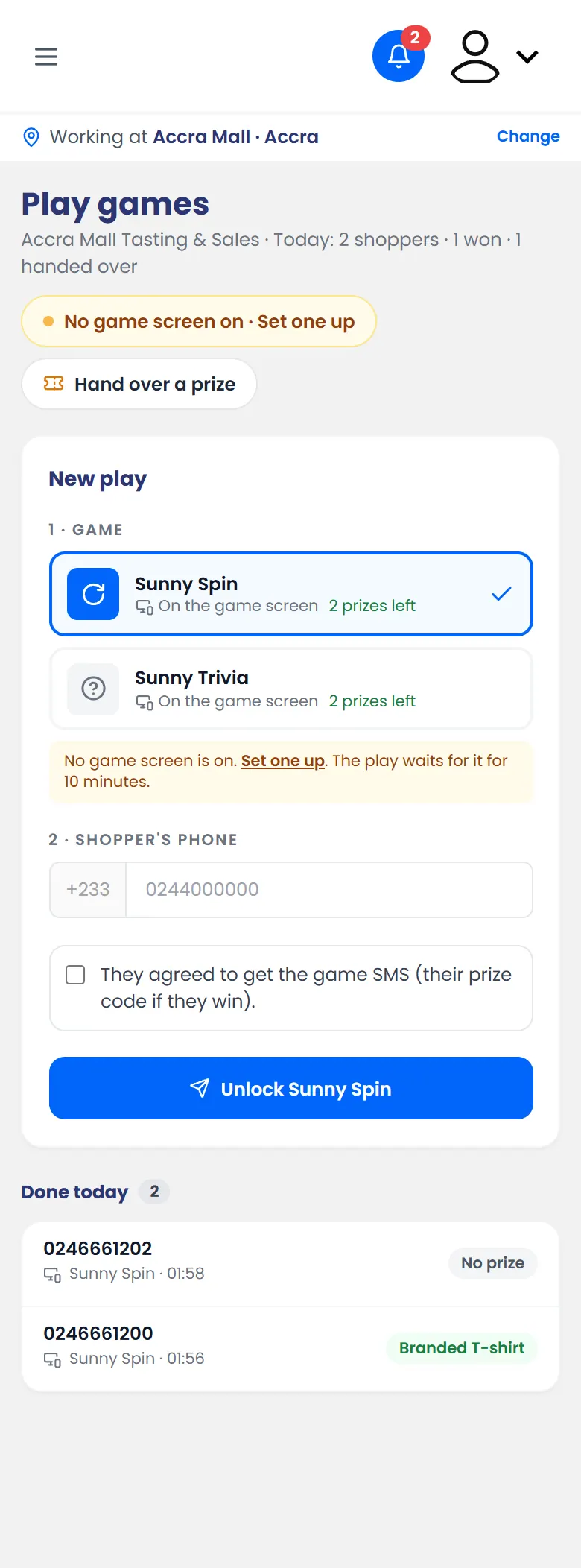
  1. Open the menu and tap Play games.
  2. Under 1 · Game, tap a game marked On the game screen. If your stand has more than one screen, choose one under Play on, or leave it on Any screen.
  3. Under 2 · Shopper's phone, type their number.
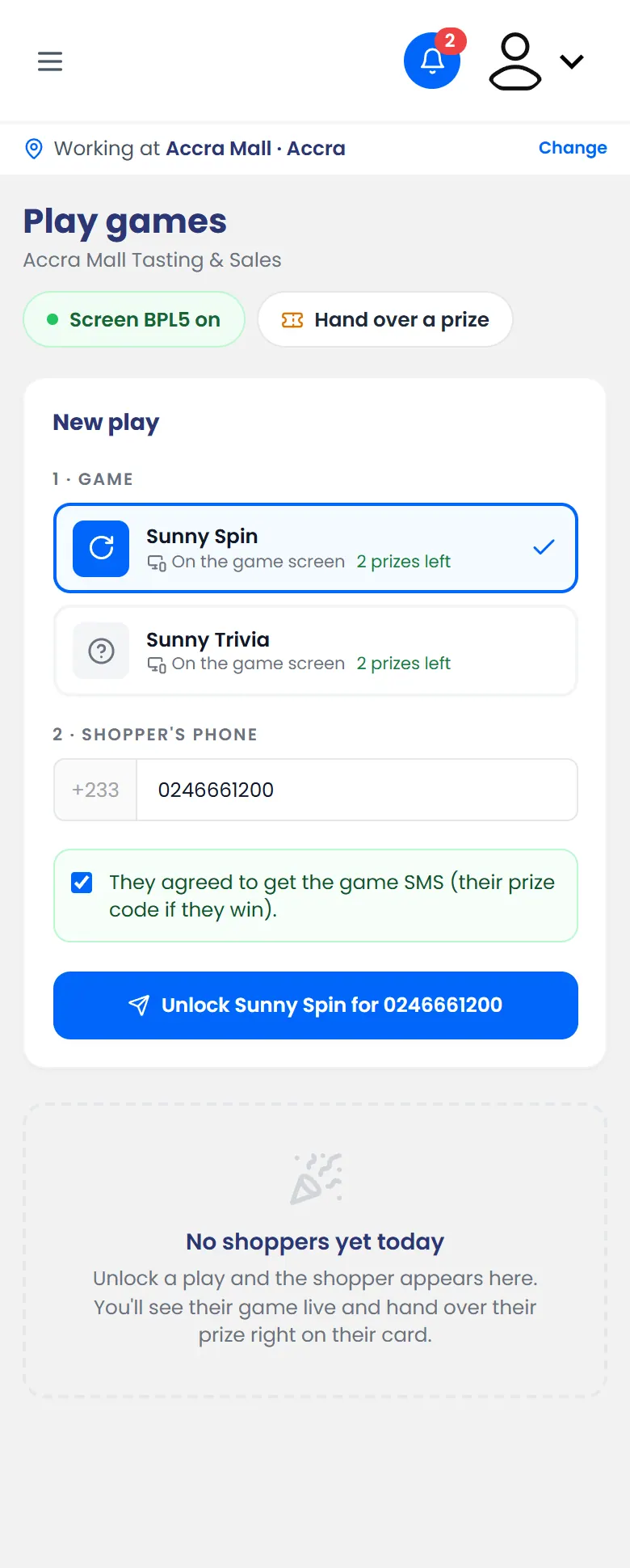
  4. Ask whether they agree to get the game SMS. It carries their prize code if they win. If they agree, tick the box.
  5. Tap Unlock. The button shows the game's name and their number.

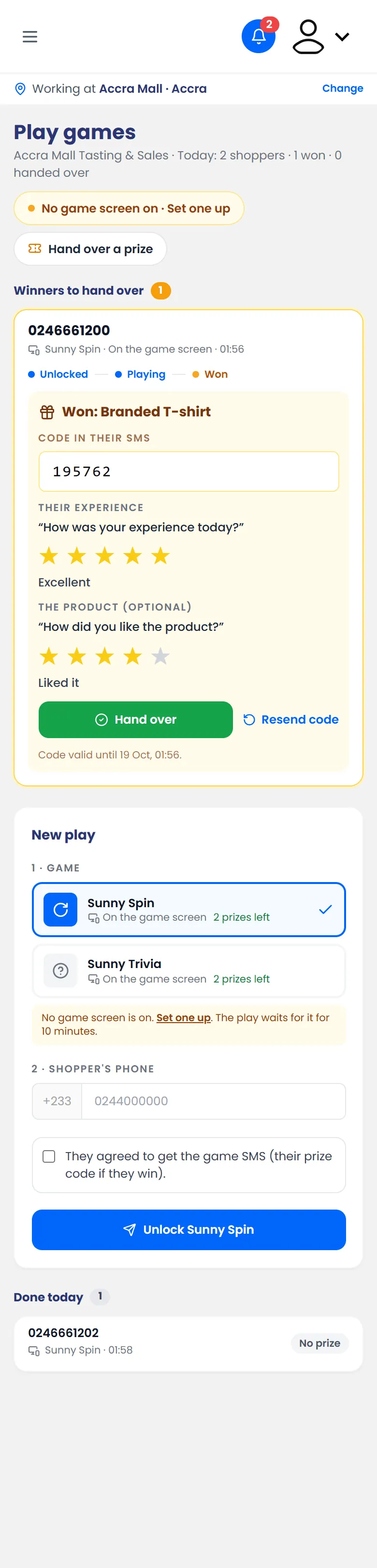
    Sunny Spin for 0246661200, who agreed to get the game SMS
    Sunny Spin for 0246661200, who agreed to get the game SMS

What happens next

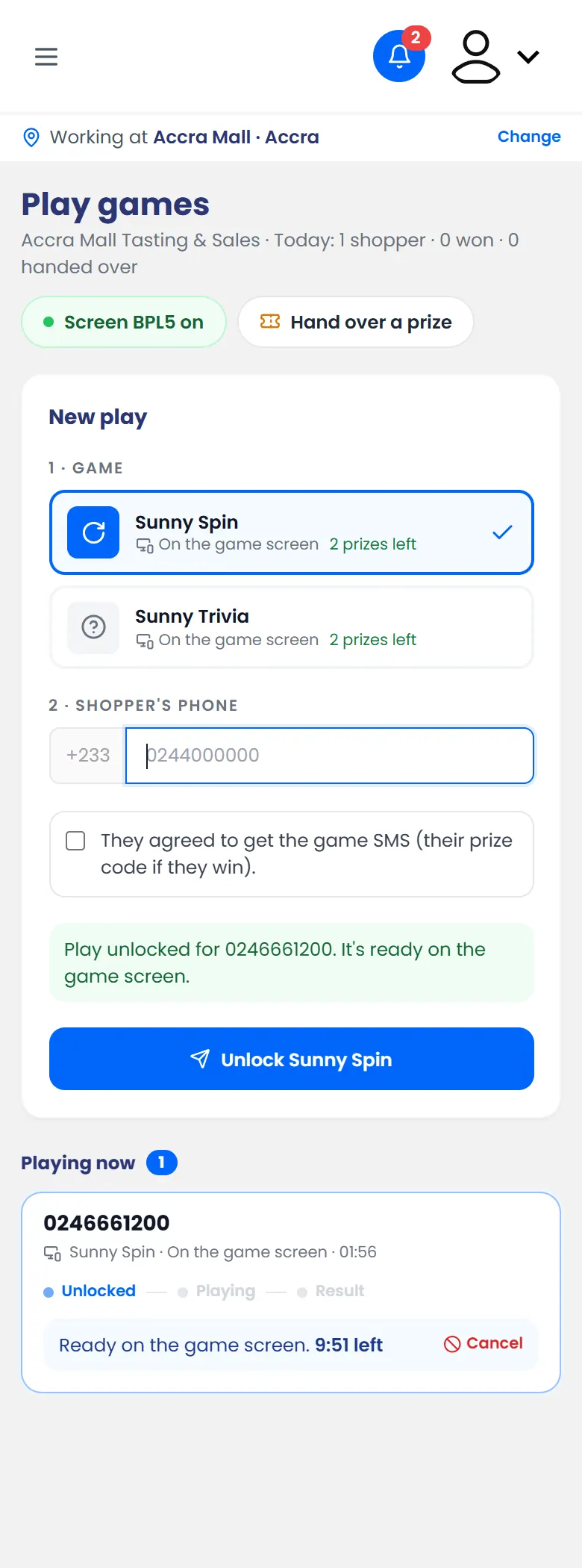
The shopper's card appears on your phone, and the game screen shows Ready to play for them. Their number is partly hidden on the screen.

Unlocked: the shopper's card shows it's ready on the game screen

You can follow the game live on their card:

  • A winner moves to Winners to hand over. See Hand over a prize.
  • No prize: the shopper moves to Done today.
  • Not played in time: unlock a new play if they still want one.
A shopper who didn't win moves to Done today

If it doesn't work

19 of 37

Send a game to a shopper's phone

Send the shopper a link by SMS so they can play on their own phone.

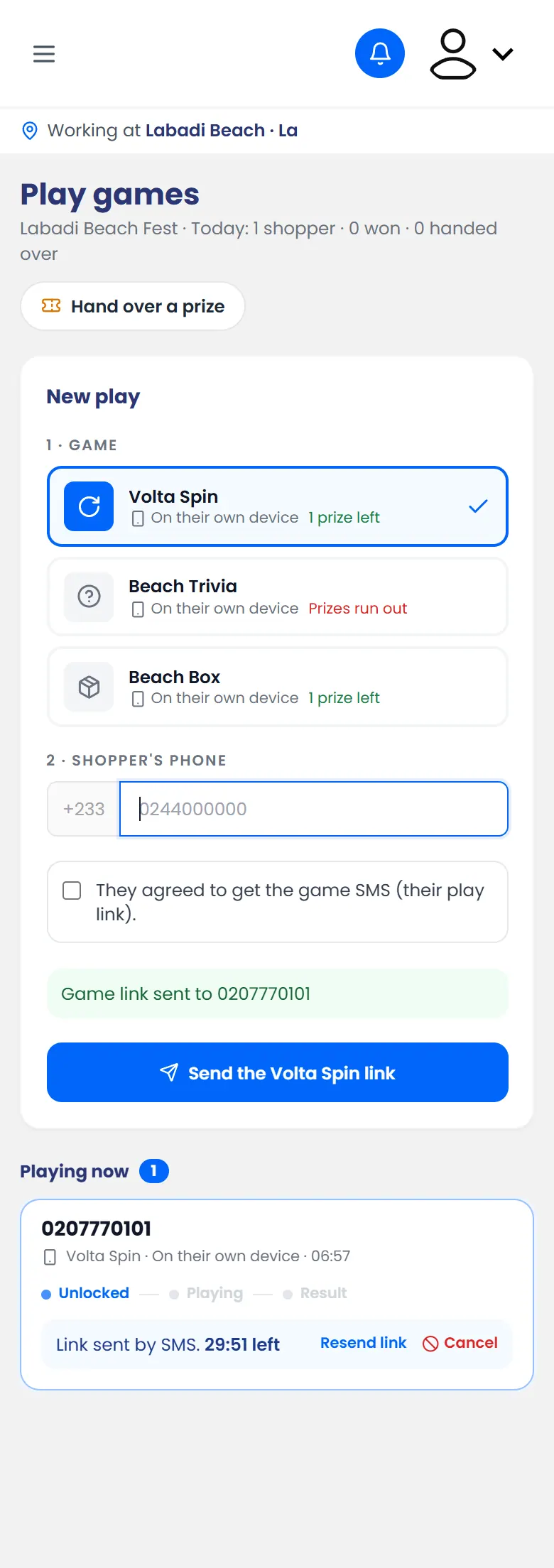
Some games are played on the shopper's own phone. They get a link by SMS. These games say On their own device under their name. Your manager decides which games work this way.

Steps

  1. Open the menu and tap Play games.
  2. Tap a game marked On their own device.
  3. Type the shopper's phone number and tick that they agreed to the game SMS.
  4. Tap Send the … link. The button shows the game's name.

What happens next

The shopper gets an SMS with a link. Their card shows Waiting for them to open the link until they do. Then you can follow their game live.

The link is sent by SMS, and their card waits for them to open it

On their phone, the shopper sees the game and plays. If they win, their prize code and its QR code appear on their screen.

The shopper's phone: playing for their number

If they didn't get the SMS

Tap Resend link on their card. You can resend it twice. After that, cancel it and unlock a new play.

20 of 37

Unlock a Mystery Box

Let a shopper open one of the physical Mystery Boxes at your stand with their phone.

If your stand has physical Mystery Boxes, the shopper opens one by tapping it with their phone (or scanning the QR code beside it).

Steps

  1. Open the menu and tap Play games.
  2. Tap the game marked Tap a box. The box numbers are listed under it.
  3. Type the shopper's phone number and tick that they agreed to the game SMS.
  4. Tap Unlock. The button shows the game's name and their number.
  5. Tell the shopper to tap any box with their phone, then type the last 4 digits of their number.

    A Mystery Box unlocked: the shopper taps any box and enters the last 4 digits of their number
    A Mystery Box unlocked: the shopper taps any box and enters the last 4 digits of their number

What happens next

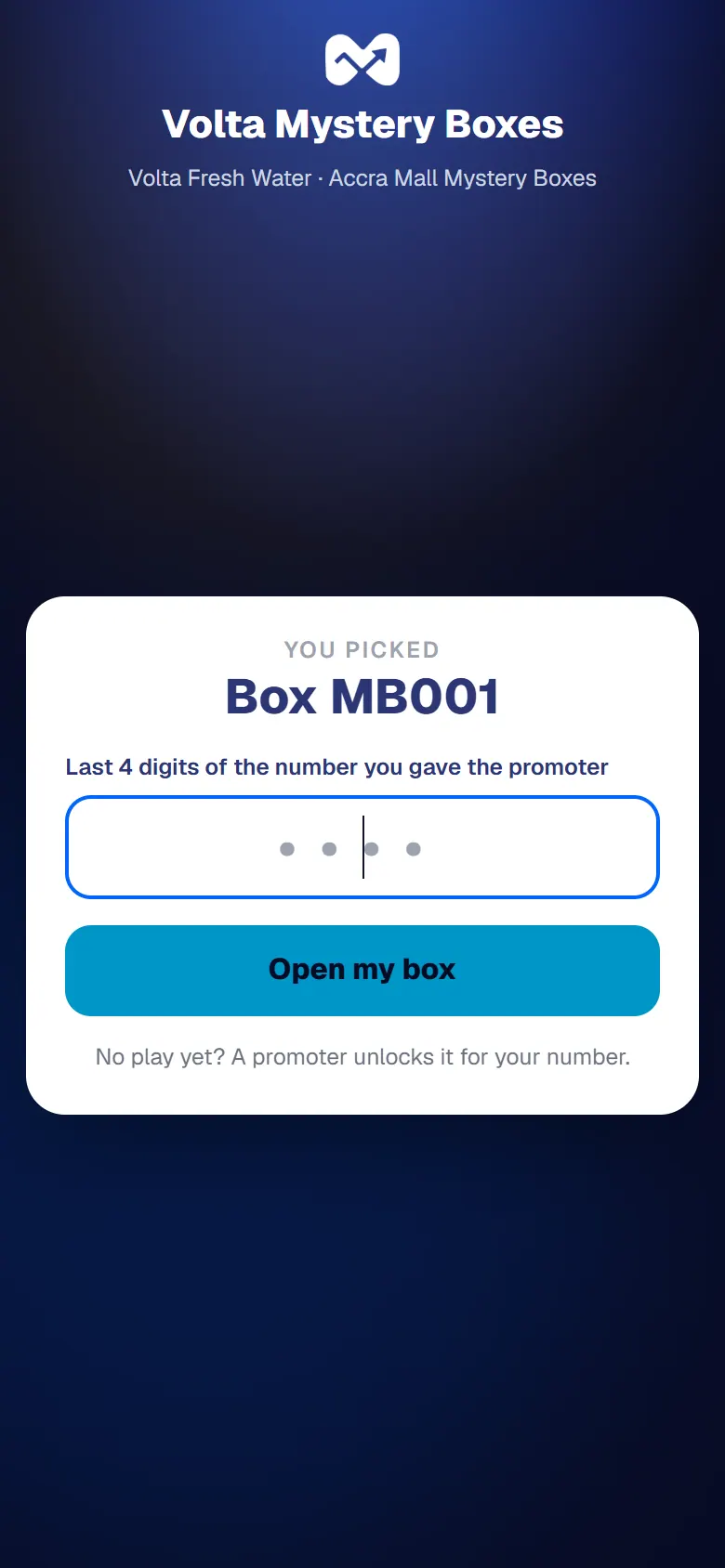
On their phone, the shopper confirms with the last 4 digits of their number and opens the box. It holds a prize or is empty.

The shopper confirms with the last 4 digits of their number

If they win, hand over their prize.

If it doesn't work

  • The shopper's phone says no play is unlocked: check that you typed their number correctly, then unlock again.
  • The phone doesn't react to the tap: NFC may be off, or not on their phone. They can scan the QR code beside the box instead.

21 of 37

Hand over a prize

Check the winner's prize code, then hand over their prize.

Every winner gets a prize code, by SMS and on screen. You check the code before you hand over the prize. That way each prize goes to the right person, once.

On the winner's card

Use this when the winner's card is on your phone, under Winners to hand over.

  1. Ask the winner for their code, and type it in:

    • under Code in their SMS: the 6-digit code from their SMS;
    • or under Code on their screen: the 8-character code on their phone, if they played on it.
  2. Ask them to tap a star for how their experience was.
  3. Tap Hand over, and give them the prize.

    The code from the winner's SMS typed in, with their rating
    The code from the winner's SMS typed in, with their rating

The shopper moves to Done today, with the prize they collected.

Handed over: the shopper moves to Done today

For a winner who isn't on your card list

For example, another promoter unlocked their game, or they won on their own phone.

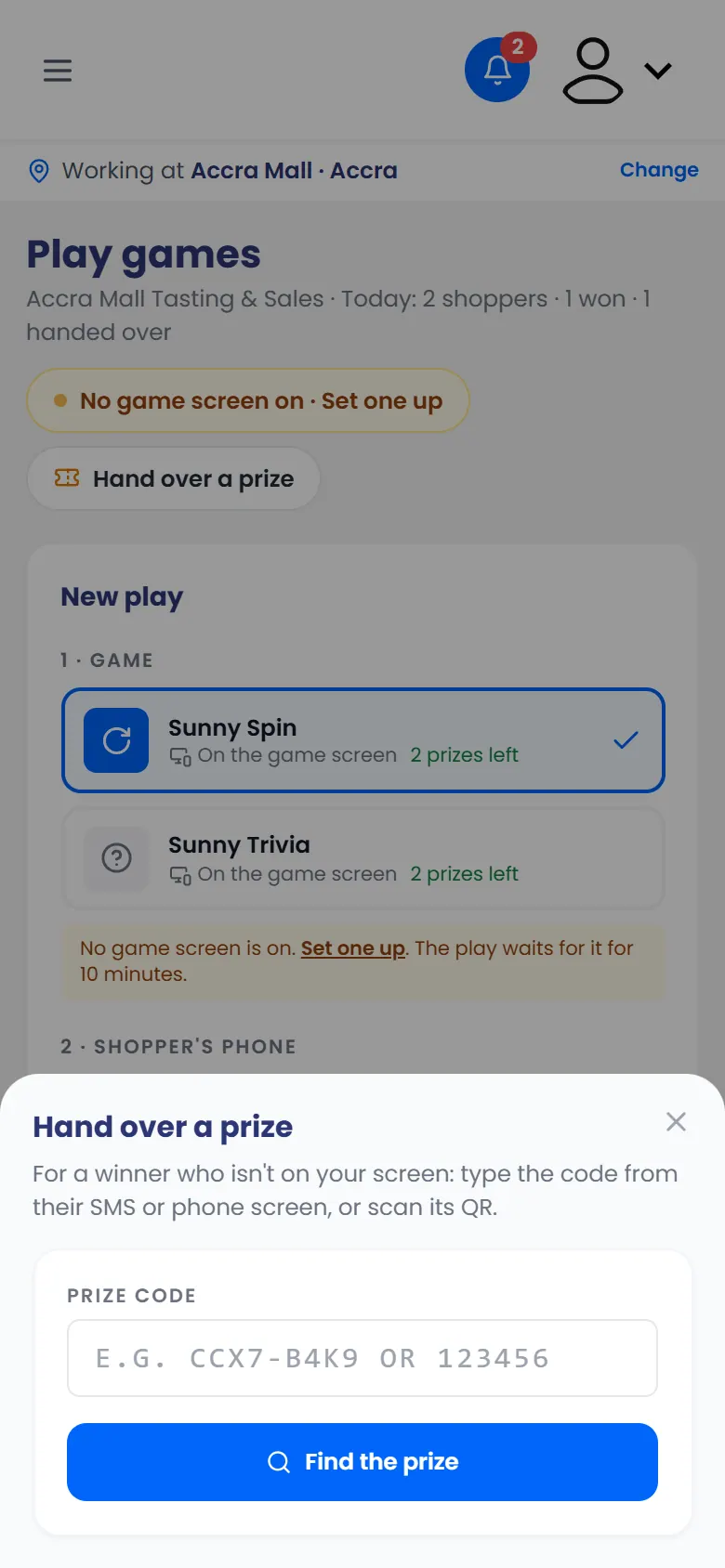
  1. On Play games, tap Hand over a prize.
  2. Tap Scan the QR code and point your camera at the QR on their screen. Or type the code under Or type the code and tap Find the prize.

    Hand over a prize: type the code, or scan its QR
    Hand over a prize: type the code, or scan its QR
  3. If the code matches more than one winner, tap the winner's phone number.
  4. Check that the prize shown under Valid is right, ask for their rating, and tap Hand over.

See every prize won

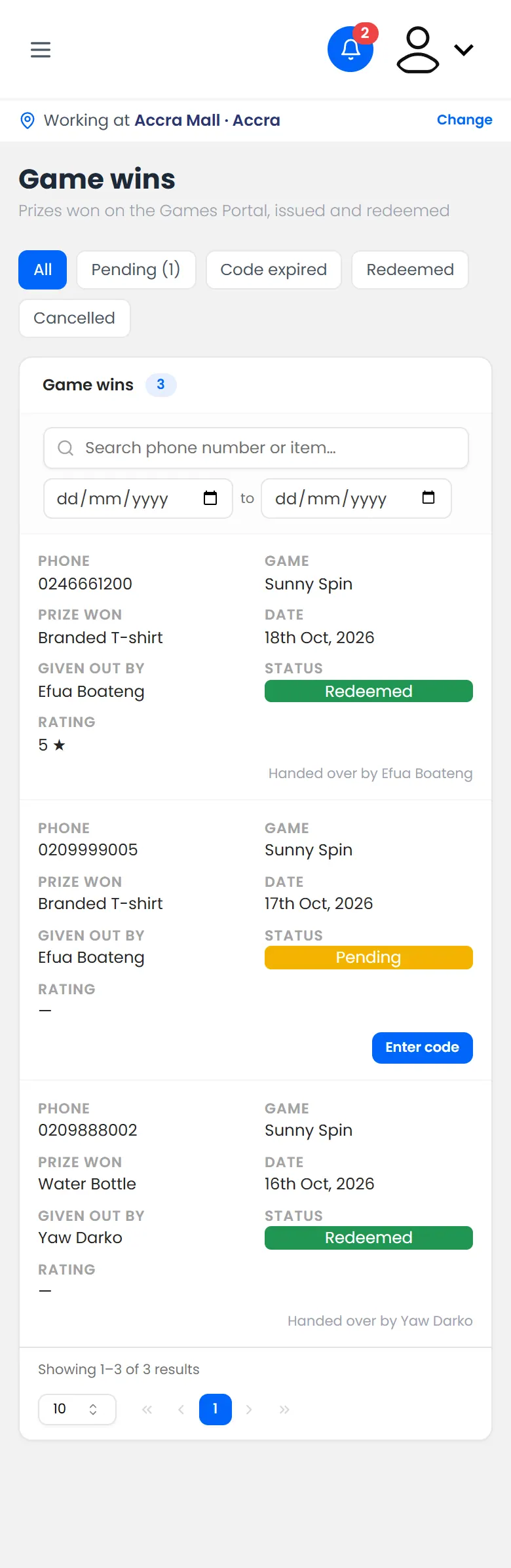
Open Game wins from the menu. It lists every prize won in the activation, and whether it's been handed over.

Game wins: every prize won, and whether it was handed over

If it doesn't work

  • "That code wasn't found"
  • The winner lost their SMS: tap Resend code on their card.
  • The camera won't open: allow camera access in your browser, or type the code instead.

22 of 37

A button is greyed out

Why you can't record a sale, give a promo item or play games right now.

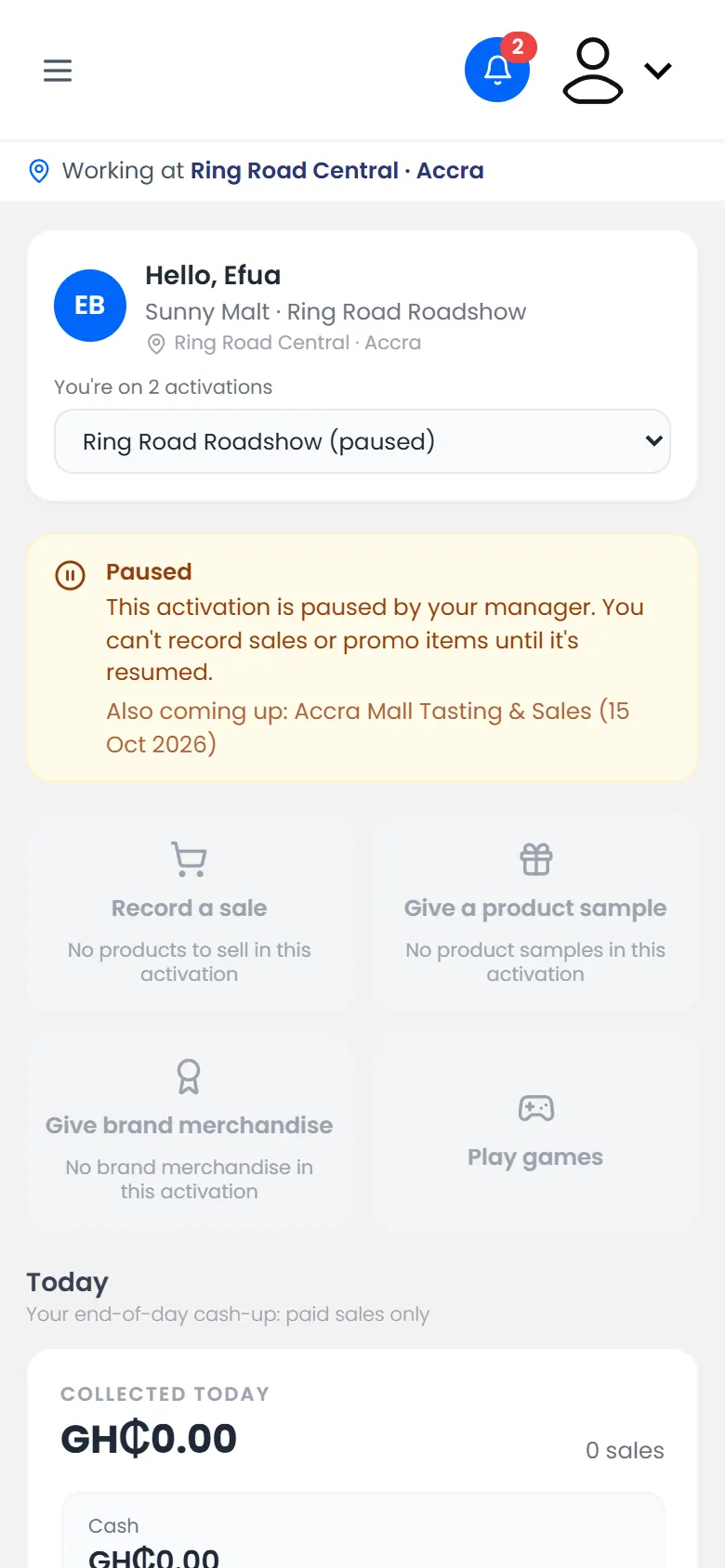
A button on the Dashboard is greyed out when you can't use it right now. The reason shows on the button, or in a box at the top of the page.

A paused activation: the actions are greyed out
What you seeWhyWhat to do
Not launched yetYour manager hasn't launched the activationWait for your manager to launch it
Not started yetThe activation starts on a later dateCome back on the start date
PausedYour manager has paused the activationAsk your manager when it will resume
Ended or CancelledThe activation is overNothing to record. Ask your manager if this is wrong
Paused: subscription expiredYour organisation's subscription needs renewingSee Subscription expired
No activationYou haven't been added to an activationAsk your manager to add you
No products to sell in this activationNo products have been addedAsk your manager
None leftThat item is out of stockAsk your manager to restock

23 of 37

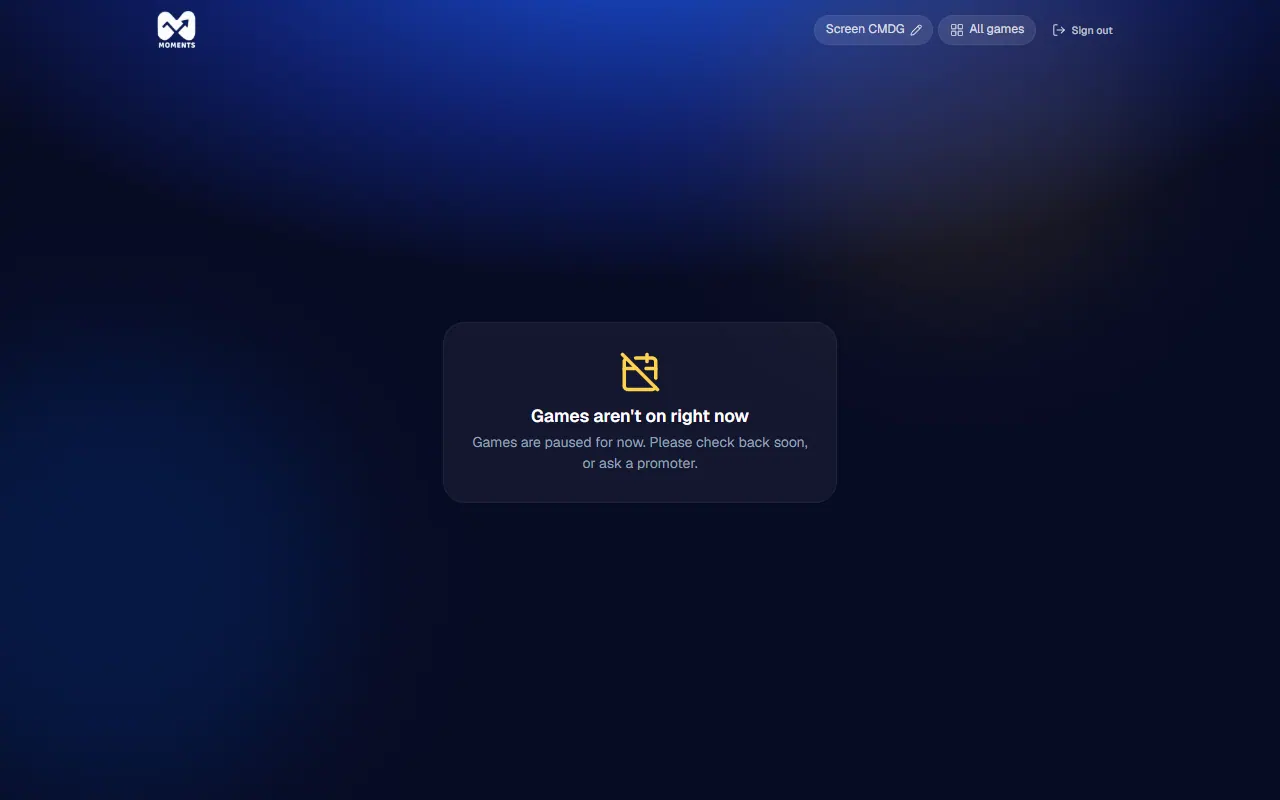
"Games aren't on right now"

The game screen can't show games because the activation is paused, ended or not started.

The game screen shows this when games can't be played. The line under it says why, in words for shoppers.

Games aren't on right now: games are paused for now
The screen saysWhyWhat to do
Games are paused for nowYour manager paused the activationAsk your manager when it resumes
Games haven't started yetThe activation hasn't startedWait for the start date
This activation has endedThe activation is overSign the screen out
This game has been switched offYour manager switched this game offTap All games to choose another
Games aren't available here at the momentYour organisation's subscription needs renewingTell your manager

The screen checks again by itself. When games are back on, it carries on.

24 of 37

"Location off"

Your browser is blocking your location, so your records don't show where they happened.

The Working at bar shows Location off when your browser is blocking your location. You can still work, but your records won't show where they happened.

The Working at bar showing Location off

What to do

  1. Tap the icon next to the web address at the top of your browser.
  2. Open the site settings, and set Location to Allow.
  3. Reload the page.
How to turn location back on

If it's still off, check that your phone's own location (GPS) is switched on.

25 of 37

"No games are on in this activation"

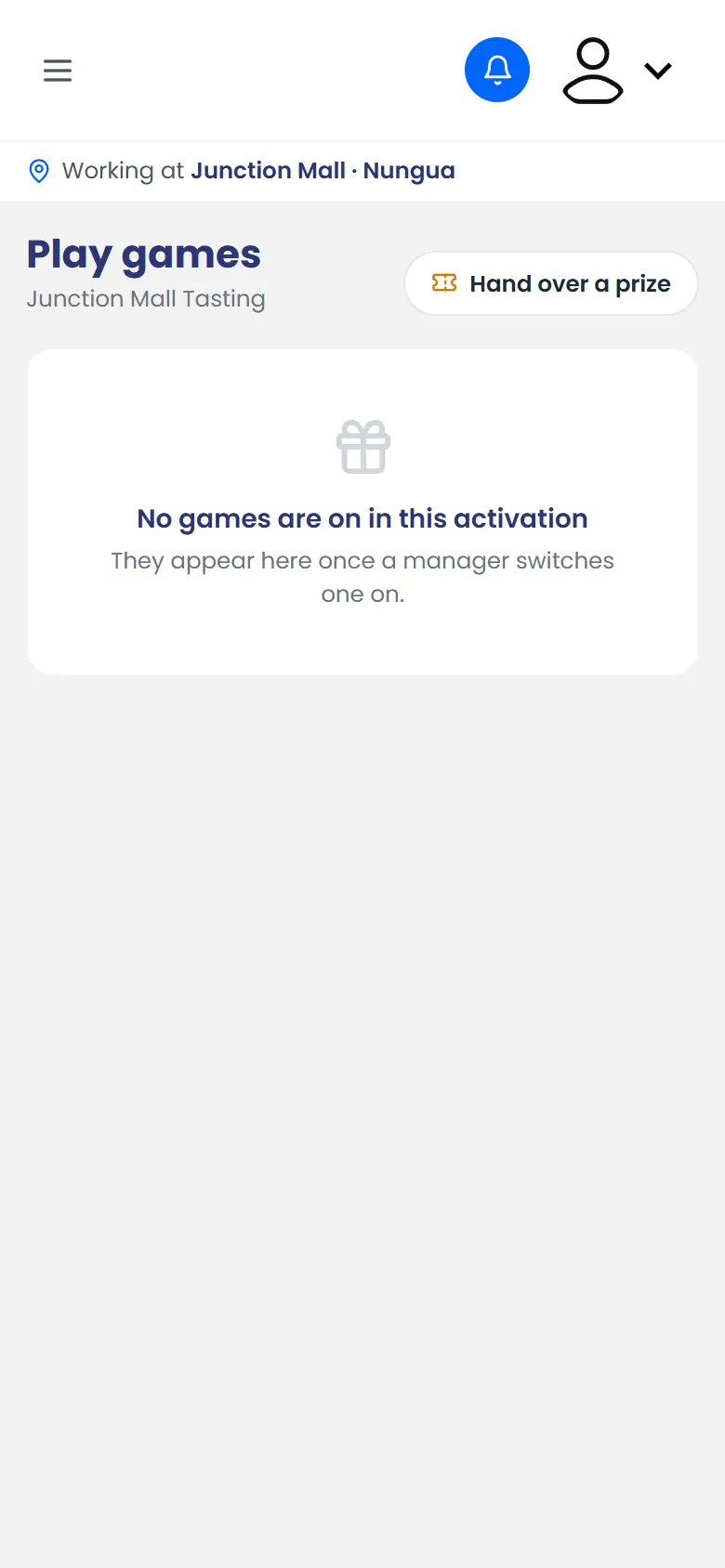
Your manager hasn't switched on any games for this activation yet.

There are no games to unlock yet. Games appear on Play games once a manager switches one on for your activation.

No games are on in this activation

What to do

Ask your manager to switch a game on. If you're on more than one activation, check that you're working on the right one. See Choose where you're working today.

26 of 37

"Paused: subscription expired"

Your organisation's subscription has run out, so sales, promo items and games are paused.

Your agency's or brand's subscription to Moments Analytics has run out. Until it's renewed, you can't record sales, give promo items or unlock games.

The Dashboard shows Paused: subscription expired, and the buttons are greyed out.

Paused: subscription expired, with the buttons greyed out

If it runs out while you're working, you may see a Subscription Expired screen instead.

What to do

  1. Tell your manager. They'll get it renewed.
  2. Once they say it's renewed, reload the page. On the Subscription Expired screen, tap Check again.

What you recorded before it expired is safe.

27 of 37

Red messages on the sale form

What each red message on Record a sale means, and how to fix it.

When something is missing, a red message appears under that part of the form. Fix it and tap Submit Sale again.


The sale form with nothing added yet
MessageWhat to do
At least one item is requiredSearch for a product under Add Item and tap it
Payment Method is requiredChoose Cash, Mobile Money or Card
Transaction ID is requiredType it from the payment SMS or card slip. See Transaction ID is required
Buyer phone number is requiredType the buyer's phone number
Overall experience rating is requiredAsk the buyer to tap a star

28 of 37

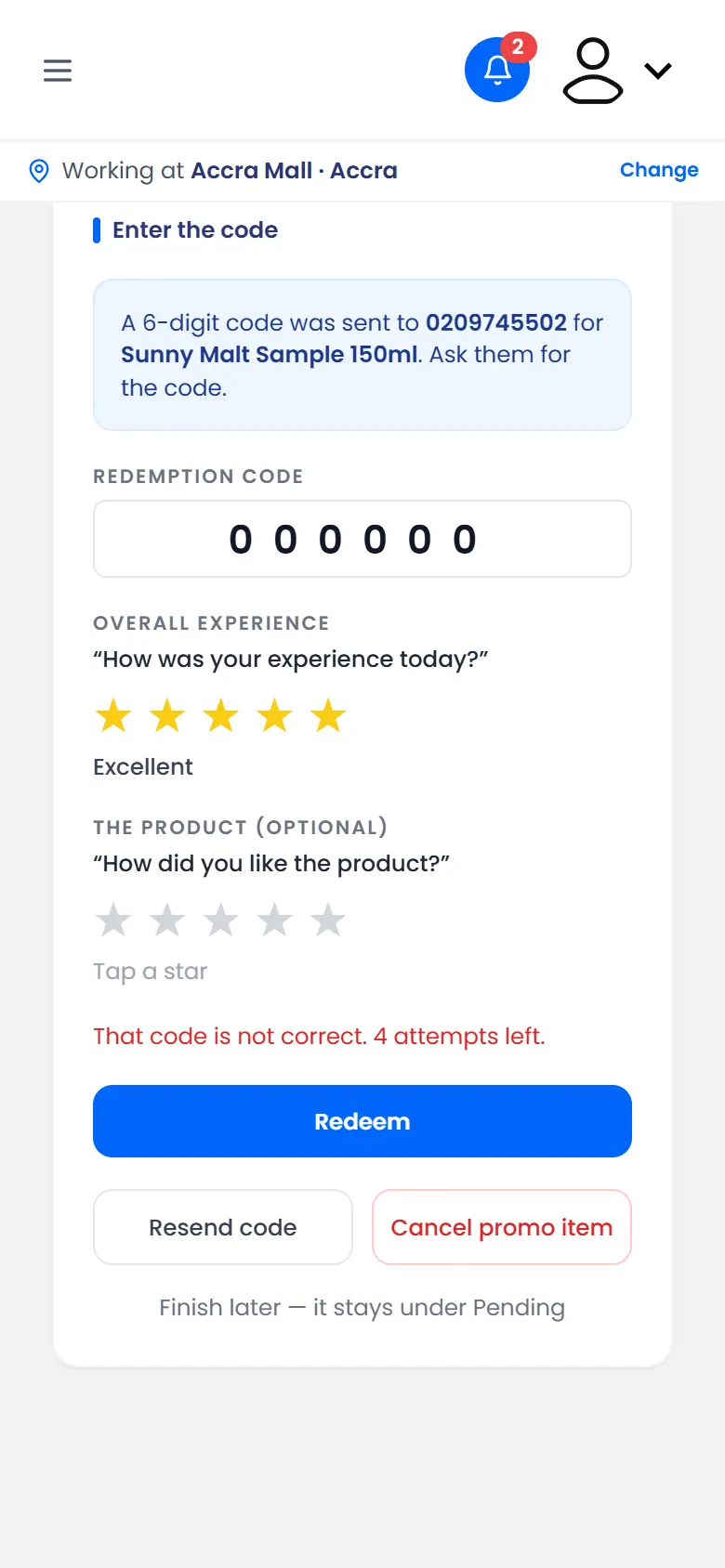
"That code is not correct"

The promo item code doesn't match the one sent to the shopper.

The code you typed doesn't match the one sent to the shopper.

A wrong code
A wrong code

What to do

  1. Ask the shopper to show you the SMS, and type the 6 digits again.
  2. If they got more than one SMS, use the newest one. Older codes stop working.

After 5 wrong tries the code is locked, and you see Too many wrong codes. Resend a new code. Tap Resend code to send them a new one.

29 of 37

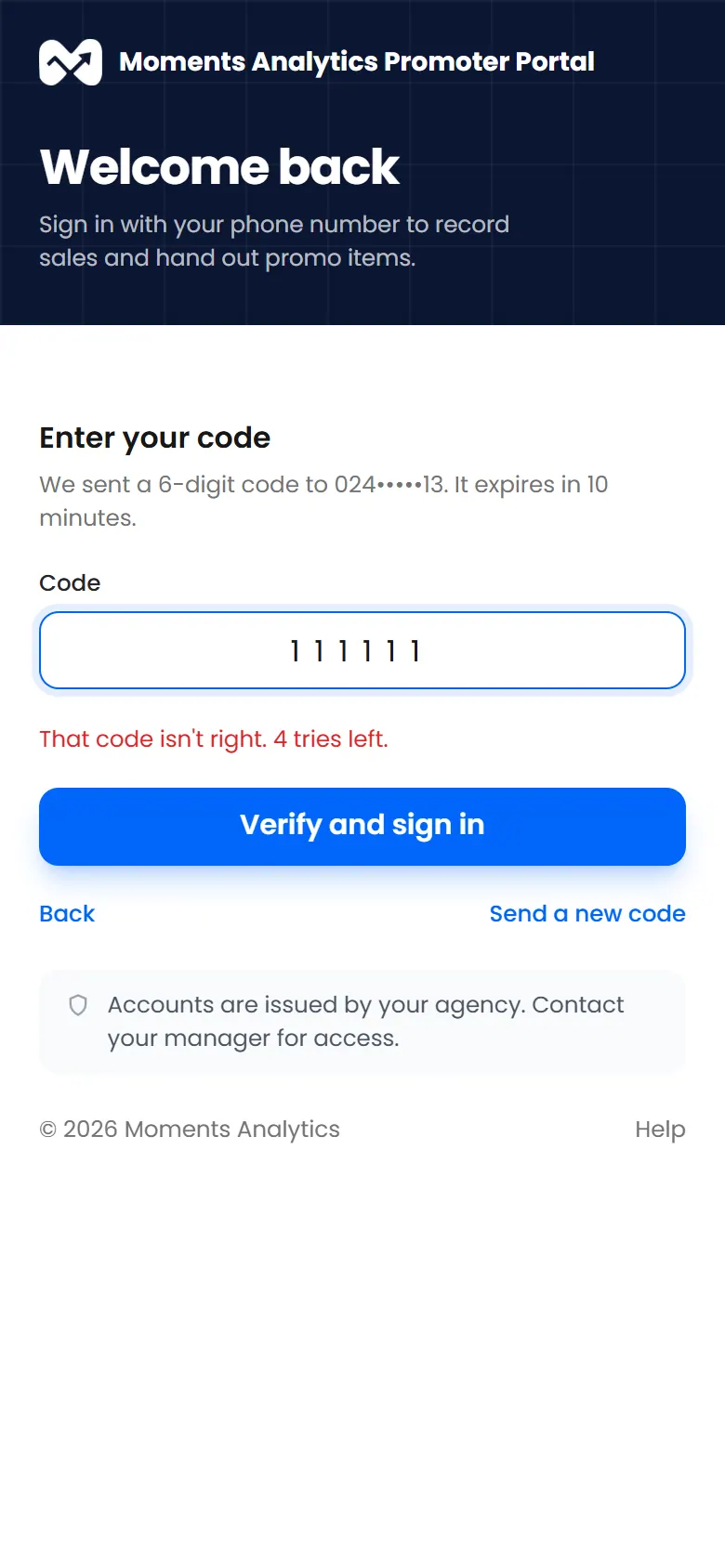
"That code isn't right"

The sign-in code you typed doesn't match the one we sent.

The code you typed doesn't match the 6-digit code in your SMS. The message tells you how many tries you have left.

A wrong code, with the tries left

What to do

  1. Check the SMS again and type the 6 digits carefully.
  2. If you asked for more than one code, use the newest SMS. Older codes stop working.
  3. If you run out of tries, or the code has expired, tap Send a new code.

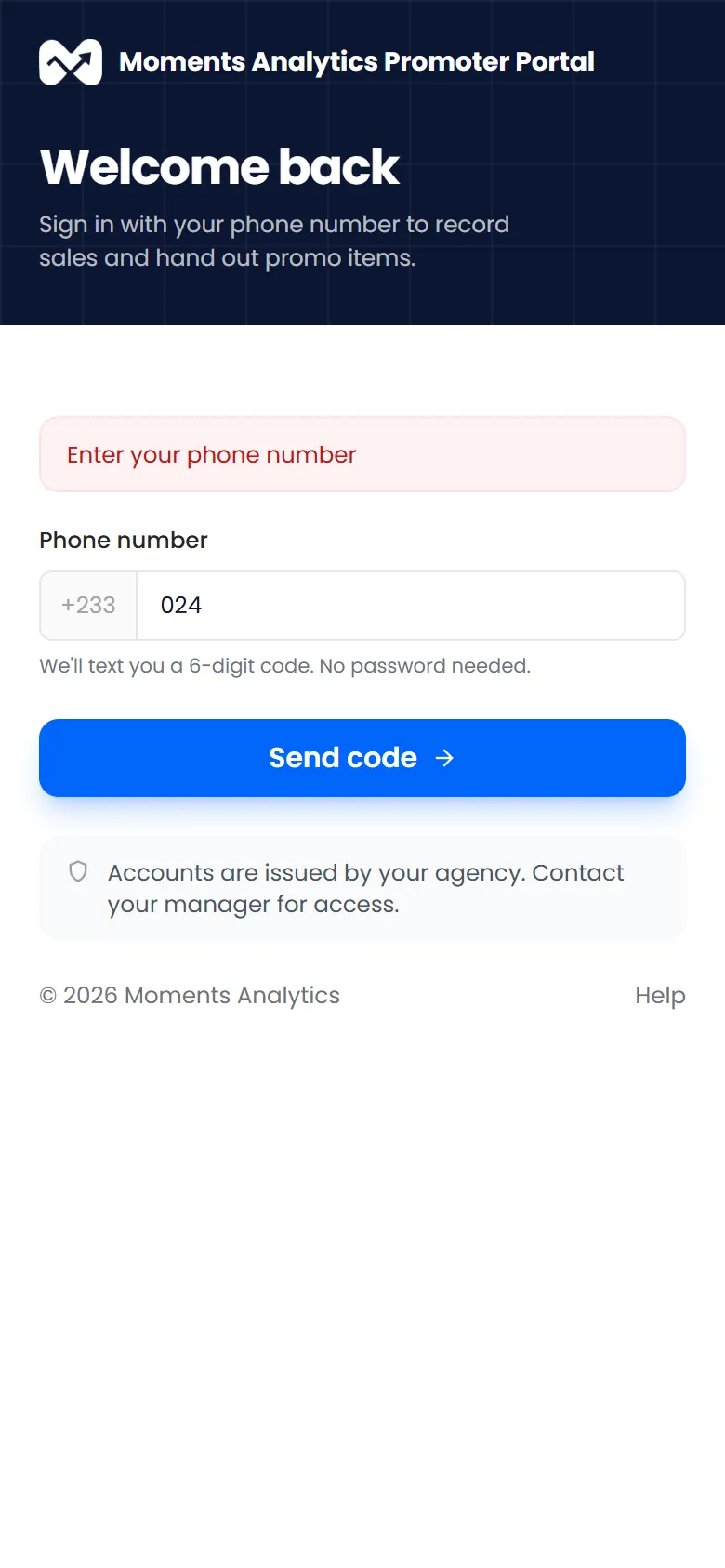
A number that's too short

If you see Enter your phone number when you tap Send code, the number is too short. Type all 10 digits, starting with 0, for example 024 400 0000.

A number that's too short

30 of 37

"That code wasn't found"

The prize code doesn't match any prize won in this activation.

The code doesn't match any prize won in this activation that's still waiting to be handed over.

What to do

  1. Check the code again. Codes from an SMS are 6 digits. Codes on the shopper's own phone screen are 8 letters and numbers, shown like ABCD-2345.
  2. Open Game wins and look for the shopper's number. If it says the prize was handed over, it has already been collected.
  3. If the prize was won in another activation, it can only be collected there.

31 of 37

"That transaction ID is already used by another sale"

Each payment can be recorded once. This transaction ID is already on another sale.

Each payment can be recorded only once. The transaction ID you typed is already on another sale.

What to do

  1. Check the number. A single wrong digit is the most common cause.
  2. If it's right, the sale may already be recorded. Look for it in Sales history.
  3. If it was recorded twice by mistake, void the extra one. That works for today's sales only.

32 of 37

"The SMS could not be sent"

The promo item was created, but its code SMS didn't go out.

The promo item was created, but the SMS with the shopper's code didn't go out.

What to do

  1. Check the phone number. A wrong digit is the most common cause.
  2. Tap Resend code.
  3. If it still fails, cancel the promo item and tell your team lead. The SMS service may be down, or your organisation may have run out of SMS.

33 of 37

"This code has expired"

The shopper's promo item code is too old to use. Send a new one.

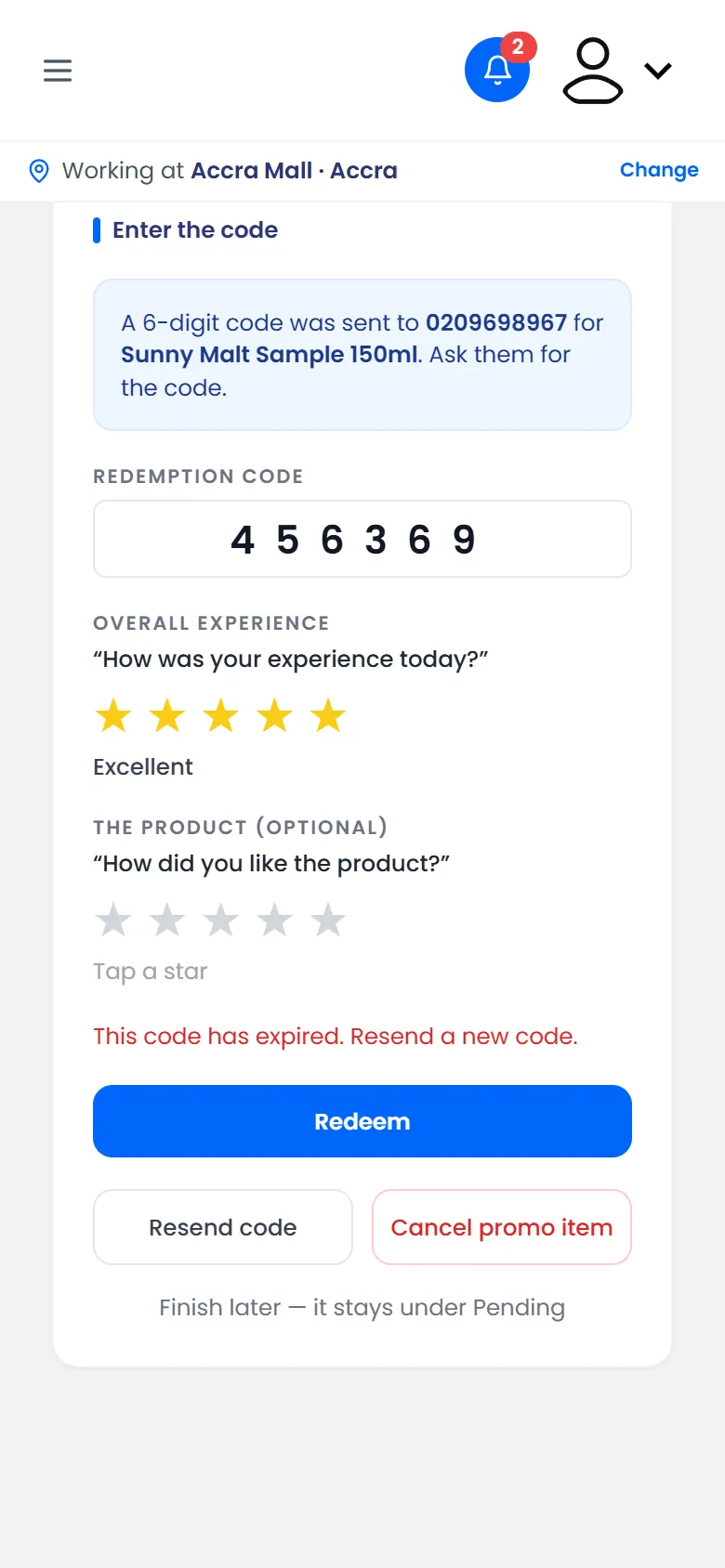
Promo item codes only last a limited time, so the shopper's code can no longer be used.

A code that has expired

What to do

Tap Resend code. The shopper gets a new code by SMS. Type it in as usual.

A code can be resent a few times. After that you see This code has been resent too many times. Cancel the promo item and start again.
34 of 37

"This number has already received a product sample"

Each person gets one product sample in each activation.

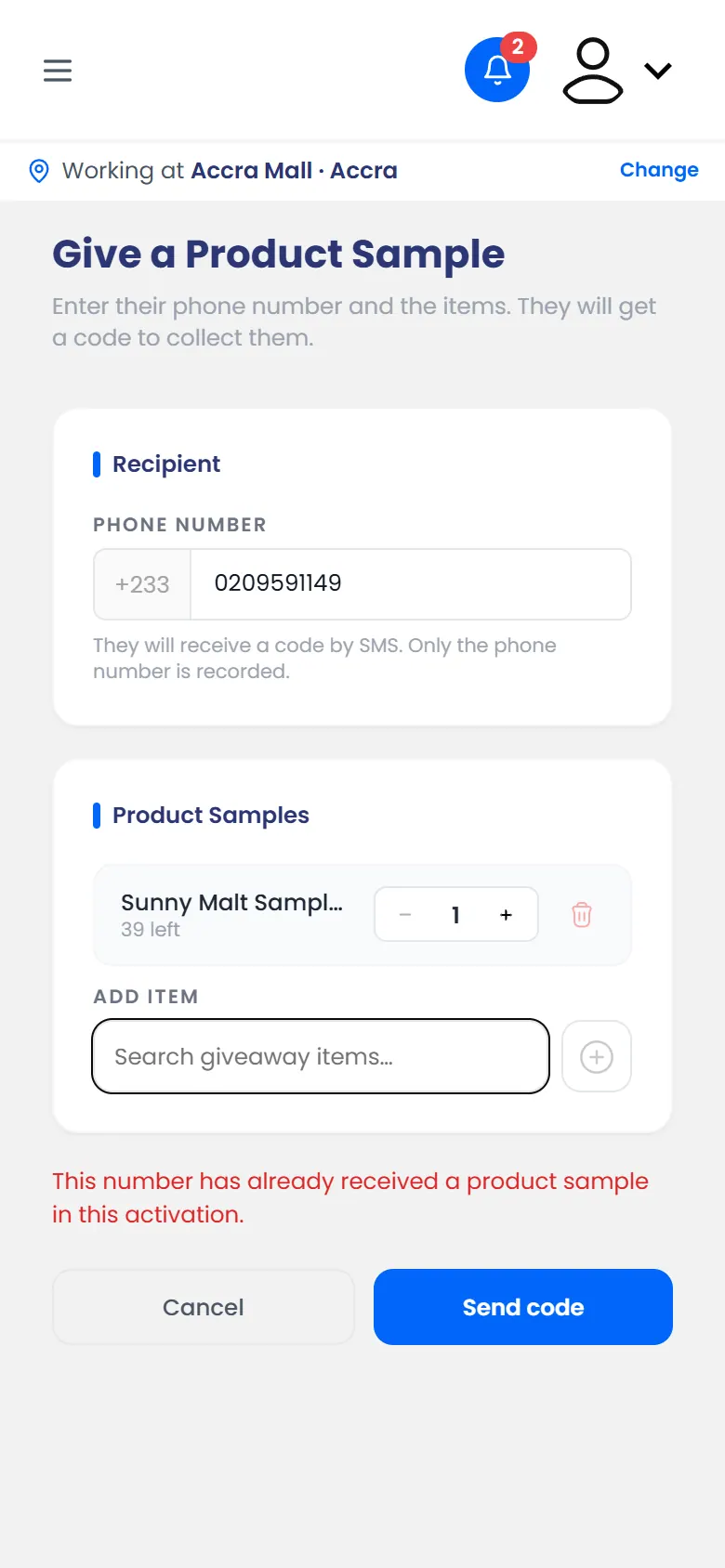
Each person can get one product sample in each activation. This phone number has already had one, so no code is sent.

One product sample per person in an activation

What to do

Let the shopper know it's one sample per person. If they'd like to buy the product, record a sale.

If you think it's a mistake, for example two people share a phone, ask your manager.

35 of 37

"This number has already won" or "already played"

The shopper has reached the game's limit for wins or plays.

Each game has limits, set by your manager, so prizes reach as many people as possible.

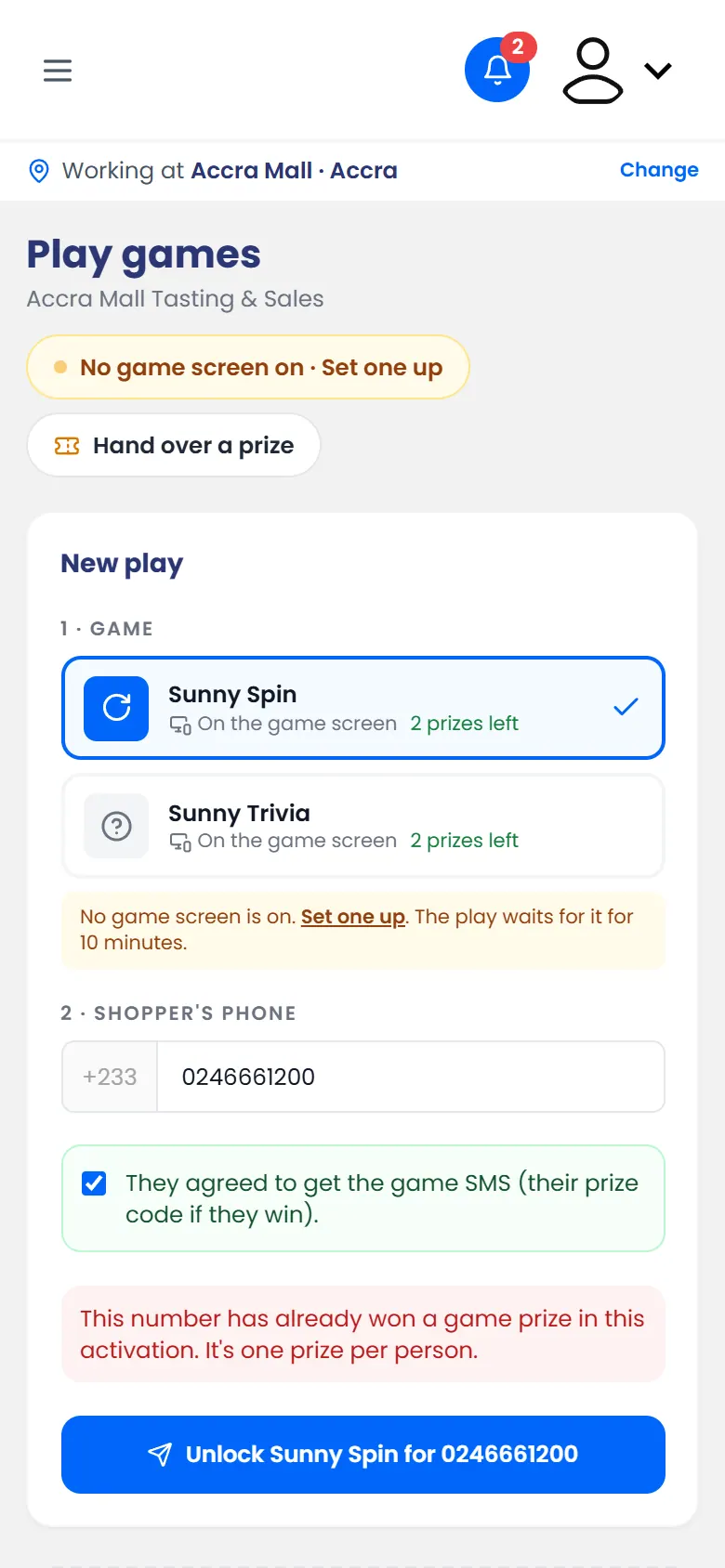
"This number has already won a game prize in this activation"

It's one prize per person in each activation. This number has already won one.

A shopper who already won in this activation can't be unlocked again

"This number has already played … today"

The shopper has had all their plays of this game for today. They can play again tomorrow.

If the message ends the most allowed in this activation, they've had every play they're allowed in this activation.

What to do

Let the shopper know about the limit. If they'd like, they can play a different game, if one is on.

36 of 37

"Transaction ID is required"

Mobile Money and card sales need the transaction ID from the payment.

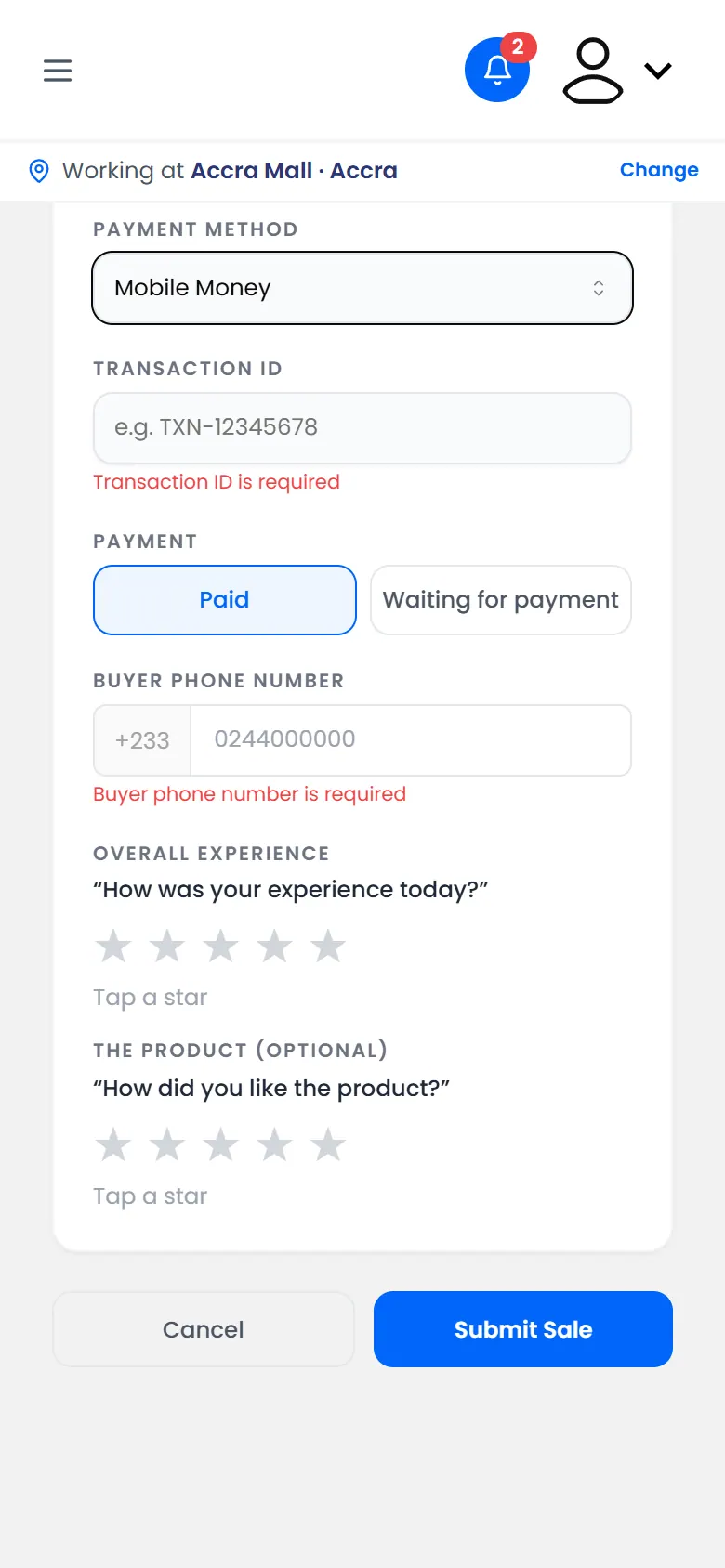
A Mobile Money or card sale needs its transaction ID. It proves the payment happened, and it's how your team checks it later.

Mobile Money and card need the transaction ID

What to do

Type the Transaction ID:

  • Mobile Money: it's in the payment SMS the shopper receives, often called the transaction ID or reference.
  • Card: it's on the card machine slip.

Cash sales don't need one.

37 of 37

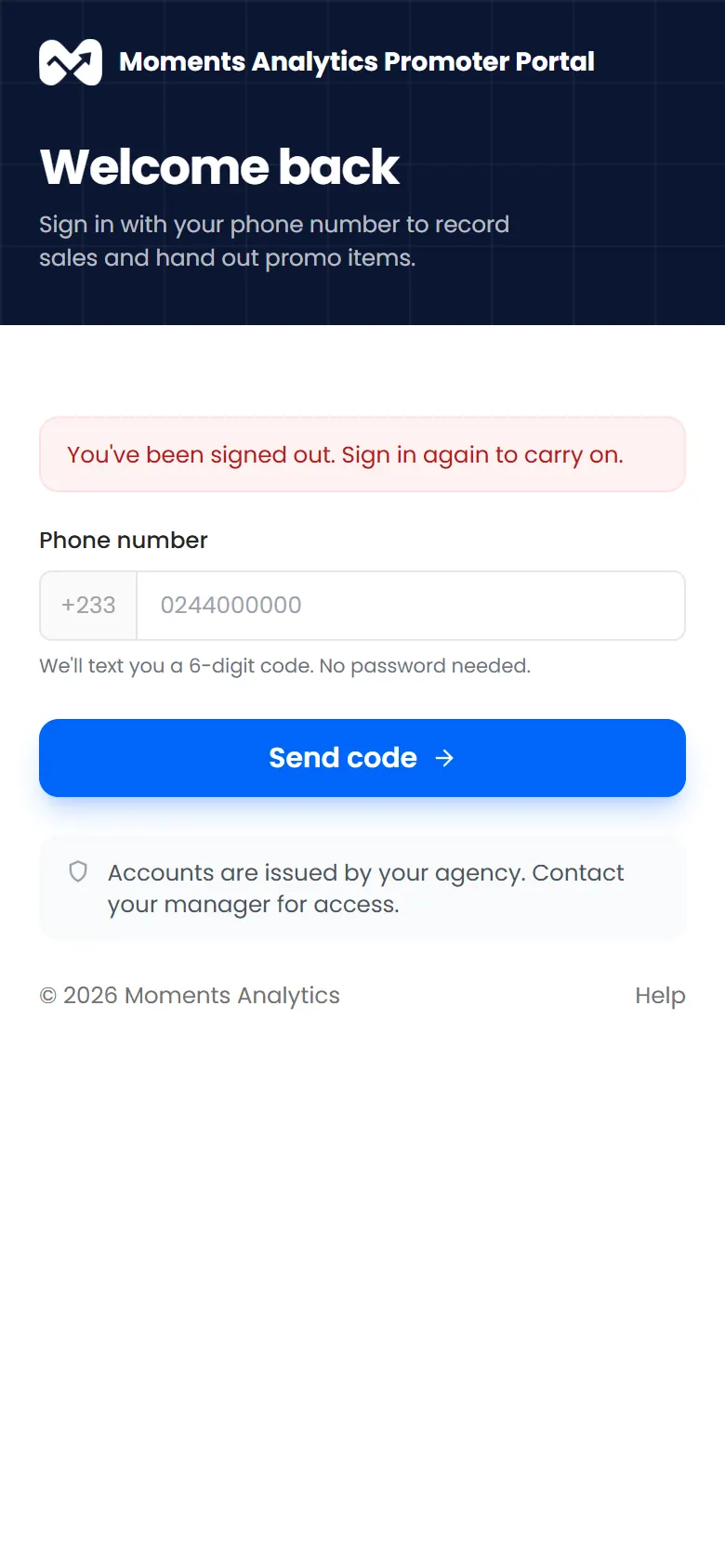
"You've been signed out"

Your session ended, so you need to sign in again. Nothing you saved is lost.
You need to sign in again. Everything you saved before is still there.
Signed out because the session ended

Why it happens

  • You used Sign out everywhere, for example on another phone.
  • You haven't used the Promoter Portal on this phone for a long time.

What to do

Sign in again with your phone number and the SMS code.

If it keeps happening and you didn't sign out everywhere, tell your manager. Someone else may have signed in as you.