
See your sales
In the menu, click Sales. At the top you see the revenue, average sale, buyers, units sold and average rating, your best sellers, and how people paid. Below is every sale.
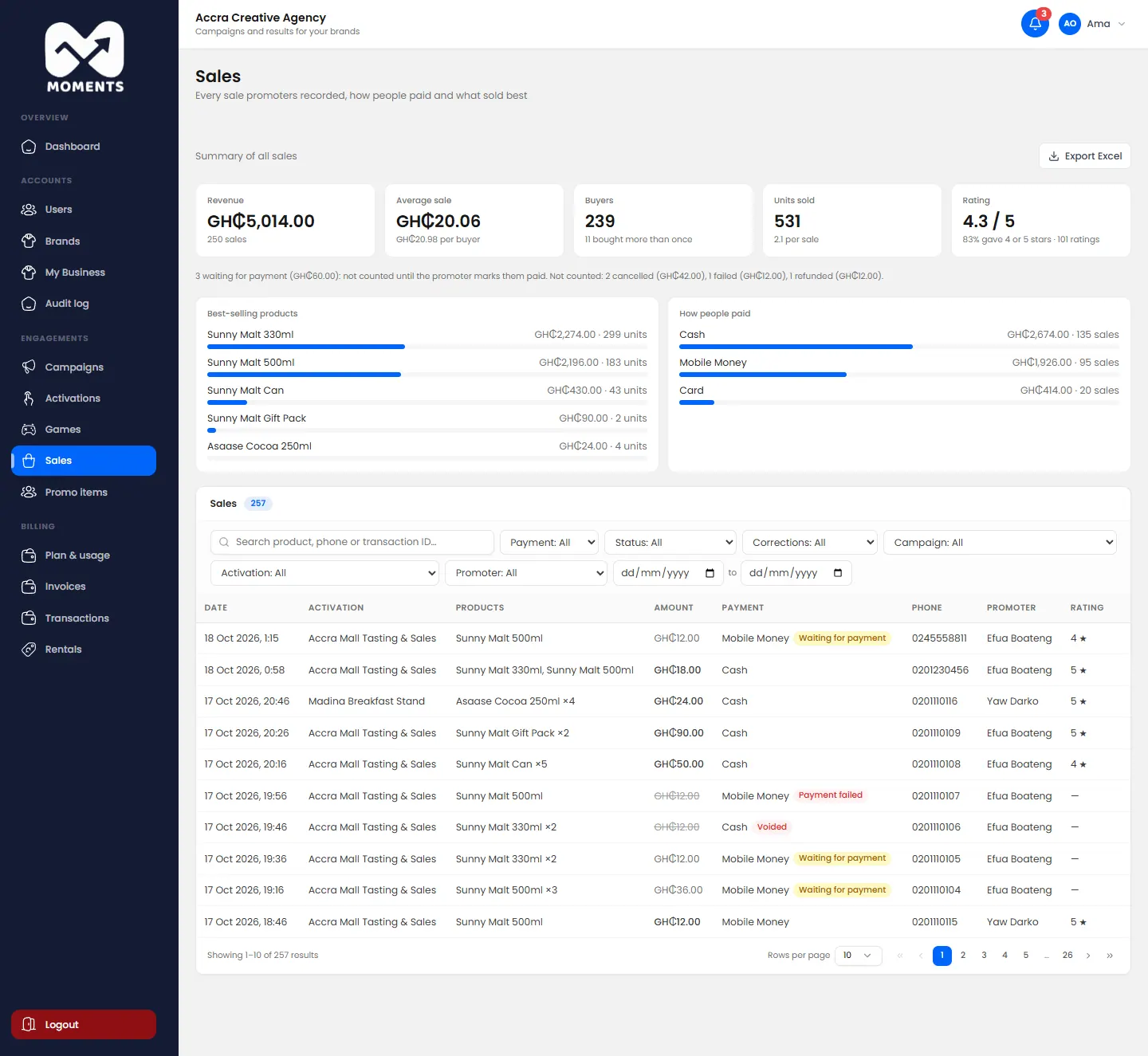
Use the search and filters to narrow the list. Click Export Excel to download it.
Review a correction
Promoters can edit or void their own sales on the day. For an earlier day's sale, they ask you for a correction, and you get a notification.
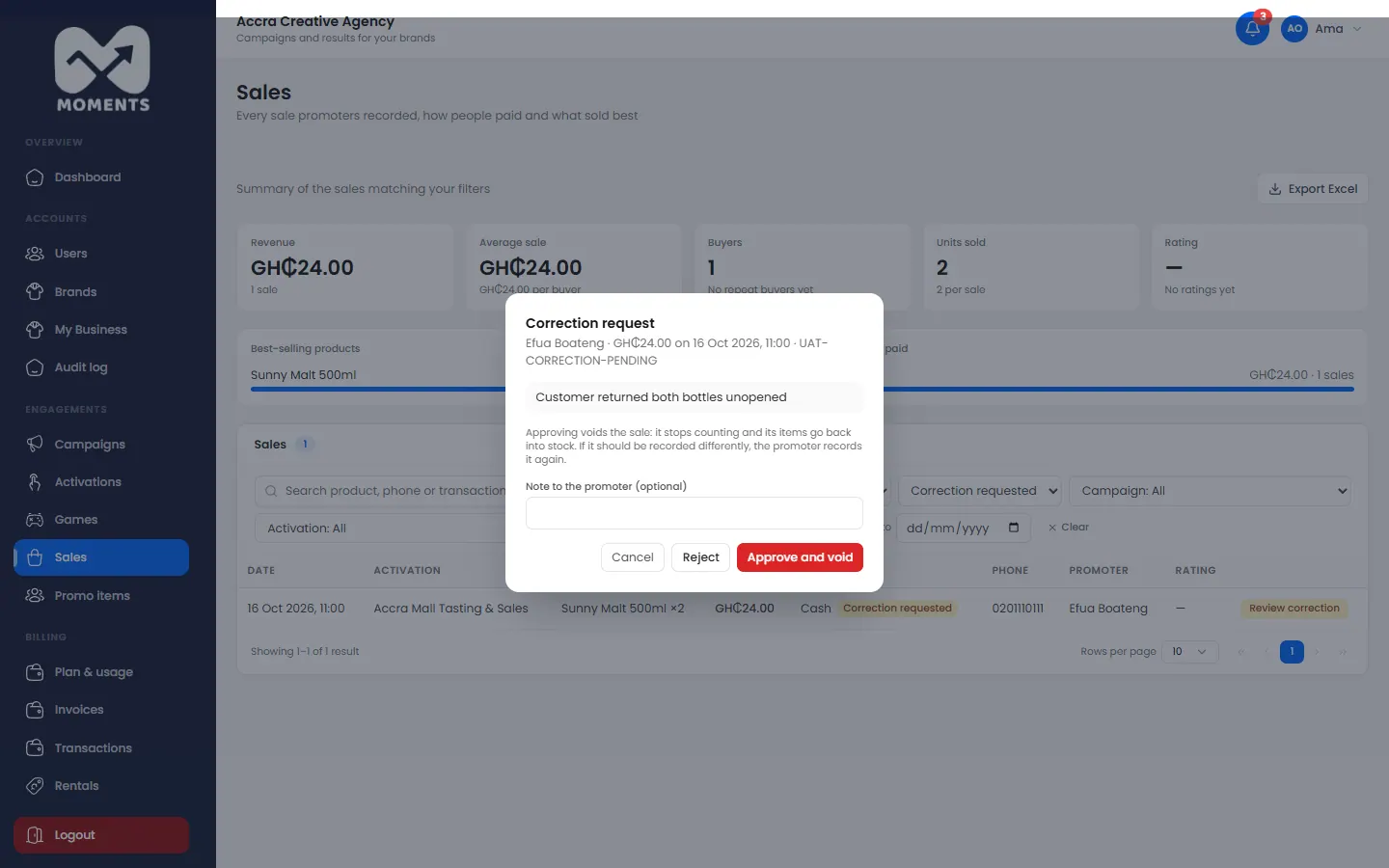
- Click the notification. Or, in Sales, set the Corrections filter to correction requested.
- On the sale, click Review correction. You see what the promoter says is wrong.
Choose:
- Approve and void: the sale stops counting, and its items go back into stock;
- Reject: the sale stays as it is.
- Optional: add a Note to the promoter (optional) saying why.
What happens next
The promoter gets a notification with your decision. In their sales history, the sale shows Correction approved or Correction rejected. In your Sales list, an approved one shows Corrected.
If the sale should have been recorded differently, the promoter records it again.