
In the menu, click Users, then click the person to open their page.
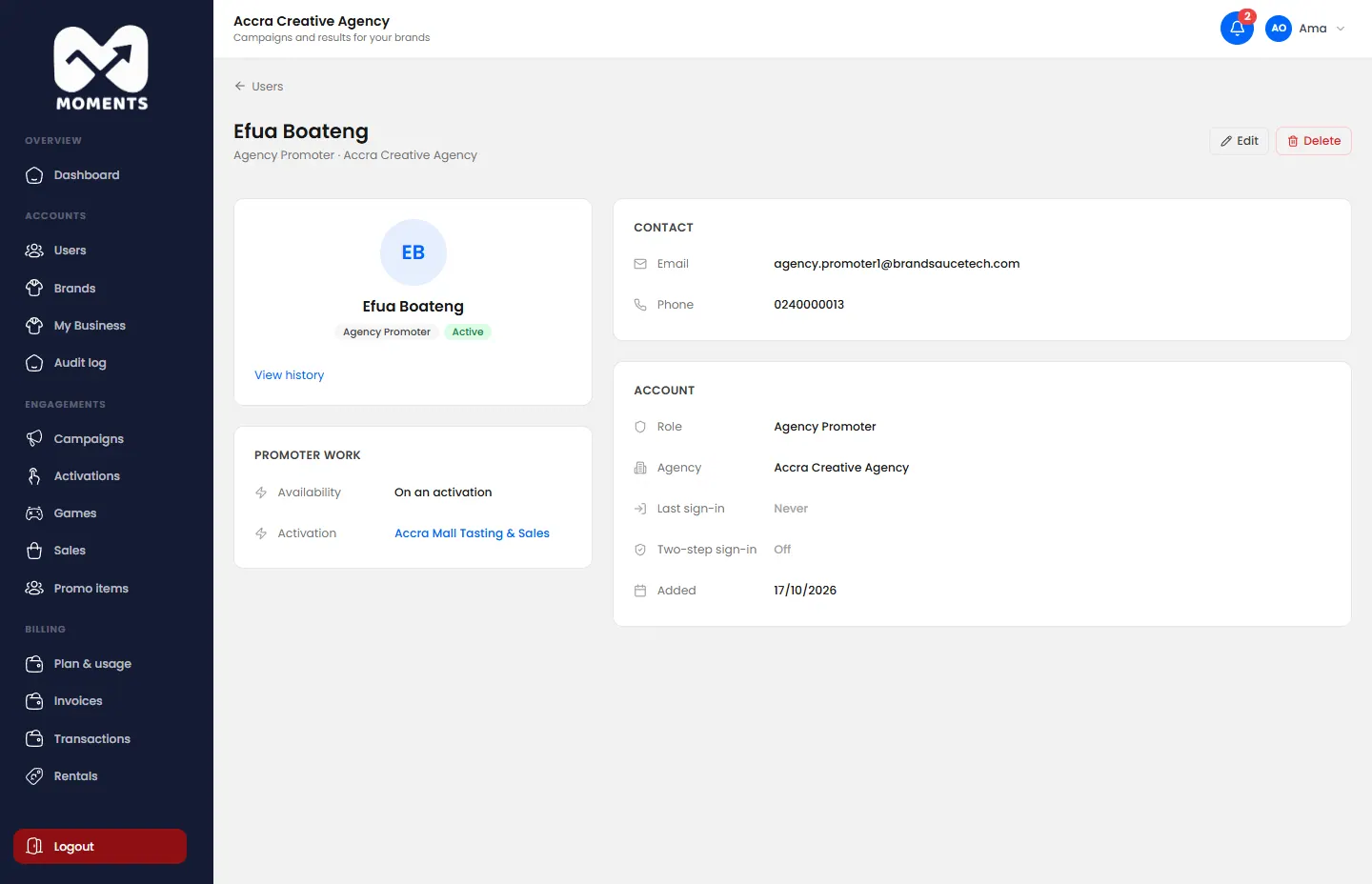
The page shows their contact details, their account, when they last signed in, and whether they use two-step sign-in. For a promoter, it also shows whether they're on an activation.
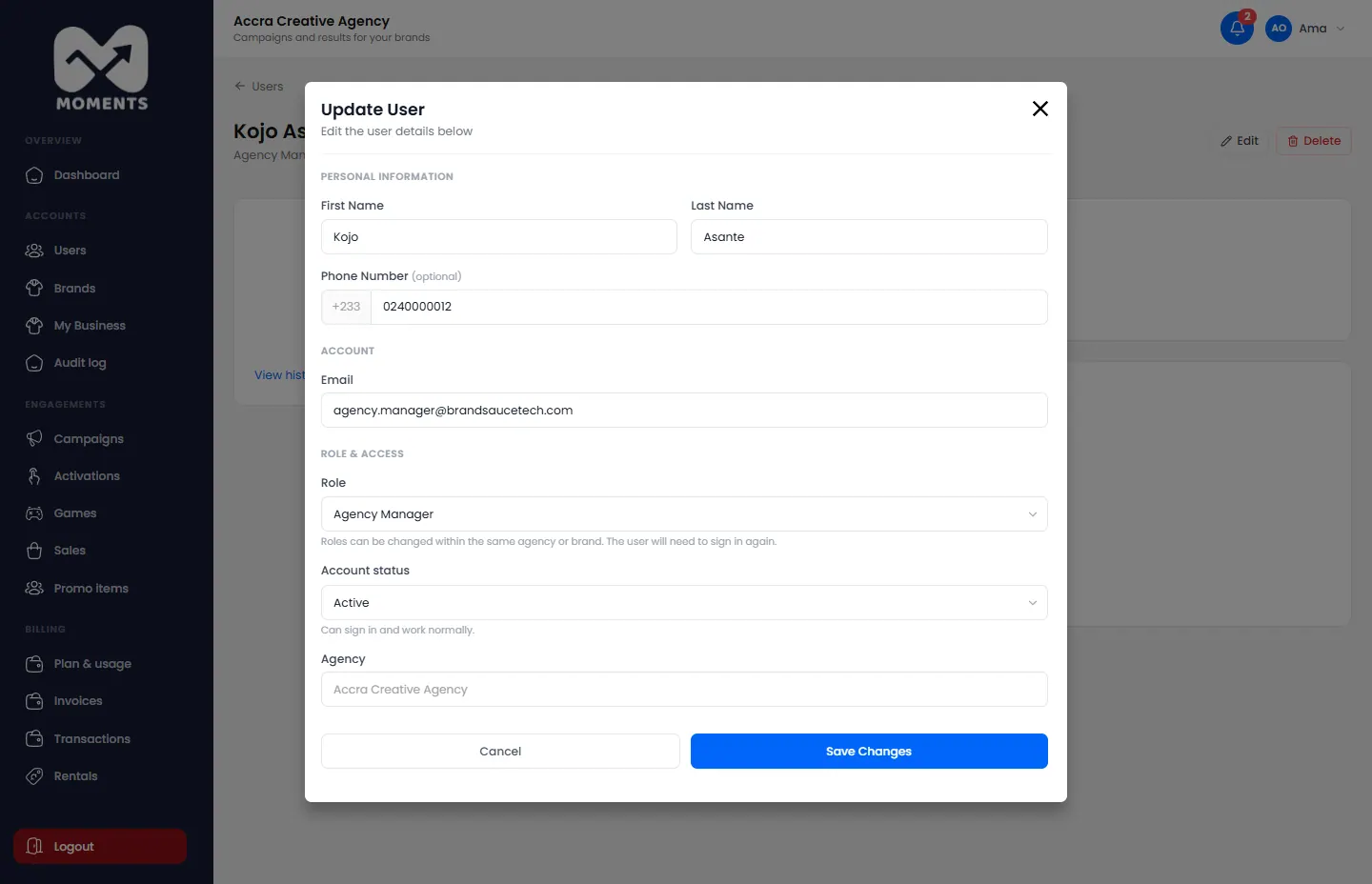
Change their details or role
- On their page, click Edit.
- Change what you need. You can change their role within your agency or brand. They'll need to sign in again.
- Click Save Changes.
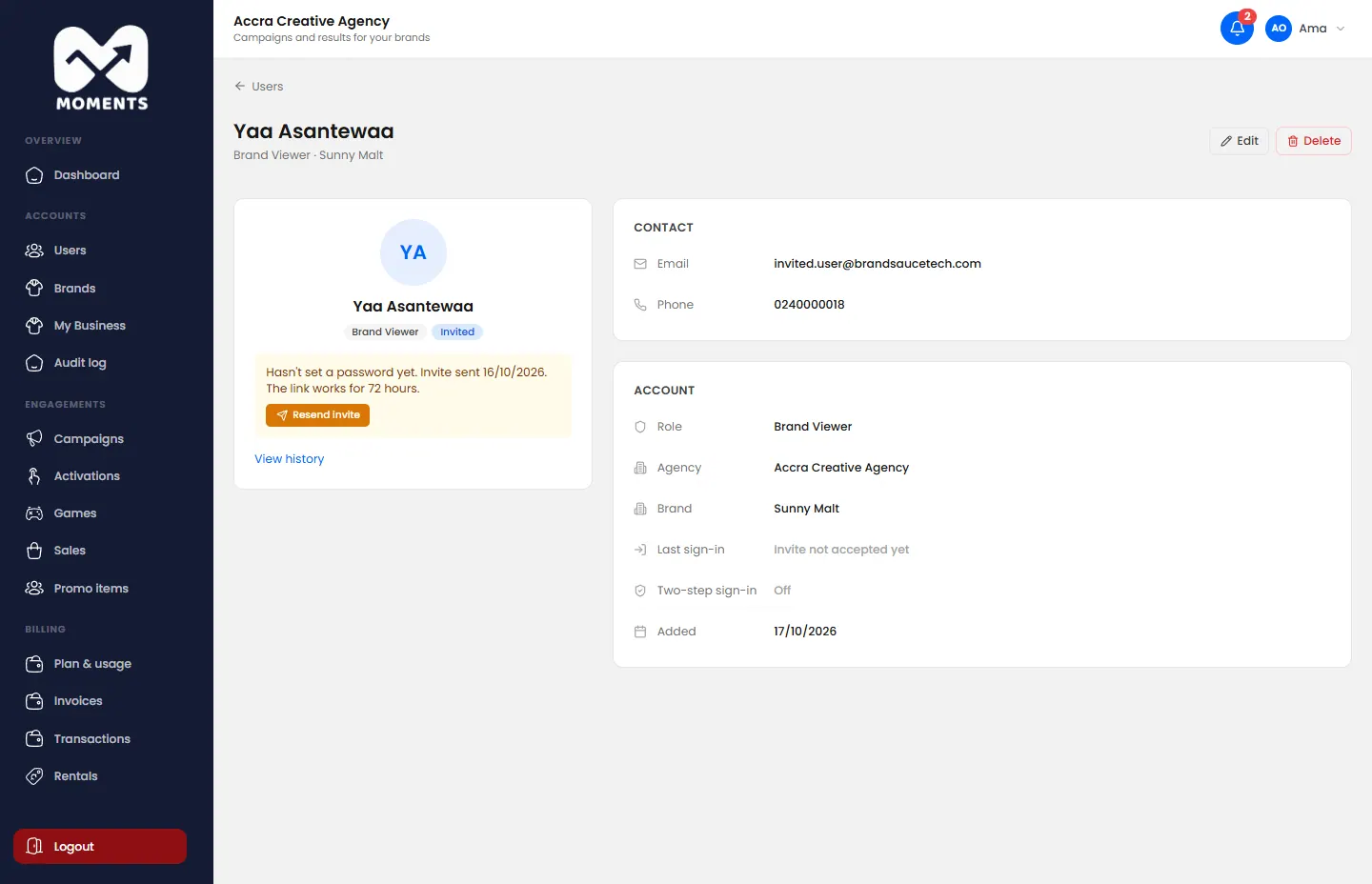
Resend their invitation
If someone hasn't set their password yet, their page says so. Click Resend invite to send a new link. It works for 72 hours.
Suspend or deactivate them
Use this to stop someone's access while keeping their history.
- On their page, click Edit.
- Change Account status to suspended or deactivated, and give a reason.
- Click Save Changes.
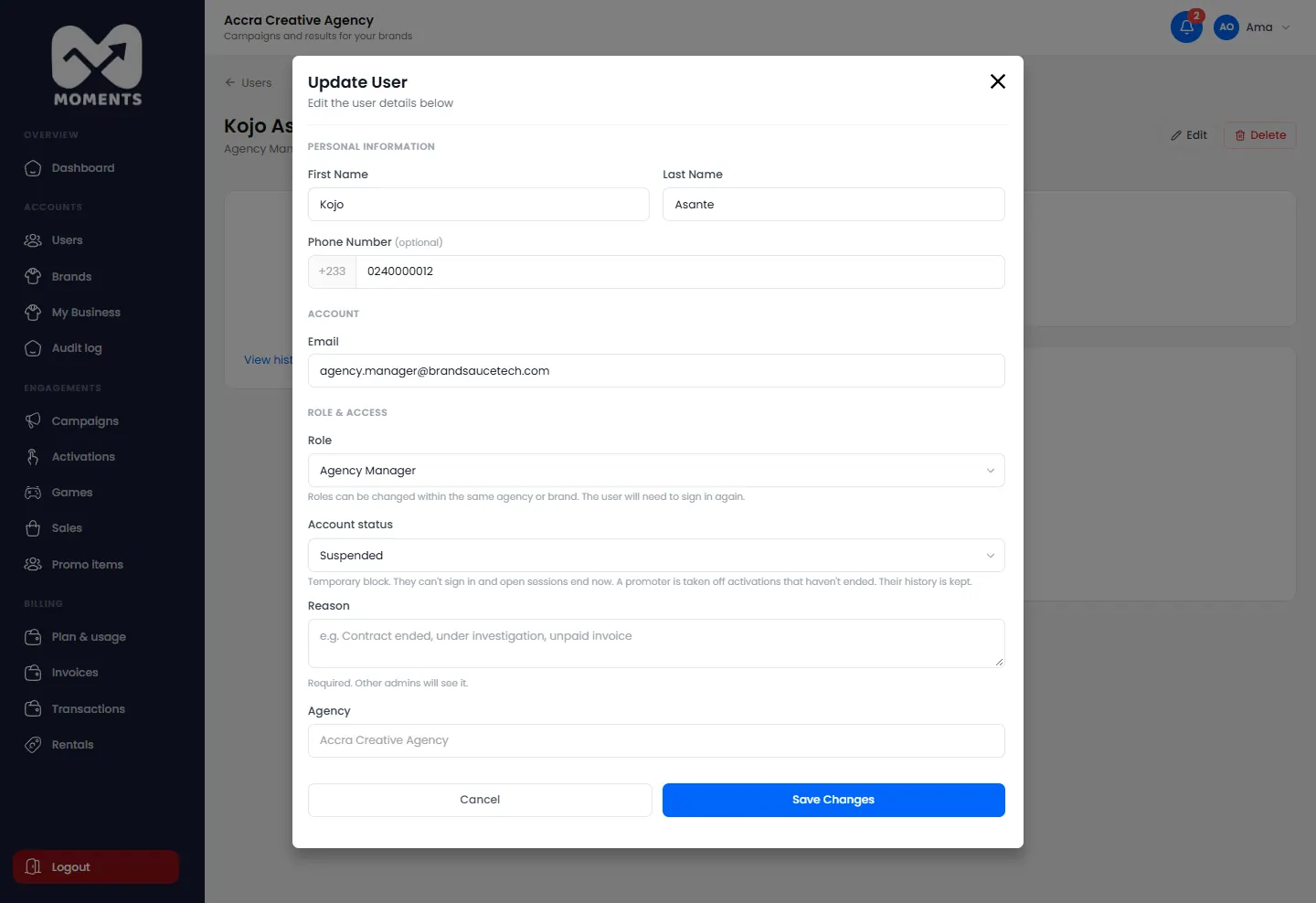
They can't sign in, and they see the reason when they try. To restore their access, set them back to active.
Turn off their two-step sign-in
If someone has lost the phone or email their codes go to, open Edit and turn off their two-step sign-in. They can turn it on again once they're in.
Remove them
On their page, click Delete, then Yes, delete.