Your plan sets your limits: active brands, campaigns, activations, users, games and promo item SMS. Only admins can change the plan or pay.
In the menu, click Plan & usage.
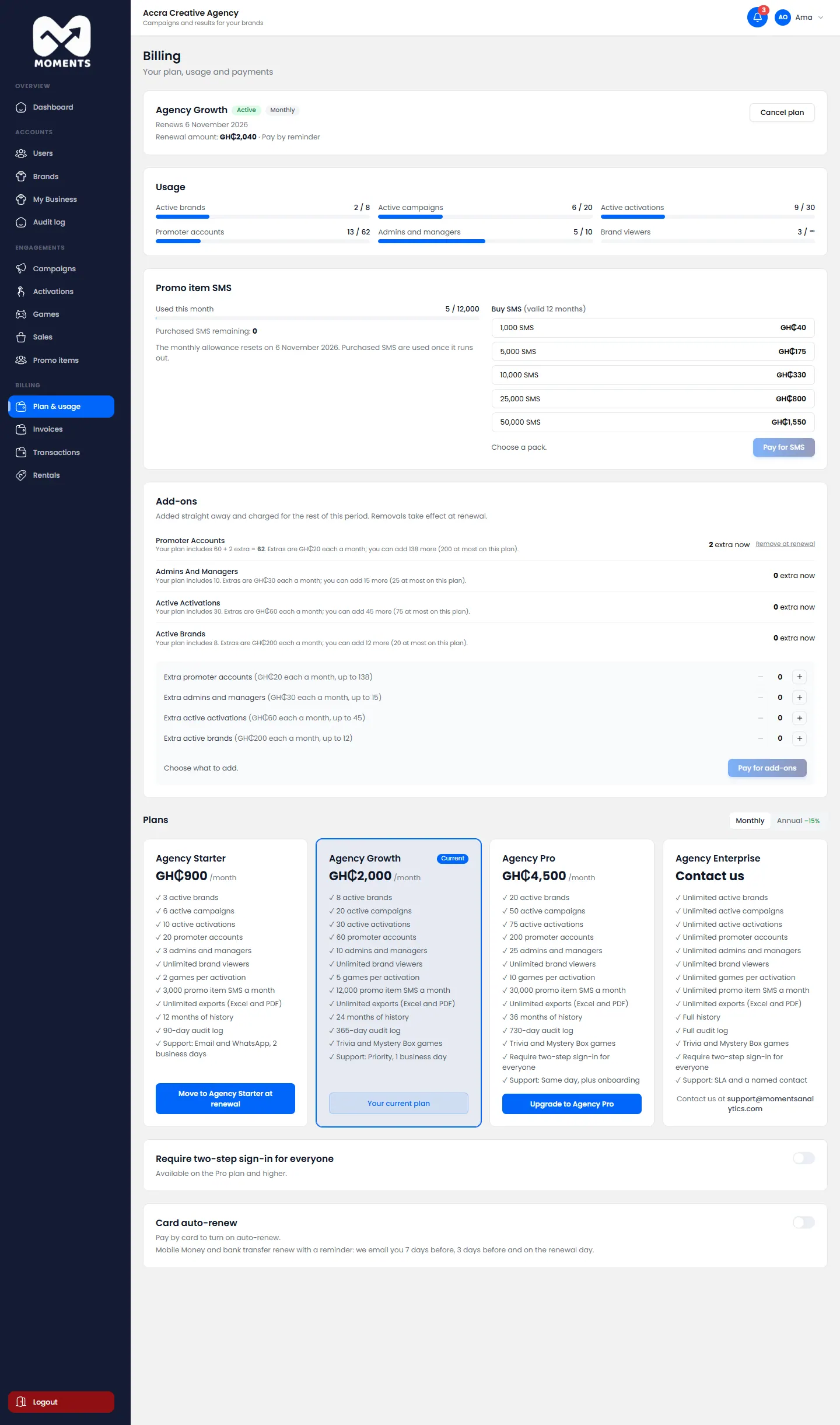
Usage shows how much of each limit you've used.
Pay for a plan after your free trial
During the trial, you're already on a plan. To keep using it after the trial:
- At the top of Plan & usage, click Pay for….
- Pay on the Paystack page, by card, Mobile Money or bank transfer.
To try a different plan during the trial, click Switch trial to … on that plan. There's no charge.
Upgrade
- Under Plans, click Upgrade to … on the bigger plan.
- Click Continue, and pay.
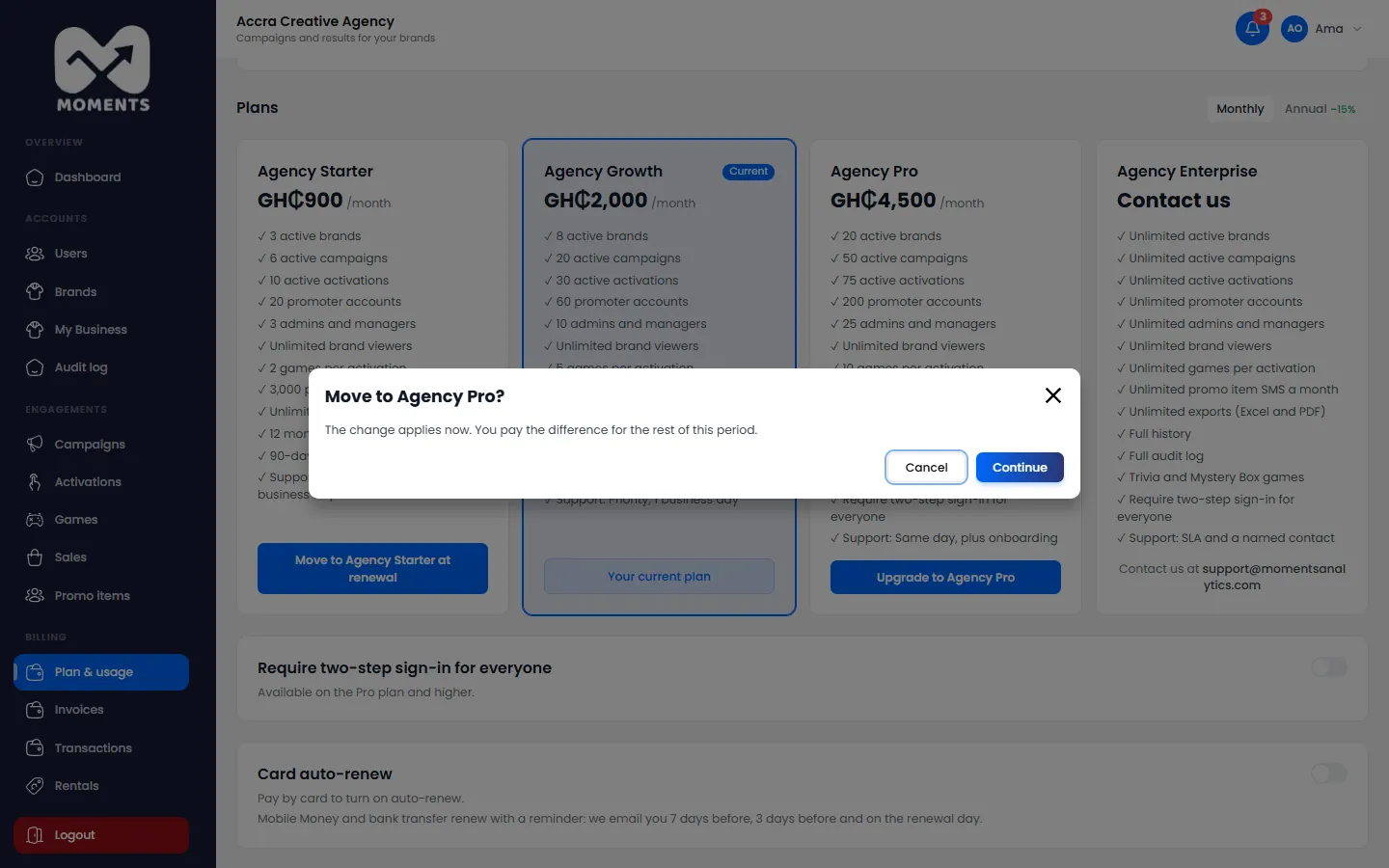
The upgrade applies straight away. You pay the difference for the rest of this period.
Move to a smaller plan
Click Move to … at renewal on the smaller plan, then confirm. You keep your current plan until it renews.
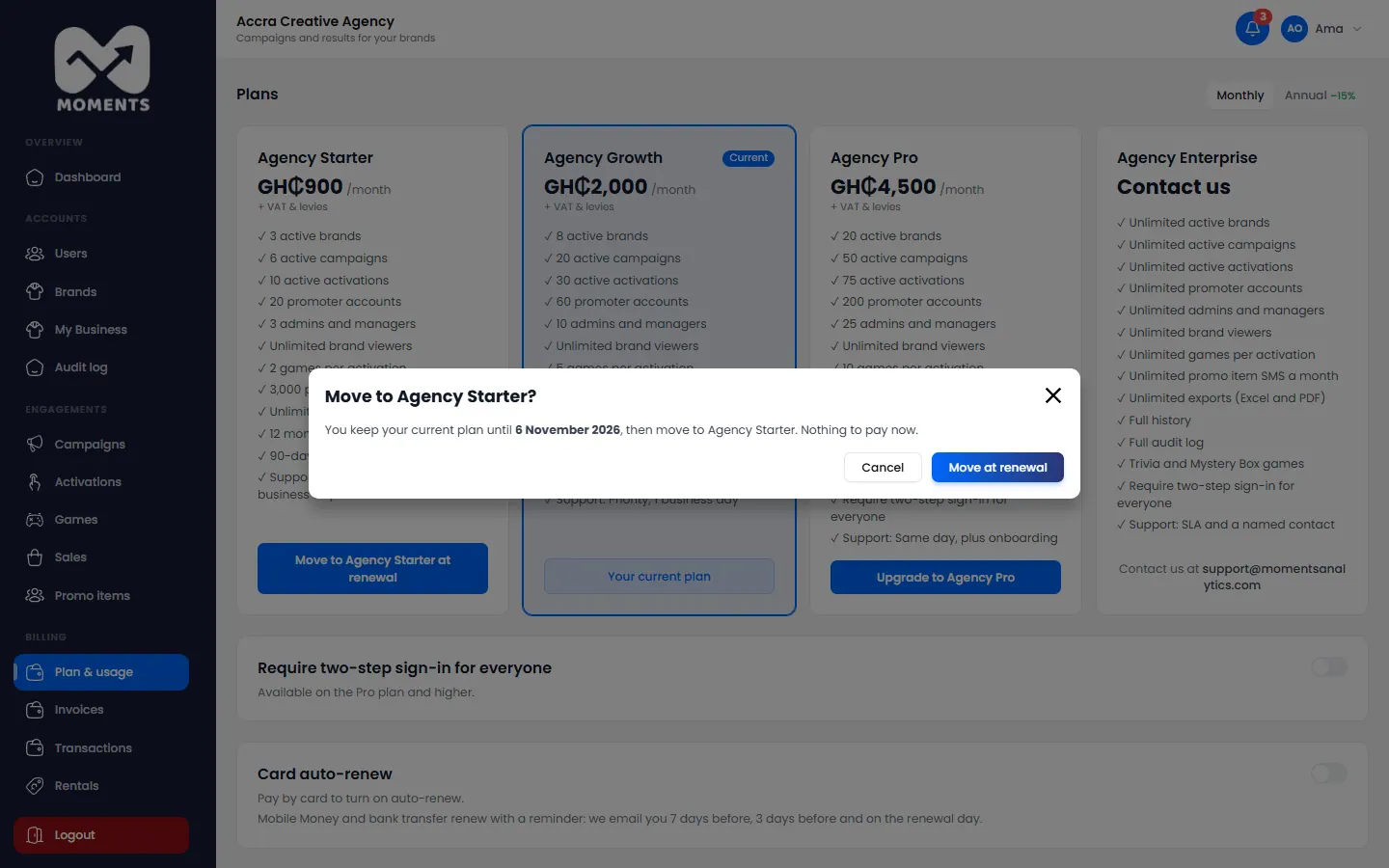
If you'd be over the smaller plan's limits, they're listed. What you have keeps working, but you can't add more until you're under them.
Pay yearly
Click Annual above the plans to see yearly prices, which are about 15% less. Then click Switch to annual billing.
Cancel
- Click Cancel plan at the top.
- Click Yes, cancel. Or click Keep plan if you change your mind.
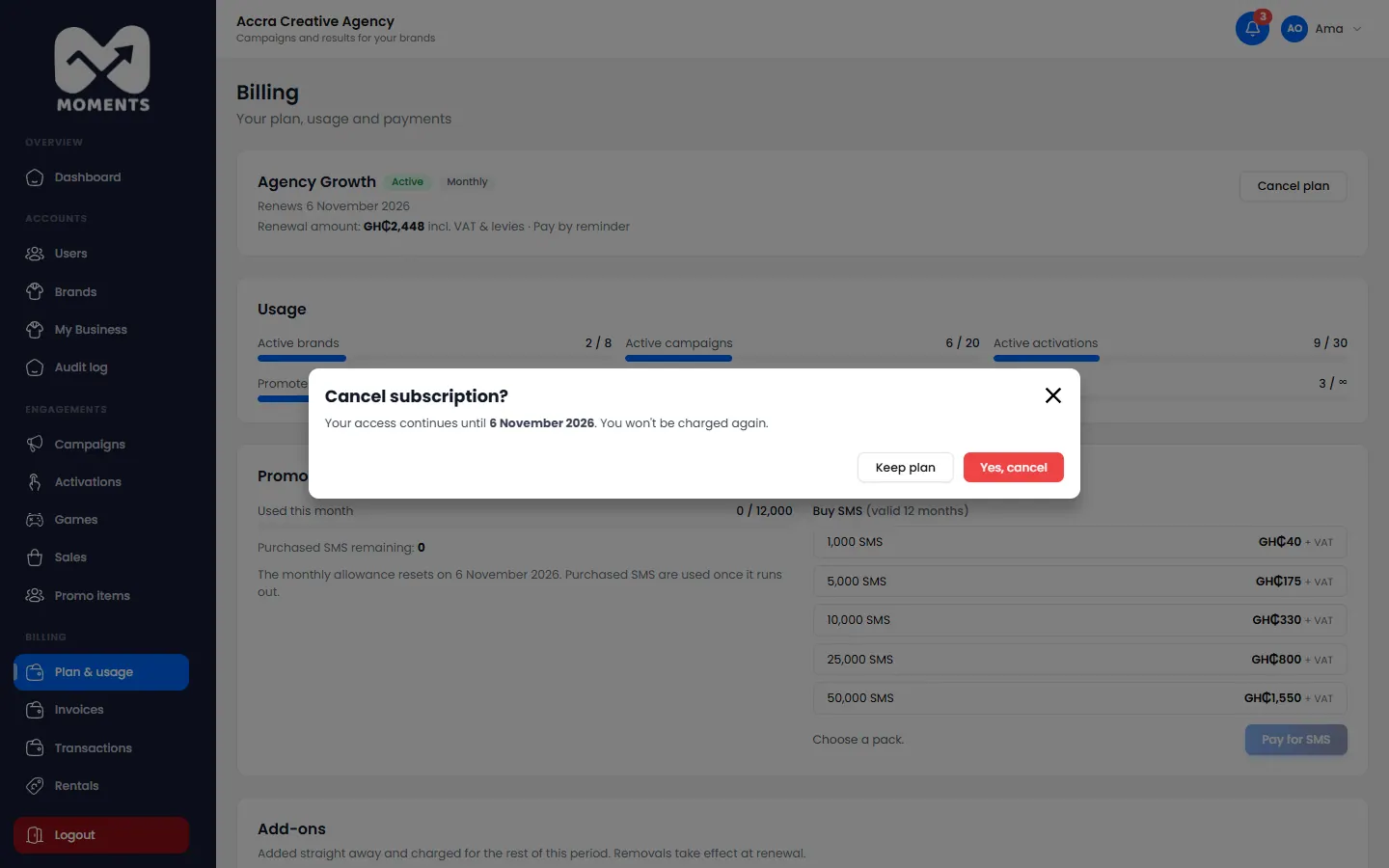
You keep your plan until the end of the period you paid for. Changed your mind? Click Reactivate before then.
Enterprise
For bigger limits, click Contact us on Enterprise. The Moments Analytics team sets up your plan with the limits and features you agree, and invoices you.
After you pay
You come back from Paystack to Plan & usage, with a message:
| Message | What it means |
|---|---|
| Payment received. | All done. The message says what's now active: your plan, add-ons or SMS |
| Waiting for the payment to be approved | For Mobile Money, approve the prompt on your phone. The page keeps checking |
| The payment failed. No money was taken. | Try again, or use another method |
| The payment was not completed. | You left Paystack before paying. Try again when you're ready |