A campaign report adds up all the campaign's activations. It's live, so it changes as promoters record. Your clients see the same report in the Viewers Portal.
Open it
- In the menu, click Campaigns, and open the campaign.
- Click Analytics.
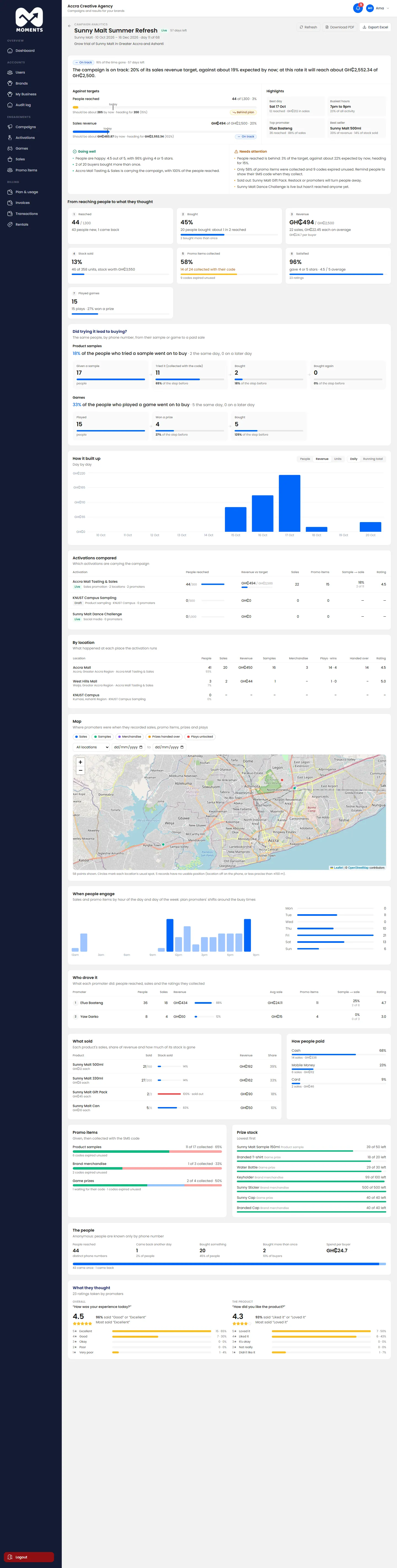
For one activation, open its report from the Activations compared section.
What's in it
| Section | What it tells you |
|---|---|
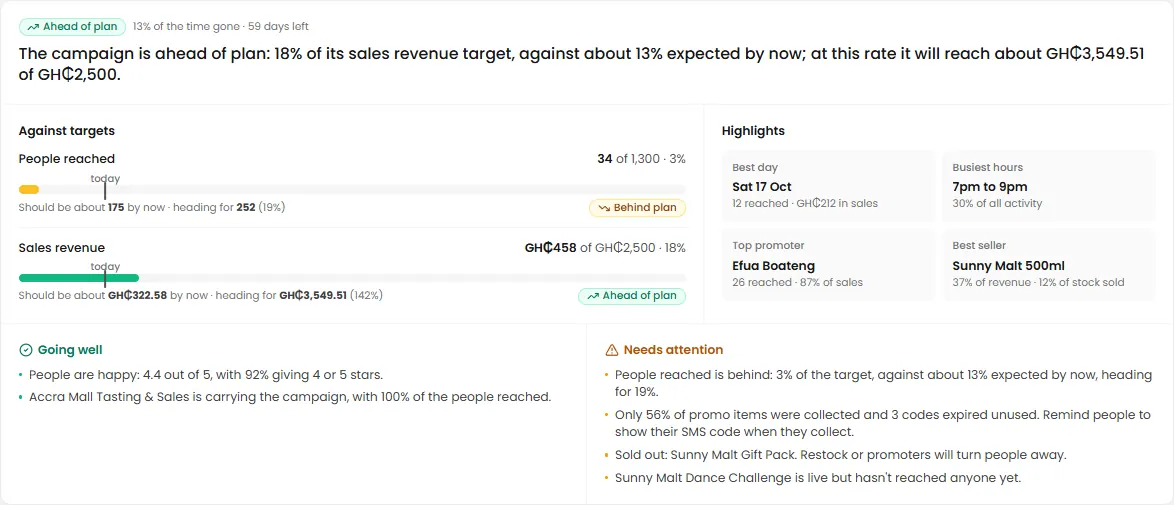
| Against targets | Each target, with where it should be by now: On track, Ahead of plan or Behind plan |
| From reaching people to what they thought | How many people were reached, tried a sample, played, bought, and came back |
| How it built up | Day by day, and the running total |
| Activations compared | Which activations are carrying the campaign |
| By location | Results for each place |
| Map | Where promoters were when they recorded things |
| When people engage | The busiest hours and days. Use it to plan promoters' shifts |
| Who drove it | What each promoter did, and the ratings they collected |
| What sold | Each product's sales, share of revenue, and how much stock is gone |
| Promo items | Given out, then collected with the SMS code |
| What they thought | The ratings people gave |
People are known only by their phone number. The report never shows names.
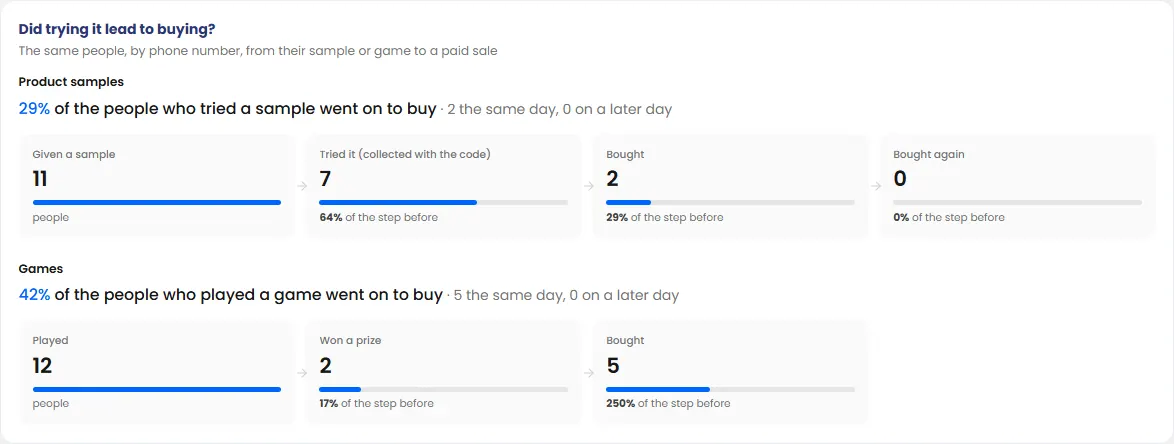
Did trying it lead to buying?
For a sampling campaign, the report shows how many people who tried a sample later bought. You see this for the whole campaign, for each activation and for each promoter.
Download it
- Download PDF: the whole report, laid out for A4 with a cover, to send to your client.
- Export Excel: the figures, to work with in a spreadsheet.
Both count towards your plan's monthly export limit.
Click Refresh to load the latest figures.