In the menu, click Activations, then click the activation. Its page has two tabs: Details and Games.
Follow it live
The Details tab shows the activation's overview, targets, locations and promoters. For each product and promo item, you also see how many were sold or given and how many are left.
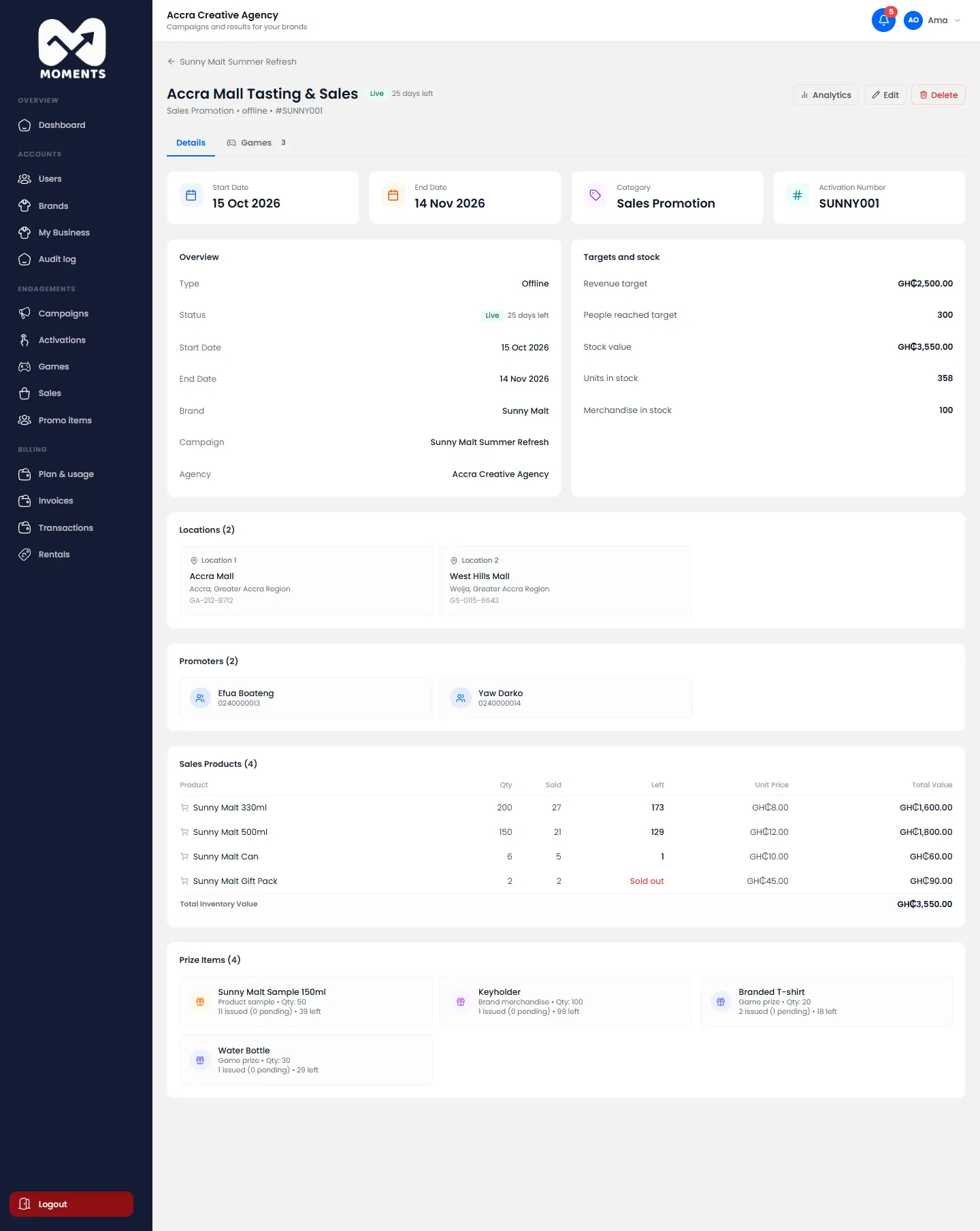
Products running low are marked, and empty ones show Sold out or None left. Promoters see the same on their Overview.
Edit it
- On the activation's page, click Edit.
- Change what you need: dates, locations, targets, promoters, stock, prices or rules.
- Click Save Changes.
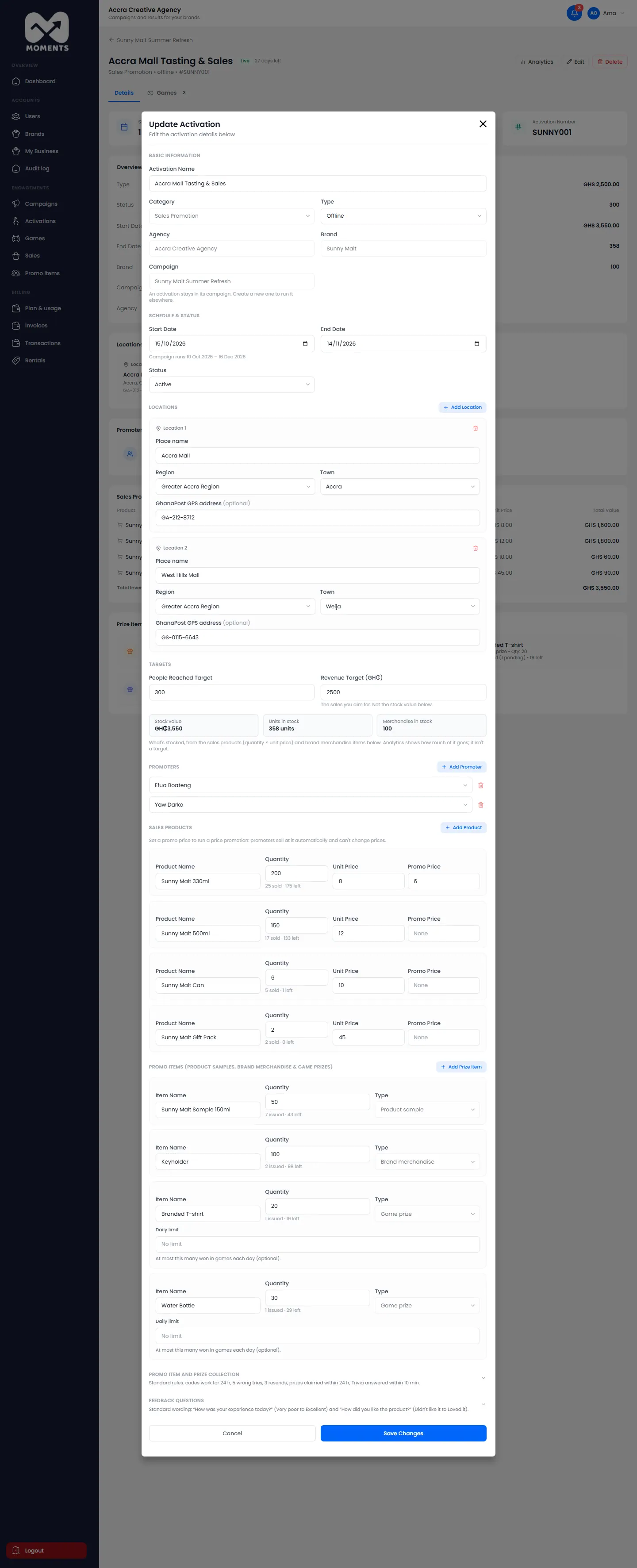
To restock, raise the Quantity of the product or promo item.
Pause, end or cancel it
Edit it and change the Status:
- Inactive pauses it. Promoters can't record anything until you set it back to Active.
- Completed ends it and frees its promoters.
- Cancelled calls it off.
To pause every activation in a campaign at once, pause the campaign. See Edit, pause, end or cancel a campaign.
See its report
For the full picture (targets, map, team and feedback), open its report from the campaign report. See Read a campaign report.