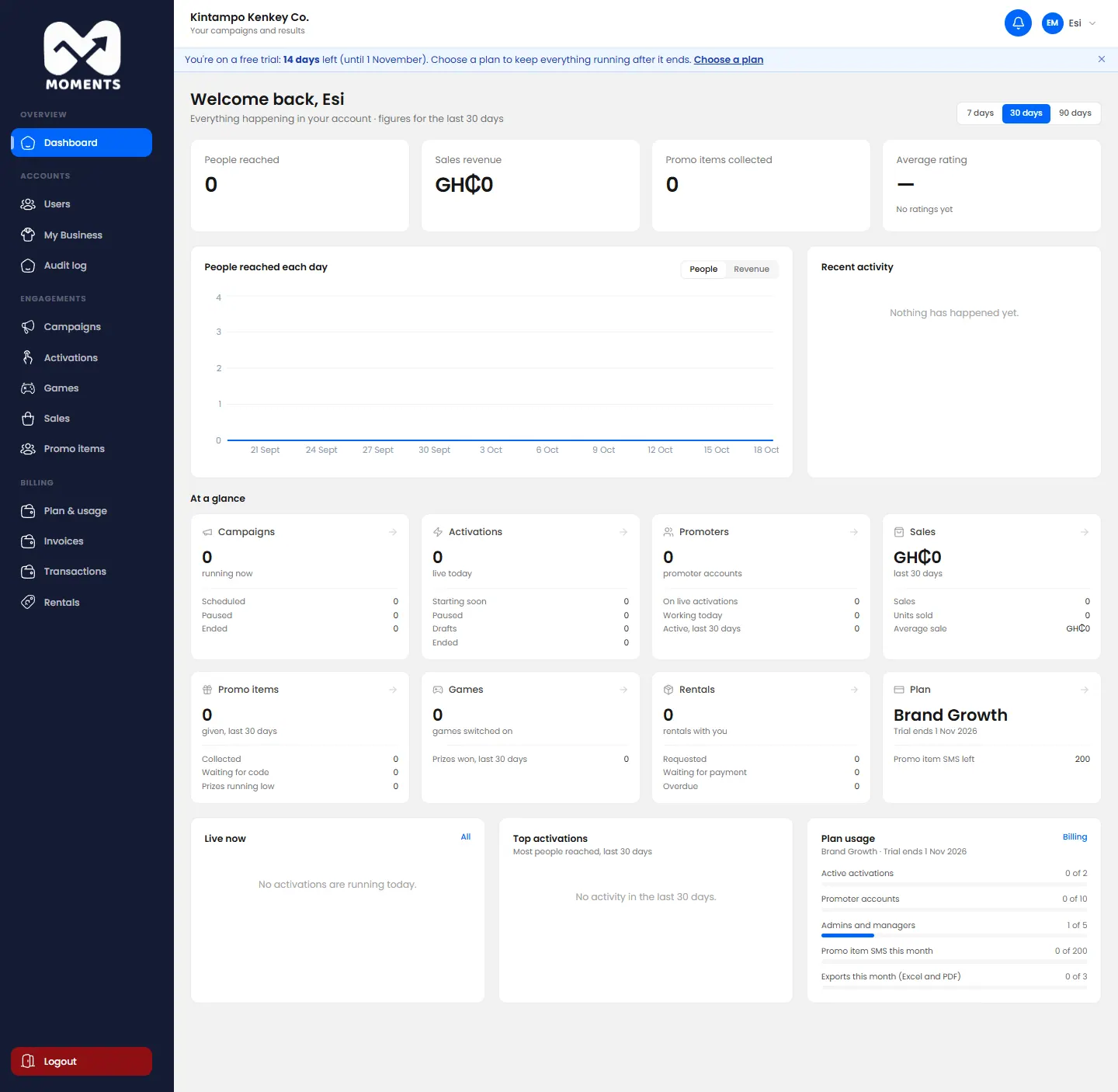
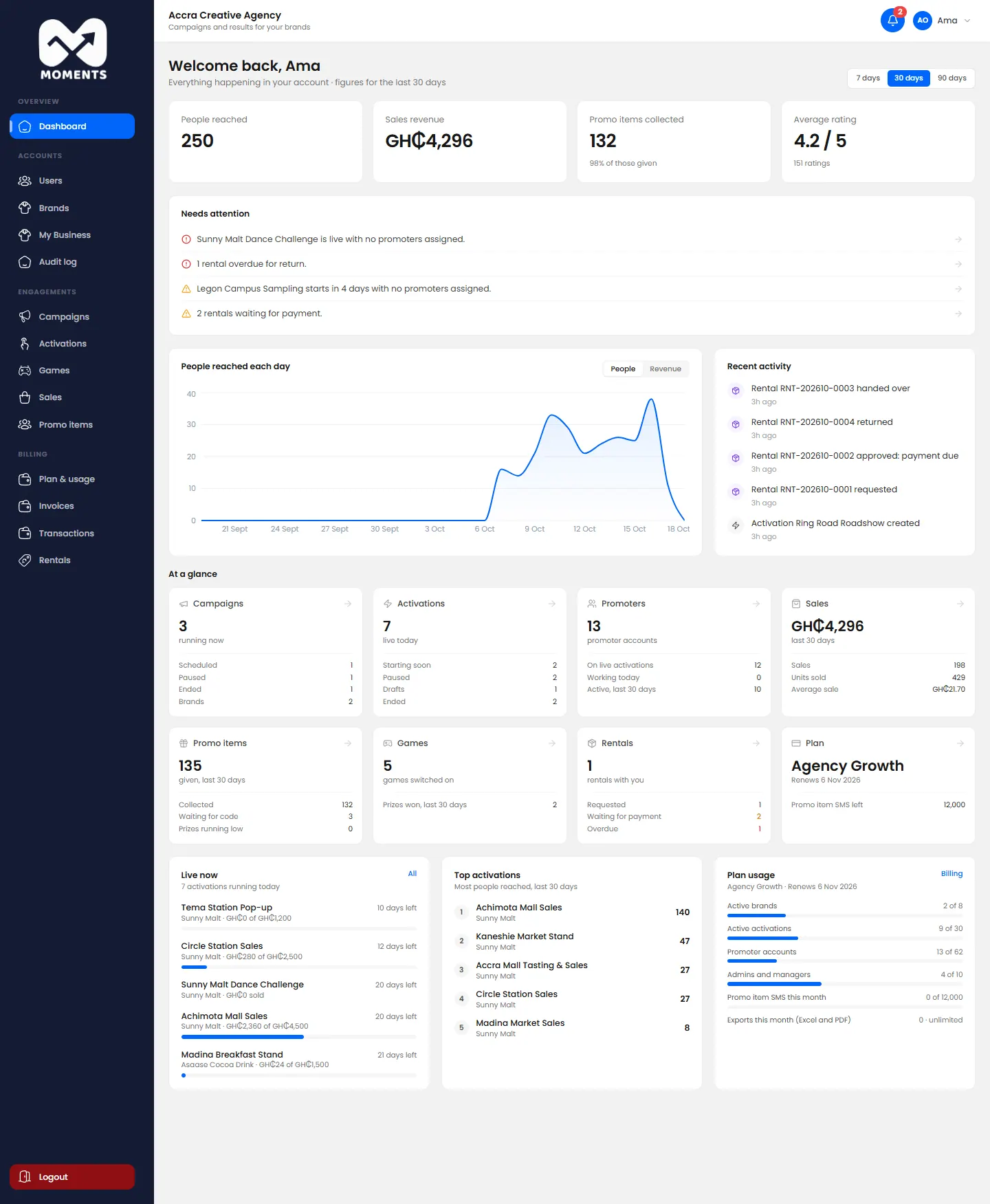
An activation is the work on the ground. It has its own locations, promoters, products and promo items. See Create an activation.
7. Add games (optional)
Add Spin the Wheel, Trivia or Mystery Box, with prizes. See Add a game.
8. Launch it and follow it live
Set the activation to active. On its start date, your promoters can sign in and start recording. Follow it on your dashboard, and share the campaign report with your client.
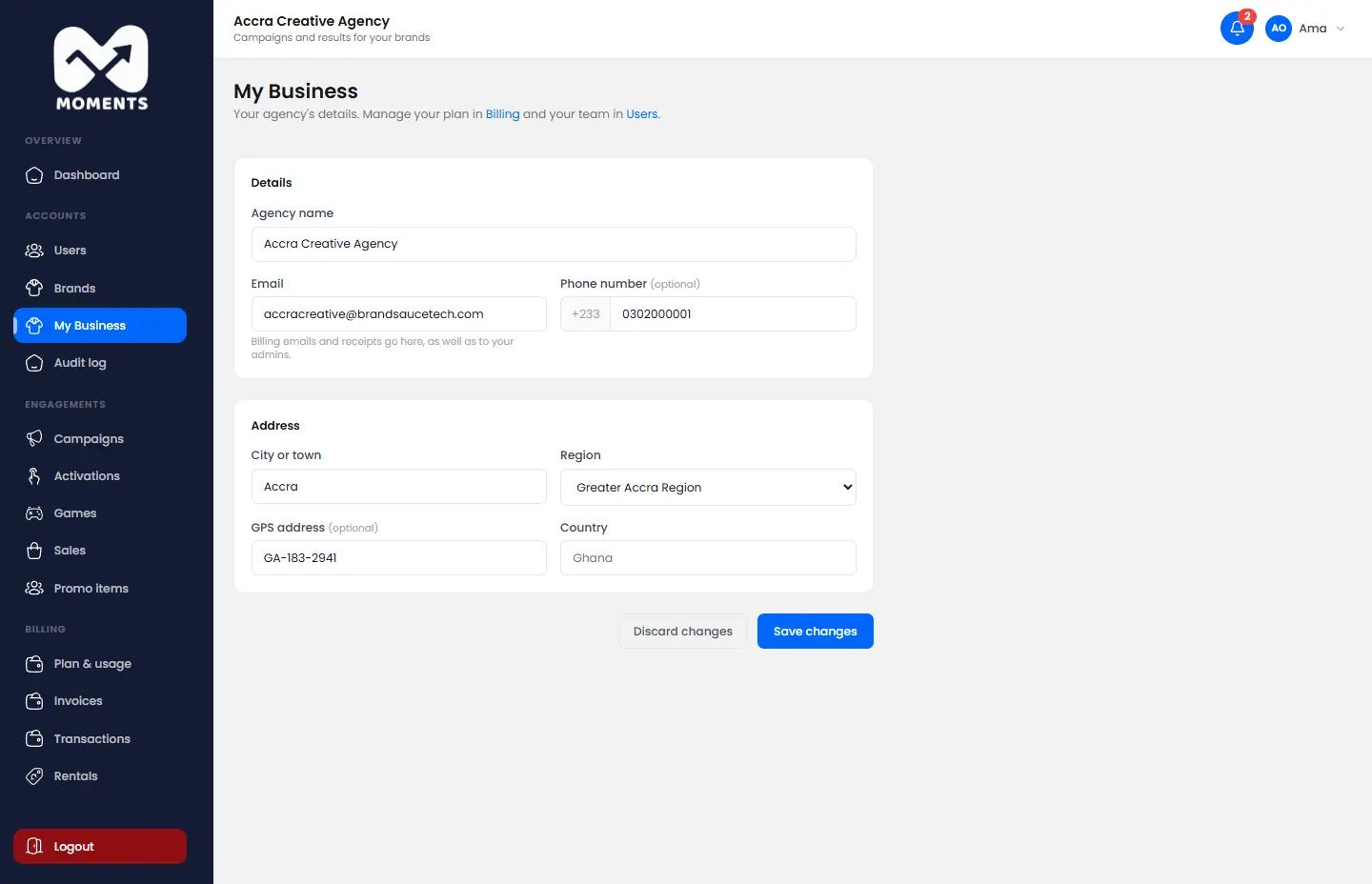
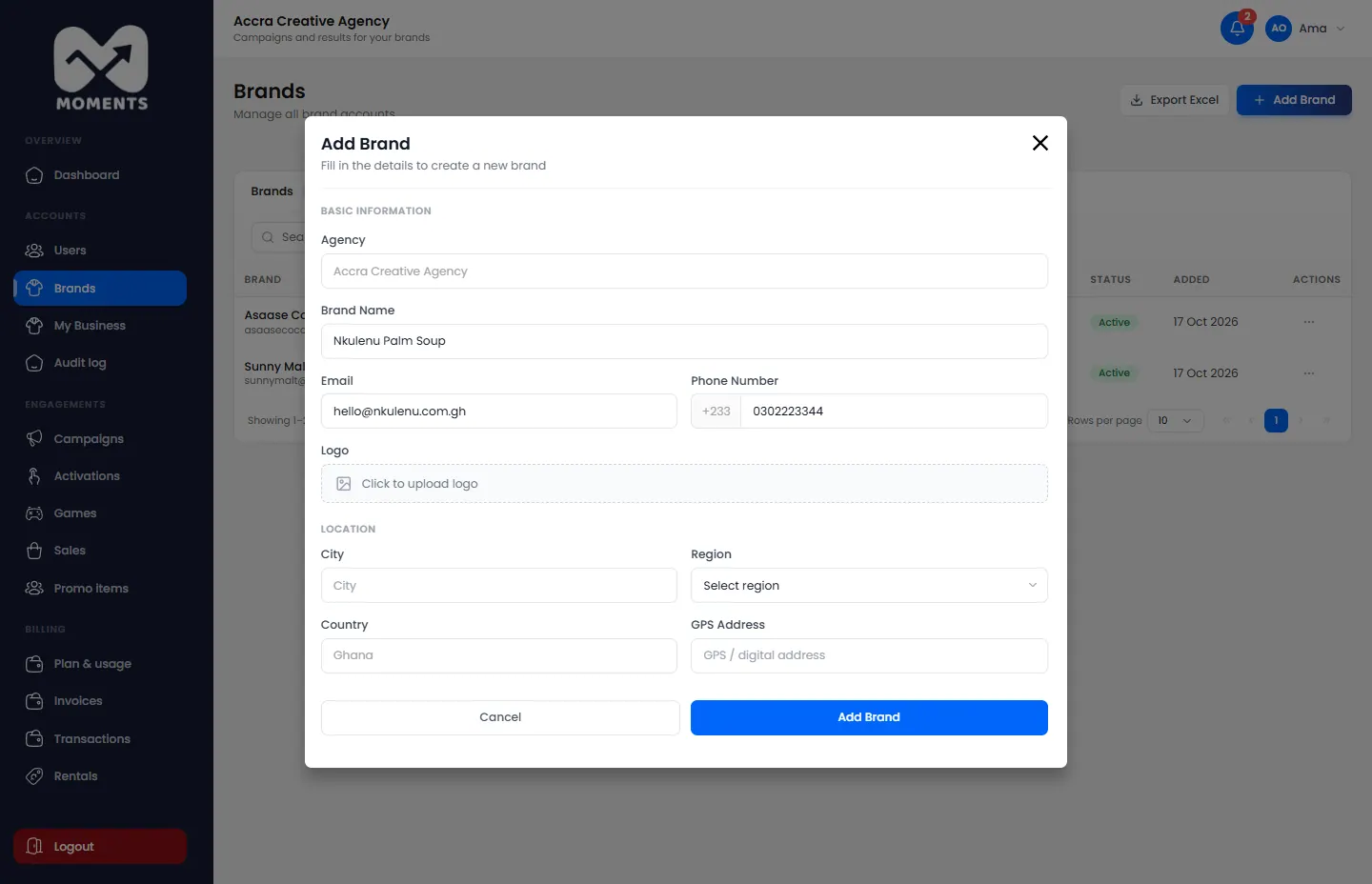
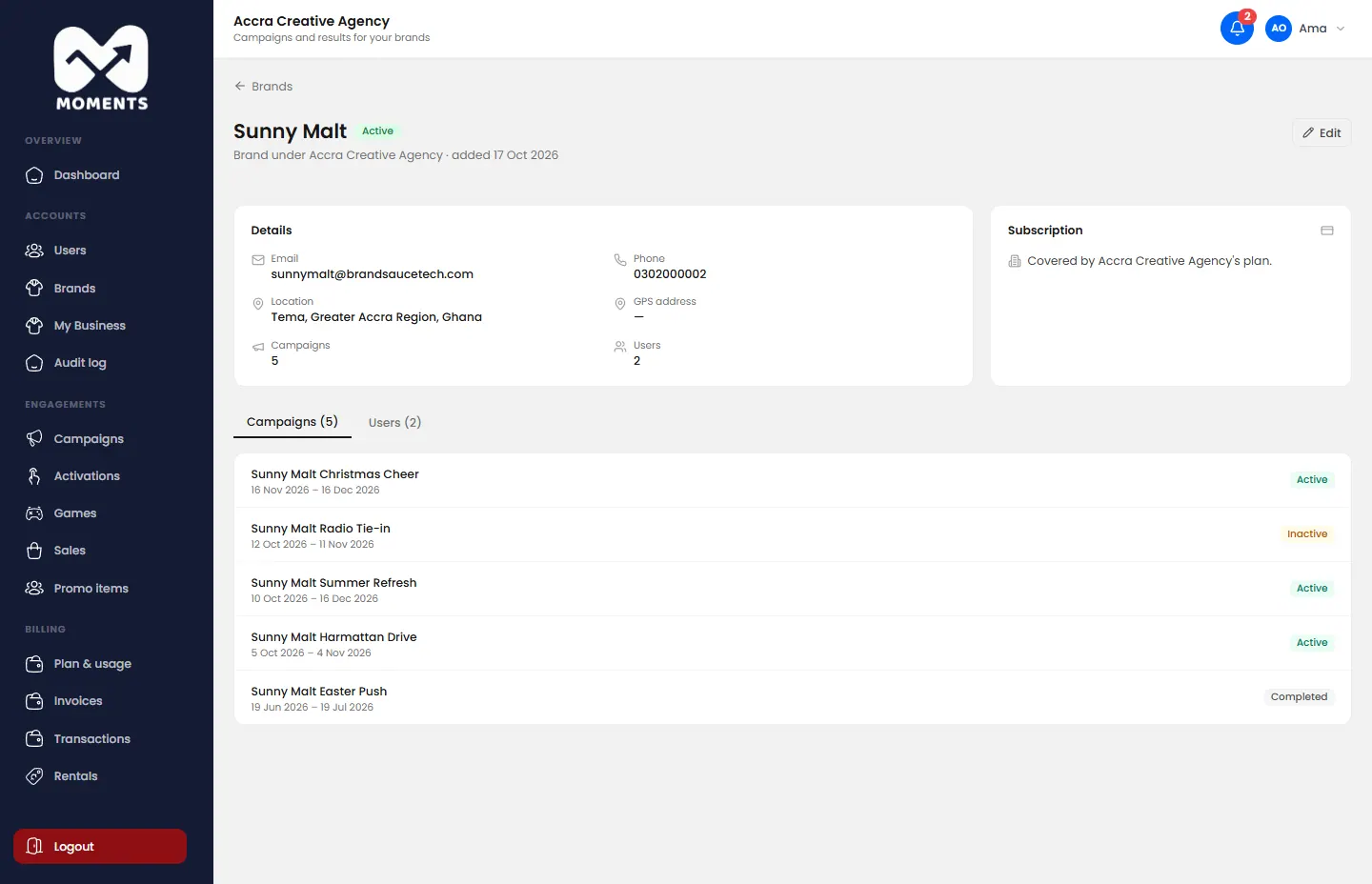
Click a brand in Brands to open its page: its details, its subscription and its people. To change its details, click Edit, then Save Changes.
A brand's page: details, subscription and its people
6 of 26
Add a user
Add managers, promoters and brand viewers to your team.
Only admins can add people. Choose the role that matches what they'll do. See Who can do what.
Role
What they do
How they sign in
Agency Admin
Everything, including billing and users
Email and password
Agency Manager
Run campaigns, activations and games
Email and password
Agency Promoter
Work at the stand, on their phone
Phone number and an SMS code
Brand Viewer
The client: sees one brand's reports
Email and password
Steps
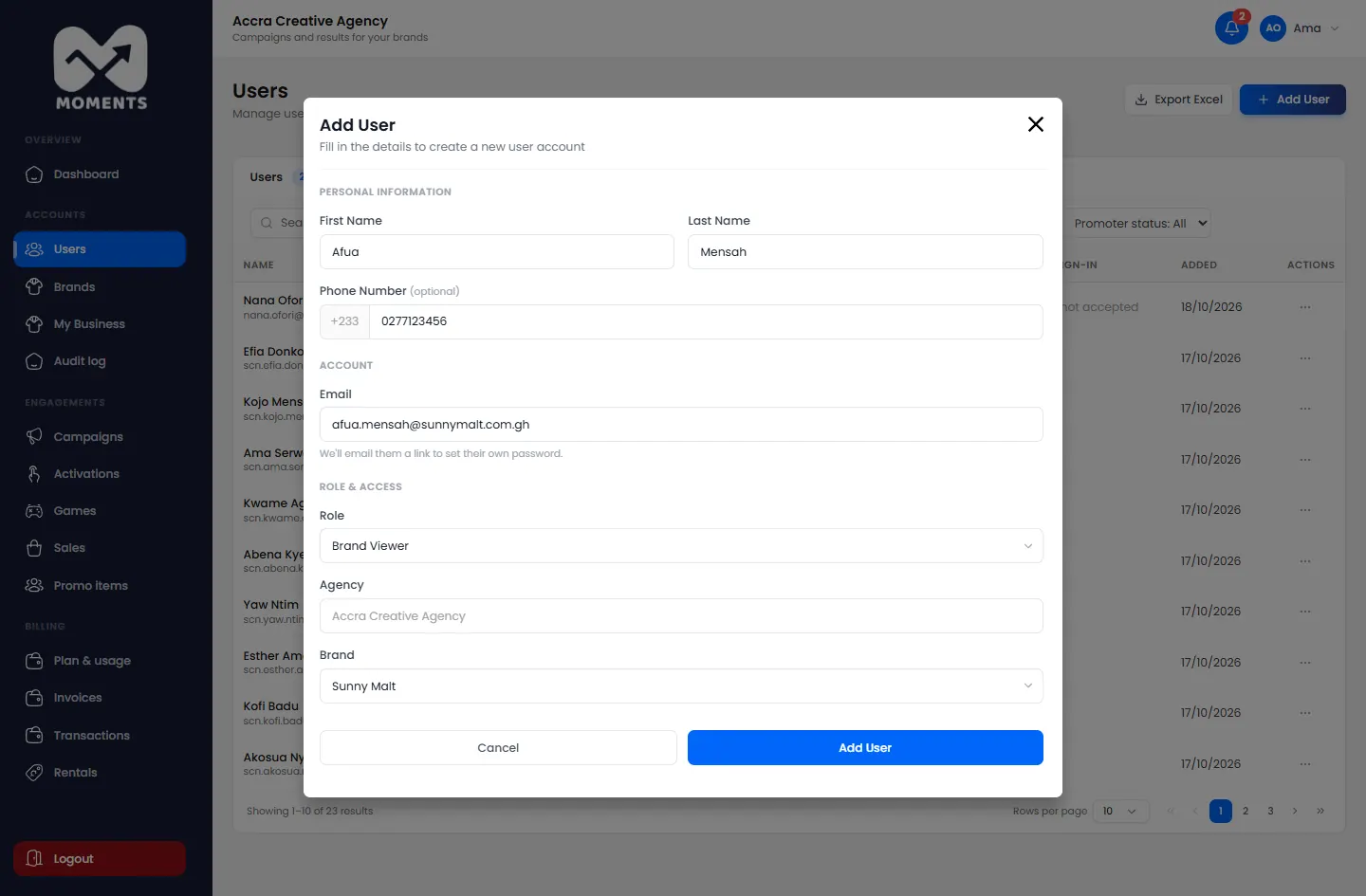
In the menu, click Users, then Add User.
Type their First Name and Last Name.
Type their Phone Number. It's optional for everyone except promoters, who sign in with it.
Type their Email.
Choose their Role.
For a brand viewer, choose the Brand they can see.
Click Add User.
Adding a brand viewer: someone from one of the agency's brands
What happens next
Admins, managers and brand viewers get an email with a link to set their password. It works for 72 hours. See Set your password from an invitation.
Promoters can sign in straight away at promoters.momentsanalytics.com with their phone number. To get to work, they need to be on an activation. See Create an activation.
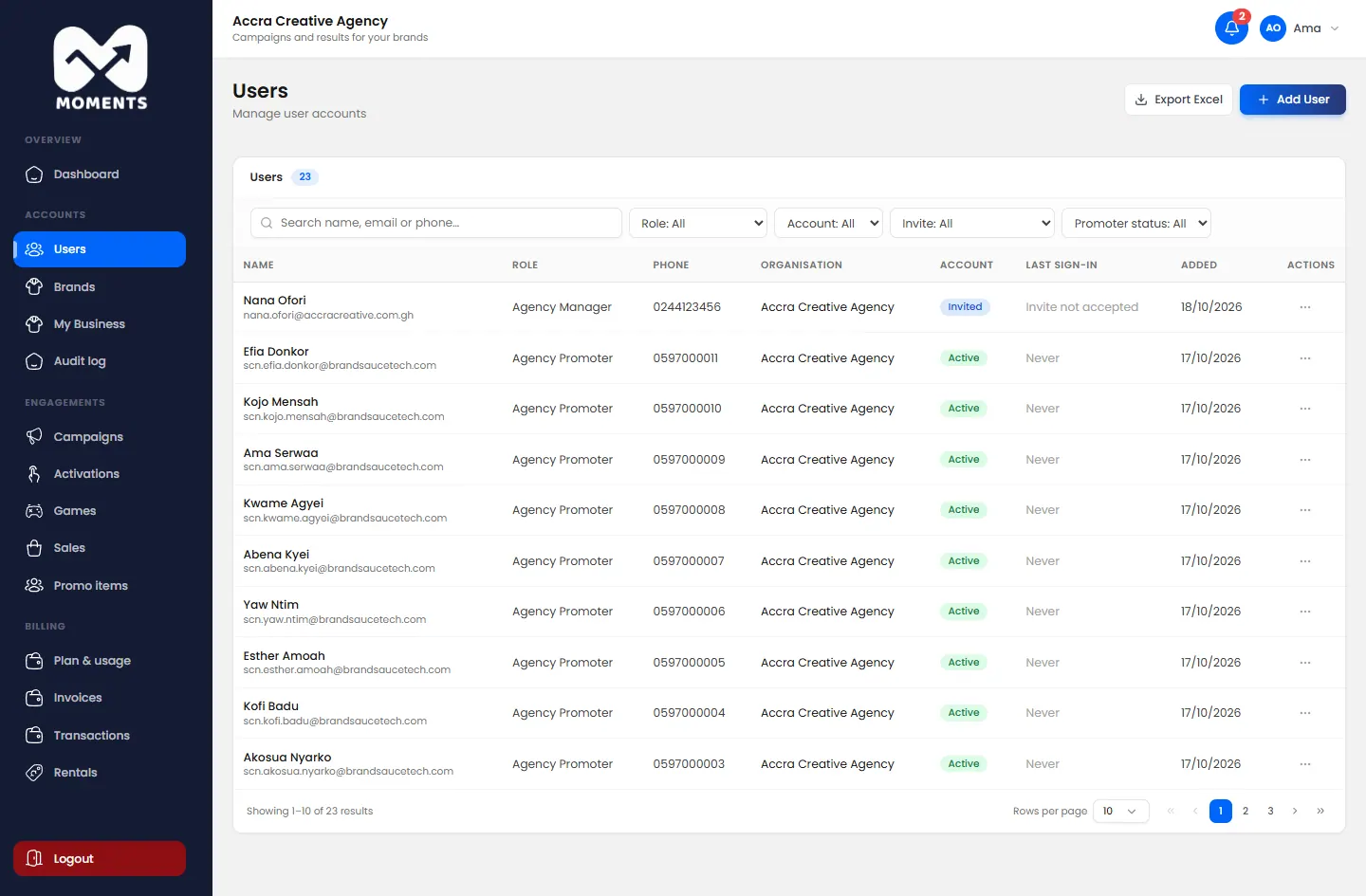
The new manager is added and gets an email to set their password
How many users you can have depends on your plan.
If it doesn't work
"Promoters need a phone number: they sign in with it": type the promoter's phone number.
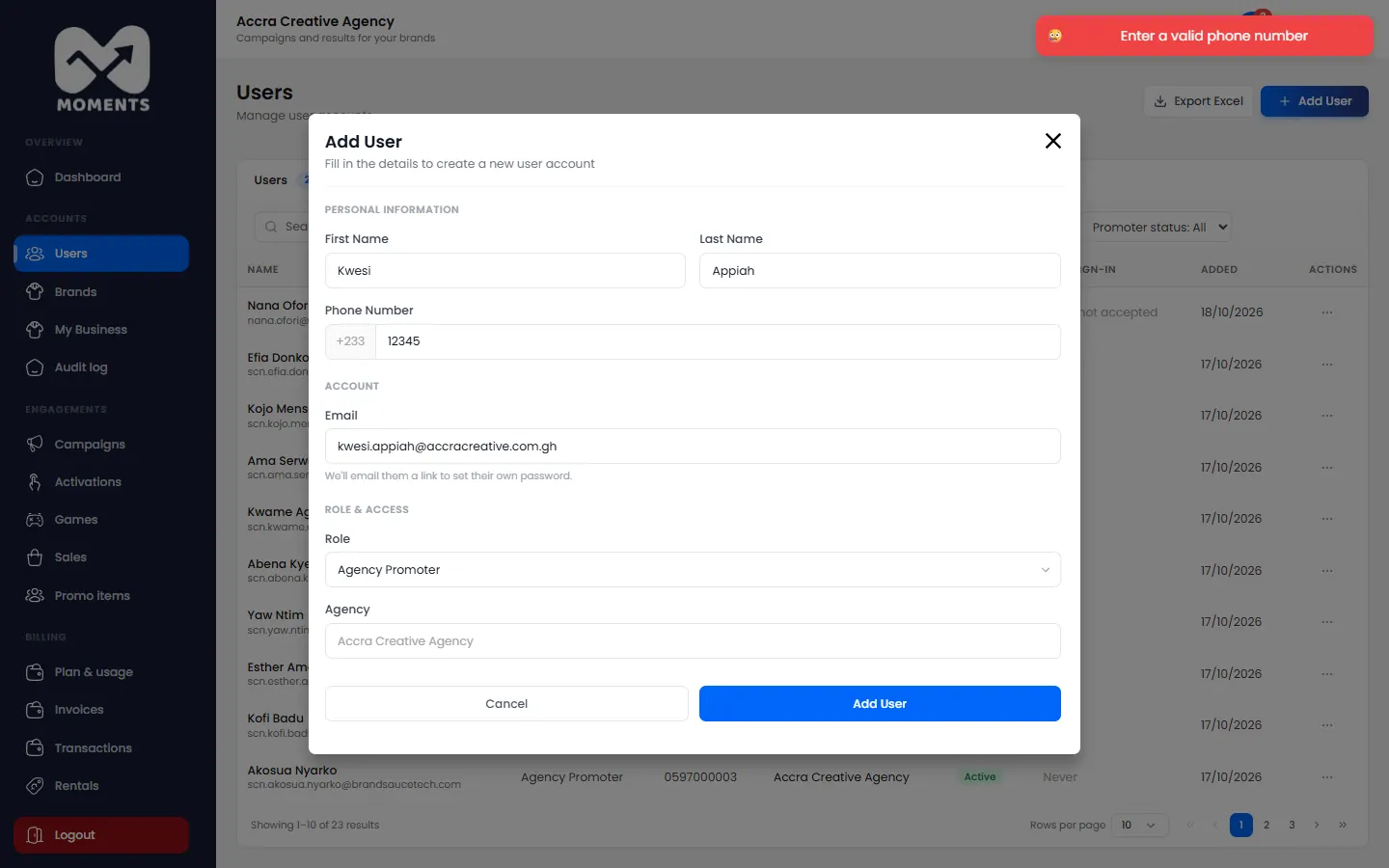
A phone number that isn't valid: type all 10 digits, starting with 0.
A phone number that isn't valid is refused
7 of 26
Edit, suspend or remove a user
Change someone's details or role, resend their invitation, or stop their access.
In the menu, click Users, then click the person to open their page.
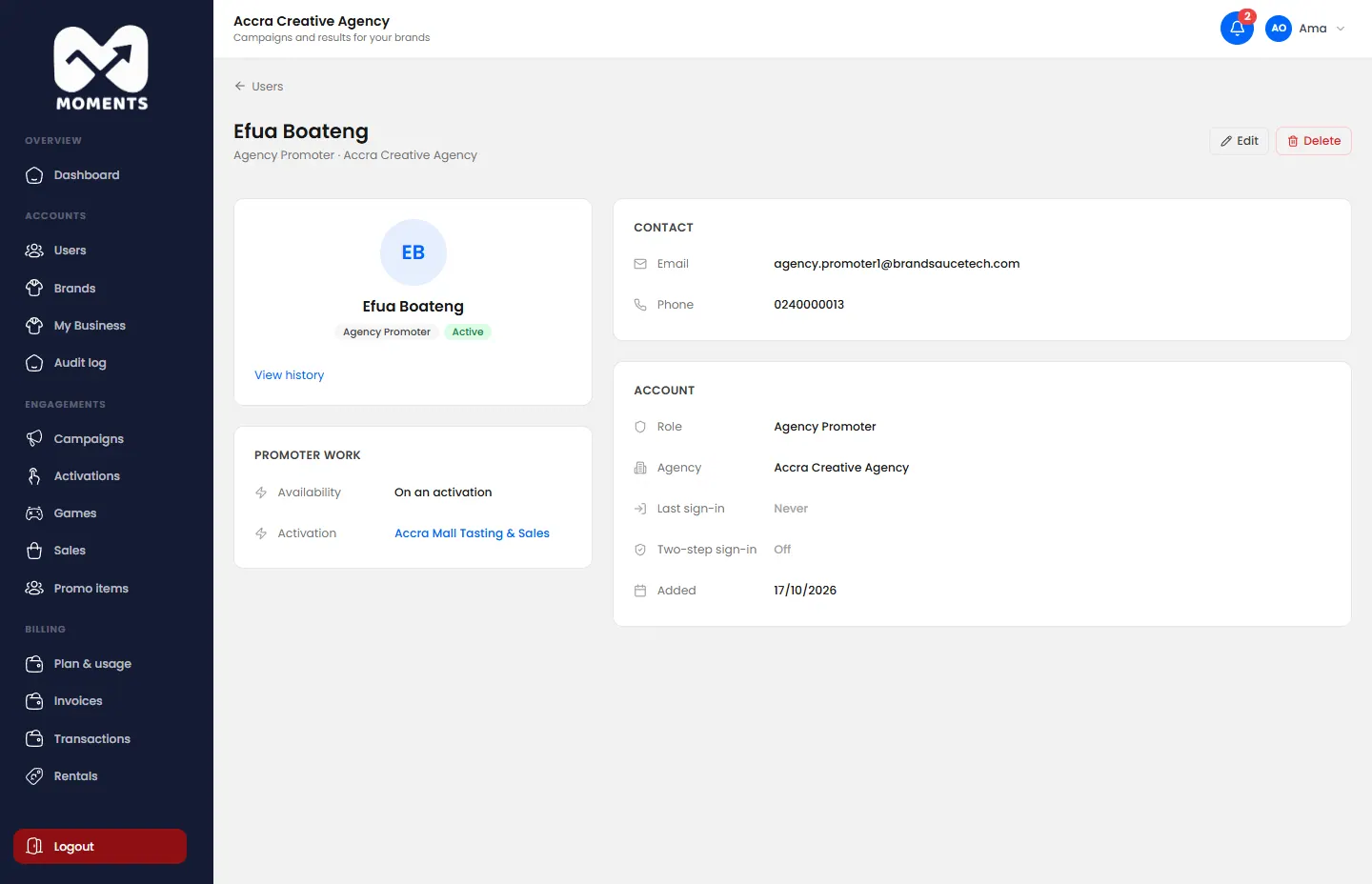
A promoter's page: contact, account and the activation they're working
The page shows their contact details, their account, when they last signed in, and whether they use two-step sign-in. For a promoter, it also shows whether they're on an activation.
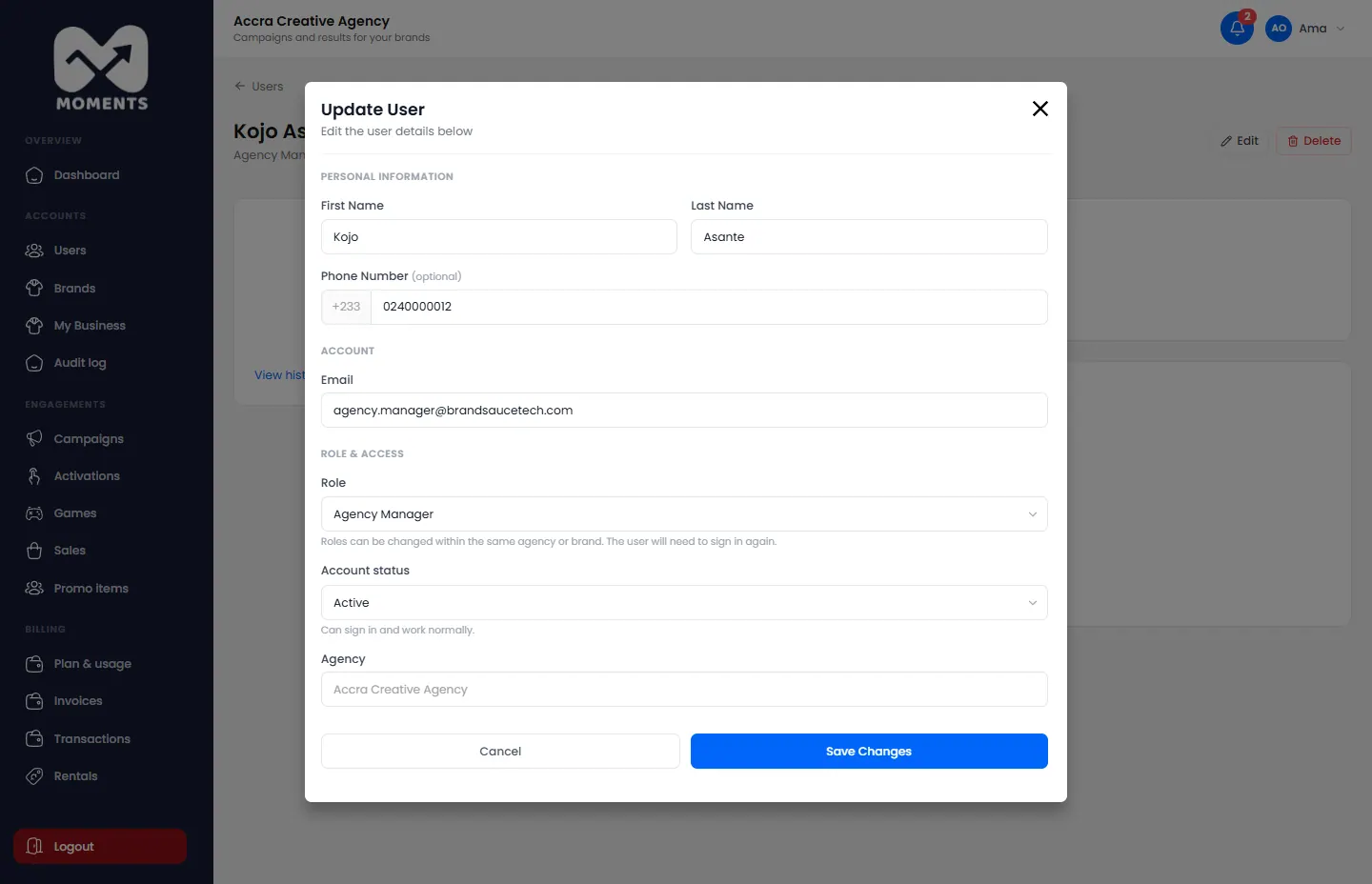
Change their details or role
On their page, click Edit.
Change what you need. You can change their role within your agency or brand. They'll need to sign in again.
Click Save Changes.
Edit a user
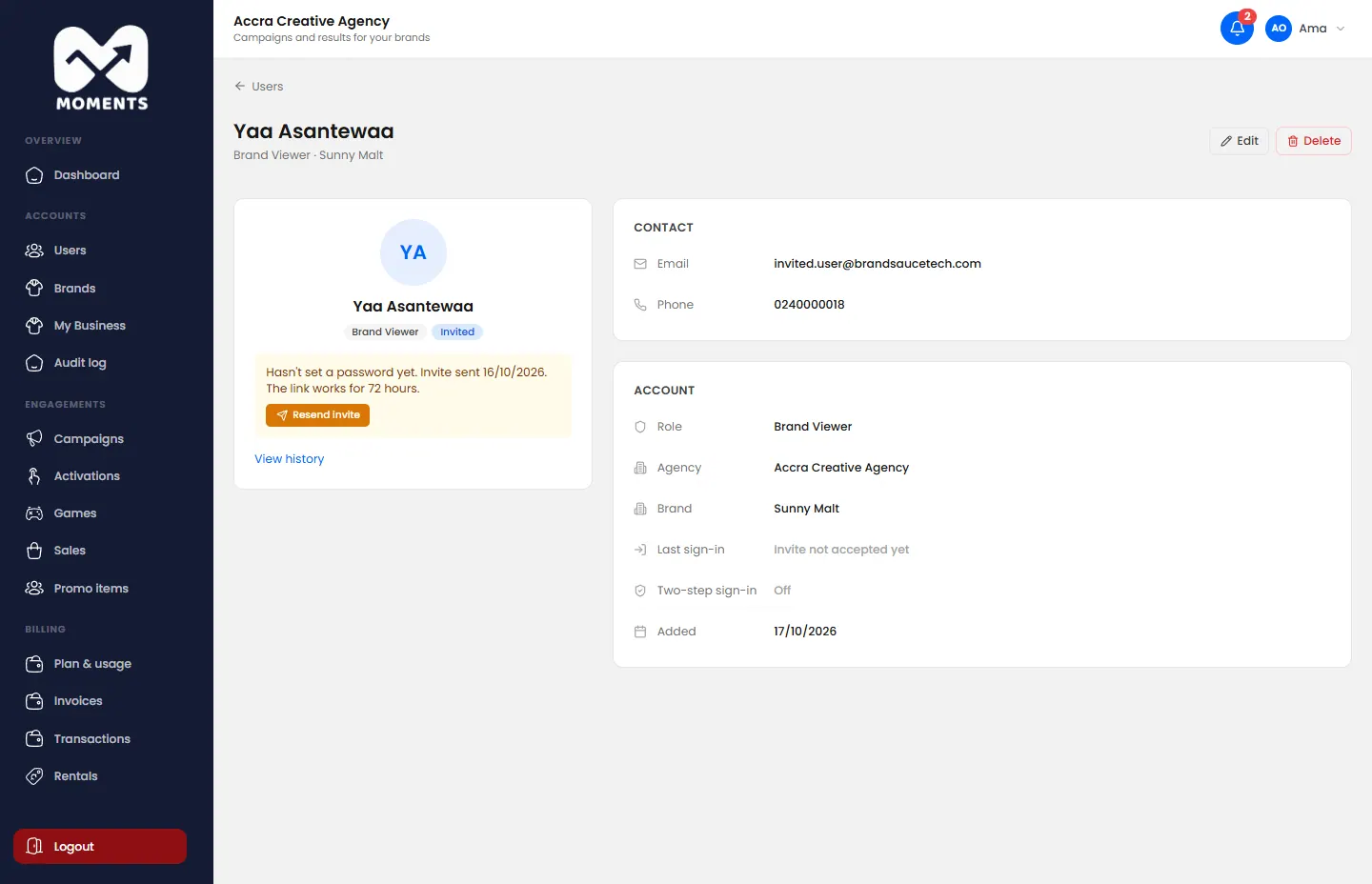
Resend their invitation
If someone hasn't set their password yet, their page says so. Click Resend invite to send a new link. It works for 72 hours.
Someone who hasn't set their password yet: resend their invitation
Suspend or deactivate them
Use this to stop someone's access while keeping their history.
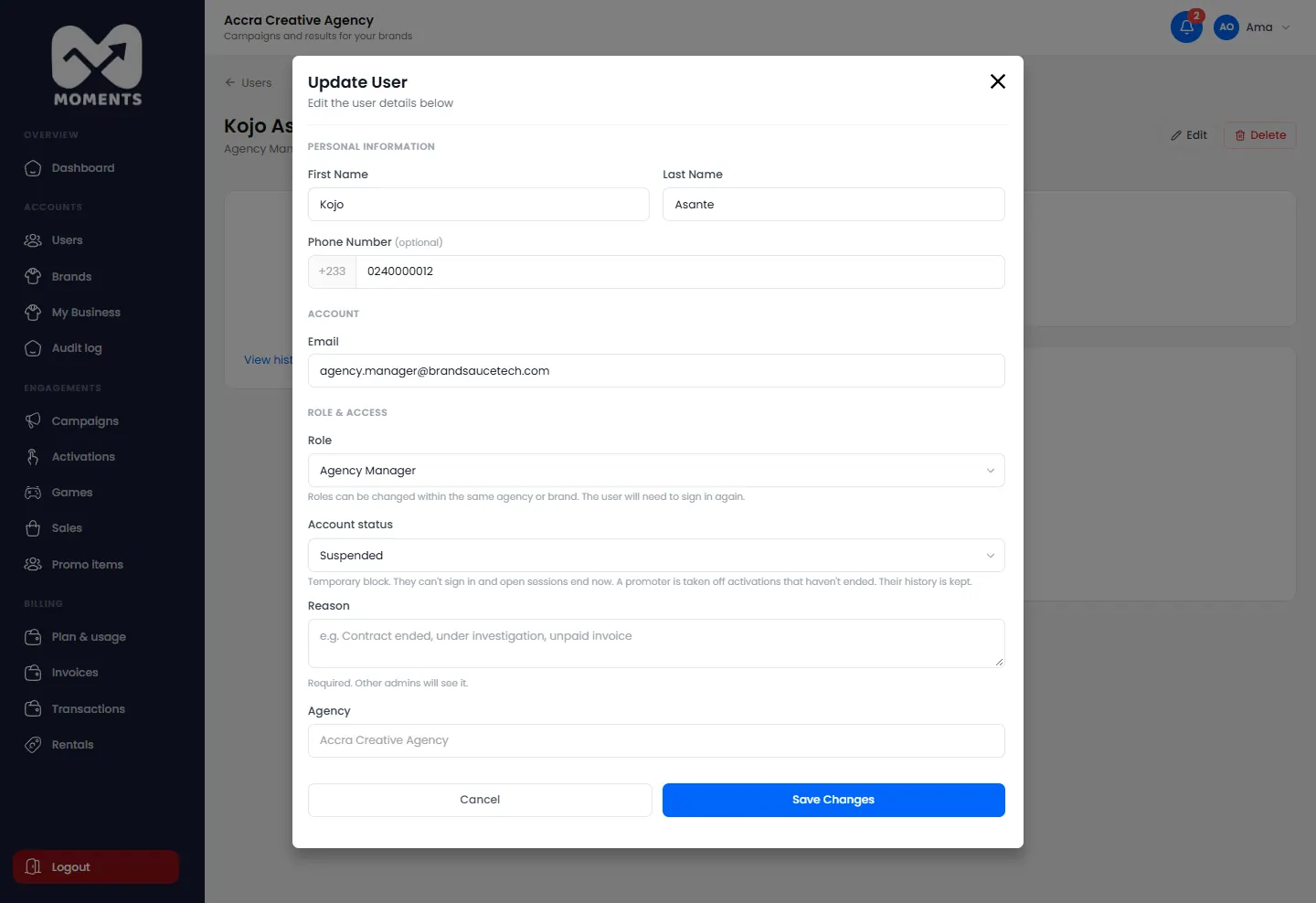
On their page, click Edit.
Change Account status to suspended or deactivated, and give a reason.
Click Save Changes.
Suspending a user needs a reason
They can't sign in, and they see the reason when they try. To restore their access, set them back to active.
Turn off their two-step sign-in
If someone has lost the phone or email their codes go to, open Edit and turn off their two-step sign-in. They can turn it on again once they're in.
Remove them
On their page, click Delete, then Yes, delete.
8 of 26
Create a campaign
Set up a brand's promotion, with its dates and goal, before adding its activations.
A campaign is a brand's promotion as a whole, for example "Sunny Malt Summer Refresh". It holds one or more activations, and its report adds them all up.
Before you start: agencies need to add the brand first.
Steps
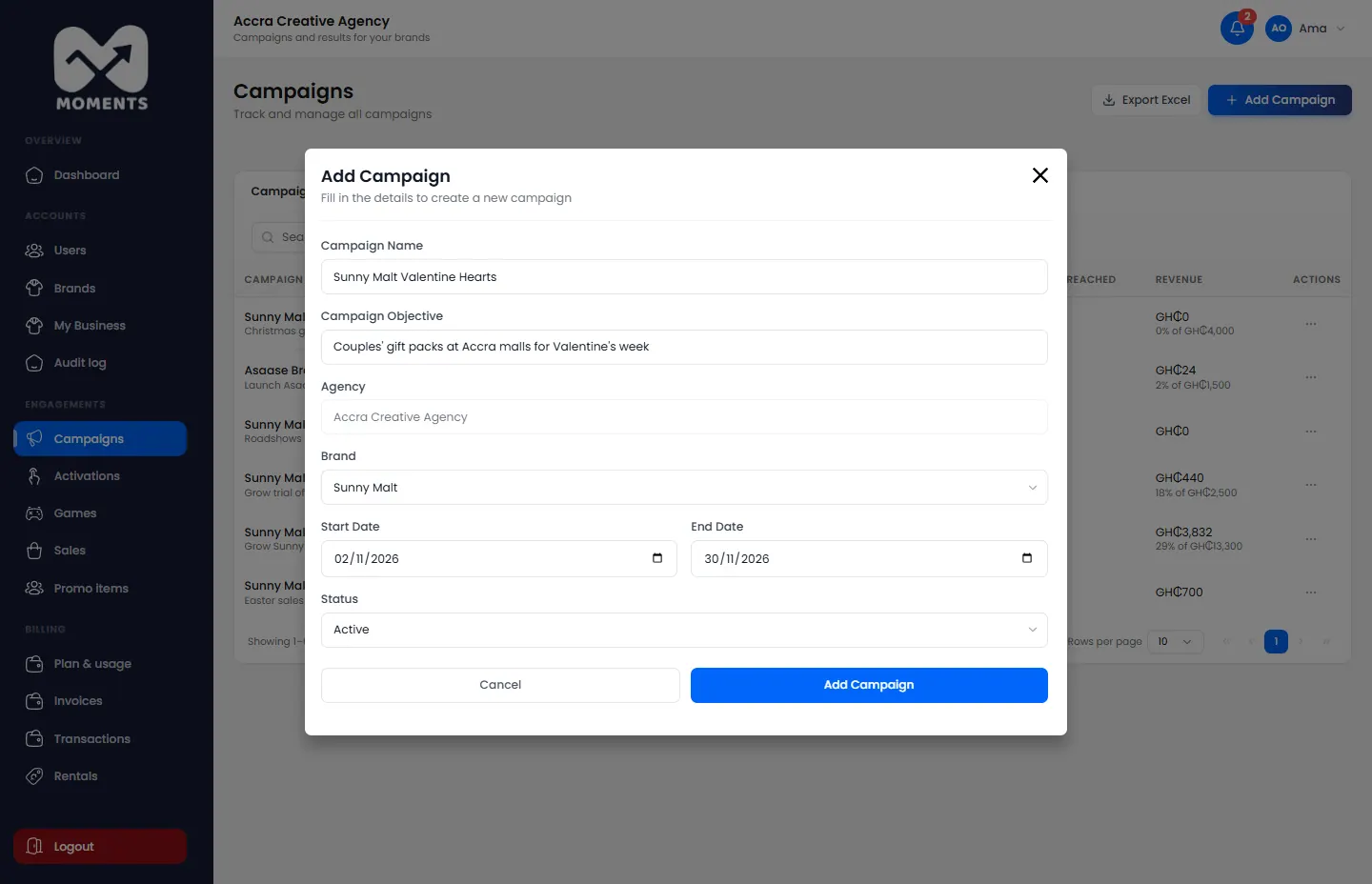
In the menu, click Campaigns, then Add Campaign.
Type the Campaign Name, and describe its goal under Campaign Objective.
Choose the Brand.
Choose the Start Date and End Date. Its activations must fit within these dates.
Choose the Status. Choose Active to run it between its dates.
Click Add Campaign.
Add a campaign: name, objective, brand, dates and status
What happens next
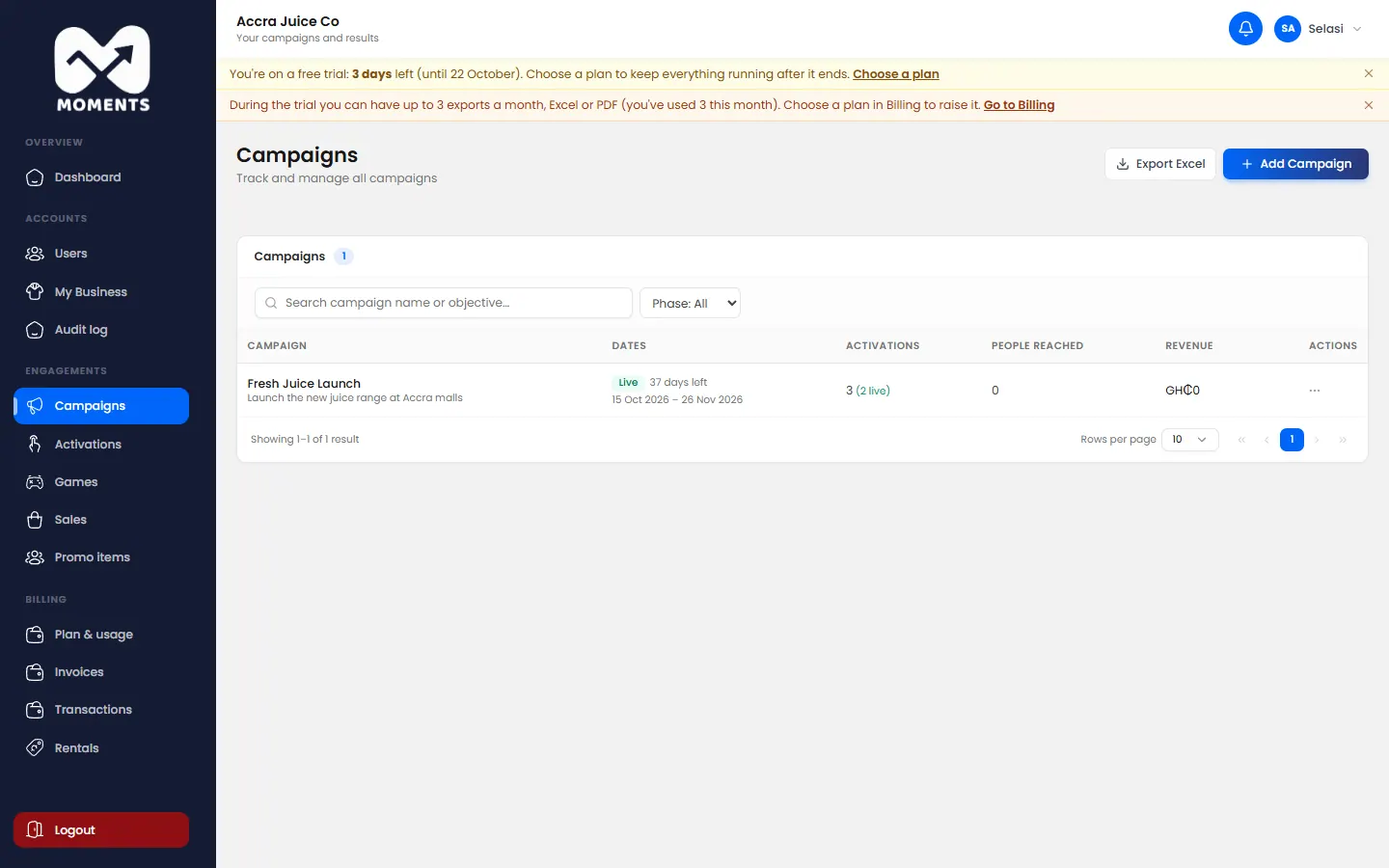
The campaign appears in Campaigns. Open it to add activations. See Create an activation.
The campaign's page
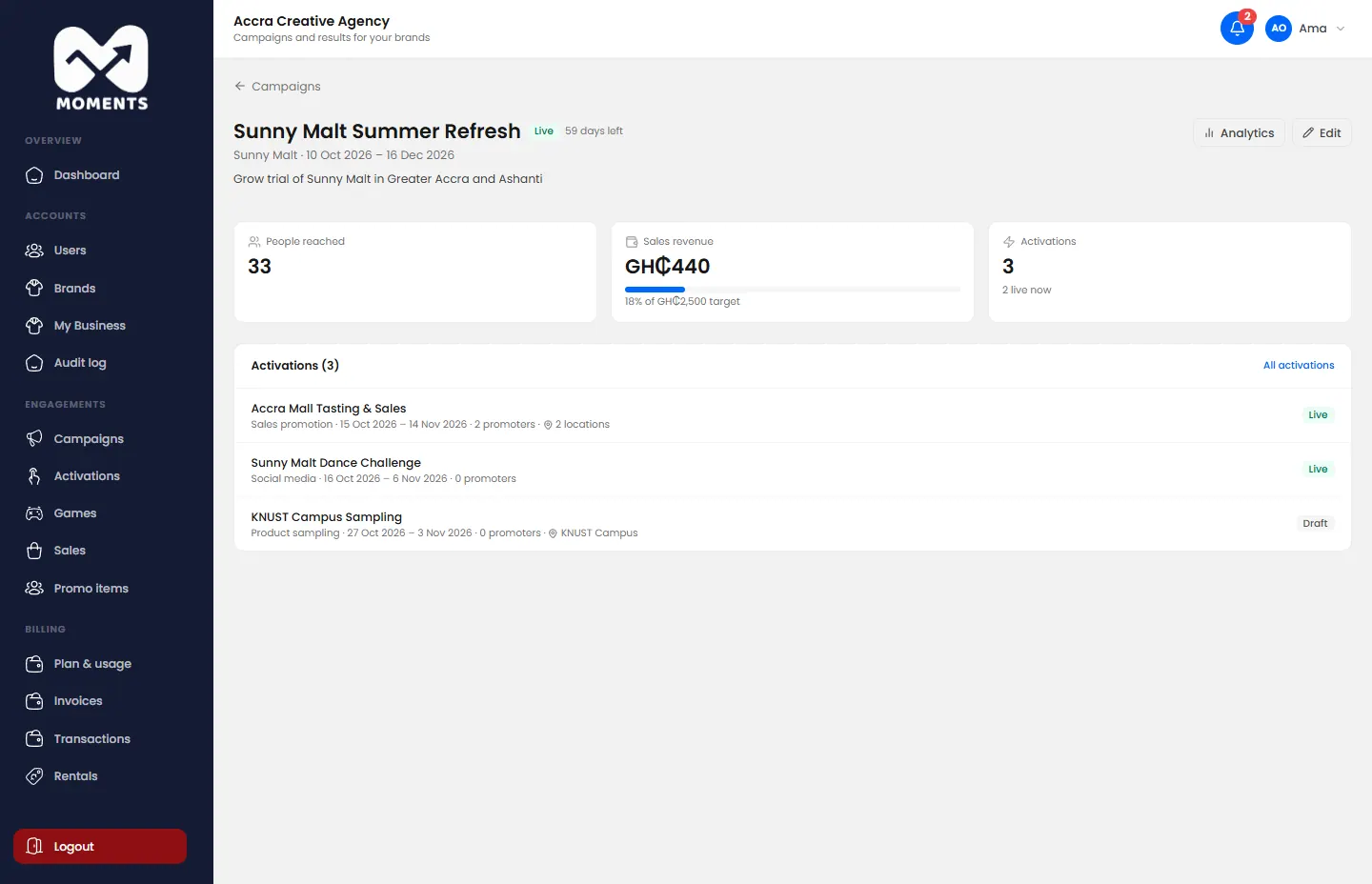
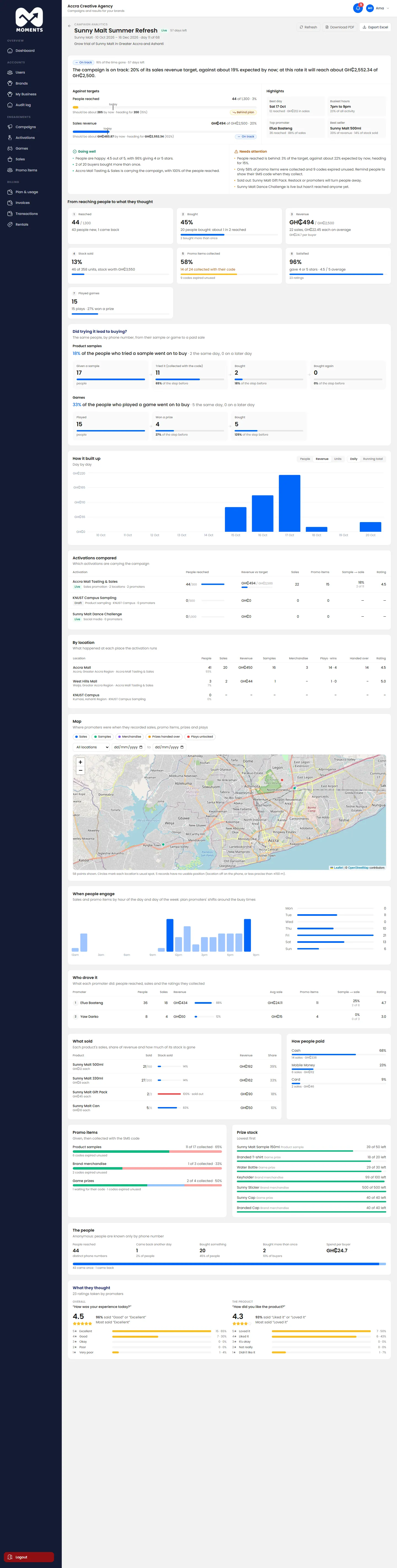
Click a campaign to see its activations, the people reached, and revenue against its target.
A campaign's page: its activations, people reached and revenue against the target
Delete a campaign
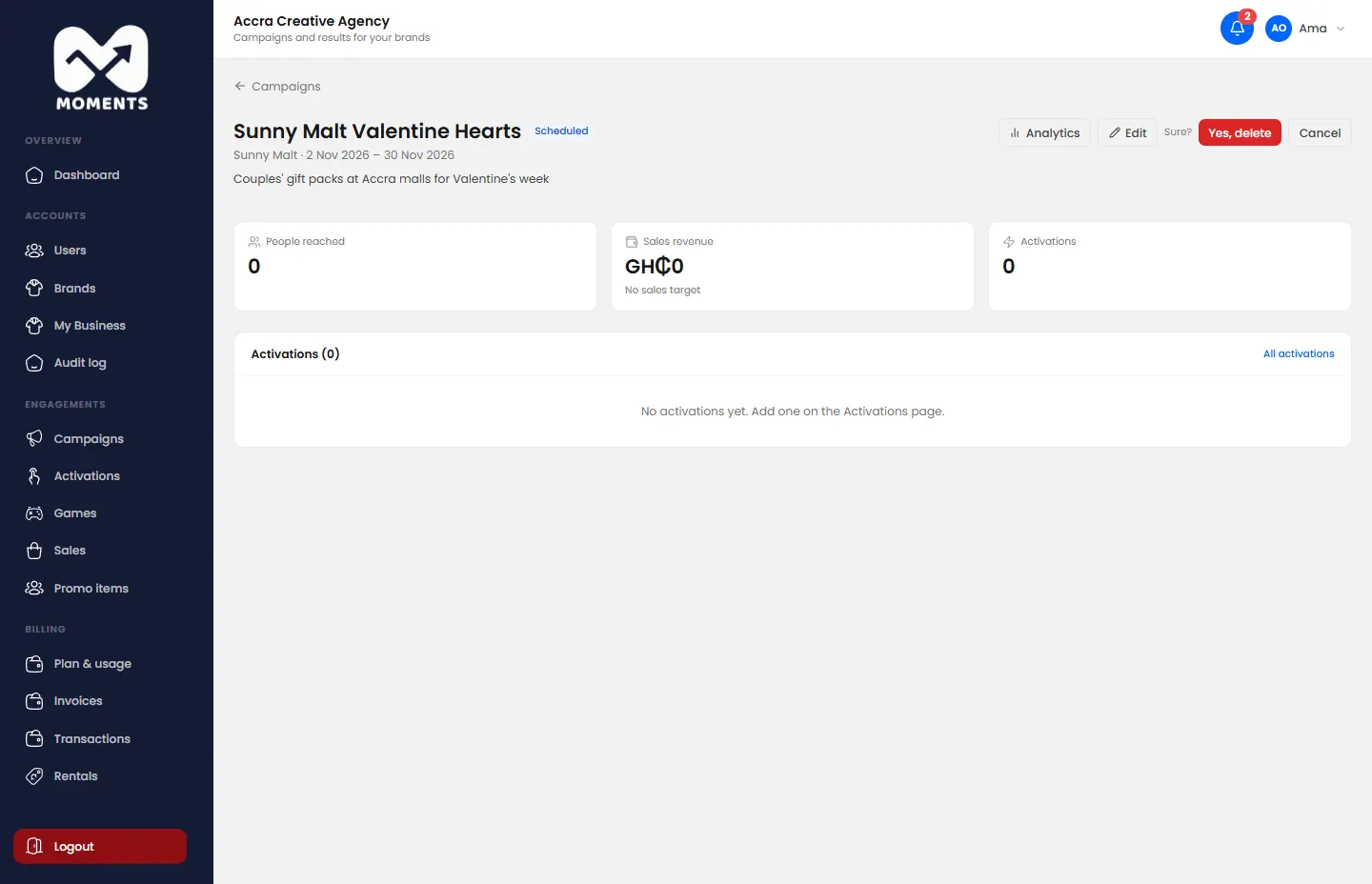
You can delete a campaign only before it has any activations. On its page, click Delete and confirm.
Deleting asks to confirm
9 of 26
Edit, pause, end or cancel a campaign
Change a campaign's details, or stop it for a while or for good.
Steps
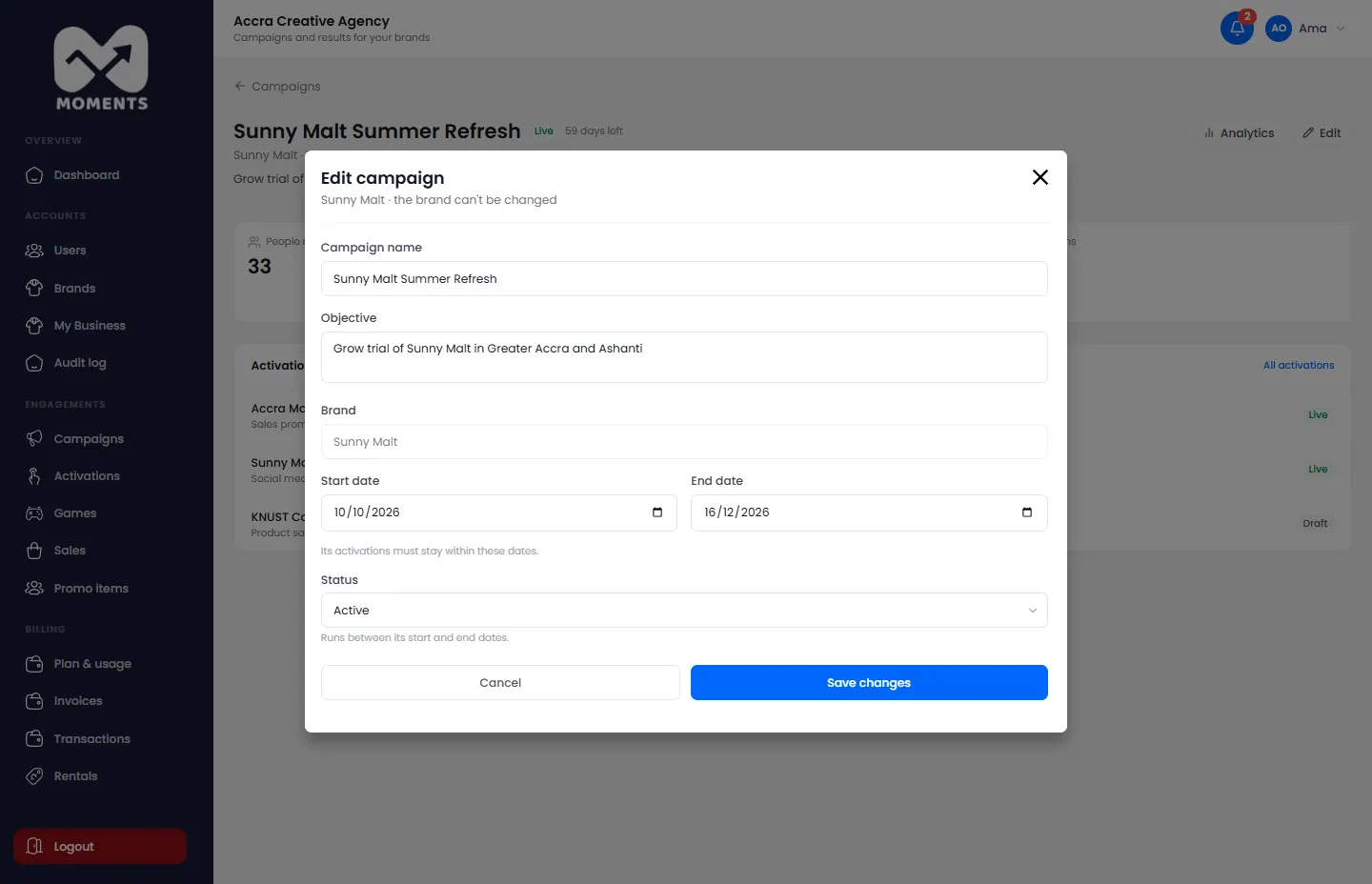
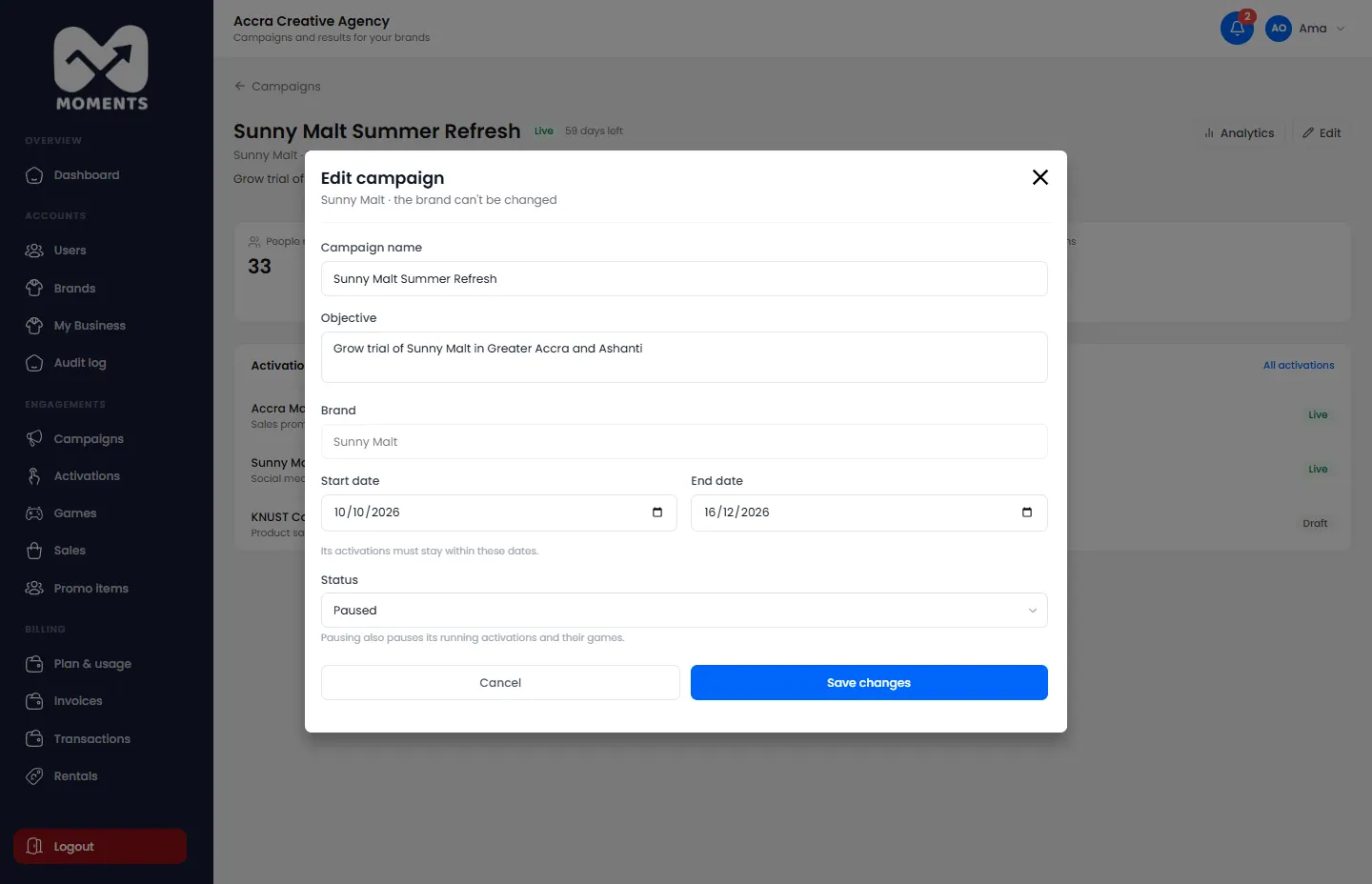
Open the campaign from Campaigns, and click Edit.
Change its name, objective or dates, or its Status.
Click Save changes.
Edit a campaign
What each status does
The status affects every activation in the campaign.
Status
What happens
Active
It runs between its start and end dates
Paused
Its running activations and their games pause. Promoters can't record anything until you set it back to Active
Completed
It ends now. Its activations end, and their promoters are free for other activations
Cancelled
It and all its activations are cancelled, and their promoters are freed
Pausing a campaign pauses its running activations and their games
Everything recorded before stays in the reports.
10 of 26
Create an activation
Set up the work on the ground: where, when, who, what's sold and what's given away.
An activation is one event or promotion on the ground, such as a weekend of tastings at Accra Mall. Promoters record everything against it.
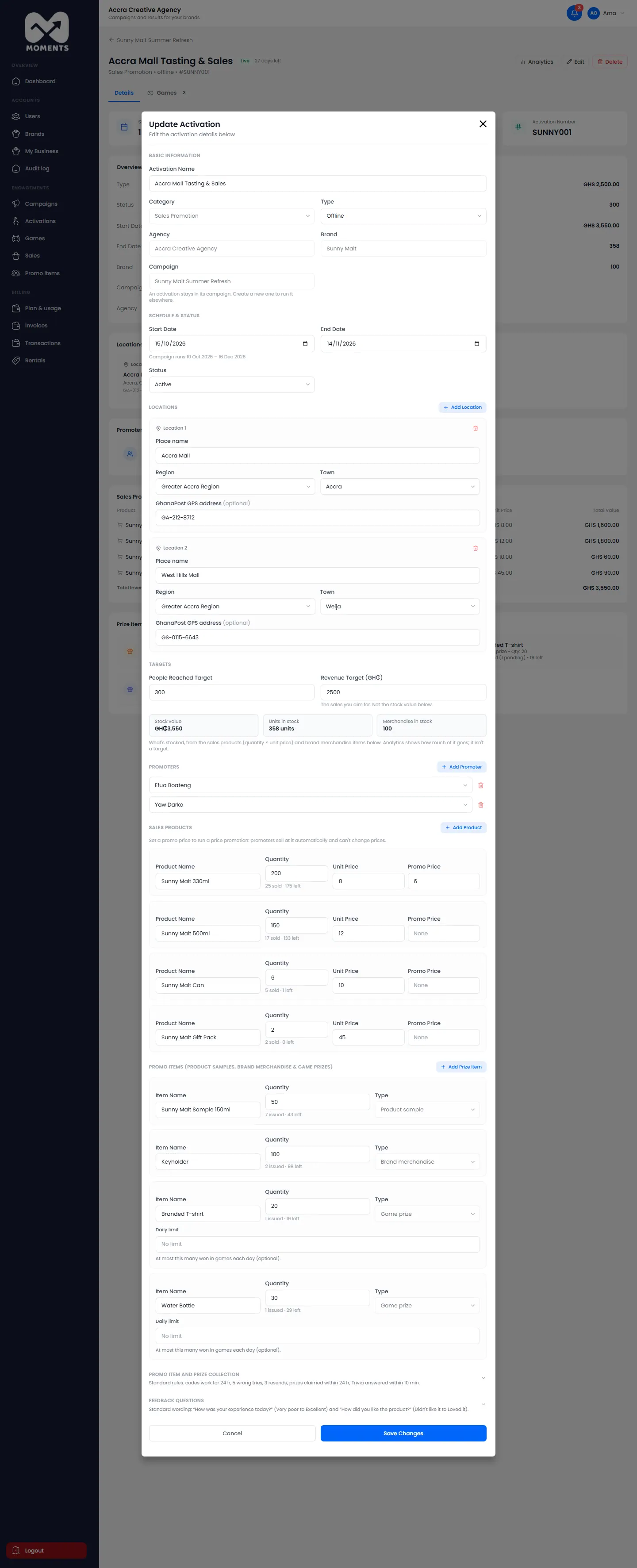
The form is long, so this page covers the first half. The second half (products, promo items and their rules) is on Add products and promo items.
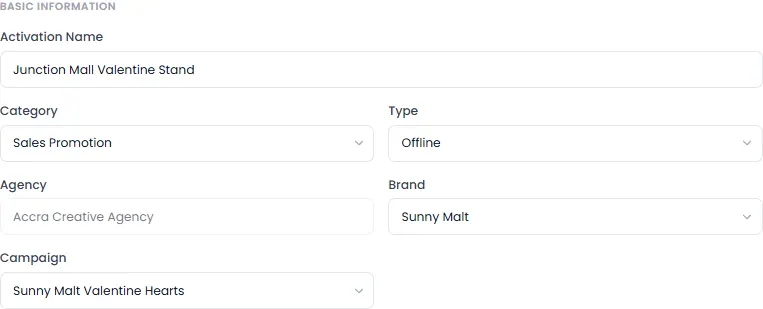
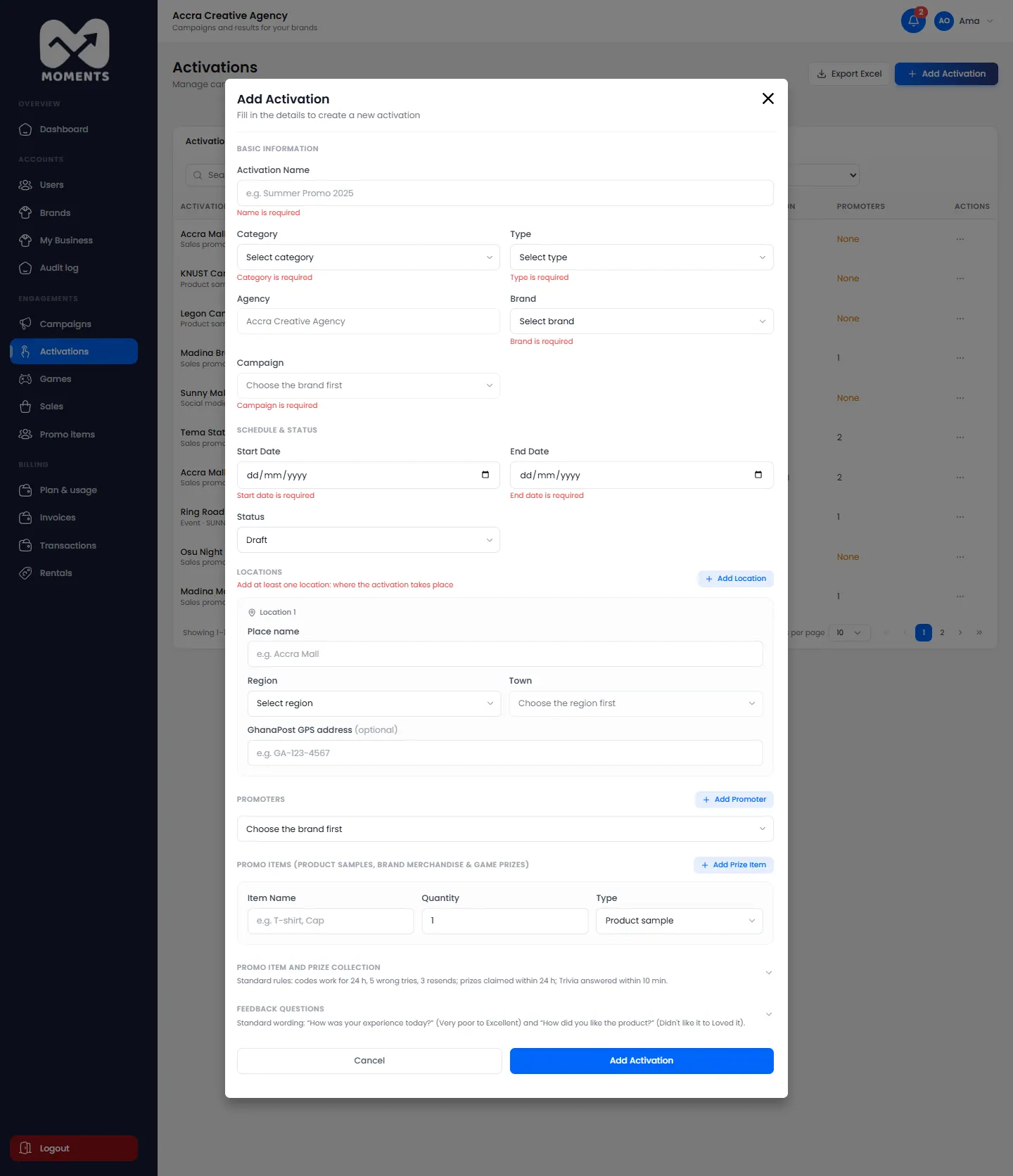
In the menu, click Activations, then Add Activation.
Type the Activation Name.
Choose its Category and Type:
Category: Sales Promotion, Product Sampling, Event Activation or Social Media Activation.
Type: Offline, Online or Kiosk.
Choose the Brand, then the Campaign.
Choose the Start Date and End Date. They must be within the campaign's dates, which are shown under the dates.
Choose the Status. Leave it on Draft while you're setting it up. See What each status means.
Basic information, and schedule and status
Locations
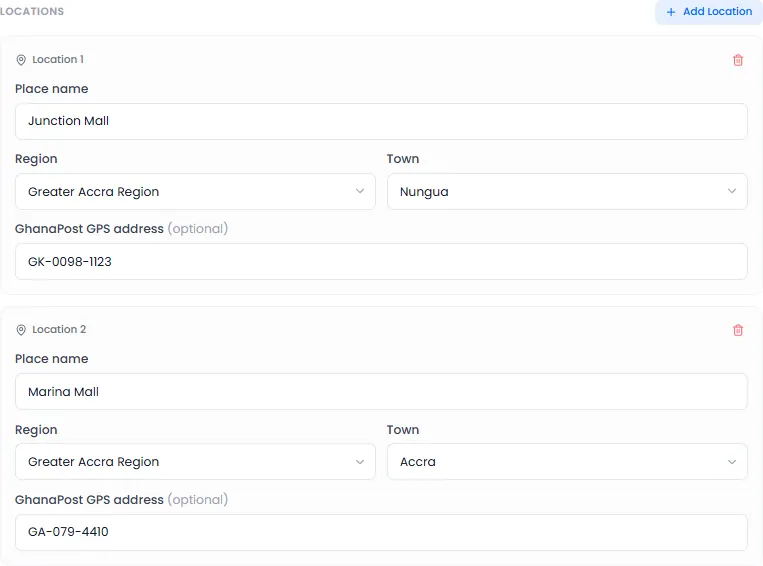
Under Locations, type the Place name, and choose the Region and Town. The GhanaPost GPS address is optional.
If the activation runs in more than one place, click Add Location for each one. Promoters choose which one they're at each day.
Locations: place, region, town and GhanaPost GPS address
Targets
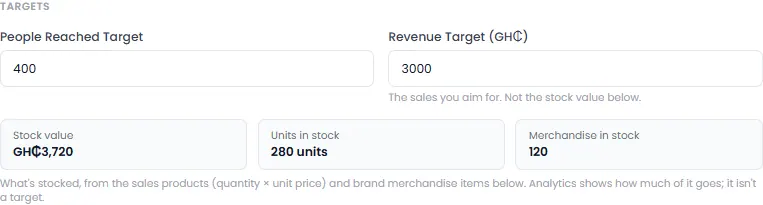
Set the targets the reports measure against. Which ones you see depends on the category. For example, a sales promotion has a People Reached Target and a Revenue Target.
Targets: people reached and revenue
The revenue target is the sales you aim for. It isn't the value of the stock you bring.
Promoters
Under Promoters, click Add Promoter and choose one. Repeat for each promoter.
Promoters: only people who can work this brand are offered
A promoter can't be on two activations with overlapping dates.
Add what promoters sell and give away, set promo prices, and choose the code and feedback rules.
This is the second half of the activation form. You fill it in when you create an activation, or later with Edit on the activation's page.
Sales products
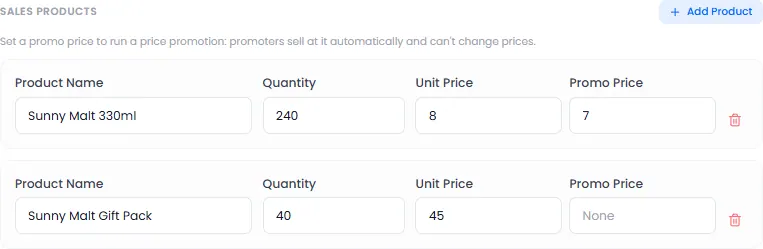
What promoters sell. For each product:
Click Add Product.
Type the Product Name, the Quantity you're bringing, and the Unit Price.
Optional: type a Promo Price. Promoters then sell at it automatically. It must be lower than the unit price.
Sales products: quantity, price and an optional promo price
Promoters can't change prices. The quantity is the stock they sell from. When it runs out, the product shows as sold out.
Promo items
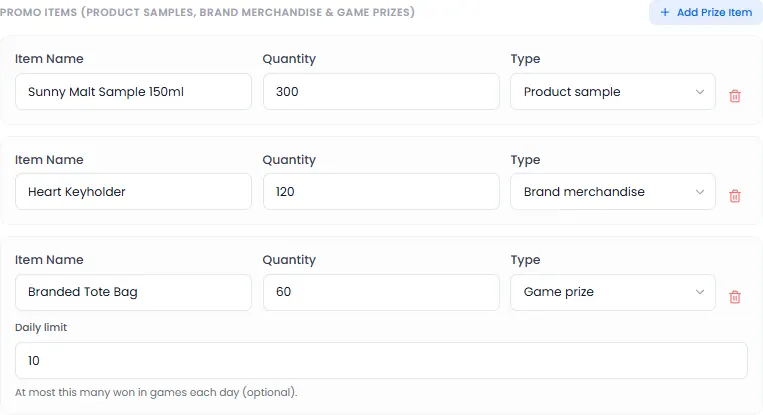
What's given away free. For each item:
Click Add Prize Item.
Type the Item Name and Quantity.
Choose its Type:
Product sample: a free product to try;
Brand merchandise: a cap, T-shirt or other branded item;
Game prize: a prize shoppers can win in a game.
Optional, for a game prize: set a Daily limit, the most that can be won each day.
Promo items: product samples, brand merchandise and game prizes
A game needs at least one game prize. See Add a game.
Promo item and prize collection (optional)
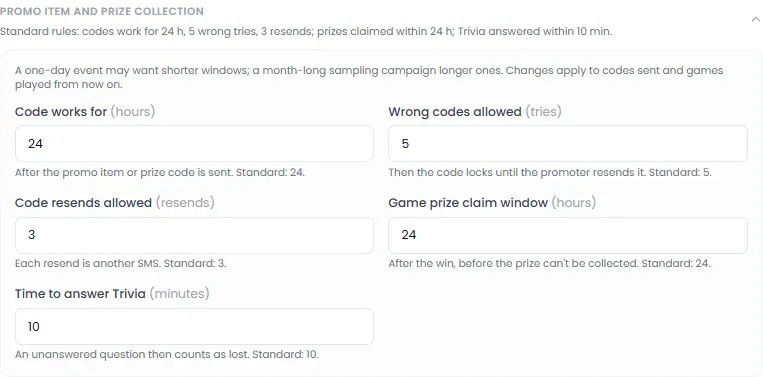
The rules for the codes shoppers get. The standard rules suit most activations:
Setting
Standard
Code works for
24 hours after it's sent
Wrong codes allowed
5 tries, then the code locks until the promoter resends it
Code resends allowed
3. Each resend is another SMS
Game prize claim window
24 hours after the win
Time to answer Trivia
10 minutes
Promo item and prize collection rules
A one-day event may want shorter times; a month-long sampling campaign, longer ones. Changes apply to codes sent from then on.
Feedback questions (optional)
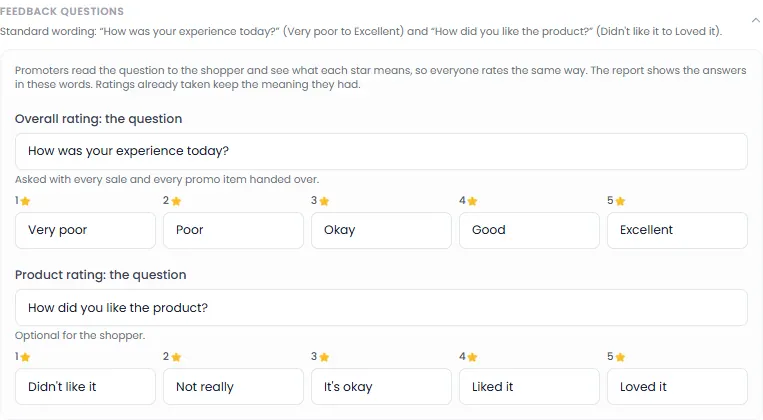
Promoters ask two questions with every sale and promo item, and the shopper answers with 1 to 5 stars:
Overall rating: "How was your experience today?";
Product rating (optional for the shopper): "How did you like the product?".
You can change the wording of each question, and what each star means. Promoters read them out, so everyone rates the same way.
Feedback questions: the wording of the two ratings
12 of 26
Follow, edit or pause an activation
See an activation's stock and progress, change its details, or pause it.
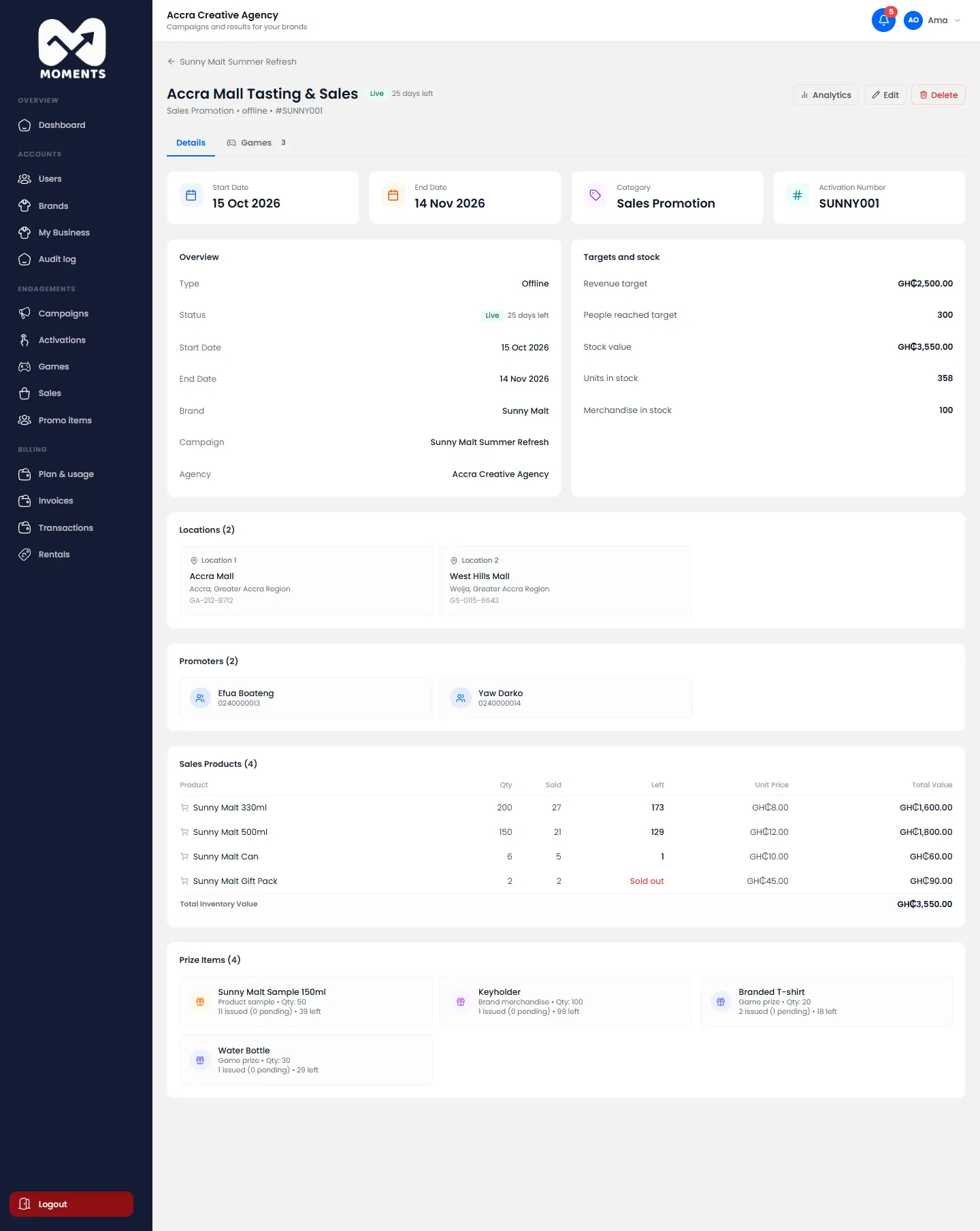
In the menu, click Activations, then click the activation. Its page has two tabs: Details and Games.
Follow it live
The Details tab shows the activation's overview, targets, locations and promoters. For each product and promo item, you also see how many were sold or given and how many are left.
A live activation: products sold and left, and promo items given
Products running low are marked, and empty ones show Sold out or None left. Promoters see the same on their Overview.
Edit it
On the activation's page, click Edit.
Change what you need: dates, locations, targets, promoters, stock, prices or rules.
Click Save Changes.
Edit an activation
To restock, raise the Quantity of the product or promo item.
Pause, end or cancel it
Edit it and change the Status:
Inactive pauses it. Promoters can't record anything until you set it back to Active.
For the full picture (targets, map, team and feedback), open its report from the campaign report. See Read a campaign report.
13 of 26
Add a game
Add Spin the Wheel, Trivia or Mystery Box to an activation, with its prizes and odds.
Games give shoppers a reason to stop at your stand. Every play is unlocked by a promoter for one shopper's phone number, and the server decides the result.
Game
How it works
Plan
Spin the Wheel
A branded wheel with prizes and odds you set
Every plan
Trivia
Questions about the brand. A right answer wins a prize
Growth and higher
Mystery Box
Shoppers pick a gift box, on screen or a real NFC box
Growth and higher
Before you start: the activation needs at least one promo item of type Game prize. See Add products and promo items.
Steps
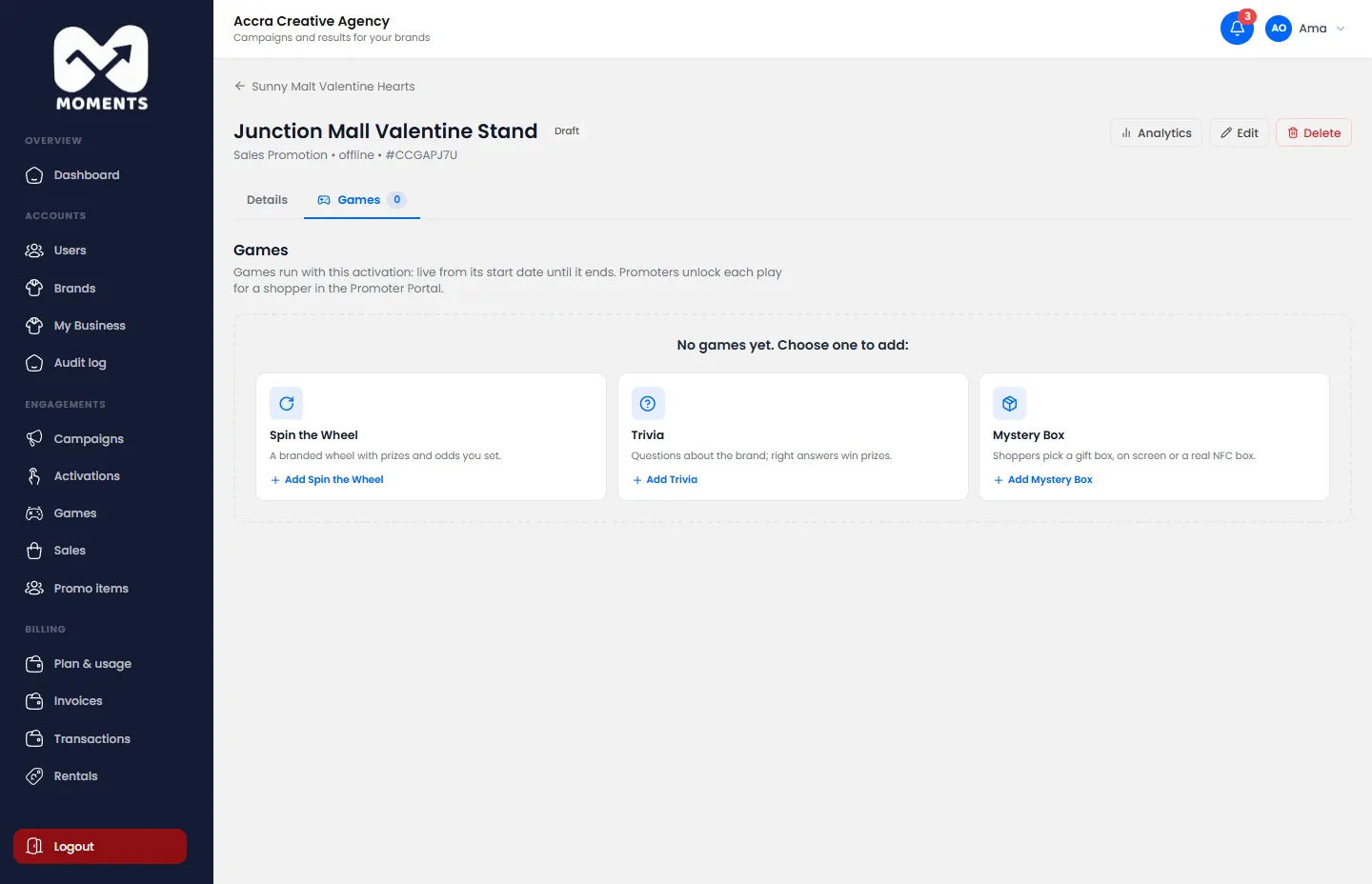
Open the activation from Activations, and click the Games tab.
Choose the game to add.
A new activation's Games tab: choose a game to add
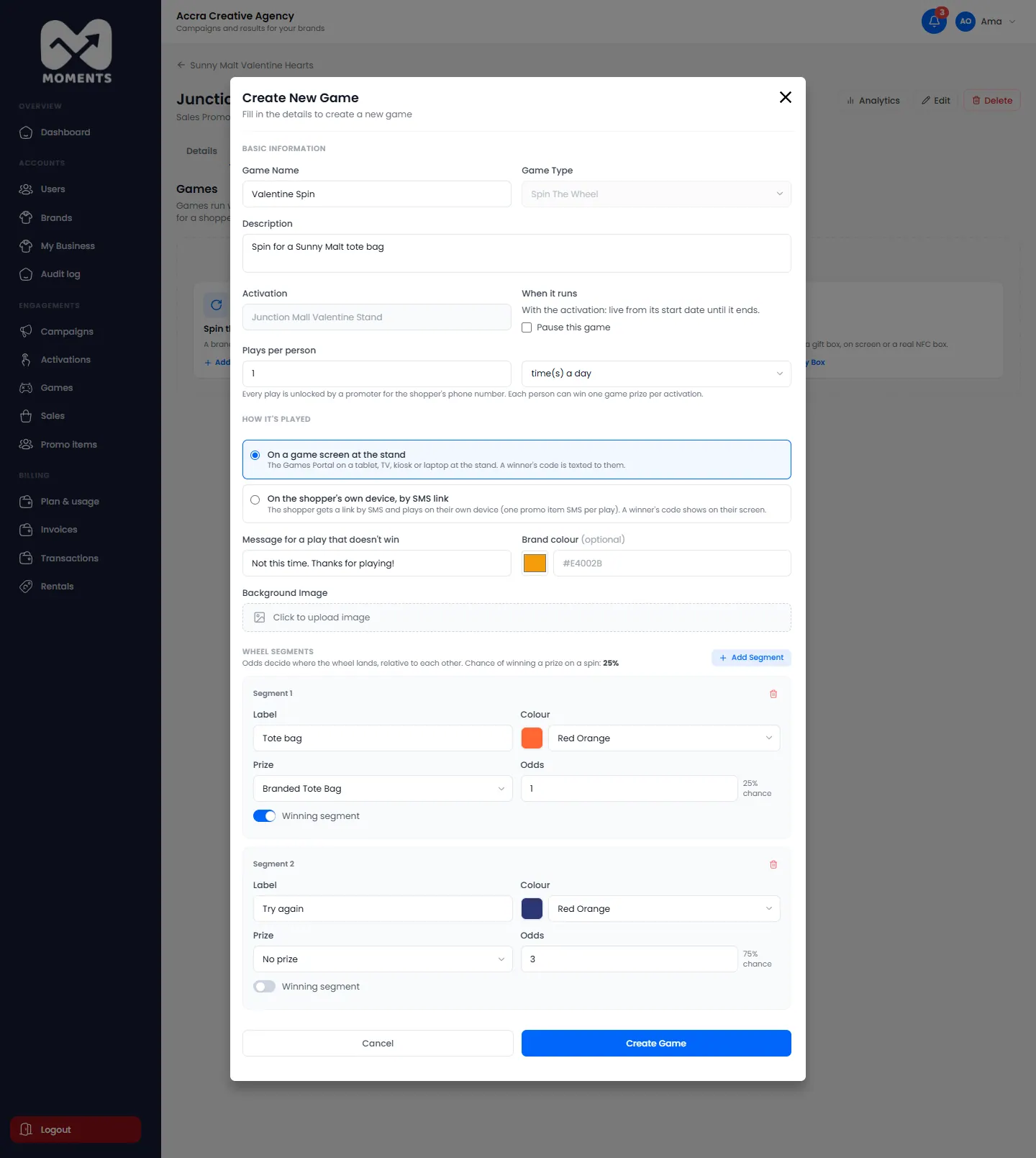
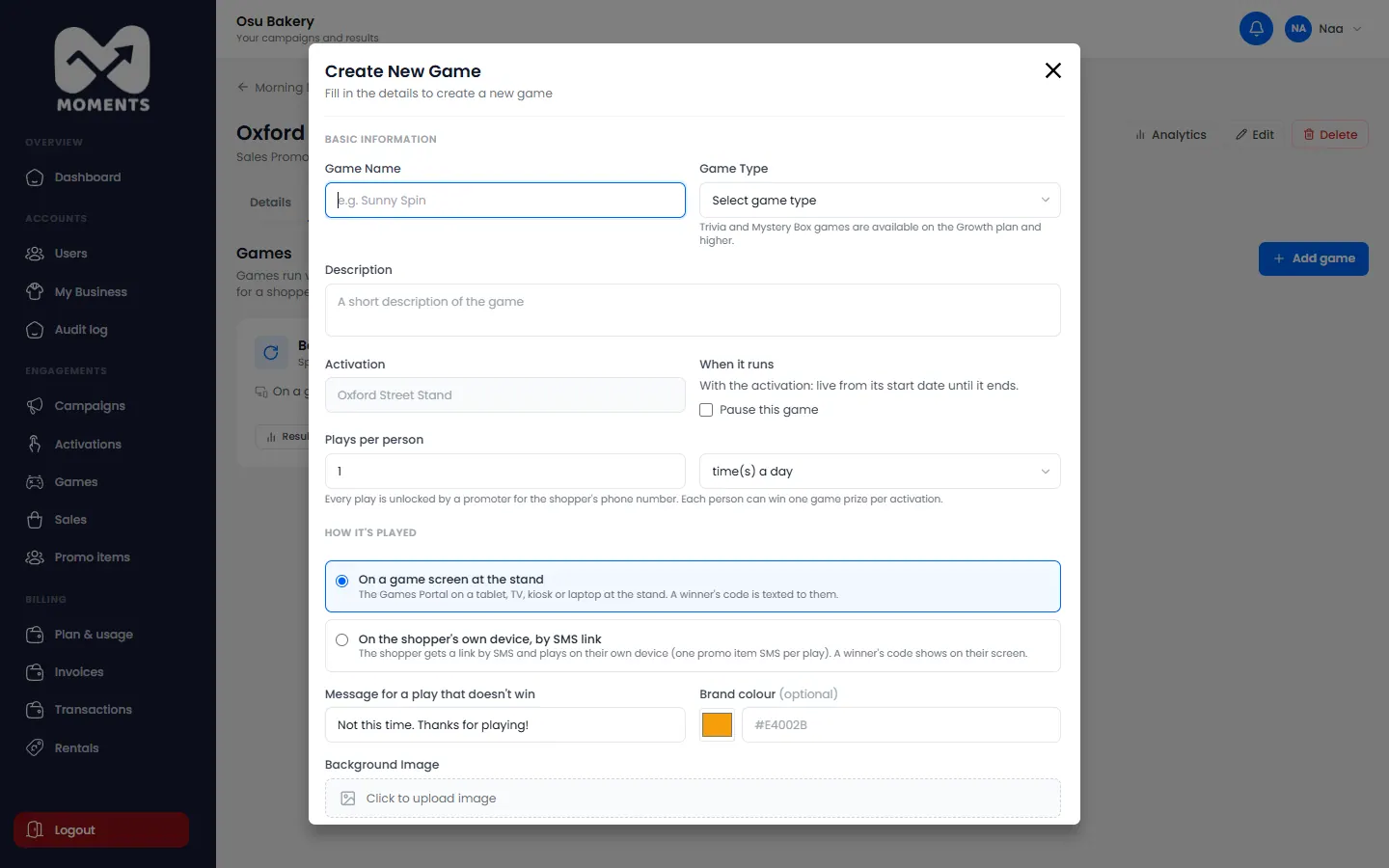
Type the Game Name and a Description. Optional: add a background image and the brand colour.
Choose Where the game is played:
On a game screen at the stand: a tablet, TV, kiosk or laptop. A winner's code is texted to them.
On the shopper's own device, by SMS link: one promo item SMS per play. A winner's code shows on their screen.
Physical Mystery Boxes (NFC): for Mystery Box only. The Moments Analytics team assigns the boxes to your game.
Set Plays per person: how many times a day, or in the whole activation.
Set up the prizes. See the section for your game below.
Click Create Game.
Spin the Wheel
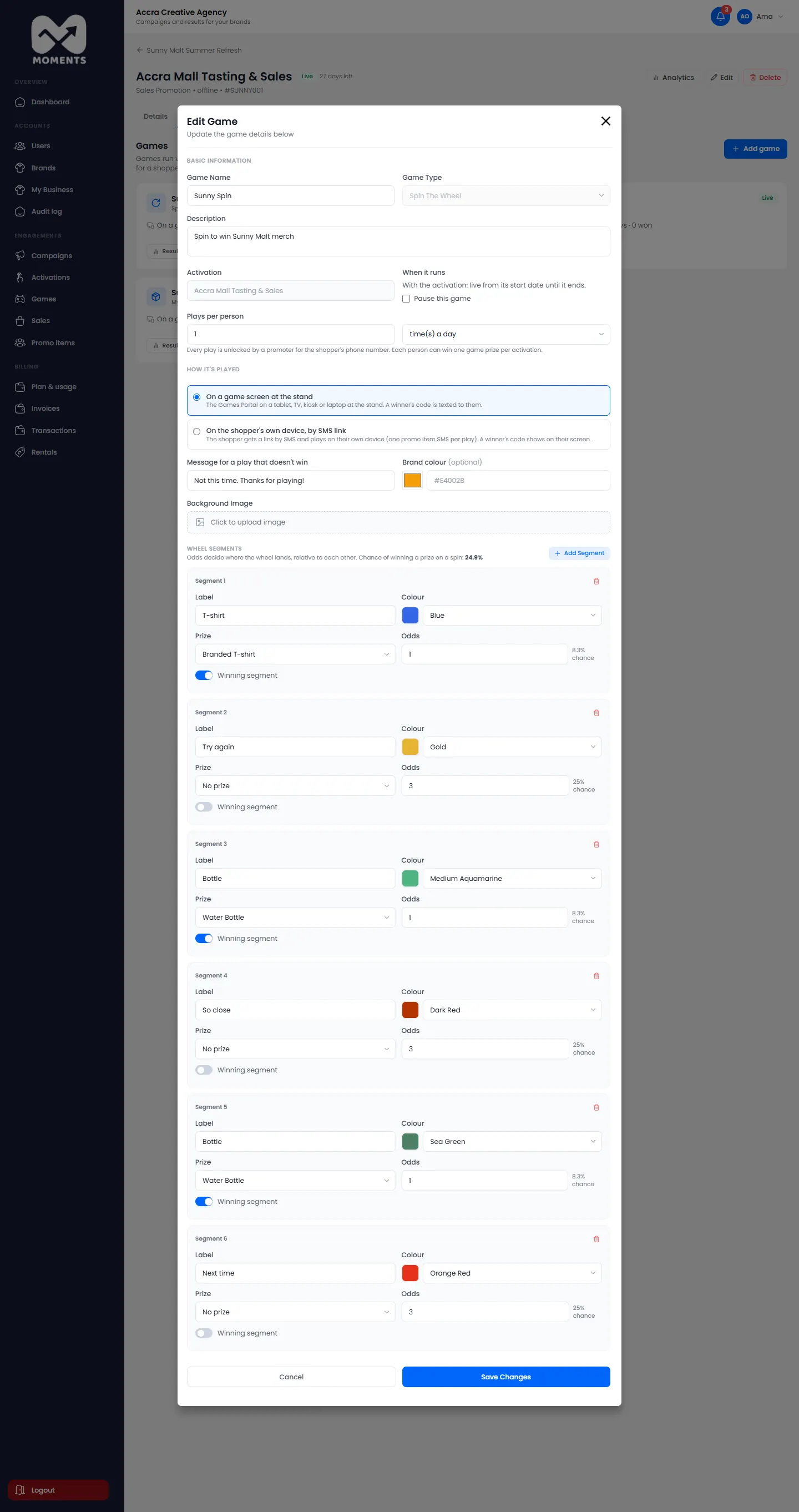
Add at least 2 Wheel Segments. For each one, type a Label, pick a Colour, and set its Odds. Tick Wins a prize and choose the Prize for a winning segment.
Odds are relative to each other. A segment with odds of 2 comes up twice as often as one with odds of 1. Type the Message for a play that doesn't win.
Spin the Wheel: the wheel's segments with their prizes and odds
Trivia
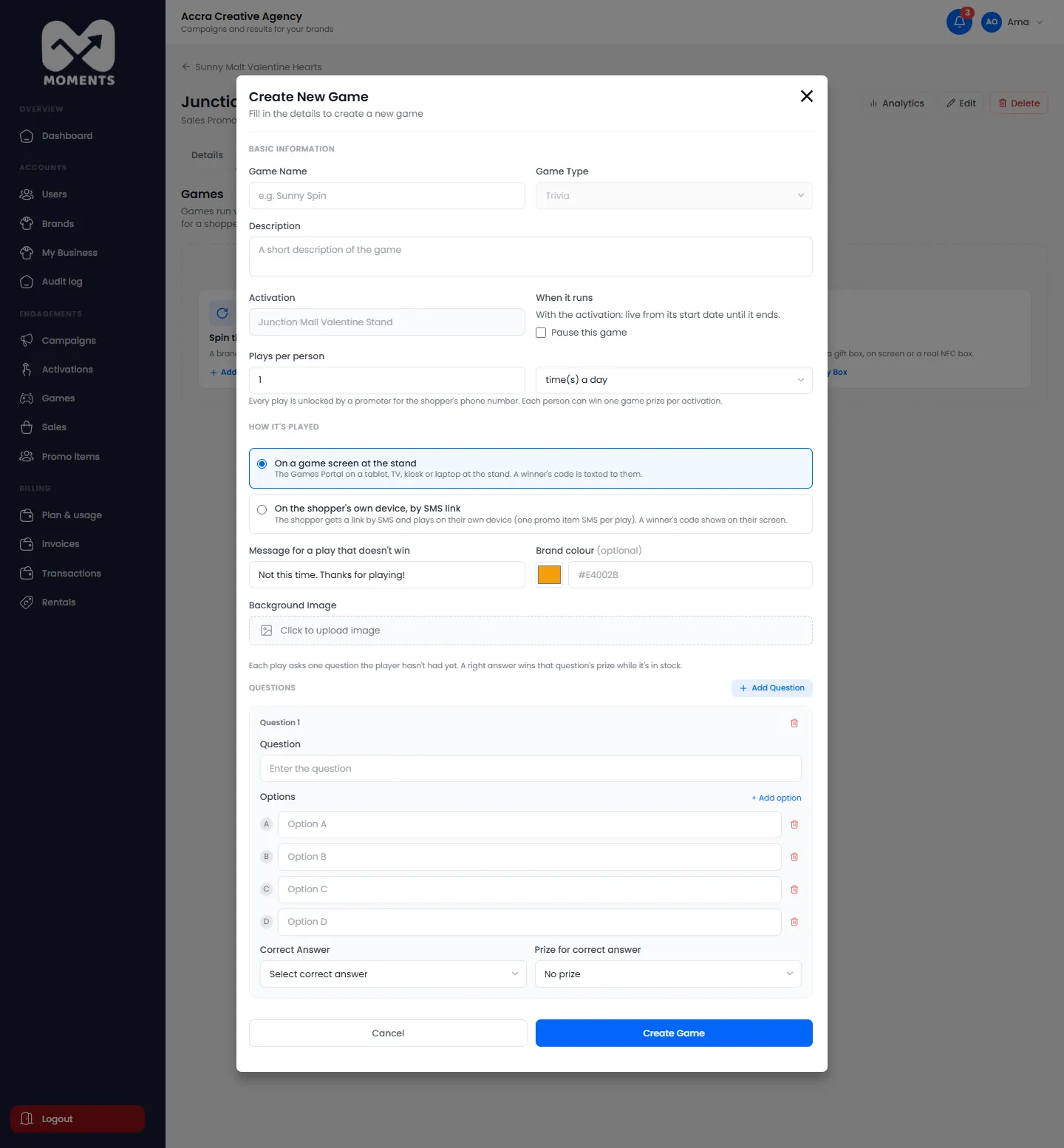
Add your Questions. For each one, type the Options, choose the Correct Answer, and the Prize for correct answer. Each play asks one question the player hasn't had yet.
Trivia: questions, options, the right answer and its prize
Mystery Box
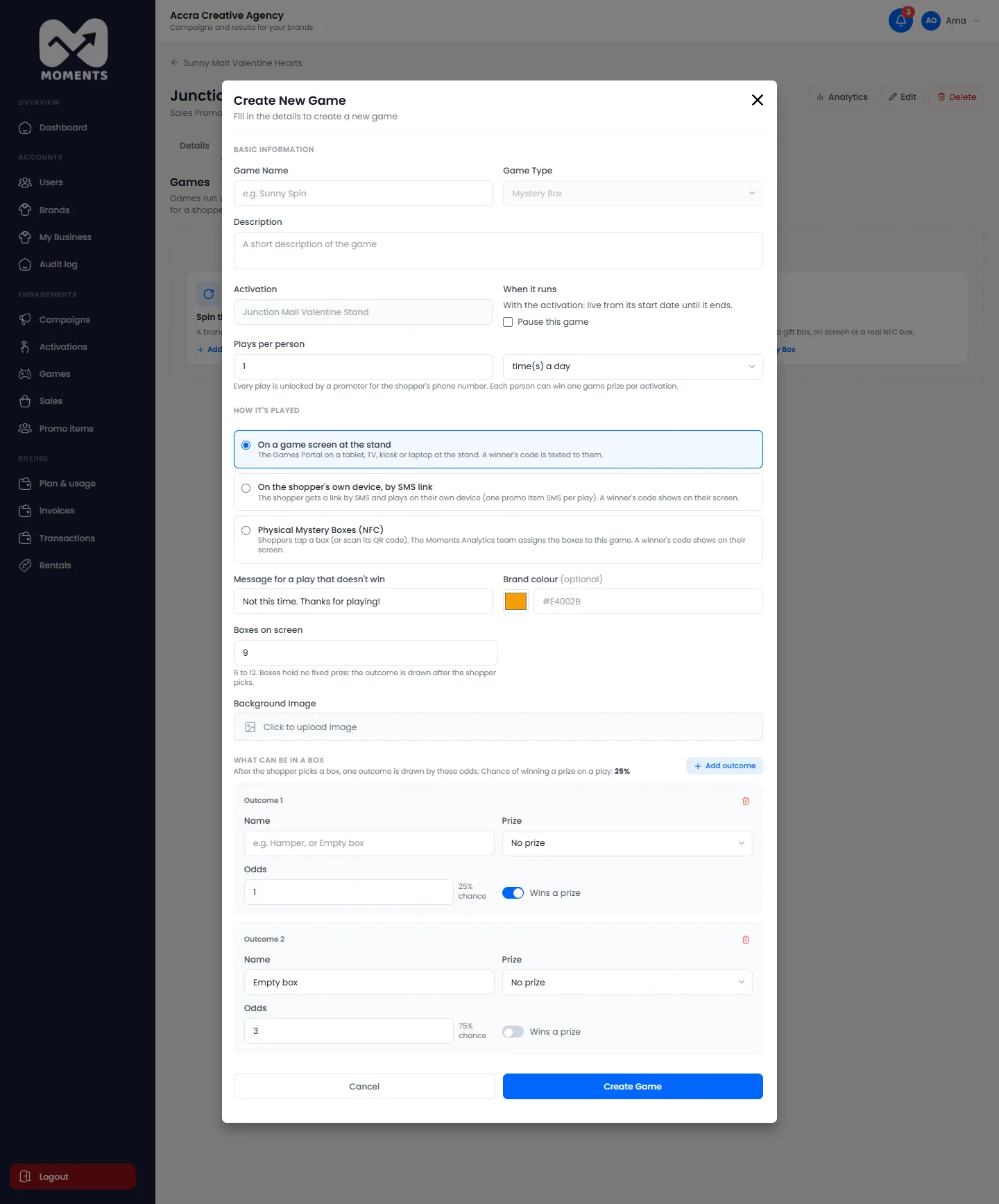
Choose how many Boxes on screen (6 to 12). Then, under What can be in a box, add the outcomes and their odds: a prize, or an empty box. Boxes don't hold a fixed prize. The outcome is drawn after the shopper picks.
Mystery Box: boxes on screen and what can be in a box
What happens next
The game runs with the activation, from its start date until it ends. Promoters see it on Play games in the Promoter Portal.
Each person can win one game prize in each activation.
See how a game is doing, pause or resume it, or change its prizes and odds.
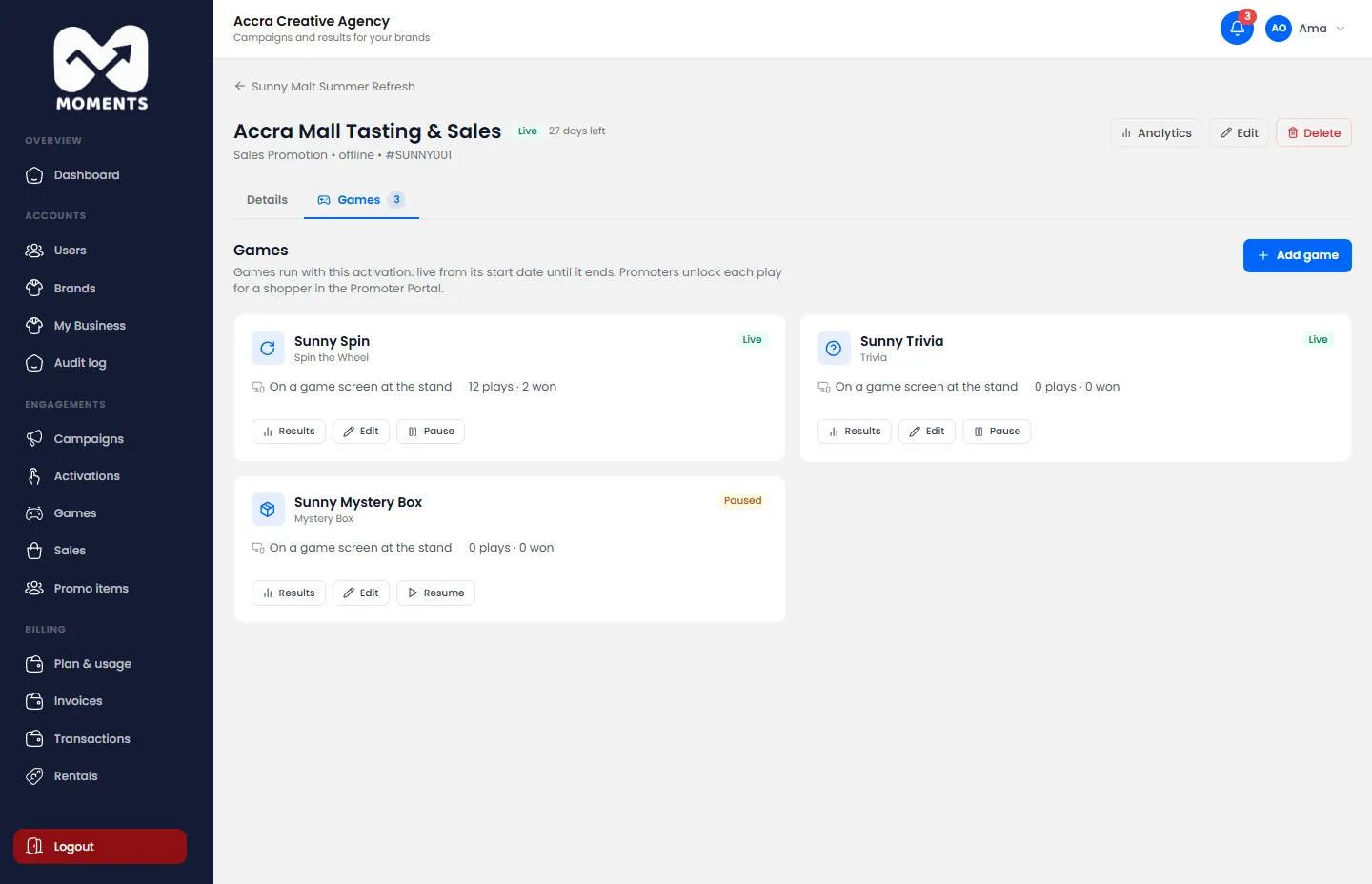
An activation's games are on its Games tab. To see every game in all your activations, click Games in the menu.
A live activation's games: pause, edit or see each one's results
See how a game is doing
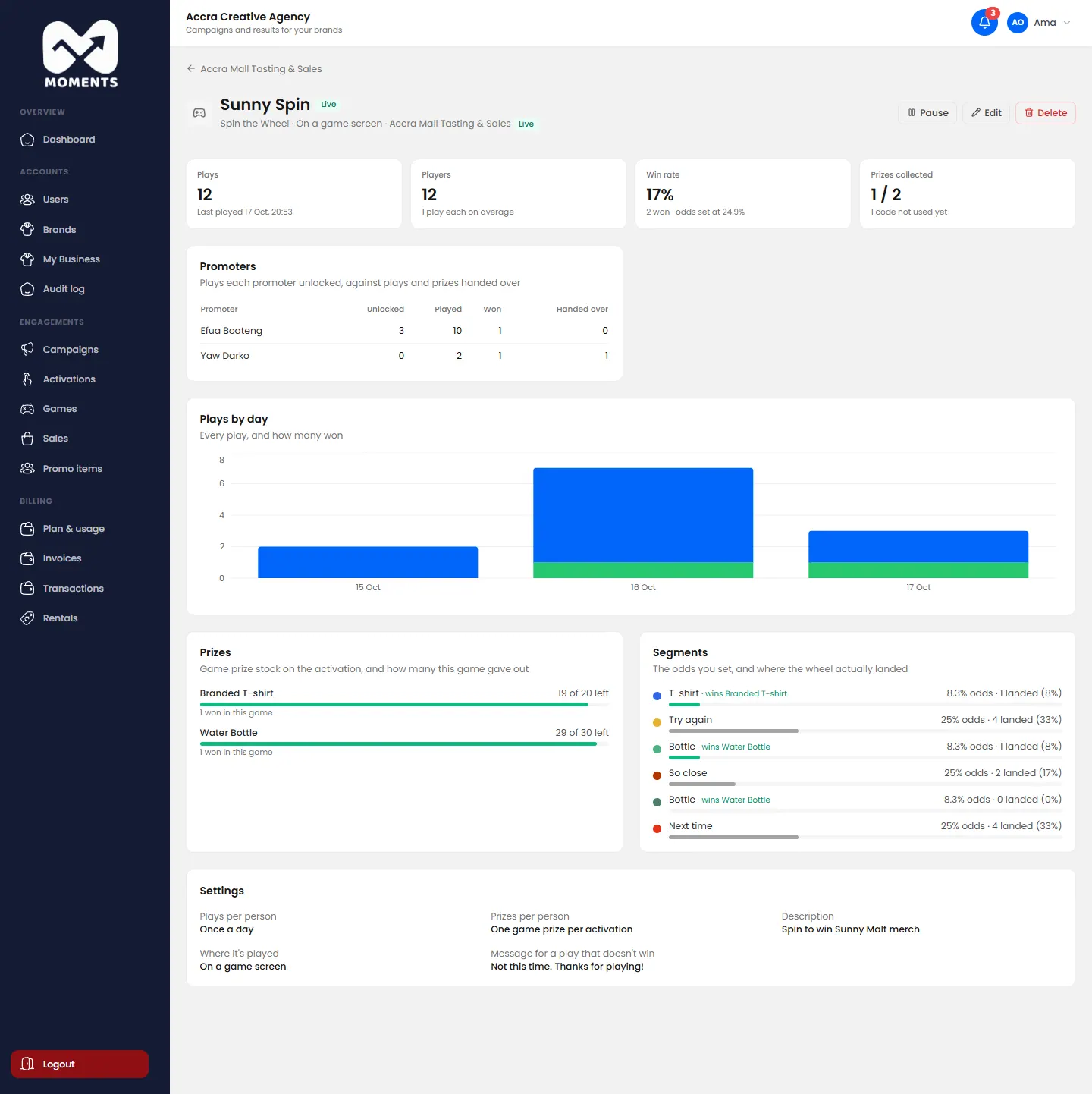
Click the game to open its results:
Plays, Players, Win rate and Prizes collected;
what each promoter unlocked, and the prizes they handed over;
plays by day;
the prizes, and how many are left;
for Spin the Wheel, the odds you set against where the wheel actually landed. For Mystery Box, the same for what was in the boxes. For Trivia, how often each question was asked and answered right.
A game's results
Pause or resume it
On the Games tab, or the game's page, click Pause. Promoters can't unlock it until you click Resume. On the game screen, shoppers see that the game has been switched off.
Edit it
On the Games tab, open the game's edit form. Change its prizes, odds, questions or plays per person, and click Save Changes.
Editing a game
Delete it
You can delete a game only before anyone has played it. After that, it can only be paused, so its results stay in the reports.
15 of 26
Check sales and review corrections
See every sale your promoters record, and approve or reject their correction requests.
See your sales
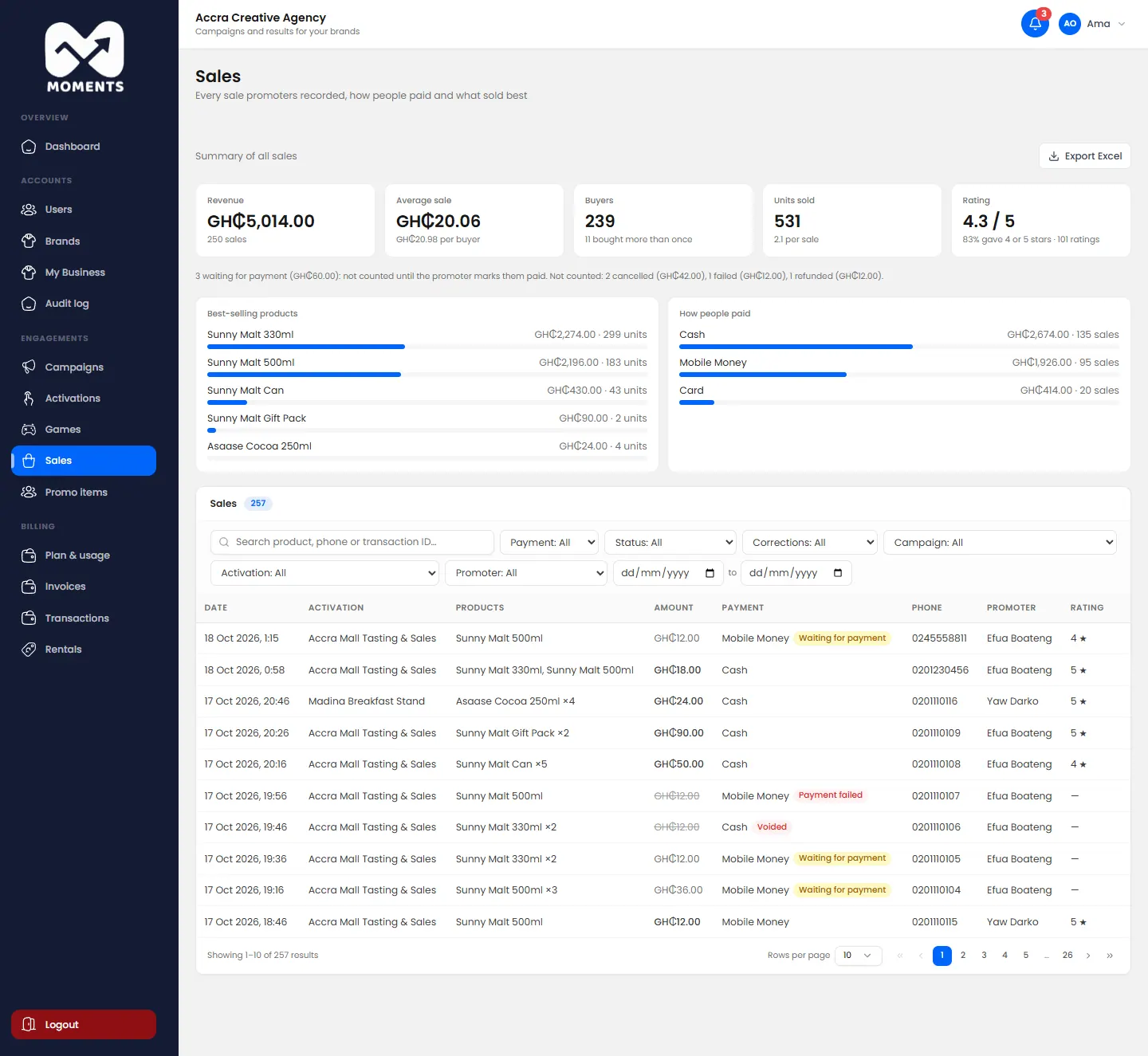
In the menu, click Sales. At the top you see the revenue, average sale, buyers, units sold and average rating, your best sellers, and how people paid. Below is every sale.
Sales: revenue, average sale, buyers, units, rating, best sellers and how people paid
Use the search and filters to narrow the list. Click Export Excel to download it.
Review a correction
Promoters can edit or void their own sales on the day. For an earlier day's sale, they ask you for a correction, and you get a notification.
Click the notification. Or, in Sales, set the Corrections filter to correction requested.
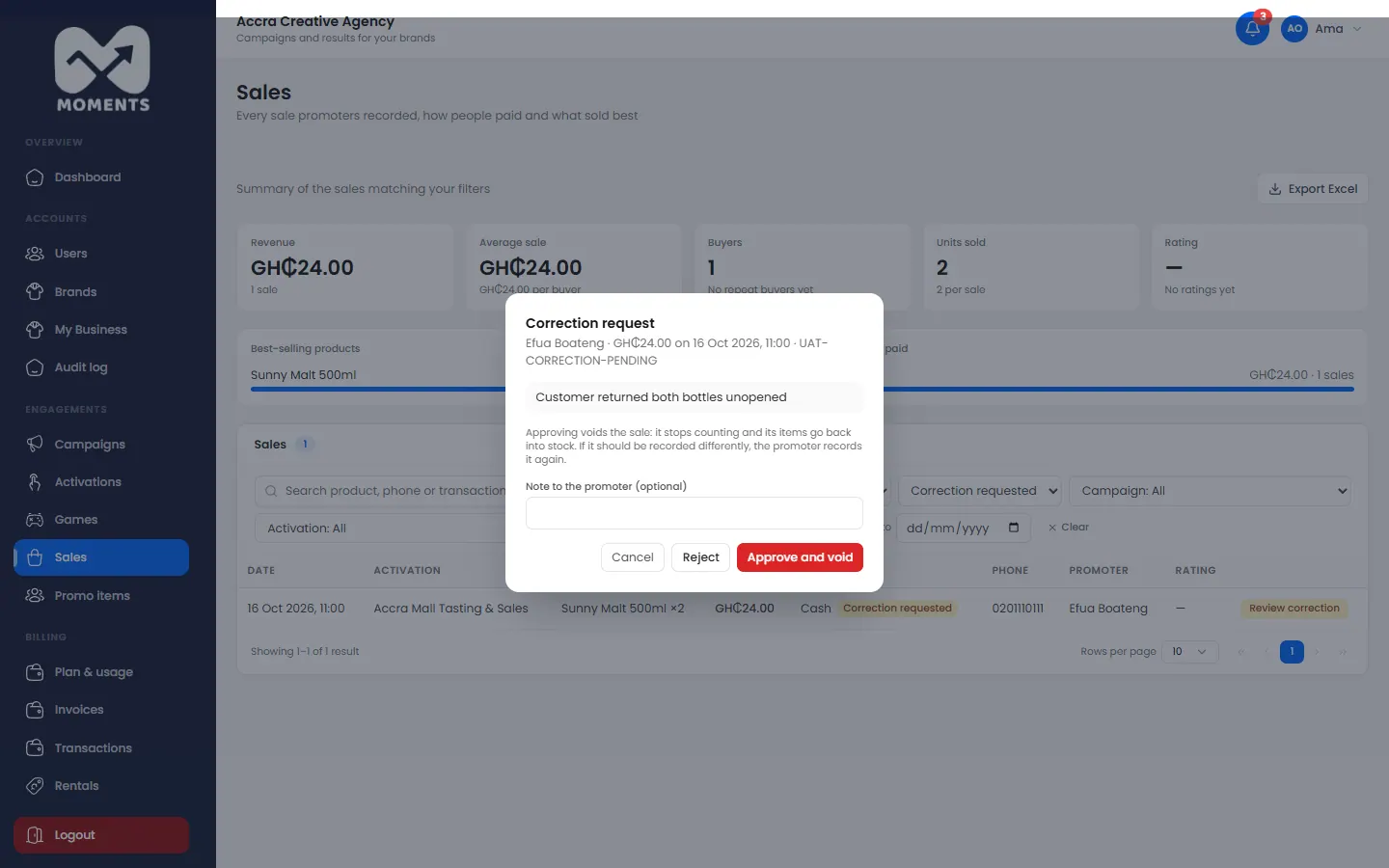
On the sale, click Review correction. You see what the promoter says is wrong.
Choose:
Approve and void: the sale stops counting, and its items go back into stock;
Reject: the sale stays as it is.
Optional: add a Note to the promoter (optional) saying why.
Review a correction: approve or reject with a note
What happens next
The promoter gets a notification with your decision. In their sales history, the sale shows Correction approved or Correction rejected. In your Sales list, an approved one shows Corrected.
If the sale should have been recorded differently, the promoter records it again.
16 of 26
See promo items given out
Check which samples, merchandise and game prizes were given out, and whether they were collected.
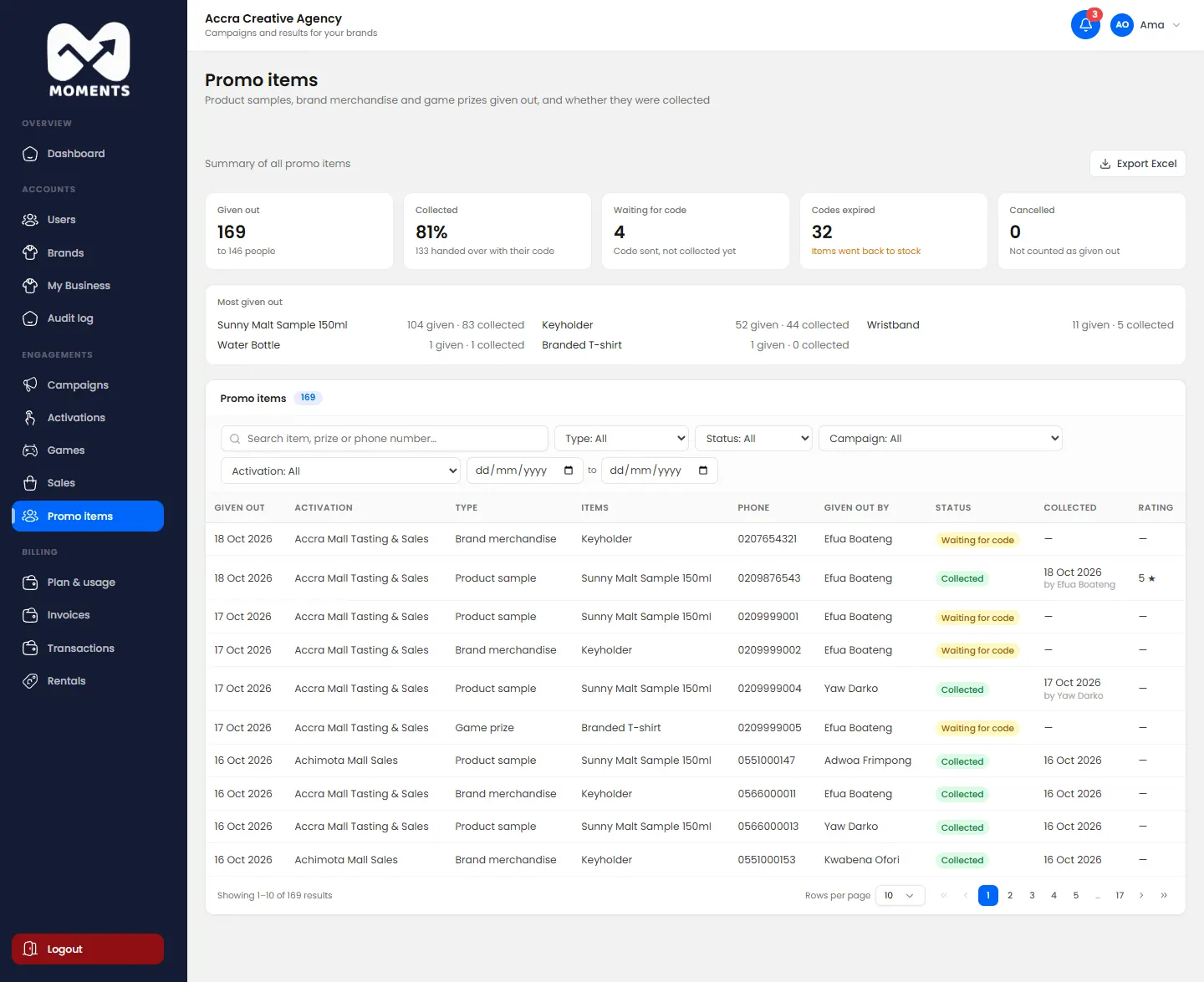
In the menu, click Promo items. It lists every product sample, piece of brand merchandise and game prize your promoters gave out, and whether each one was collected.
Promo items: what was given out and whether it was collected
What the statuses mean
Status
Meaning
Collected
The shopper's code was entered, so a real person received it
Waiting for code
The code was sent, but hasn't been entered yet
Code expired
The code wasn't used in time. It doesn't count as given out
Cancelled
The promoter cancelled it. The item went back into stock
Search by item, prize or phone number, or filter by type, status, campaign or activation. The summary at the top changes to match your filters.
17 of 26
Read a campaign report
See how a campaign is doing against its targets, and download it as a PDF for your client.
A campaign report adds up all the campaign's activations. It's live, so it changes as promoters record. Your clients see the same report in the Viewers Portal.
Open it
In the menu, click Campaigns, and open the campaign.
Click Analytics.
A campaign report
For one activation, open its report from the Activations compared section.
What's in it
Section
What it tells you
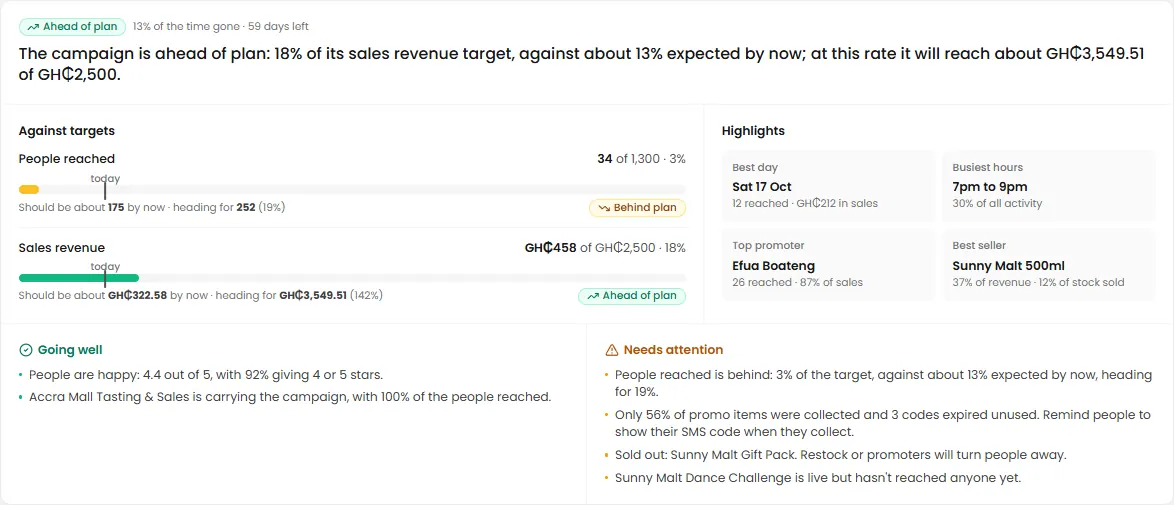
Against targets
Each target, with where it should be by now: On track, Ahead of plan or Behind plan
From reaching people to what they thought
How many people were reached, tried a sample, played, bought, and came back
How it built up
Day by day, and the running total
Activations compared
Which activations are carrying the campaign
By location
Results for each place
Map
Where promoters were when they recorded things
When people engage
The busiest hours and days. Use it to plan promoters' shifts
Who drove it
What each promoter did, and the ratings they collected
What sold
Each product's sales, share of revenue, and how much stock is gone
Promo items
Given out, then collected with the SMS code
What they thought
The ratings people gave
Against targets, with where it should be by now
People are known only by their phone number. The report never shows names.
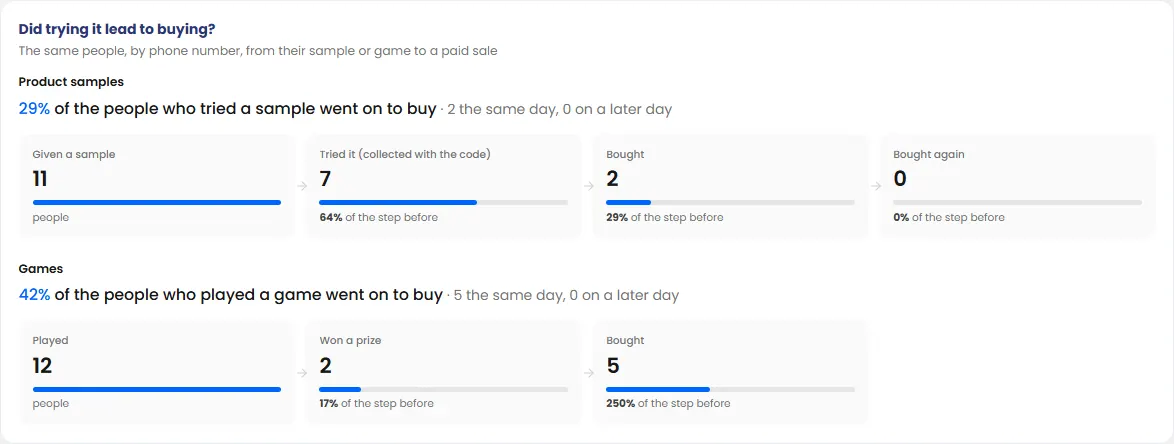
Did trying it lead to buying?
For a sampling campaign, the report shows how many people who tried a sample later bought. You see this for the whole campaign, for each activation and for each promoter.
Did trying it lead to buying?
Download it
Download PDF: the whole report, laid out for A4 with a cover, to send to your client.
Export Excel: the figures, to work with in a spreadsheet.
Both count towards your plan's monthly export limit.
Click Refresh to load the latest figures.
18 of 26
Notifications
What you're notified about, and how to read and clear your notifications.
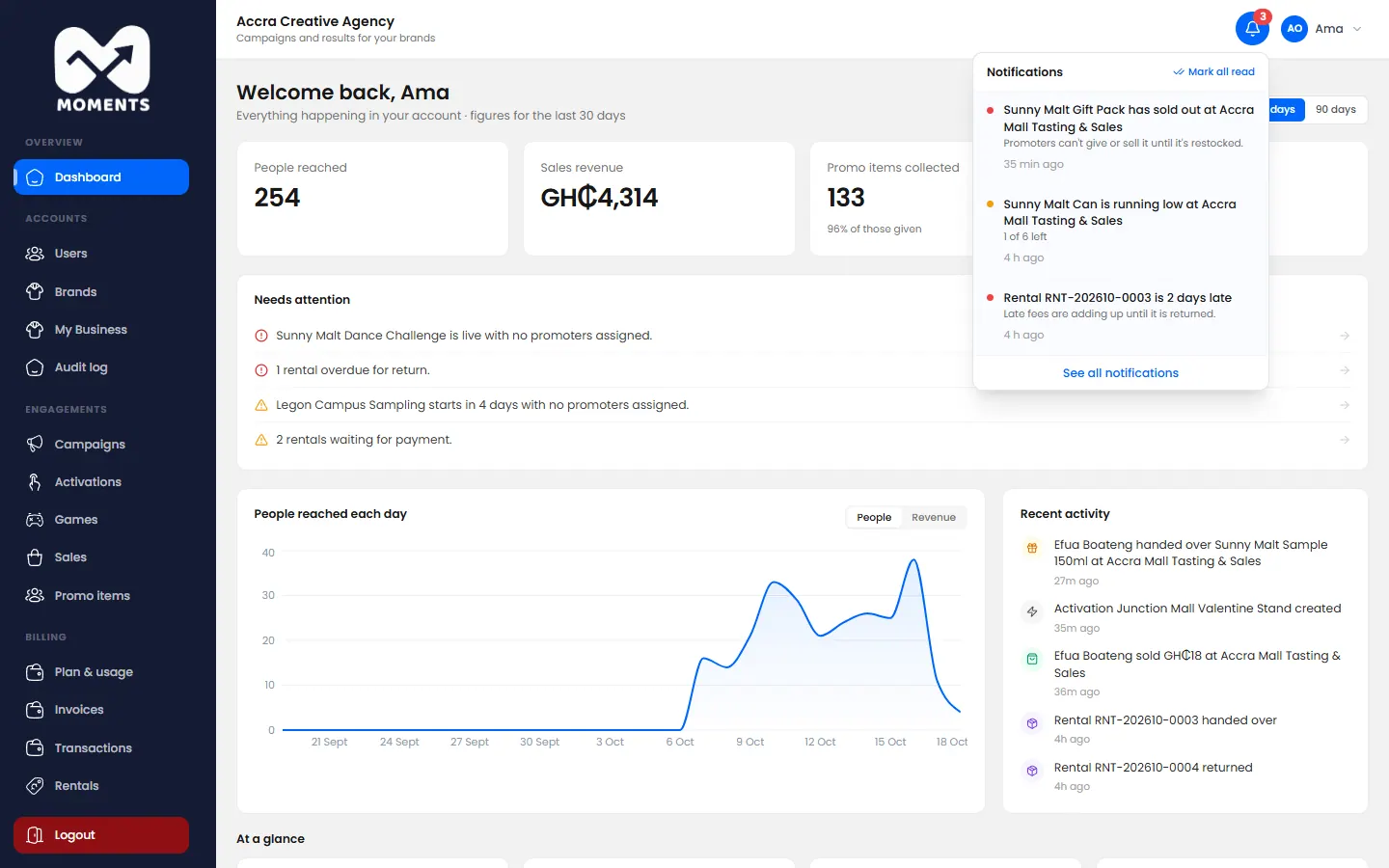
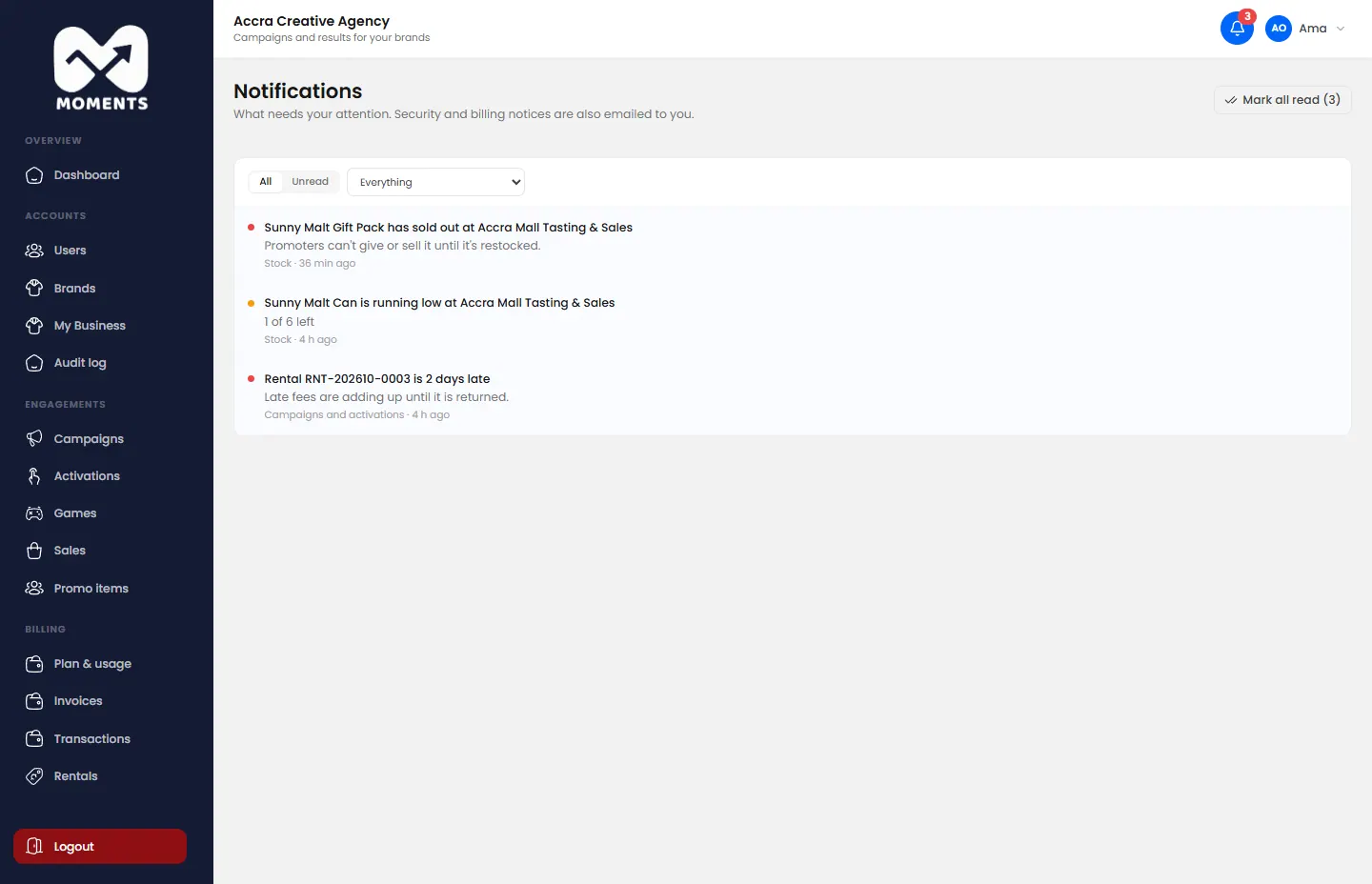
The bell at the top right shows how many notifications you haven't read. Click it to see the latest ones.
The bell: the latest notifications
You get a notification when something needs you. For example:
a promoter asks you to fix a sale;
stock is low;
an activation starts tomorrow, or it's paused or over;
promoters at a live stand haven't recorded anything yet;
you're near a plan limit;
a payment came in, or one is late;
your trial or plan ends soon.
Click a notification to go straight to what it's about.
See them all
Click See all notifications. Filter by category, or show unread ones only. Click Mark all read to clear the count.
Notifications
Security and billing notifications are also emailed to you.
19 of 26
Choose or change your plan
Pay for a plan after your trial, upgrade or move down, switch to annual billing, or cancel.
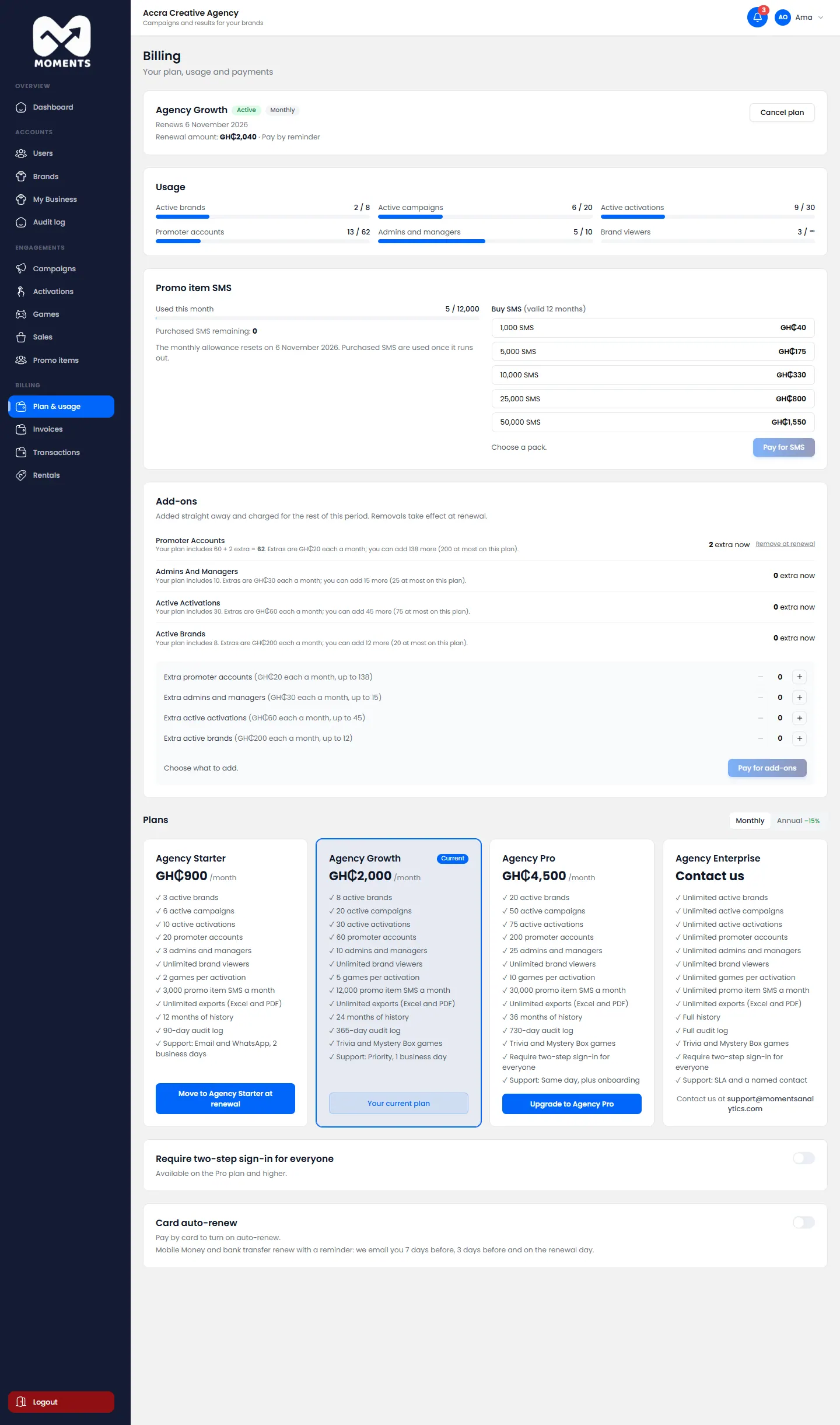
Your plan sets your limits: active brands, campaigns, activations, users, games and promo item SMS. Only admins can change the plan or pay.
In the menu, click Plan & usage.
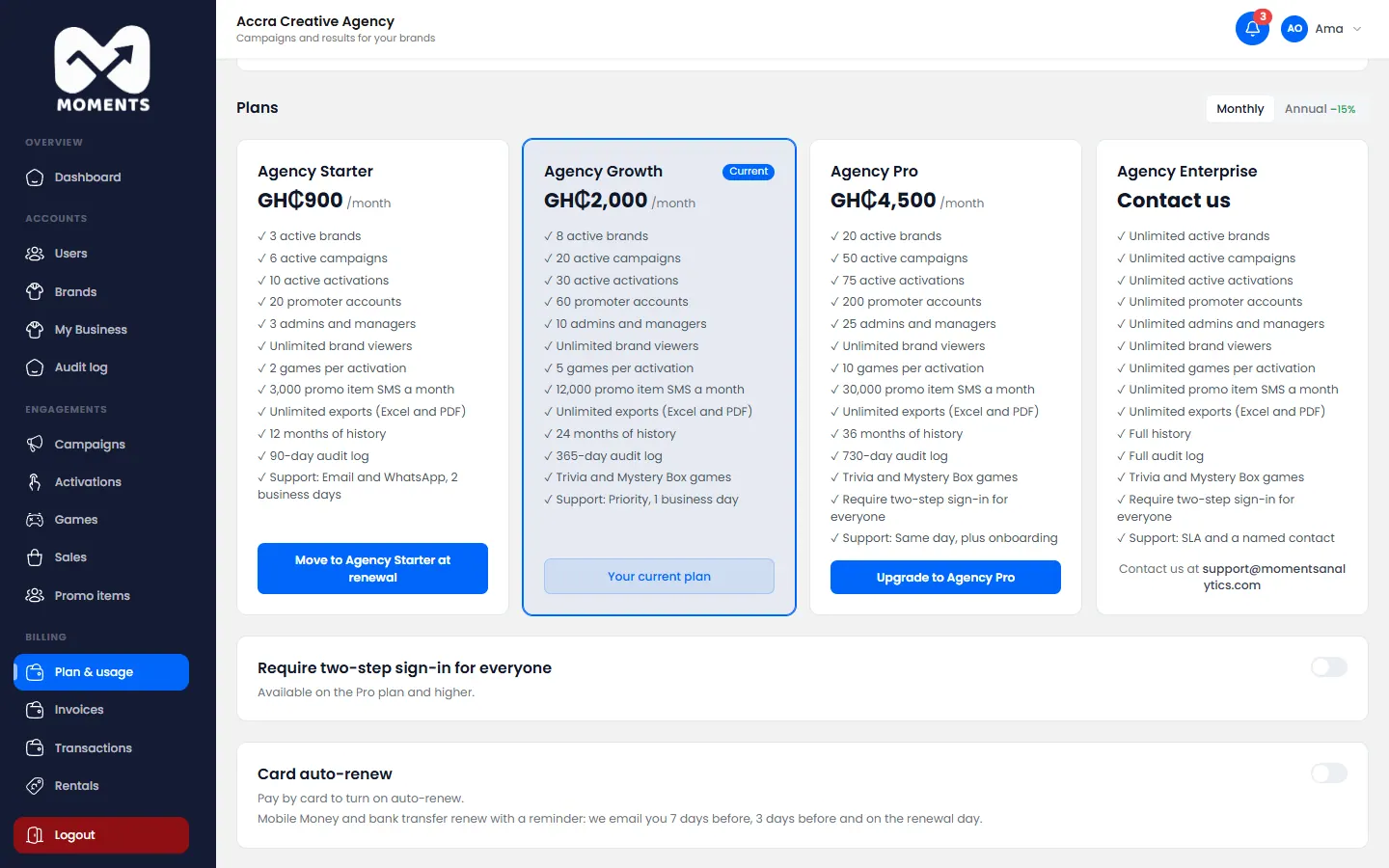
Plan & usage: the plan, usage, promo item SMS, add-ons and the plans
Usage shows how much of each limit you've used.
Pay for a plan after your free trial
During the trial, you're already on a plan. To keep using it after the trial:
At the top of Plan & usage, click Pay for….
Pay on the Paystack page, by card, Mobile Money or bank transfer.
To try a different plan during the trial, click Switch trial to … on that plan. There's no charge.
Upgrade
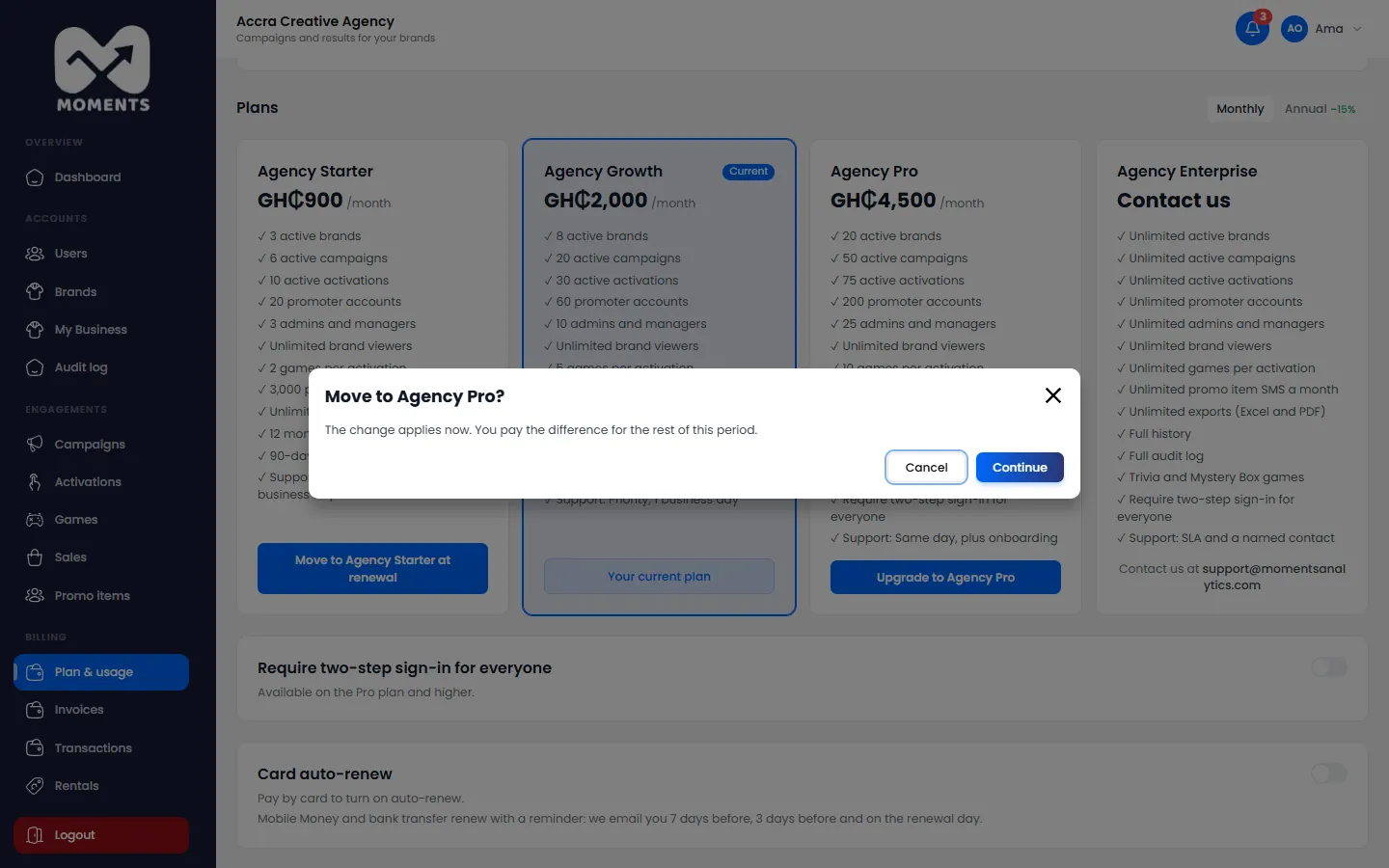
Under Plans, click Upgrade to … on the bigger plan.
Click Continue, and pay.
Upgrading: it applies now and you pay the difference
The upgrade applies straight away. You pay the difference for the rest of this period.
Move to a smaller plan
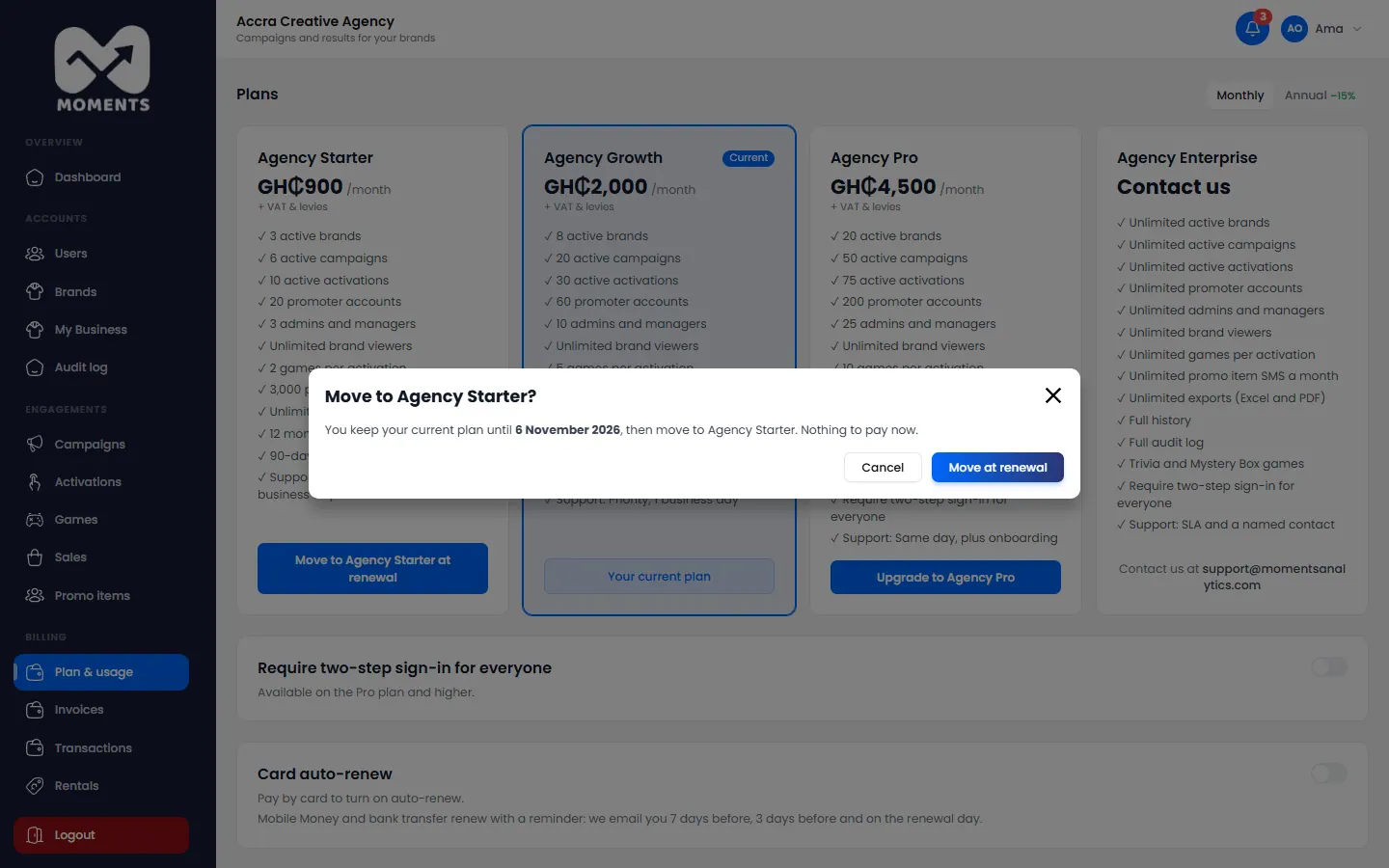
Click Move to … at renewal on the smaller plan, then confirm. You keep your current plan until it renews.
Moving to a smaller plan: any limits you'd be over are listed
If you'd be over the smaller plan's limits, they're listed. What you have keeps working, but you can't add more until you're under them.
Pay yearly
Click Annual above the plans to see yearly prices, which are about 15% less. Then click Switch to annual billing.
Cancel
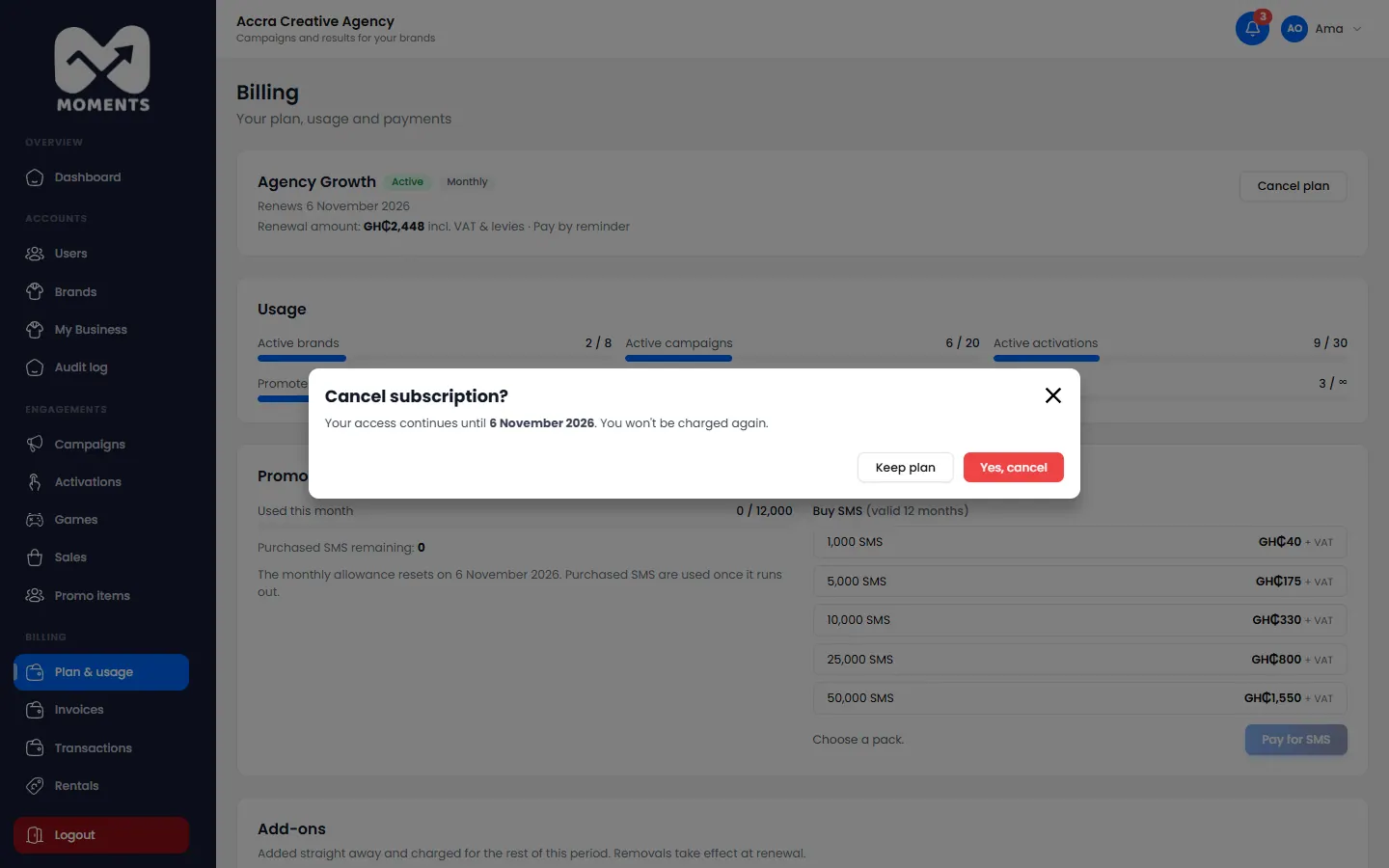
Click Cancel plan at the top.
Click Yes, cancel. Or click Keep plan if you change your mind.
Cancelling: access continues until the end of the period
You keep your plan until the end of the period you paid for. Changed your mind? Click Reactivate before then.
Enterprise
For bigger limits, click Contact us on Enterprise. The Moments Analytics team sets up your plan with the limits and features you agree, and invoices you.
After you pay
You come back from Paystack to Plan & usage, with a message:
Message
What it means
Payment received.
All done. The message says what's now active: your plan, add-ons or SMS
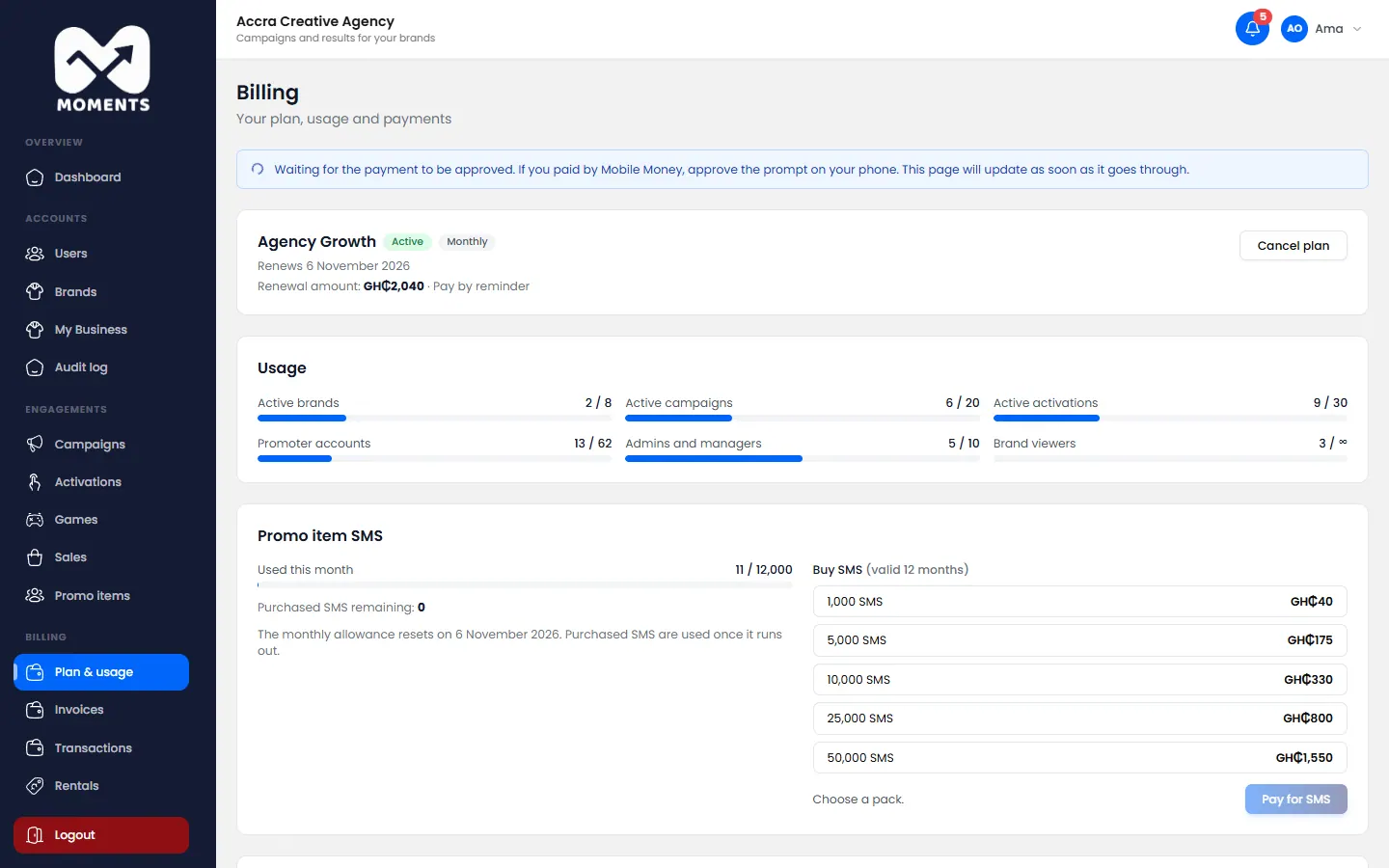
Waiting for the payment to be approved
For Mobile Money, approve the prompt on your phone. The page keeps checking
The payment failed. No money was taken.
Try again, or use another method
The payment was not completed.
You left Paystack before paying. Try again when you're ready
Back from Paystack: a Mobile Money payment waiting for approval
20 of 26
Buy add-ons and SMS
Add more users, activations or brands without changing plan, or buy more promo item SMS.
Both are on Plan & usage, and you need to be on a paid plan first.
Add-ons
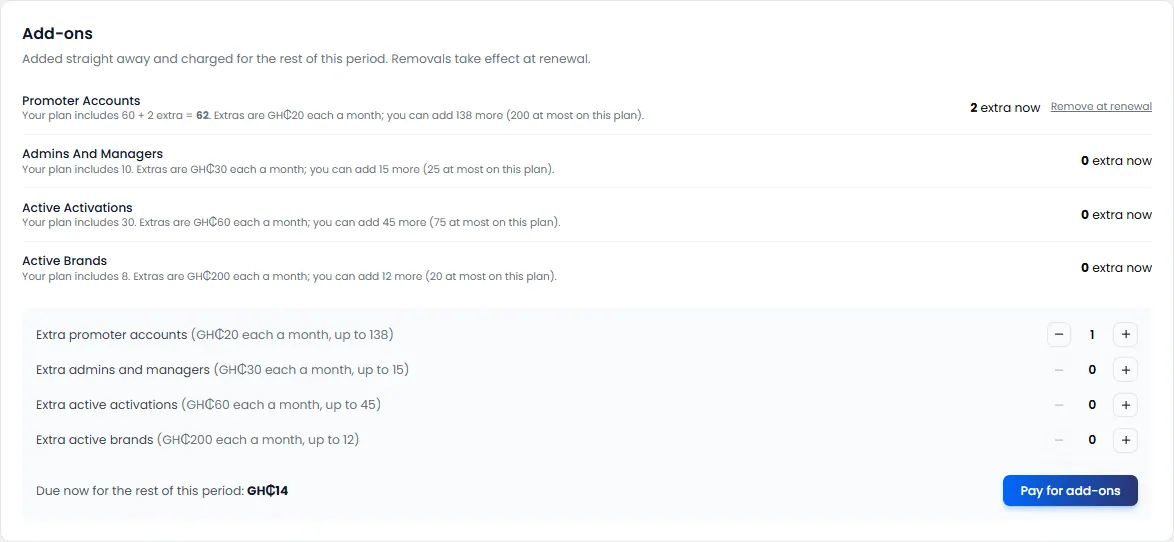
Need a few more promoter accounts, admins and managers, active activations or active brands, but not a bigger plan? Buy them as add-ons.
Under Add-ons, use − and + to choose how many of each you need.
Check the amount due now, and click Pay for add-ons.
Pay on the Paystack page.
Buying add-ons: choose how many, and the amount due now
Add-ons work straight away. You pay for the rest of this period, then they renew with your plan.
Remove an add-on
Click Remove at renewal next to it. It stays until your plan renews.
Promo item SMS
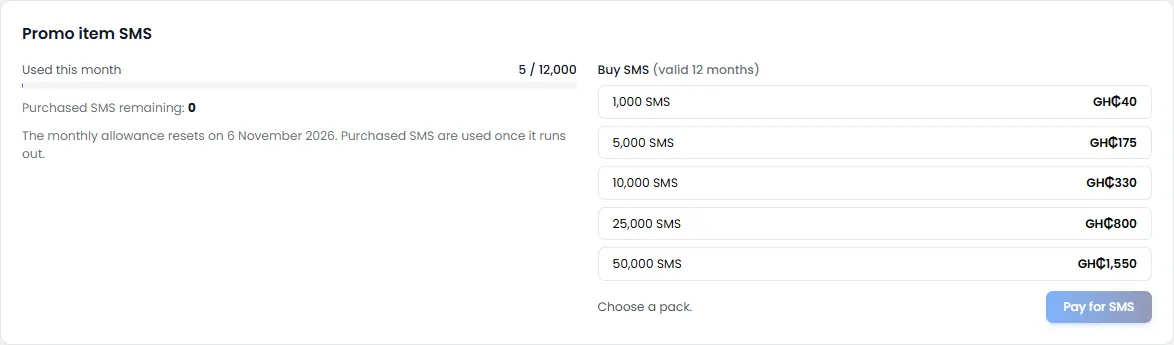
Every promo item and game prize code goes to the shopper by SMS. Your plan includes a monthly allowance. Used this month shows how much you've used.
When it's running out, buy a pack:
Under Promo item SMS, choose a pack.
Click Pay for SMS, and pay.
Promo item SMS: used this month, and packs to buy
Purchased SMS last 12 months. They're used only once your monthly allowance runs out. The allowance resets each month on your renewal date.
21 of 26
Invoices, receipts and renewals
Find your invoices and receipts, see every payment, and choose how your plan renews.
Invoices and receipts
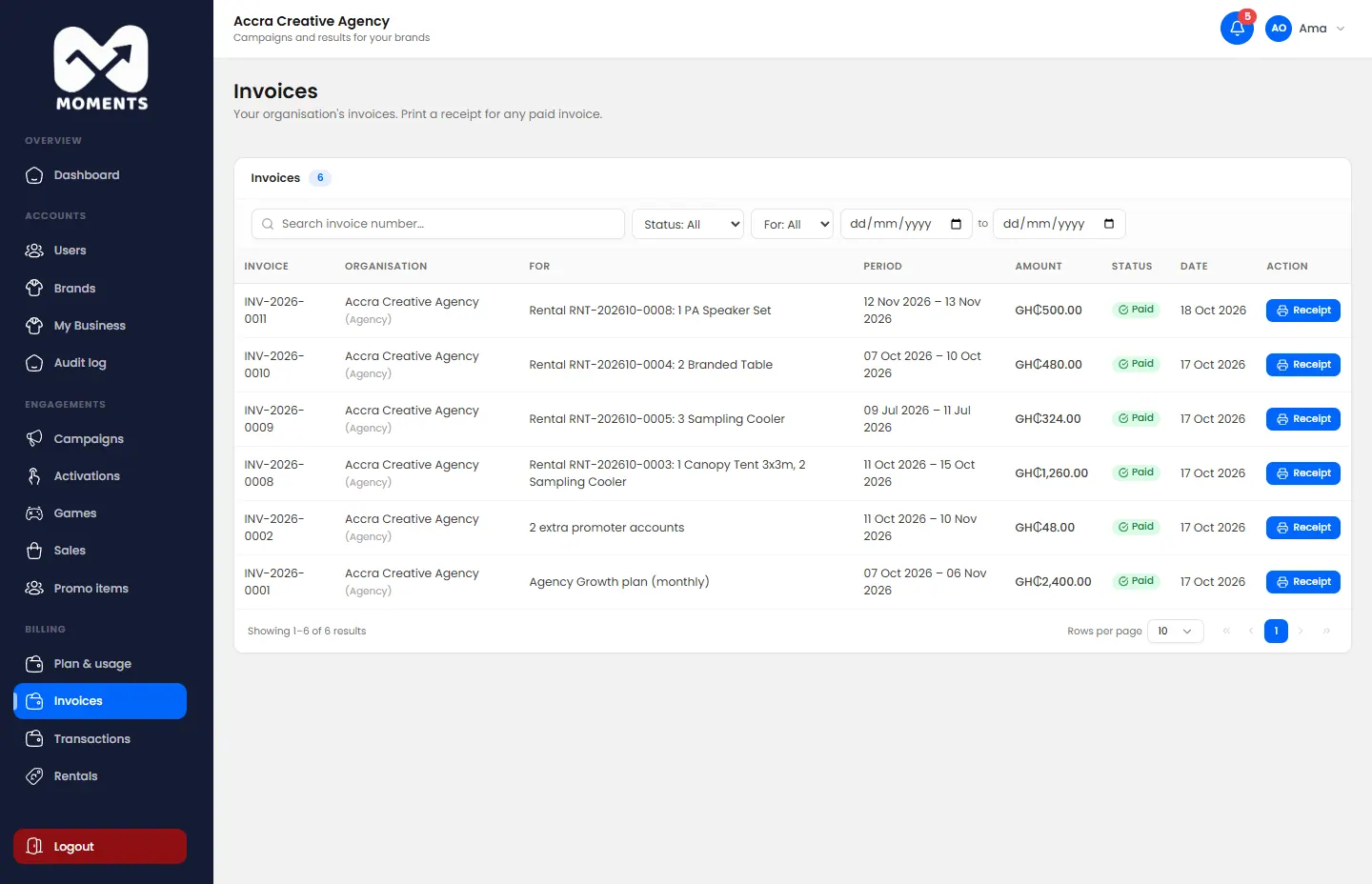
In the menu, click Invoices. Each invoice has its receipt once it's paid. Receipts are also emailed to your business email and to your admins.
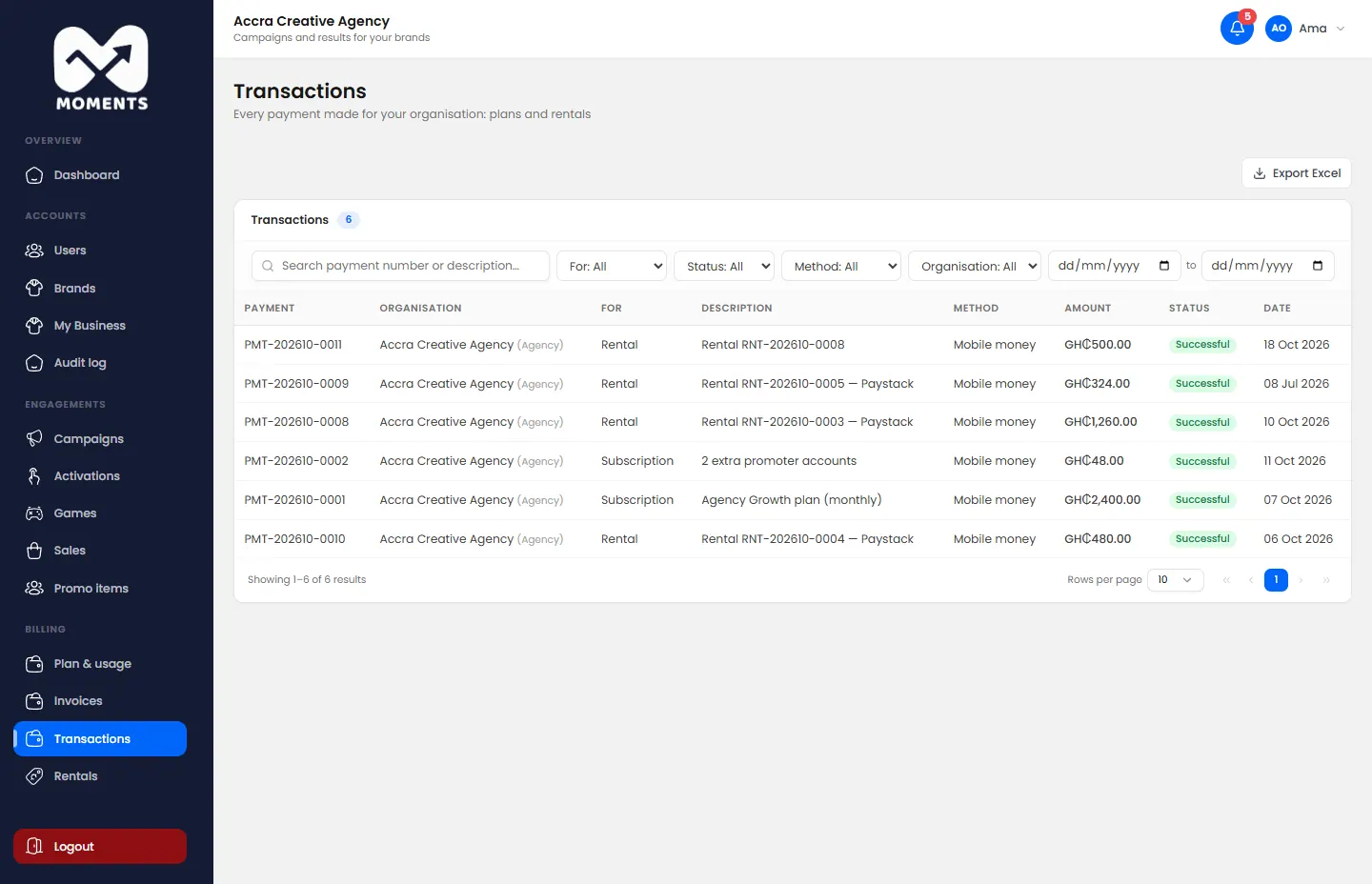
In the menu, click Transactions. It lists every payment: successful, failed or refunded.
Transactions: every payment, successful, failed or refunded
How your plan renews
You pay by
It renews
Card, with Card auto-renew on
Automatically, on your card
Mobile Money or bank transfer
With a reminder. We email you 7 days before, 3 days before and on the renewal day
To turn on Card auto-renew, pay by card once, then switch it on at the bottom of Plan & usage.
Require two-step sign-in for everyone, and card auto-renew
If a payment is late
You see a banner at the top of the Admin Portal, with how many days are left before your account becomes read-only. Pay from Plan & usage to clear it.
22 of 26
Require two-step sign-in for everyone
Make everyone in your organisation sign in with a code, as well as their password.
Turn this on so a stolen password alone can't get into any account in your organisation. It's available on the Pro plan and higher.
Steps
In the menu, click Plan & usage.
At the bottom, switch on Require two-step sign-in for everyone.
Require two-step sign-in for everyone
What happens next
Everyone in your organisation signs in with a code from then on. People who haven't set up two-step sign-in themselves get their code by email. They can choose SMS instead. See Turn on two-step sign-in.
Promoters already sign in with an SMS code, so nothing changes for them.
23 of 26
Rent equipment
Hire tents, tables, coolers and more from Moments Analytics for your activations.
You can hire equipment for your activations from Moments Analytics, such as canopy tents, branded tables, sampling coolers and speakers.
Request a rental
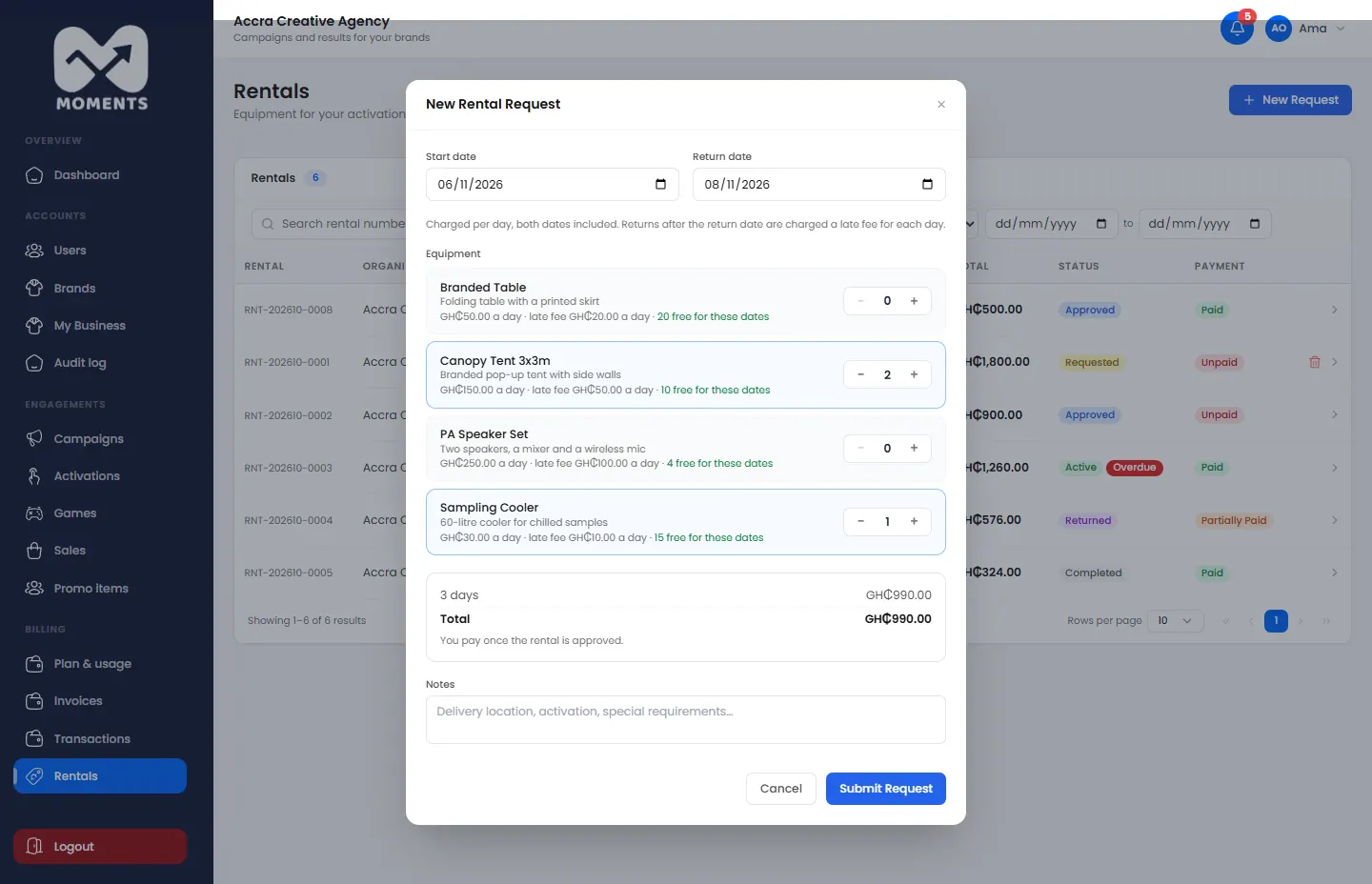
In the menu, click Rentals, then New Request.
Choose the Start date and Return date.
Under Equipment, use − and + to choose how many of each item. You can see how many are free for your dates.
Optional: add Notes, such as the delivery location or the activation.
Click Submit Request.
A rental request: dates, equipment, and the total
You're charged per day, with both dates included. You pay only once the rental is approved.
Pay for it
When the Moments Analytics team approves your request, you get an email. The equipment is reserved for your dates.
In Rentals, open the rental.
Click Pay … by card or Mobile Money, and pay.
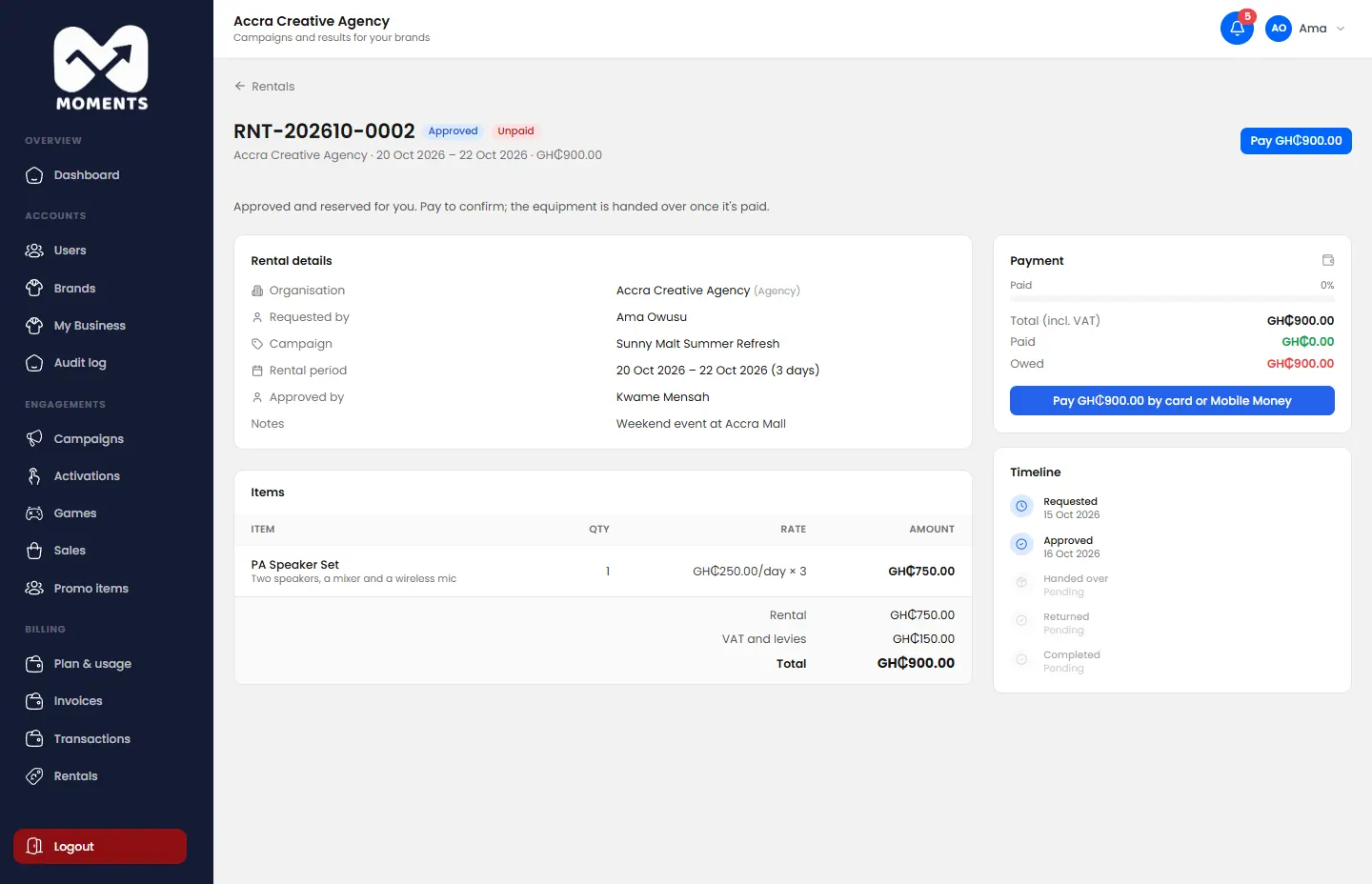
An approved rental: pay to confirm it
The equipment is handed over once it's paid. The Timeline on the rental shows each step: requested, approved, handed over, returned and completed.
Return it
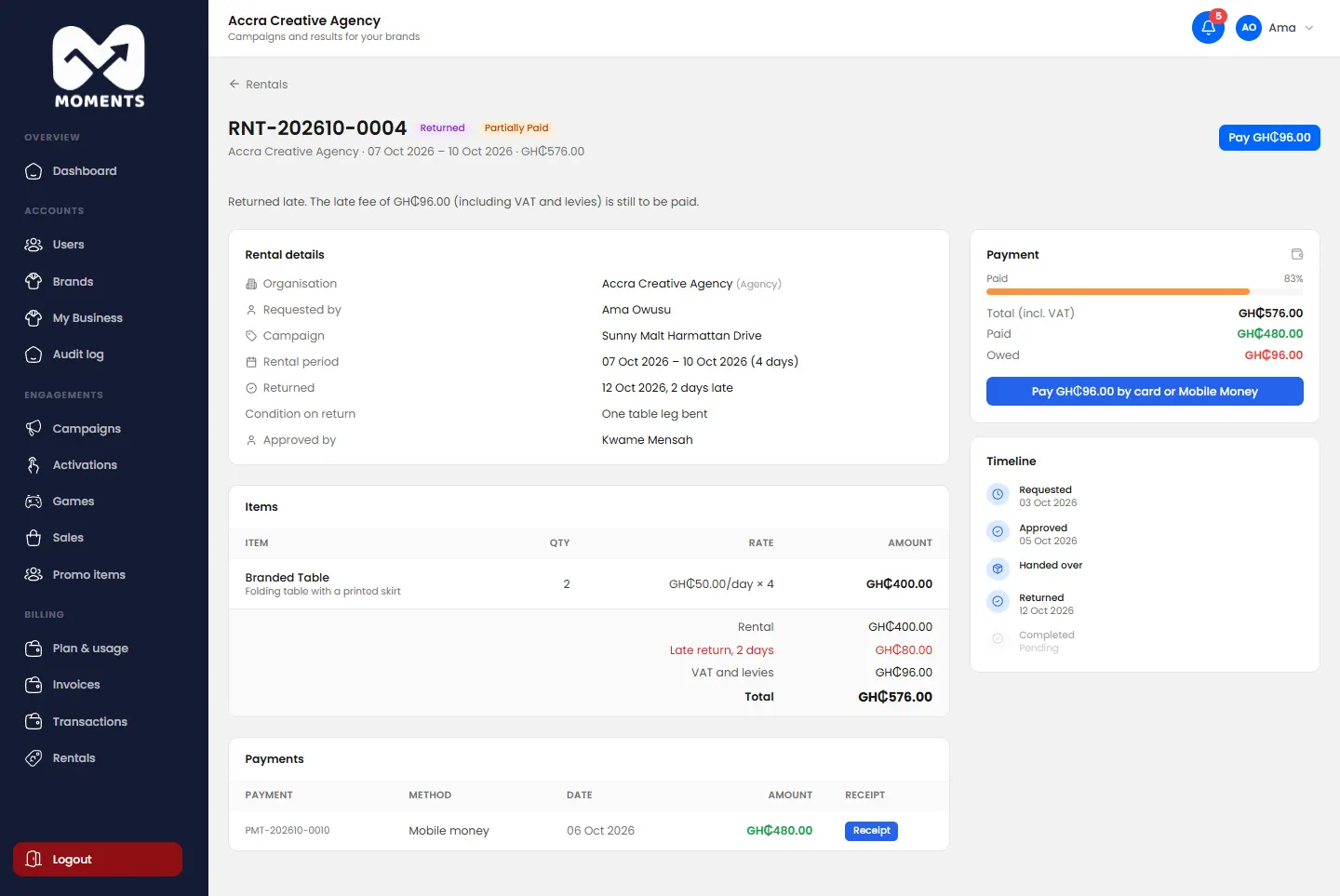
Return the equipment by the return date. Returns after it are charged a late fee for each day. If there's a late fee, it shows on the rental, with a button to pay it.
Returned late: the late fee is still to be paid
Withdraw a request
Changed your mind before it's approved? Open the rental and click Withdraw request. You can request again any time.
24 of 26
Check the audit log
See who changed what in your organisation, and when.
The audit log records changes to your organisation's accounts, and security events. For example:
someone was added, suspended or changed role;
a password was changed or reset;
someone was locked out after wrong passwords;
a campaign or activation was deleted;
a payment was made, or the plan changed.
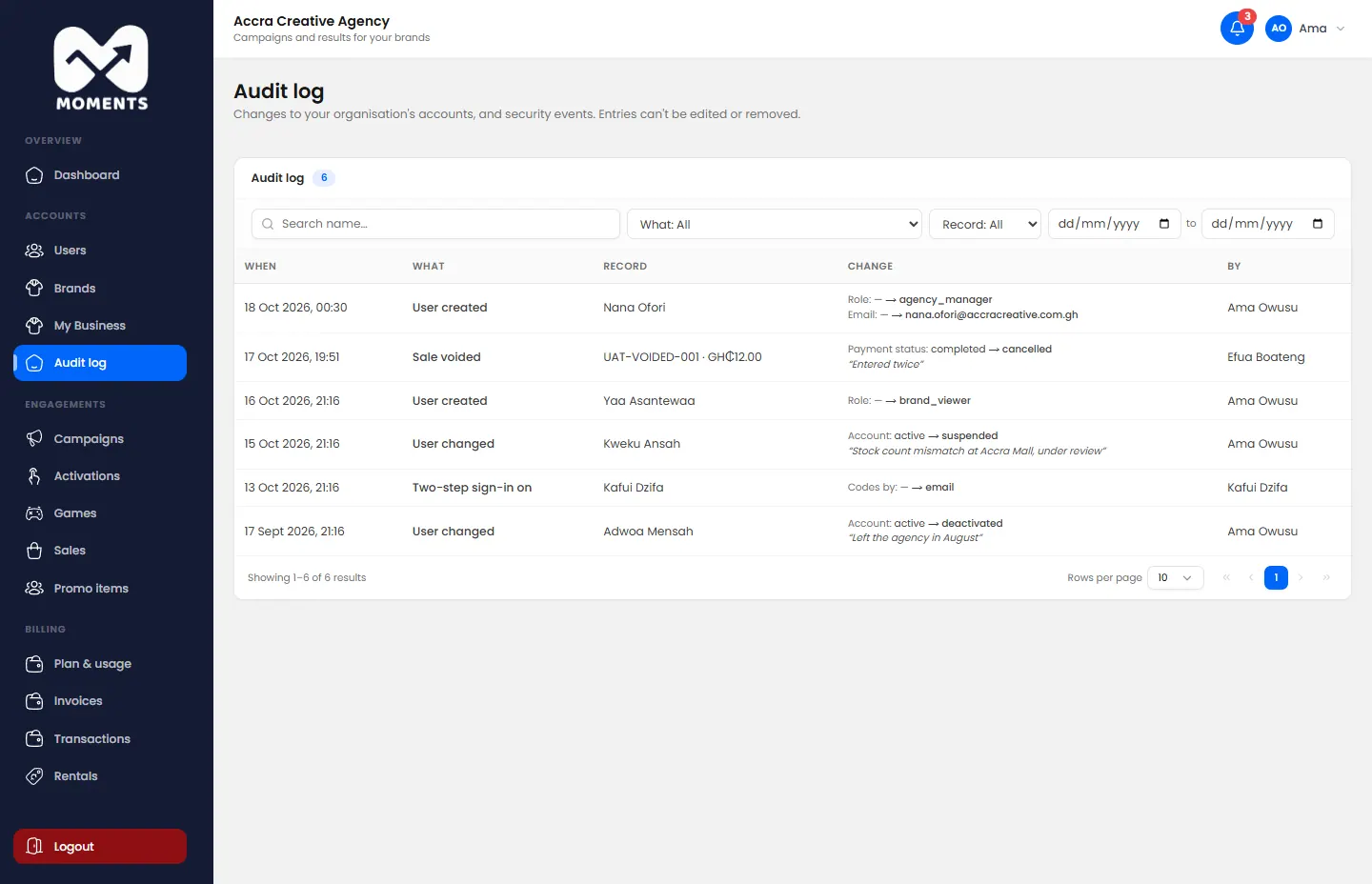
In the menu, click Audit log. Only admins can open it.
The audit log: changes in the agency, and who made them
Each entry shows what changed, who did it and when. Filter by type of change, person or date to find what you need.
How far back the audit log goes depends on your plan.
25 of 26
Errors when creating an activation or game
What each message on the activation and game forms means, and how to fix it.
A field is shown in red
Something required is missing, such as the name, a date, a location or a target. Each field says what it needs.
What's missing is shown on each field
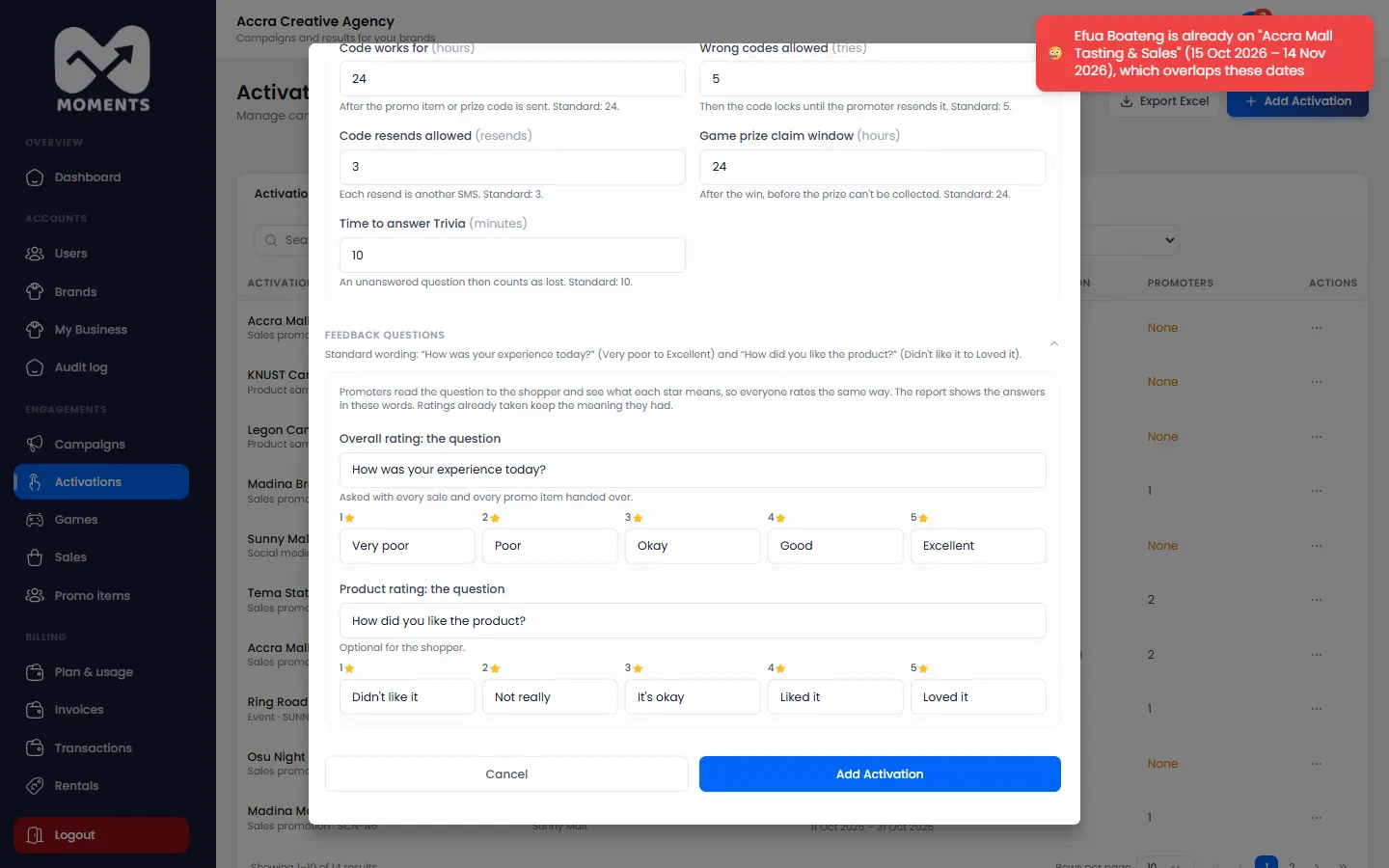
"… is already on "…", which overlaps these dates"
A promoter can only be on one activation at a time. The one you chose is already on another activation with overlapping dates.
A promoter already on an activation with overlapping dates
Choose another promoter, change the dates, or take the promoter off the other activation first.
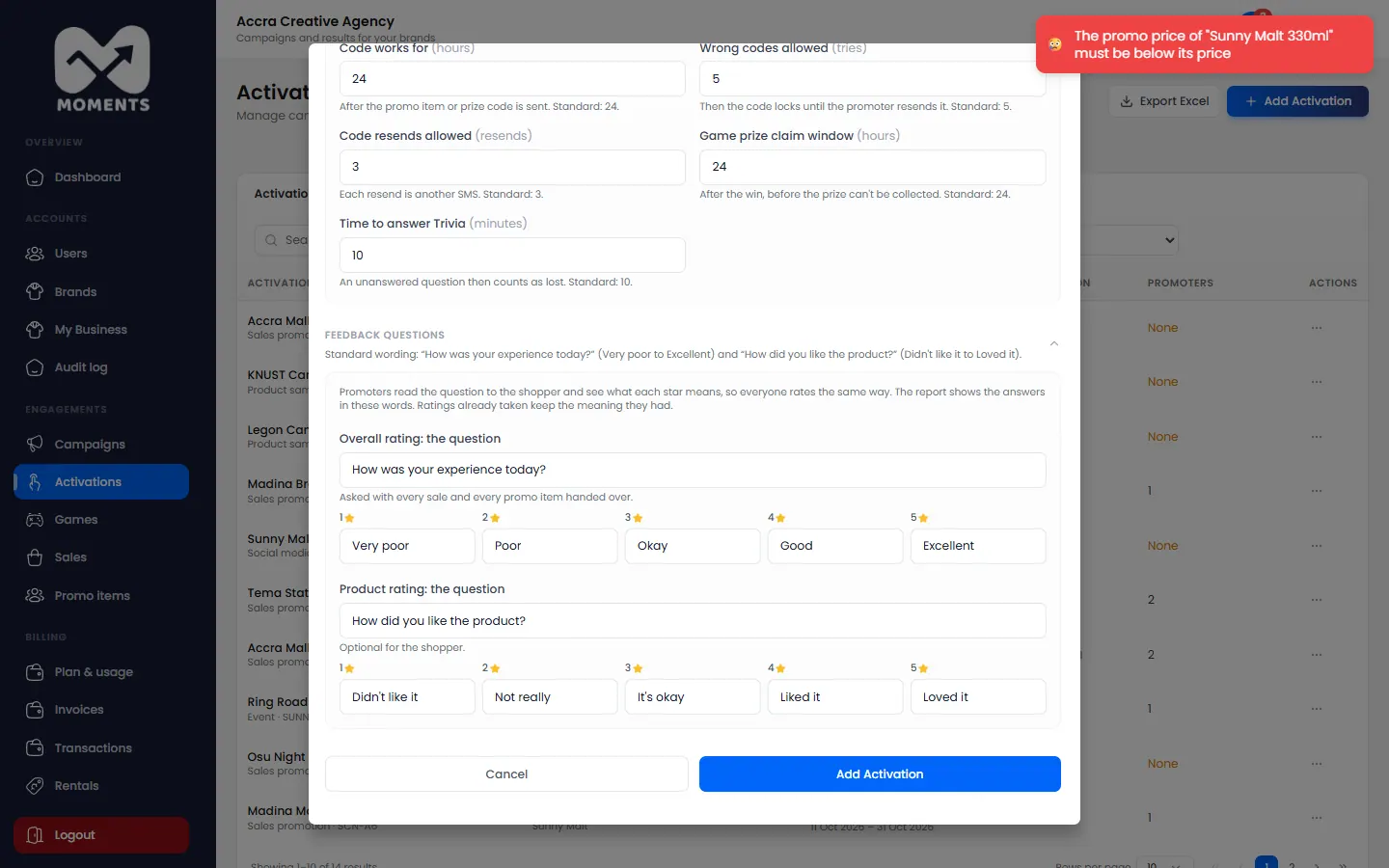
"The promo price of "…" must be below its price"
A promo price is a discount, so it has to be lower than the Unit Price. Lower it, or leave Promo Price empty to sell at the normal price.
A promo price must be below the normal price
The dates are outside the campaign
An activation must run within its campaign's dates, which are shown under the dates. Change the activation's dates, or edit the campaign to make it longer.
"The end date has passed"
Choose an end date of today or later.
"No promoters available for this brand"
You haven't added promoters yet, or they're all busy. Add a promoter first.
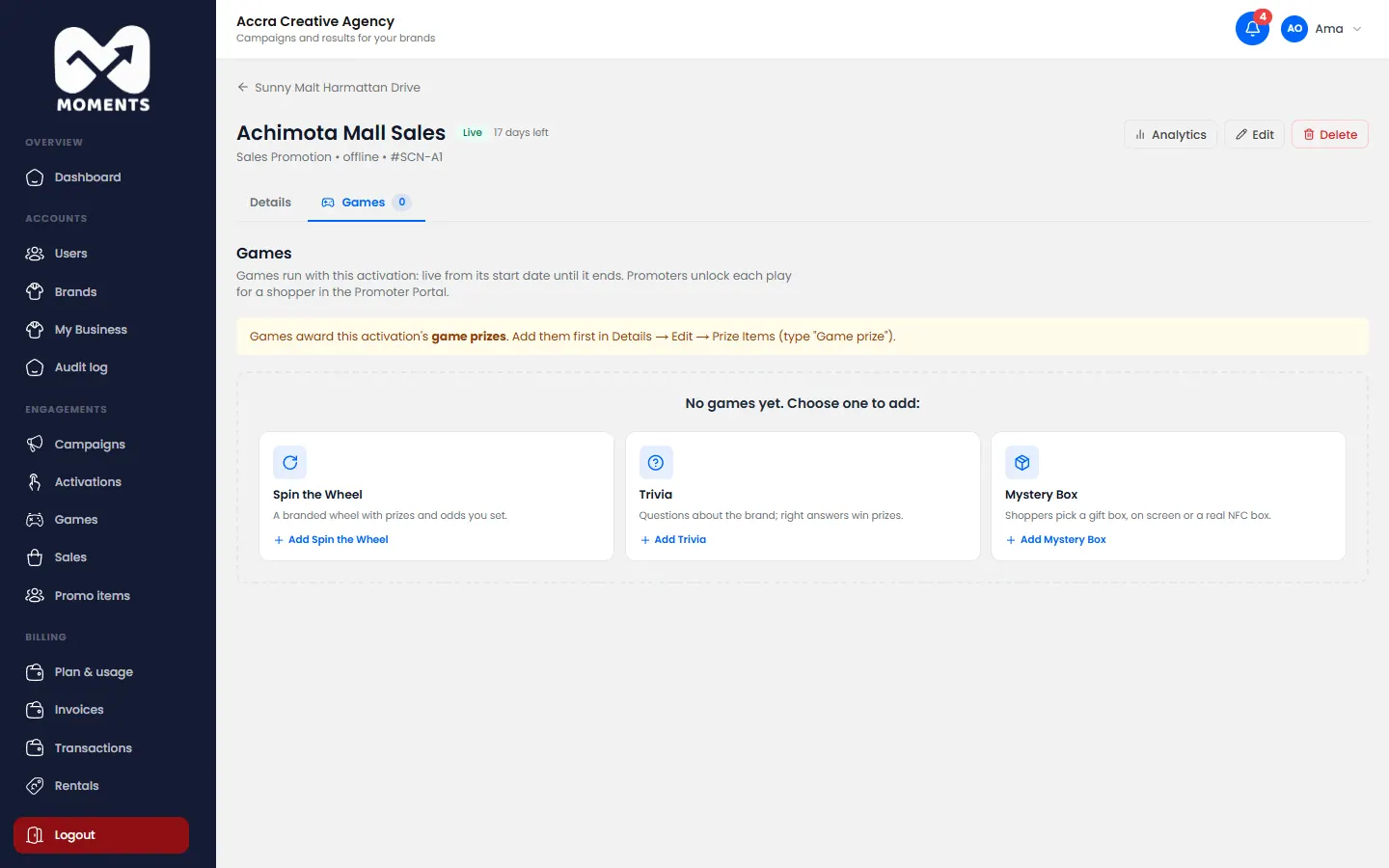
No game prizes
You see This activation has no Game prizes yet when you try to add a game. A game needs prizes to give.
An activation with no game prizes: add them first
On the activation's Details tab, click Edit.
Under Promo Items, add an item with the type Game prize.
Click Save Changes, then add the game.
26 of 26
You've reached a plan limit
What to do when your plan stops you adding something, or a feature needs a bigger plan.
Your plan sets how many brands, campaigns, activations and users you can have, and which features you get. When you reach a limit, the message tells you what it is and how to raise it.
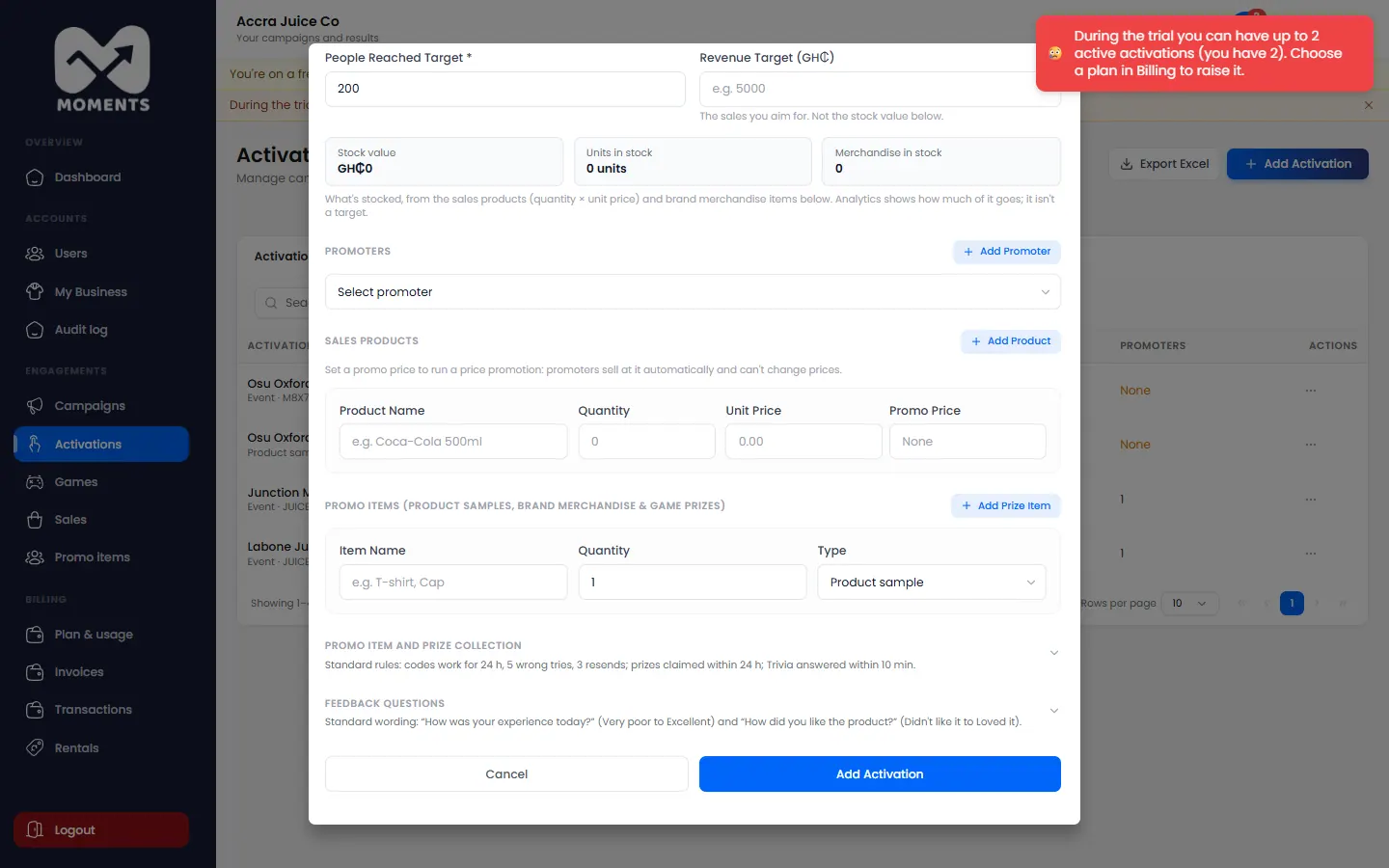
"Your … plan allows up to …"
For example: During the trial you can have up to 2 active activations (you have 2).