
With two-step sign-in, you type a 6-digit code after your password. The code comes by email or SMS, so someone who learns your password still can't sign in.
Steps
- Click your name at the top right, then Your account.
- Under Security, next to Two-step sign-in, click Turn on.
- Choose to Send codes by Email or SMS.
Type Your password and click Send code.
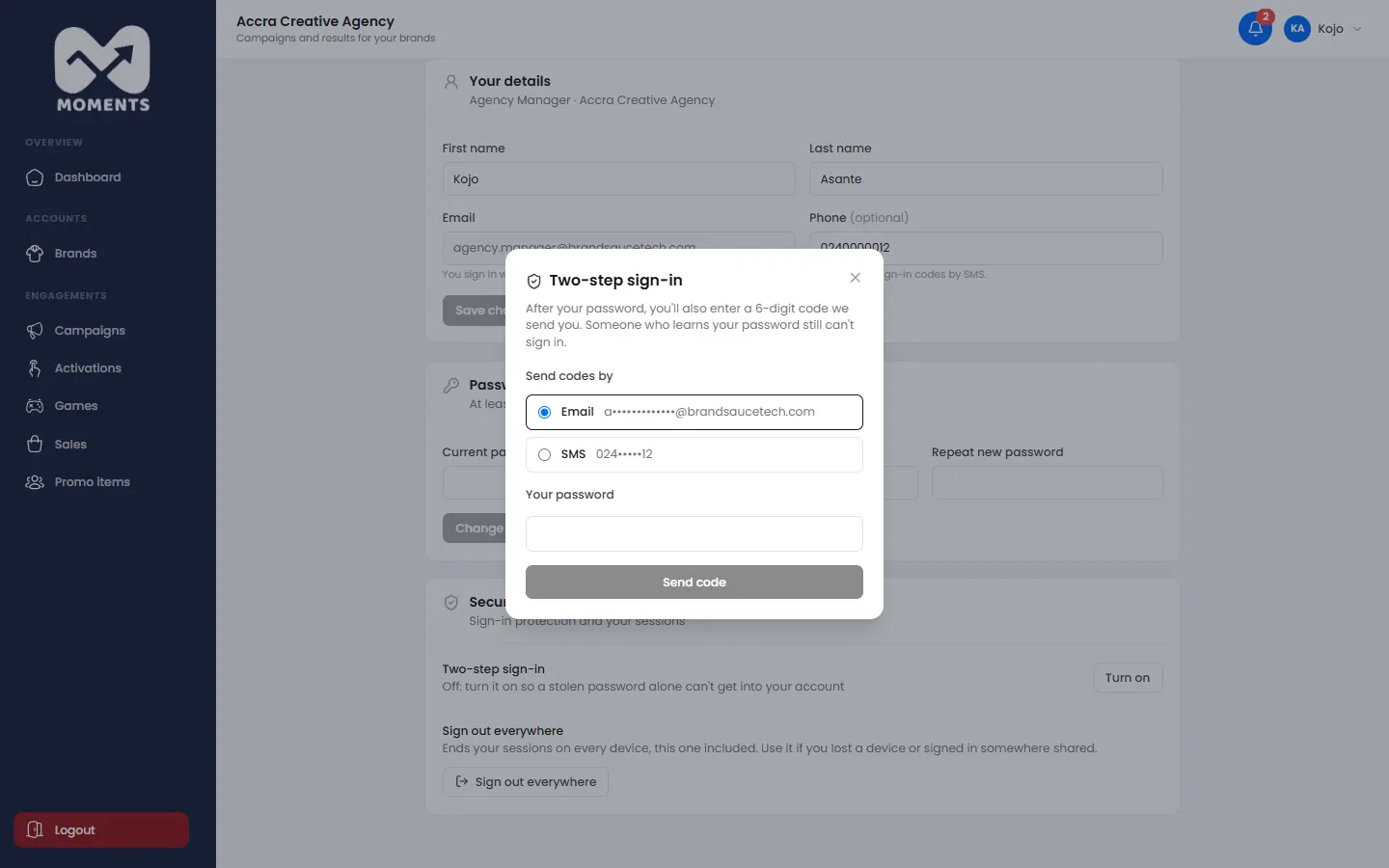
Turning on two-step sign-in: choose email or SMS, and confirm with your password - Type the code we sent you.
Save your recovery codes. Copy them, or write them down, and keep them somewhere safe. Then click I've saved them.
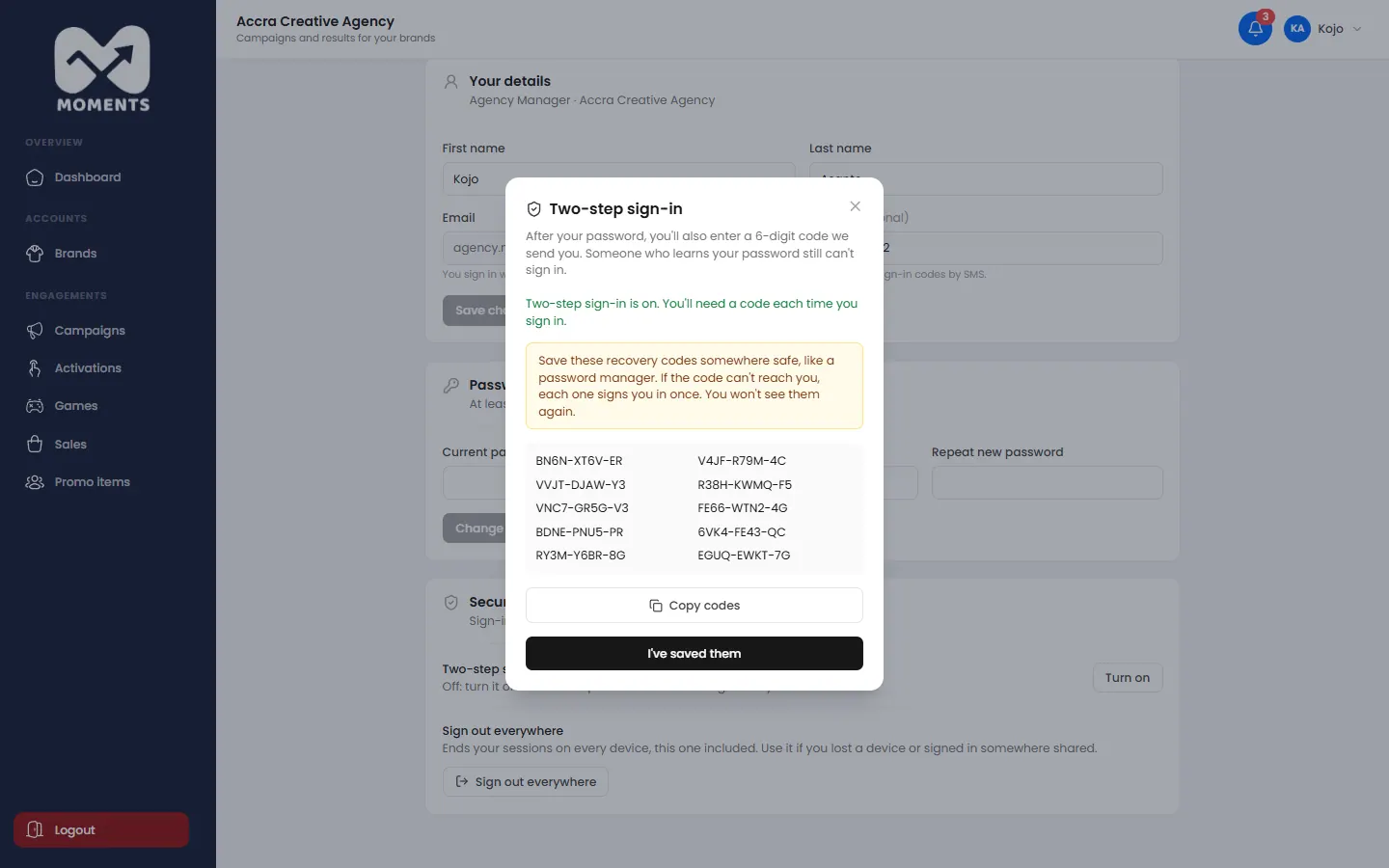
Recovery codes, shown once
To use SMS, add your phone under Your details first.
What happens next
Each time you sign in, you'll also type a code. See Sign in.
Get new recovery codes, or turn it off
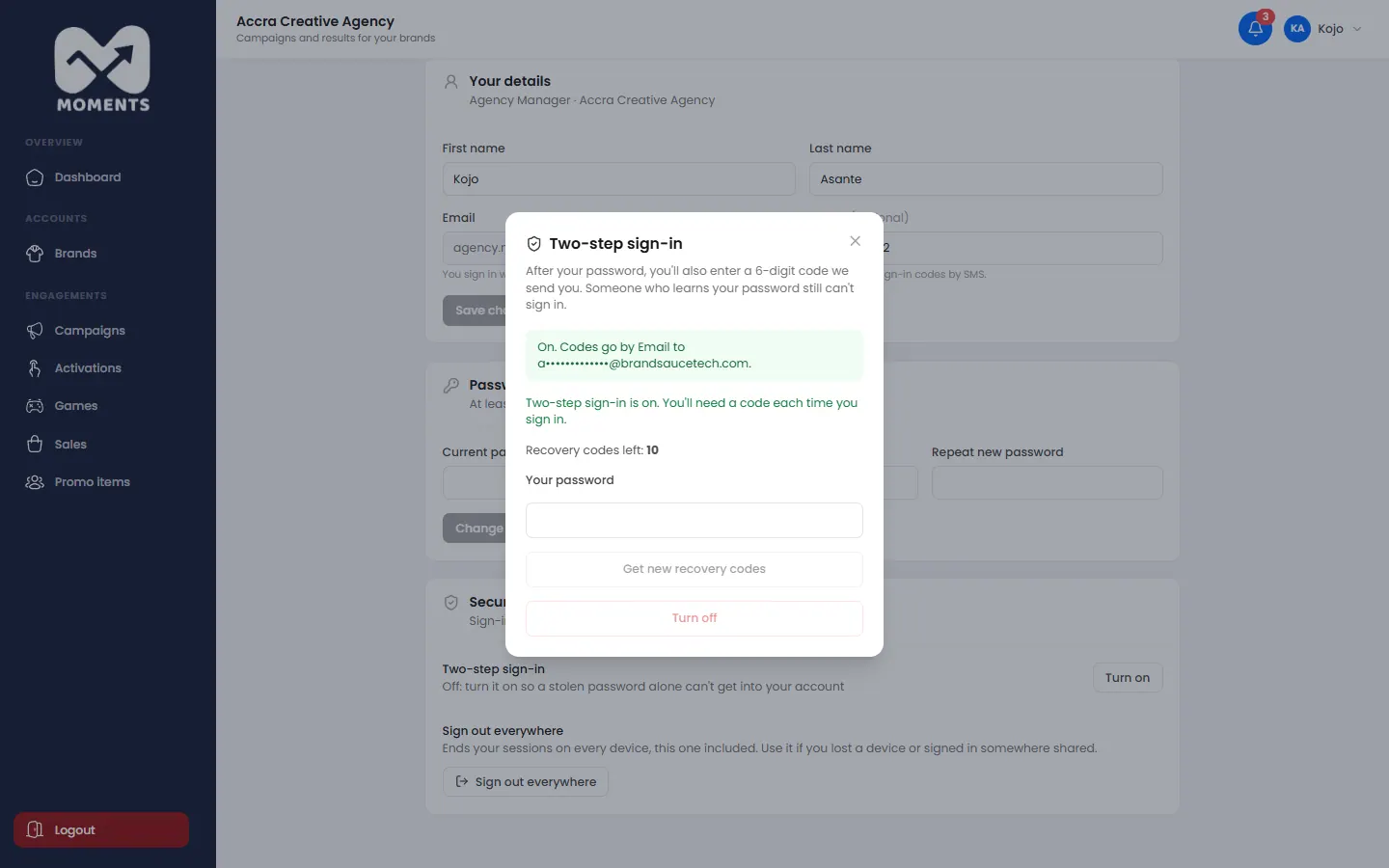
Under Security, you can get new recovery codes. The old ones stop working. You can also turn two-step sign-in off, which needs your password.
If your organisation requires two-step sign-in, you always need a code to sign in, even if you turn your own setting off. The code comes by email unless you've chosen SMS.