
Click your name at the top right, then Your account.
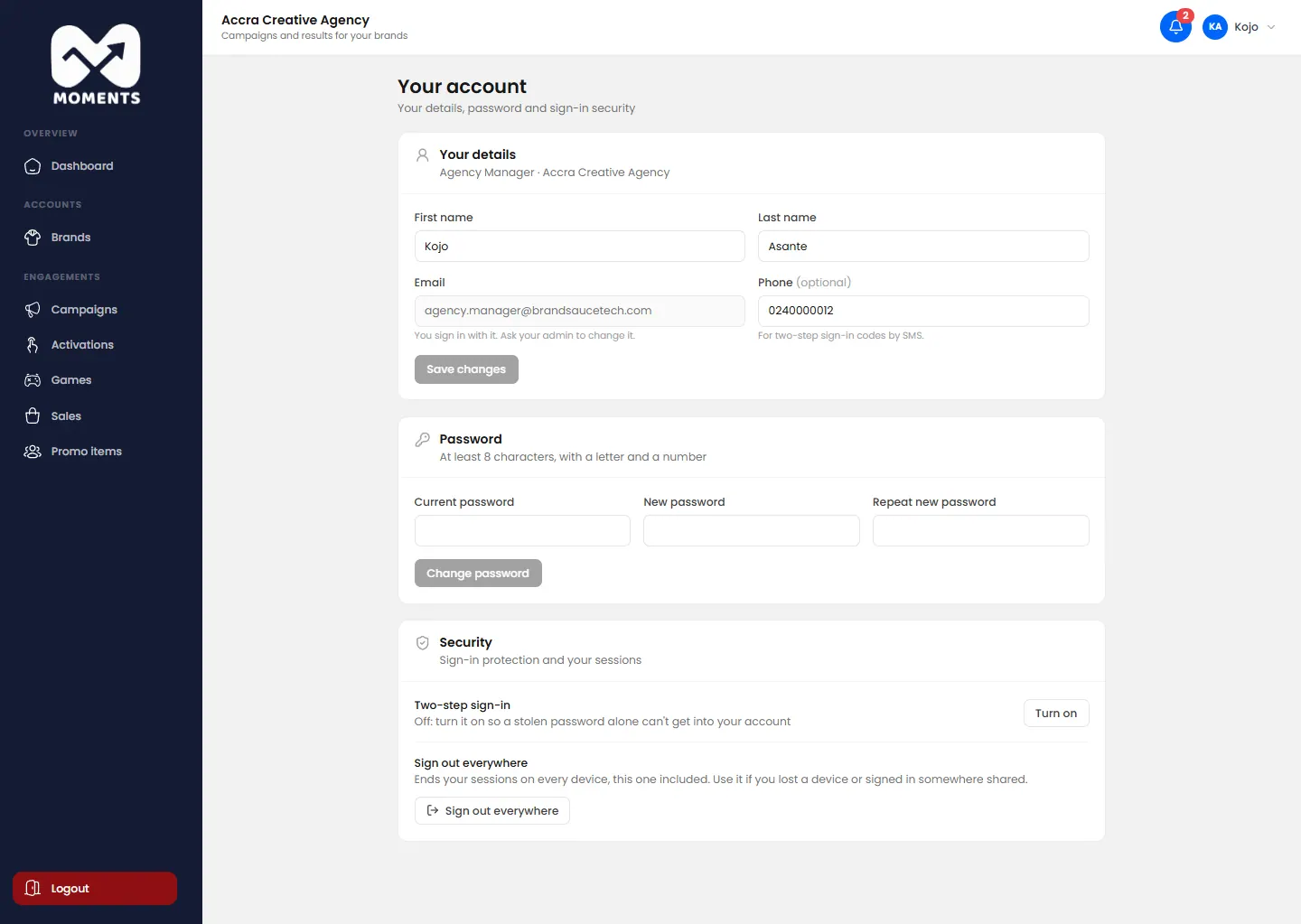
Change your name or phone
- Under Your details, change your First name, Last name or Phone.
- Click Save changes.
Your phone is optional. It's used for two-step sign-in codes by SMS. You can't change your email here: ask your admin.
Change your password
- Under Password, type your Current password.
- Type the New password twice.
- Click Change password.
A password needs at least 8 characters, with a letter and a number. When you change it, you're signed out on your other devices.
Sign out everywhere
Use this if you've lost a device, or signed in on a shared computer.
- Under Security, click Sign out everywhere.
- Confirm.
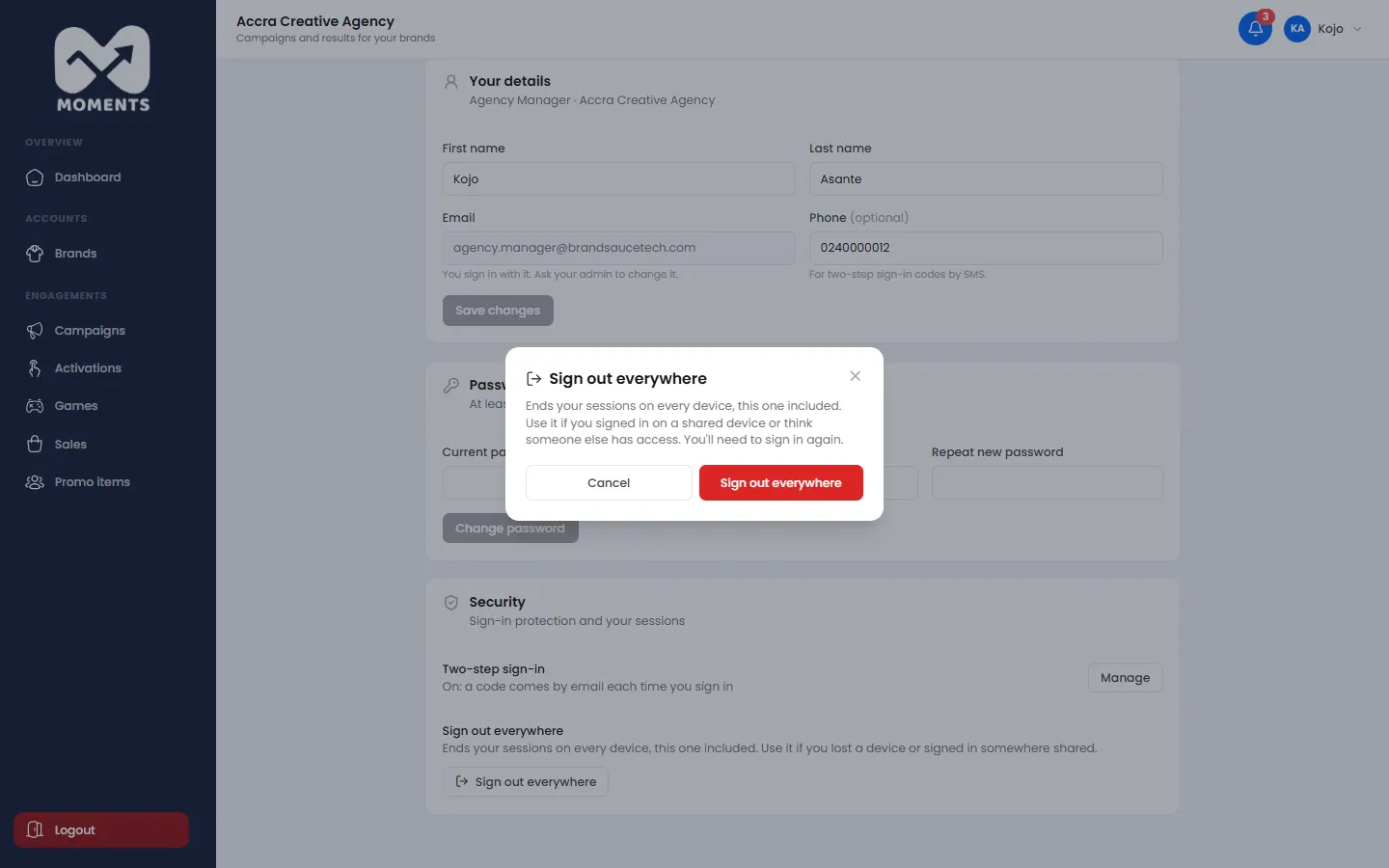
You're signed out on every device, including this one. Sign in again to carry on.
Sign out
Click your name at the top right, then Sign out. Or click Logout at the bottom of the menu.
Brand viewers
In the Viewers Portal, your details are under Your account in the menu. Your agency or brand changes your email.