A report shows everything about one campaign or activation. It's live, so it changes as promoters record. Open one from Campaigns. See Find a campaign or activation.
The tabs
| Tab | What it tells you |
|---|---|
| Overview | Against targets, the highlights, what's going well, what needs attention, and how it built up day by day |
| Activations | The activations compared |
| Locations | Each place, and a map of where things happened |
| Sales | What sold, how people paid, and the busiest times |
| Promo items & games | Samples and prizes collected, and whether trying led to buying |
| People & feedback | Who was reached, and the ratings they gave |
| Team | What each promoter did |
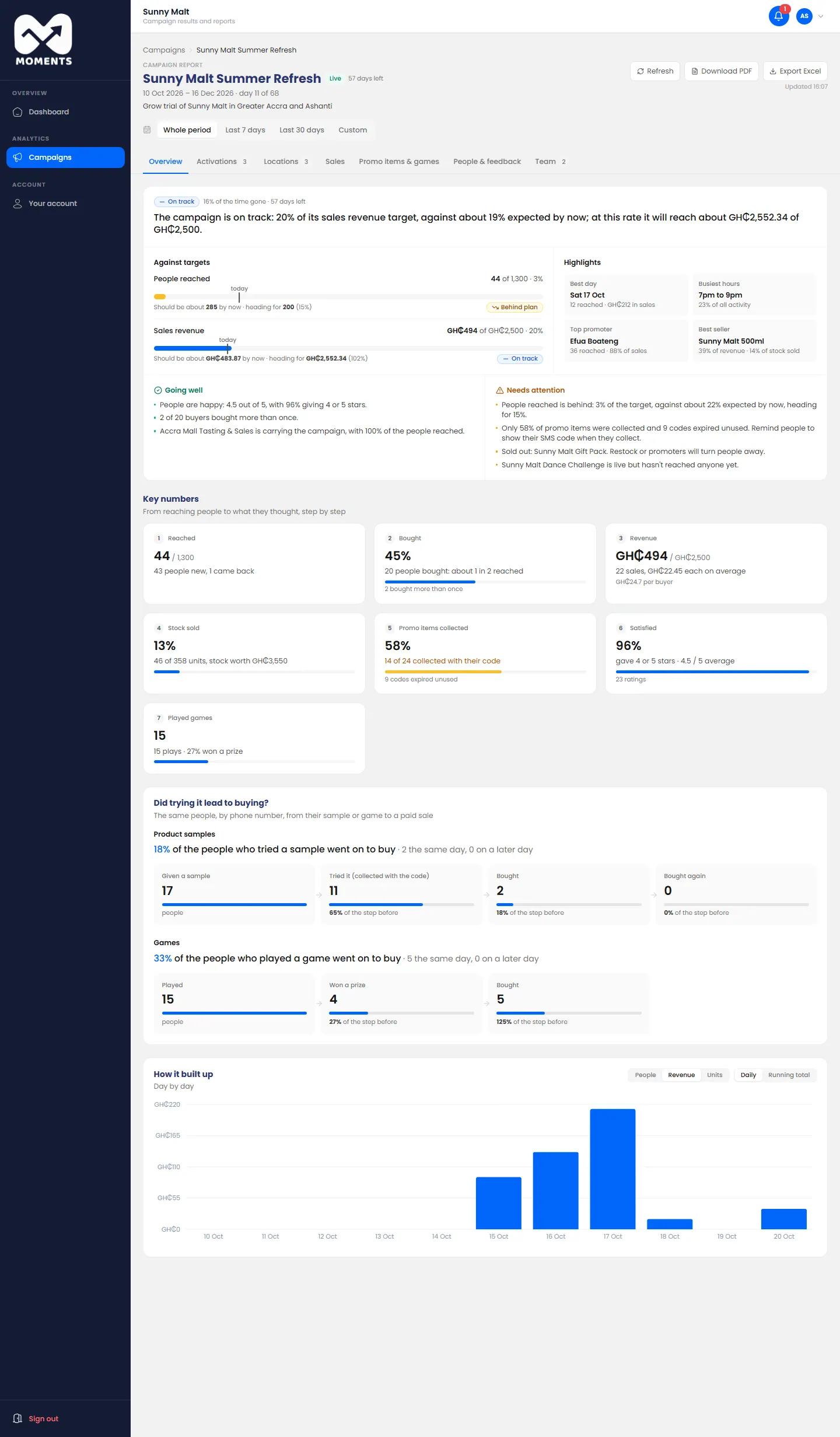
Against targets
Each target has a bar with a marker showing where it should be by now. The label says if it's On track, Ahead of plan or Behind plan, and how far it's heading.
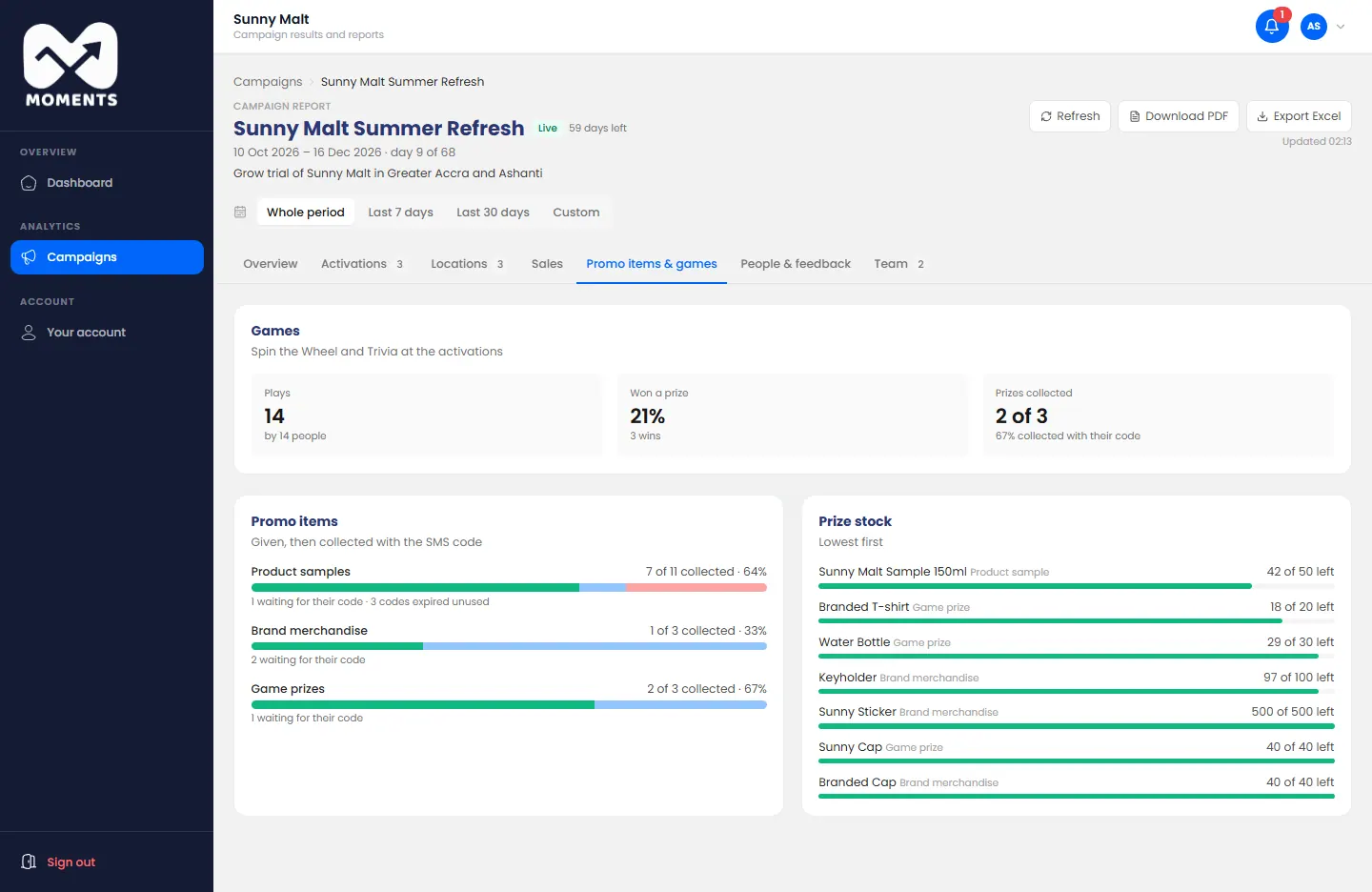
Did trying it lead to buying?
On Promo items & games, you see how many people who tried a sample or played a game went on to buy, on the same day or later. It's matched by phone number, so no names are needed.
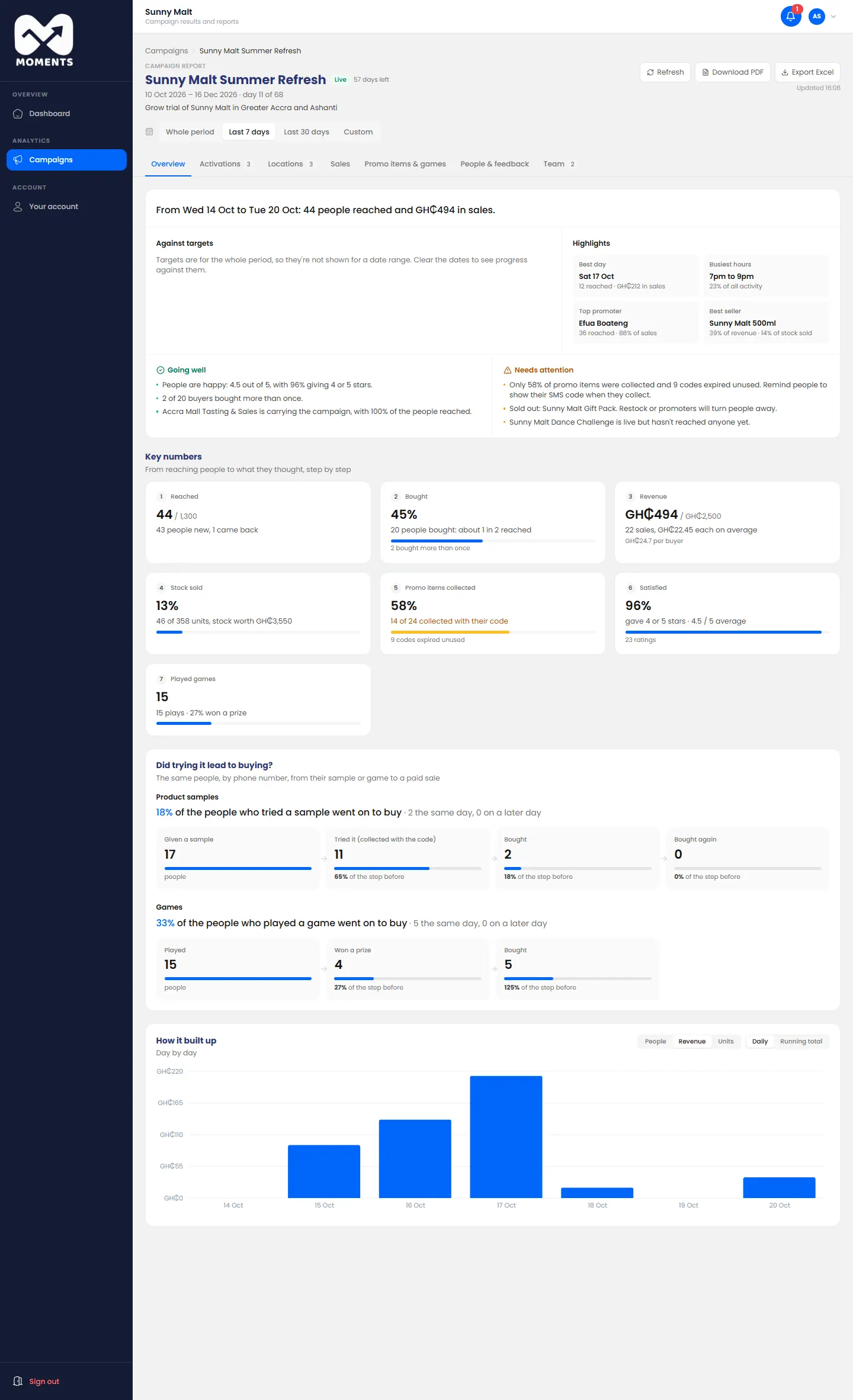
Look at a shorter period
Click Last 7 days, Last 30 days, or Custom to choose dates. Click Whole period to go back.
Targets cover the whole period, so they're hidden while you look at fewer days.
Download it
- Download PDF: the whole report, every tab, laid out to send on.
- Export Excel: the figures for the whole period, for a spreadsheet.
Click Refresh for the latest figures.