← Back to Clients

Moments Analytics Help

Clients

Follow your brand's campaigns live and share the reports.

Viewers Portal · 20 October 2026 · momentsanalytics.com/help/viewer

  1. 1. Welcome to your Viewers Portal
  2. 2. Read your dashboard
  3. 3. Find a campaign or activation
  4. 4. Read a report
  5. 5. "This campaign isn't available"

1 of 5

Welcome to your Viewers Portal

See your brand's campaigns live, with the same figures your agency sees.

The Viewers Portal shows how your brand's campaigns are doing, as they happen. It shows:

  • how many people your activations reached;
  • what was sold;
  • which samples and prizes were collected;
  • what people thought.

The figures come straight from the promoters' phones, and they're the same ones your agency sees. You can look, but you can't change anything.

1. Set your password

Your agency (or your brand's admin) adds you. You get an email from Moments Analytics with a link to set your password. It works for 72 hours. See Set your password from an invitation.

2. Sign in

Go to viewers.momentsanalytics.com, and sign in with your work email and password. See Sign in.
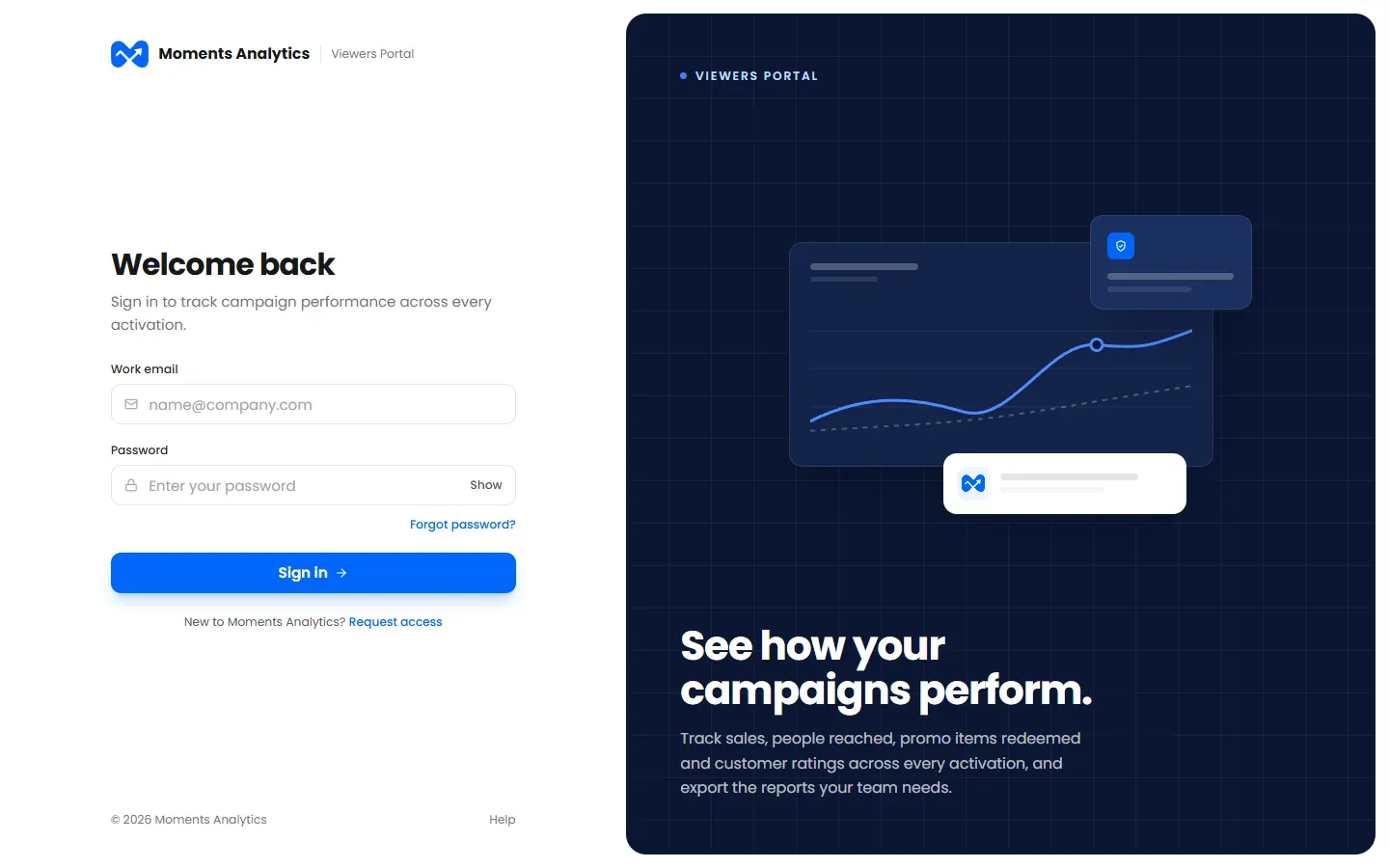
The Viewers Portal sign-in

3. Start from your dashboard

Your dashboard shows the last 30 days at a glance, and every live campaign against its targets. See Read your dashboard.

4. Open a campaign's report

The report answers the questions you'll be asked: are we on target, where, who bought, and what did people think? You can download it as a PDF to share. See Read a report.

Good to know

  • It's live. Click Refresh for the latest figures.
  • People are anonymous. Shoppers are known only by their phone number, and reports never show names.
  • It works on your phone. The dashboard and reports fit a small screen.
  • Need something changed? Ask your agency. Only they can change campaigns, targets or your email.
2 of 5

Read your dashboard

Your brand's results at a glance, and where each live campaign stands against its targets.

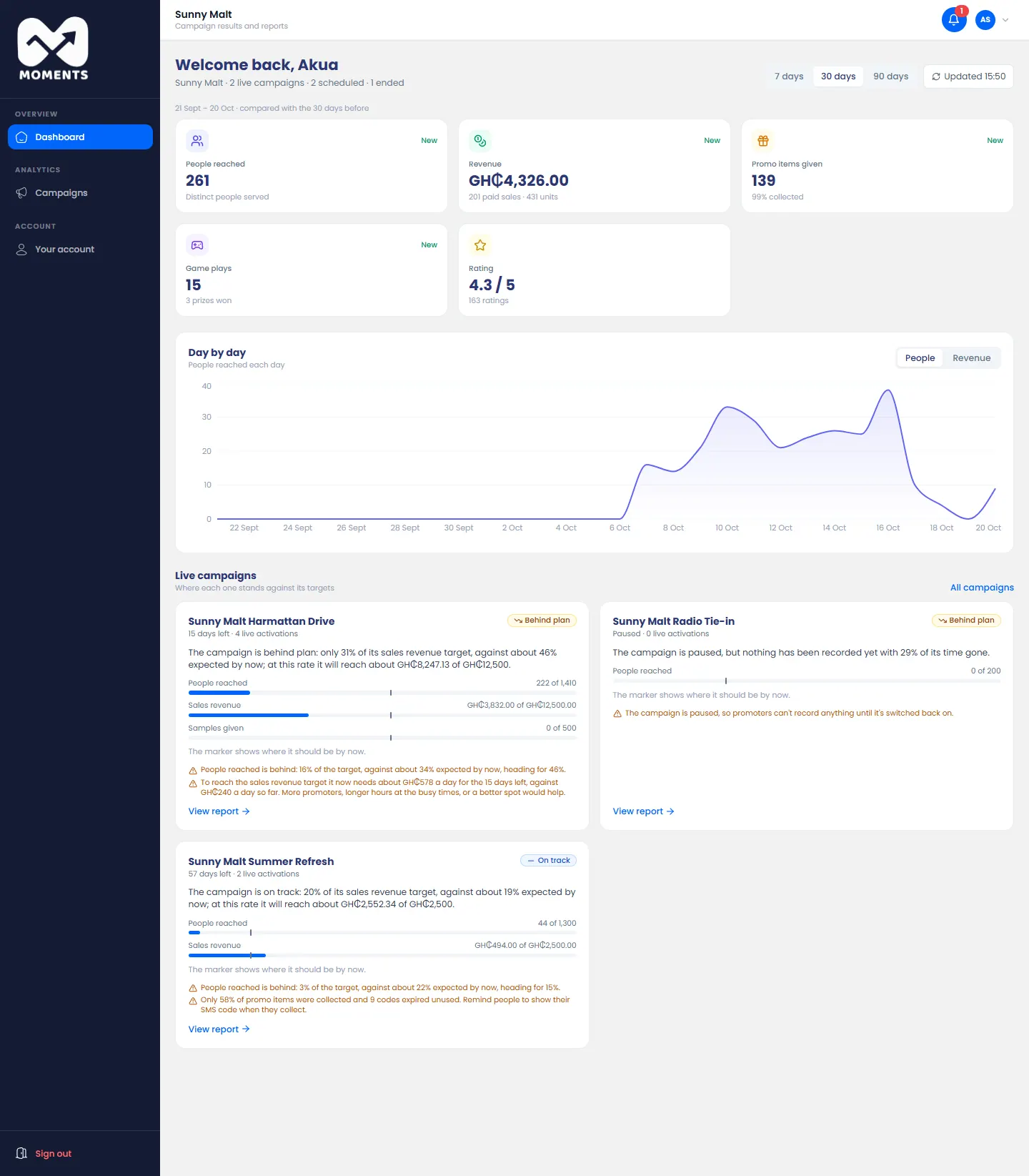
Your dashboard is the first page you see after you sign in.

The client's dashboard

What's on it

  • The totals:

    • People reached;
    • Revenue;
    • Promo items given;
    • Game plays;
    • Rating.

    New next to a total means there's nothing to compare it with yet.

  • Day by day: a chart of people reached each day. Click Revenue to see sales instead.
  • Live campaigns: each one against its targets.

    • The label says if it's On track, Ahead of plan or Behind plan.
    • The marker on each bar shows where it should be by now.
    • Notes in orange say what needs attention, for example a campaign that's paused.

Click View report on a campaign to see everything about it.

Change the time period

Click 7 days, 30 days or 90 days at the top. The totals and the chart change to match.

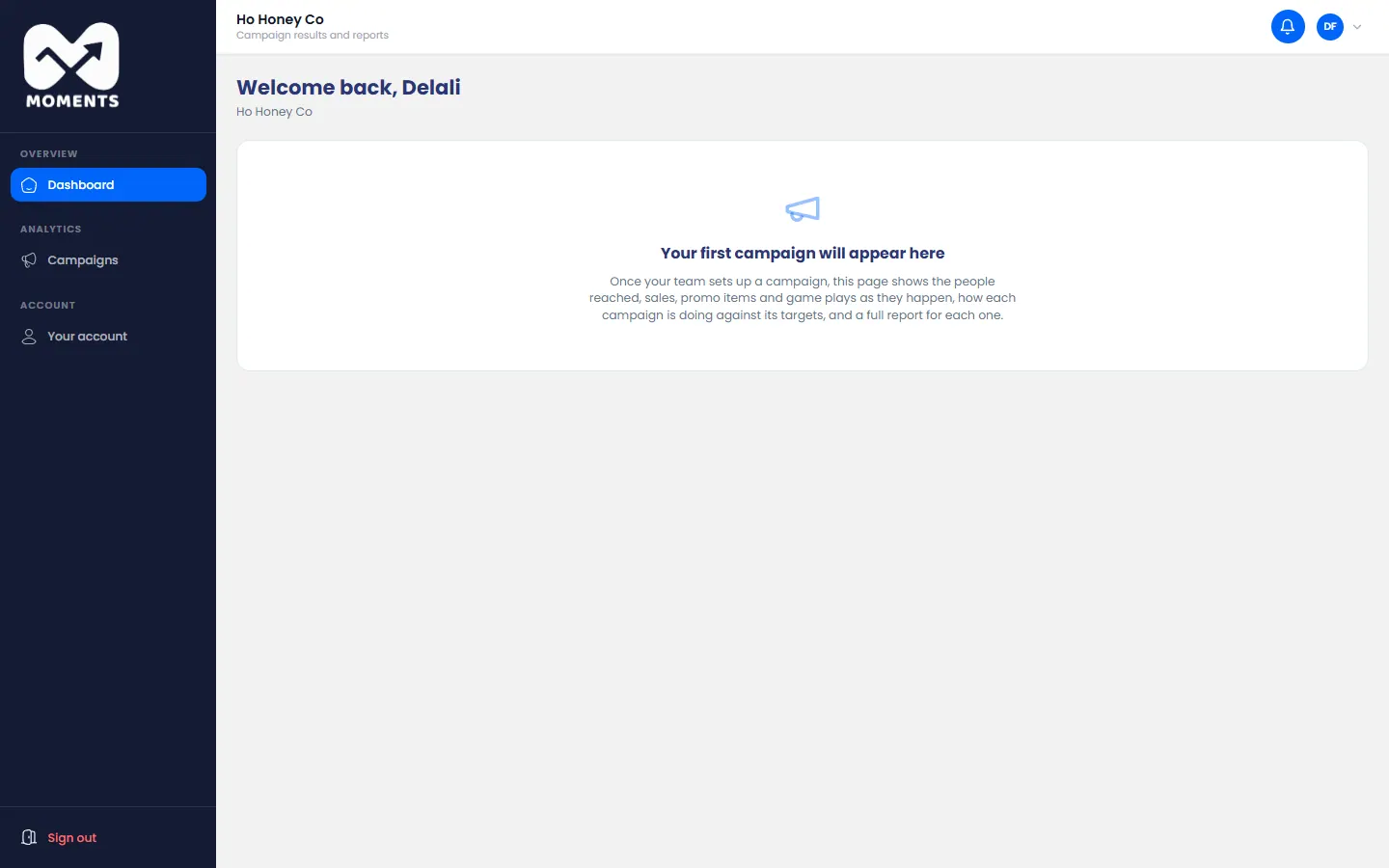
Before your first campaign

Until your brand has a campaign, the dashboard is empty. It fills in once your agency starts one.

Before the first campaign: the dashboard is empty

3 of 5

Find a campaign or activation

List your brand's campaigns, filter them, and open a campaign's or an activation's report.

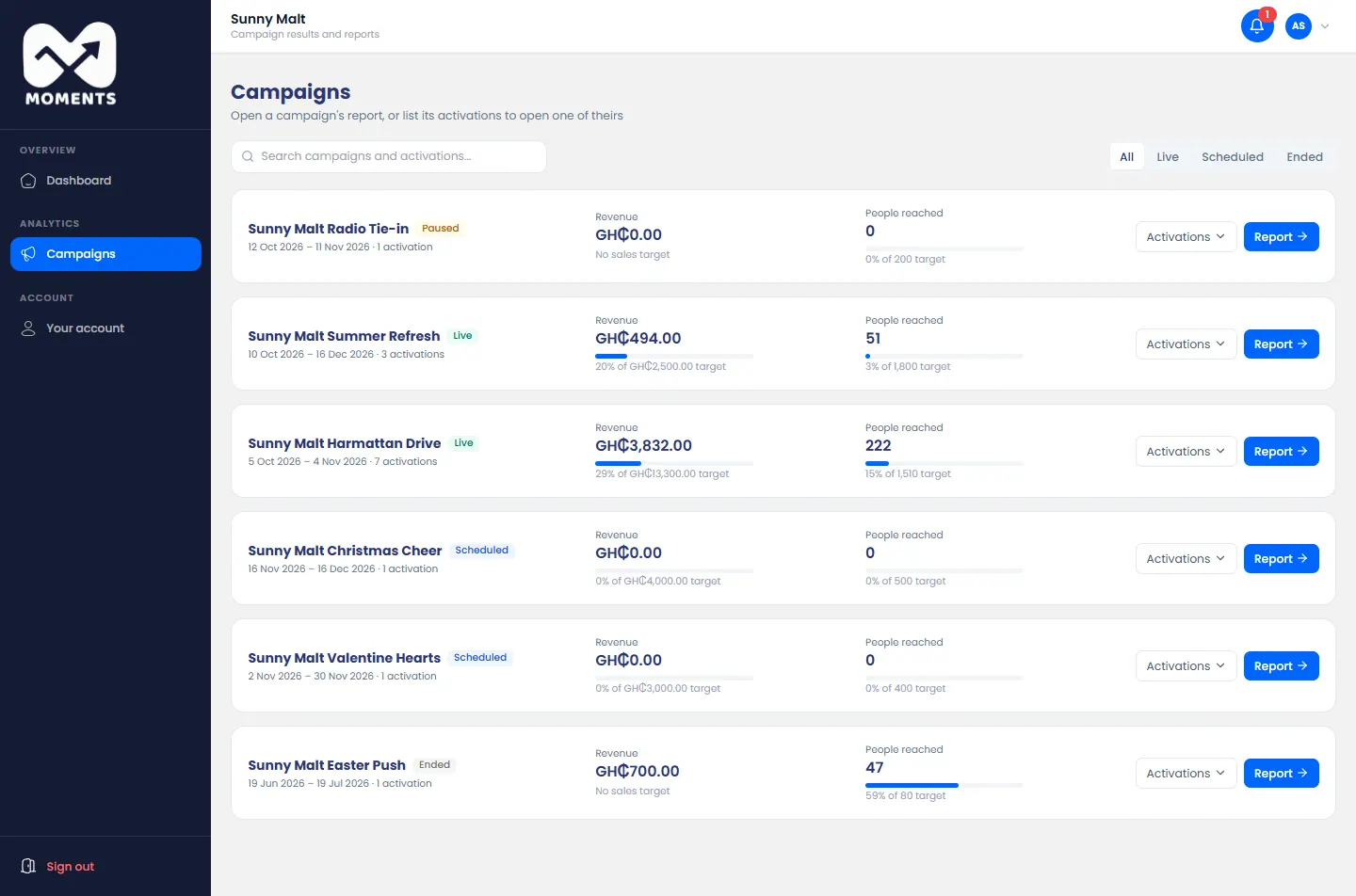
In the menu, click Campaigns. Each campaign shows its revenue and people reached against its targets.

Campaigns: open a campaign's report, or list its activations

Narrow the list

  • Click Live, Scheduled or Ended to see only those. All shows every campaign.
  • Search by the name of a campaign or an activation.

Open a report

  • A campaign's report: click Report next to it.
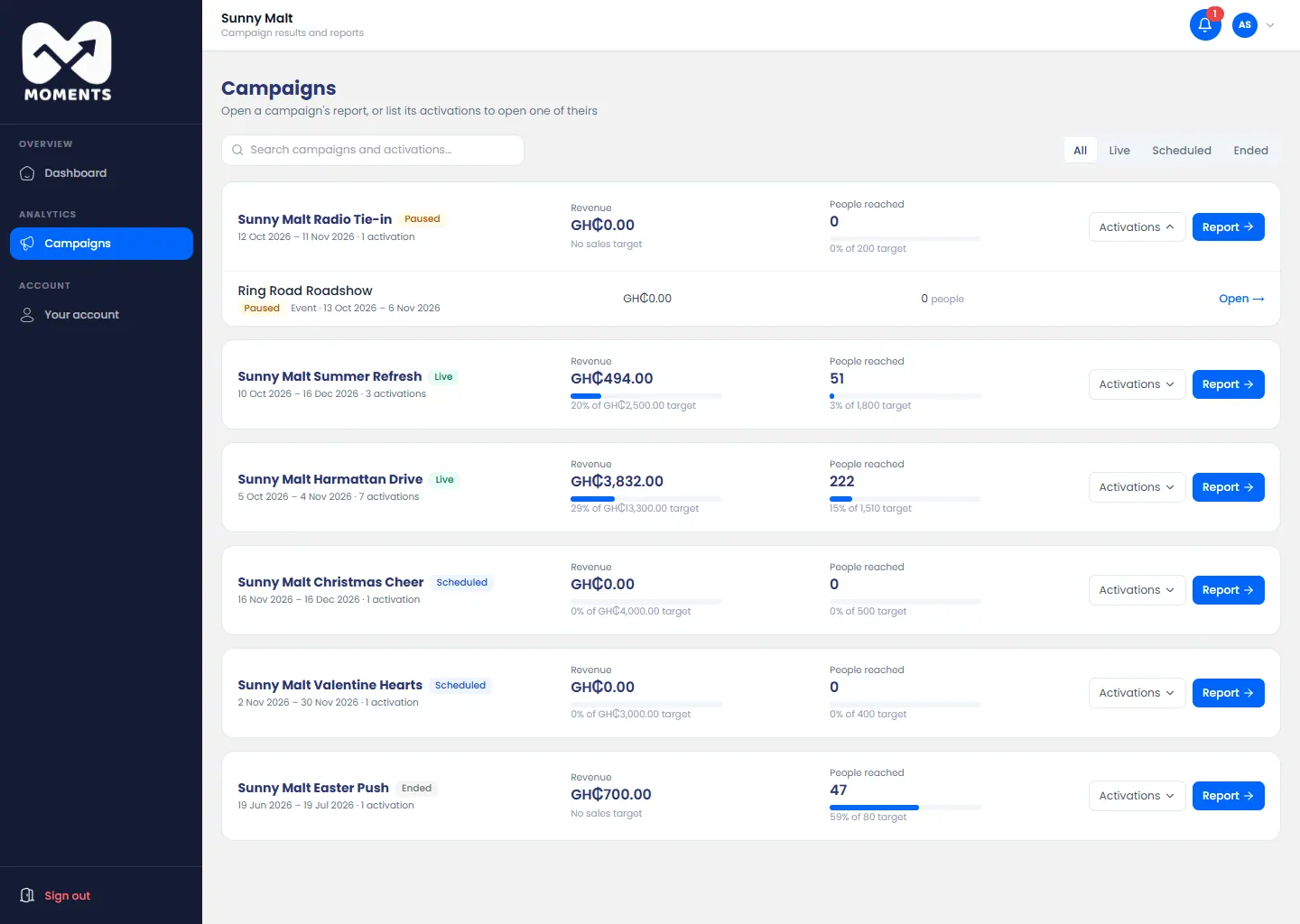
  • An activation's report: click Activations to list the campaign's activations, then Open next to one.
A campaign's activations listed

See Read a report.

4 of 5

Read a report

How a campaign or activation is doing, tab by tab, and how to download it as a PDF.

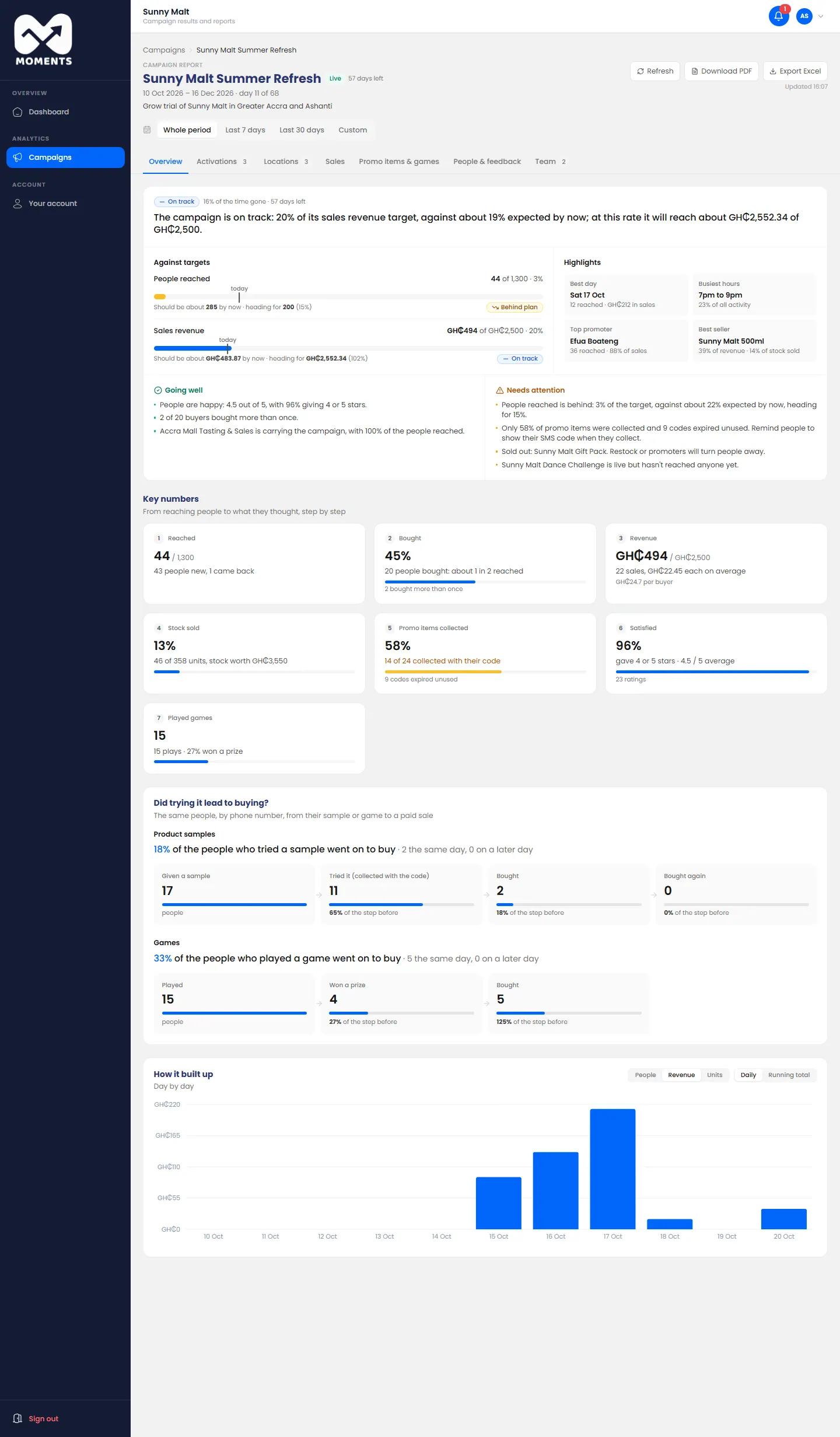
A report shows everything about one campaign or activation. It's live, so it changes as promoters record. Open one from Campaigns. See Find a campaign or activation.

The tabs

TabWhat it tells you
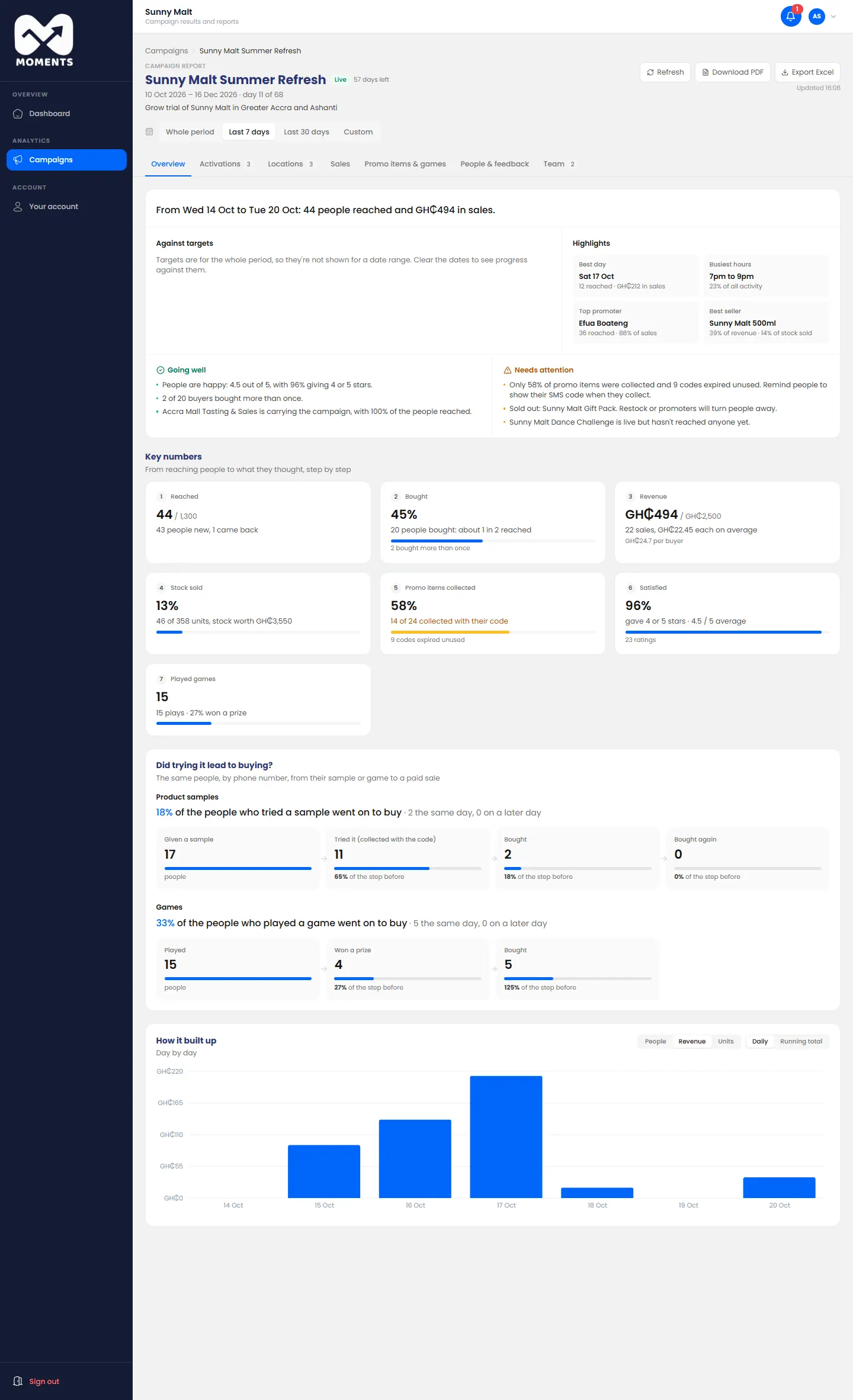
OverviewAgainst targets, the highlights, what's going well, what needs attention, and how it built up day by day
ActivationsThe activations compared
LocationsEach place, and a map of where things happened
SalesWhat sold, how people paid, and the busiest times
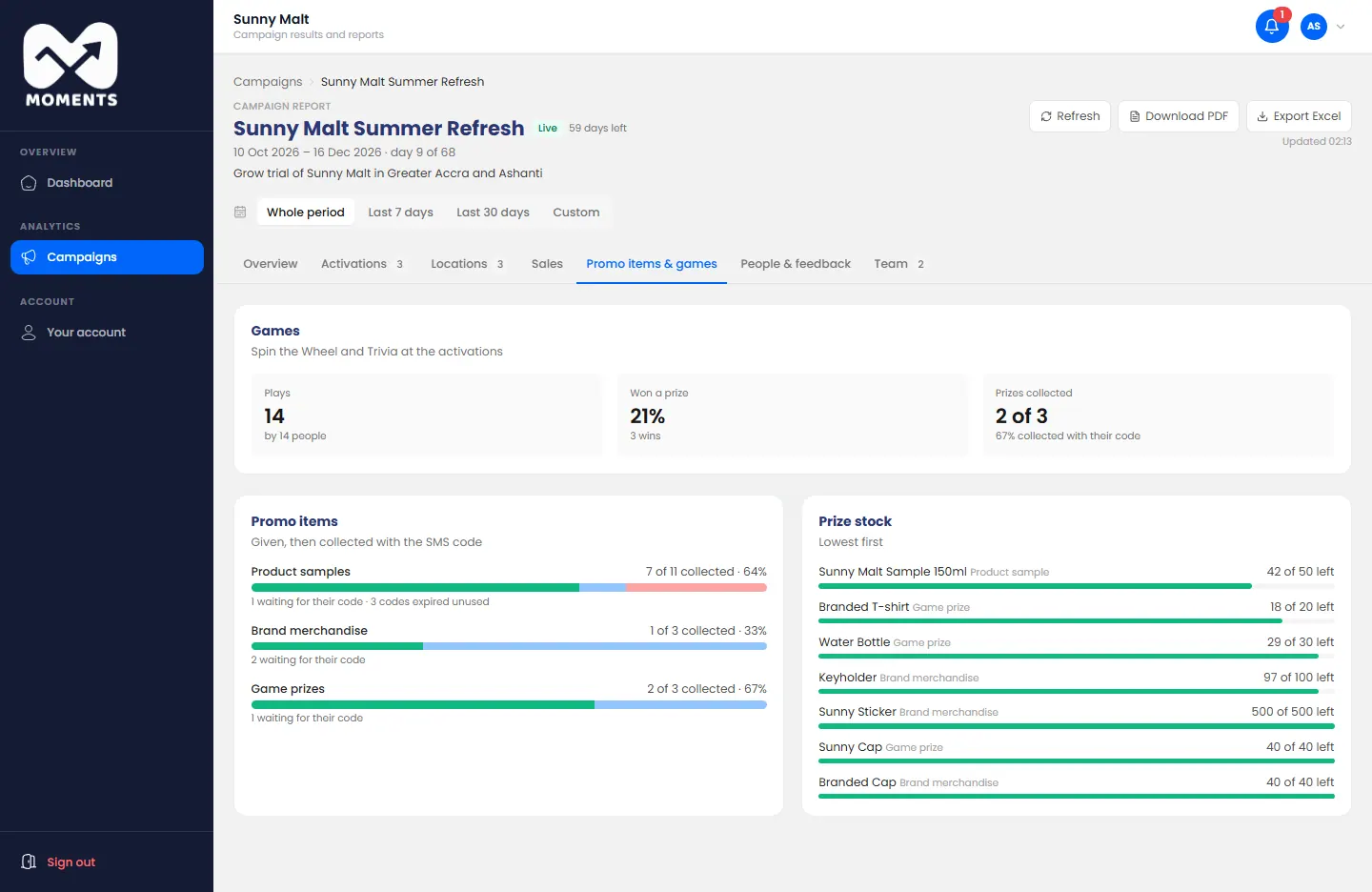
Promo items & gamesSamples and prizes collected, and whether trying led to buying
People & feedbackWho was reached, and the ratings they gave
TeamWhat each promoter did
A campaign report's overview

Against targets

Each target has a bar with a marker showing where it should be by now. The label says if it's On track, Ahead of plan or Behind plan, and how far it's heading.

Did trying it lead to buying?

On Promo items & games, you see how many people who tried a sample or played a game went on to buy, on the same day or later. It's matched by phone number, so no names are needed.

Promo items & games: did trying it lead to buying?

Look at a shorter period

Click Last 7 days, Last 30 days, or Custom to choose dates. Click Whole period to go back.

Targets cover the whole period, so they're hidden while you look at fewer days.

The last 7 days only: targets are hidden

Download it

  • Download PDF: the whole report, every tab, laid out to send on.
  • Export Excel: the figures for the whole period, for a spreadsheet.

Click Refresh for the latest figures.

If it doesn't work

5 of 5

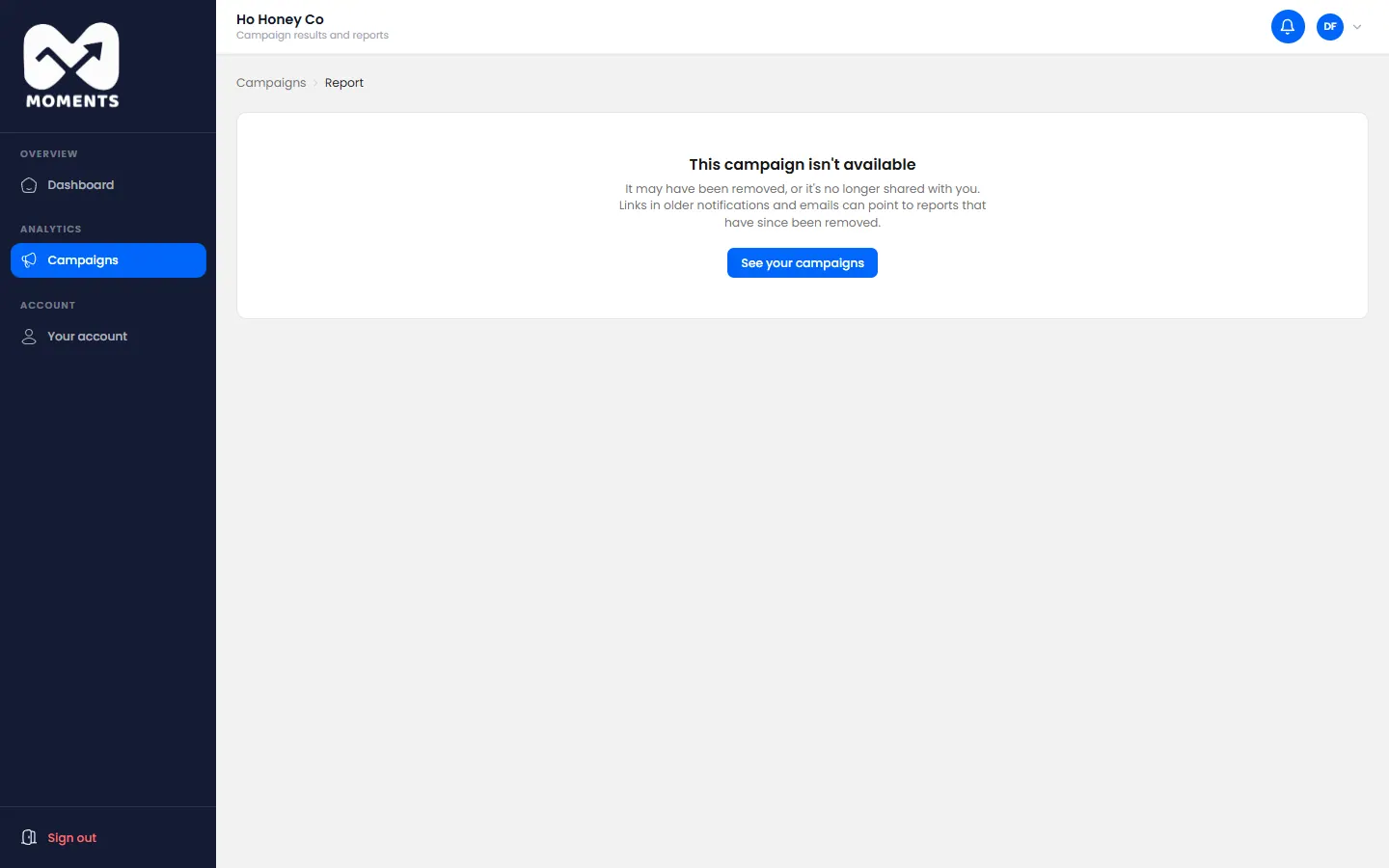
"This campaign isn't available"

The report you opened has been removed, or is no longer shared with you.

You opened a report you can't see. Usually it's an old link, from an email or notification, to a campaign that has since been removed. Or the report is no longer shared with you.

This campaign isn't available

What to do

  1. Click See your campaigns to find the ones you can open.
  2. If a campaign you need is missing, ask your agency. They decide which brand you can see.

For an activation, the message says This activation isn't available. You also see it for a campaign that belongs to another brand.