← Back to Game screens

Moments Analytics Help

Game screens

How the game screen at the stand works, and what shoppers see.

Games Portal · 20 October 2026 · momentsanalytics.com/help/game-screen

  1. 1. How the game screen works
  2. 2. What shoppers see
  3. 3. Game screen controls
  4. 4. Game screen problems

1 of 4

How the game screen works

What the game screen shows, from waiting for a player to the result, and who does what.

The game screen is a tablet, TV, kiosk or laptop at your stand. Shoppers play on it, but they can't start a game by themselves. A promoter unlocks each play for one shopper's phone number.

Who does what

WhoDoes
ManagerAdds the game and its prizes in the Admin Portal. See Add a game
PromoterSets up the screen, unlocks each play, and hands over prizes
ShopperPlays, and shows their prize code to collect

A play, start to finish

  1. Waiting. The screen invites shoppers to ask a promoter.
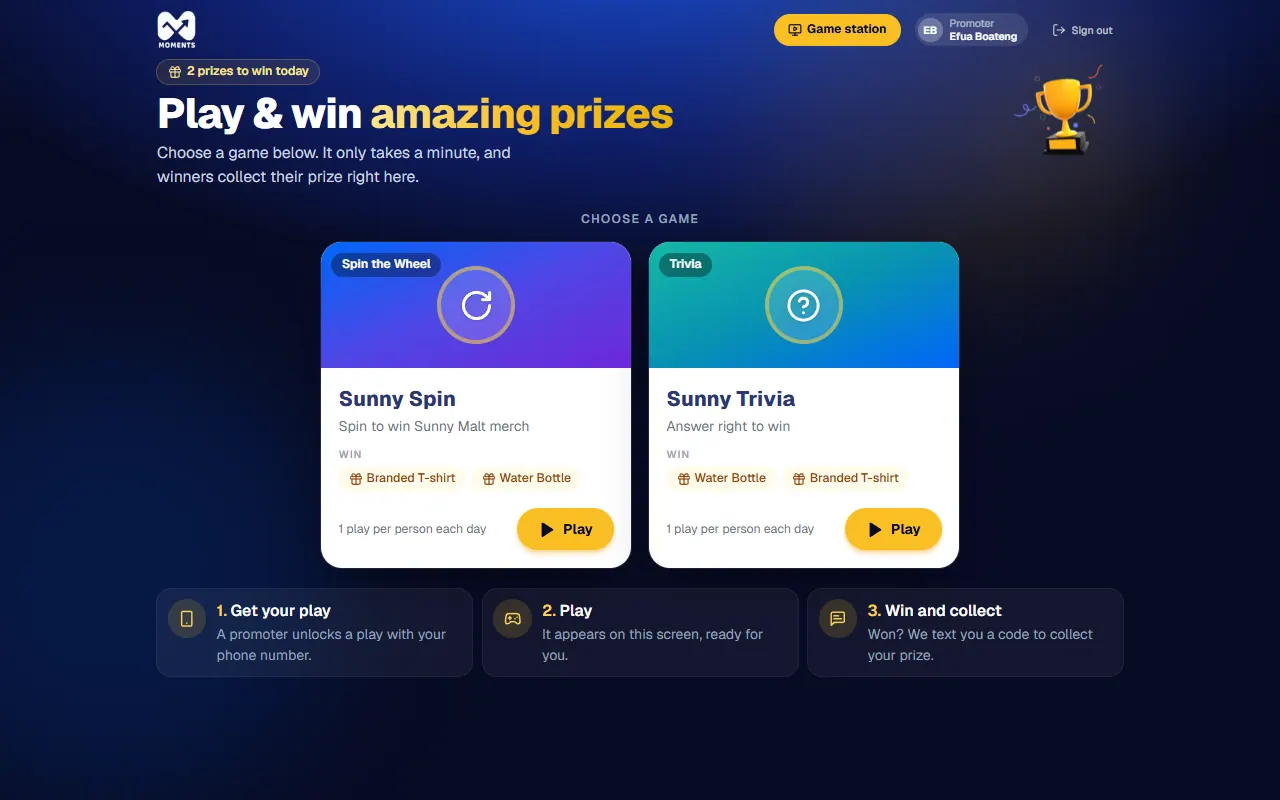
    The game station, waiting
    The game station, waiting
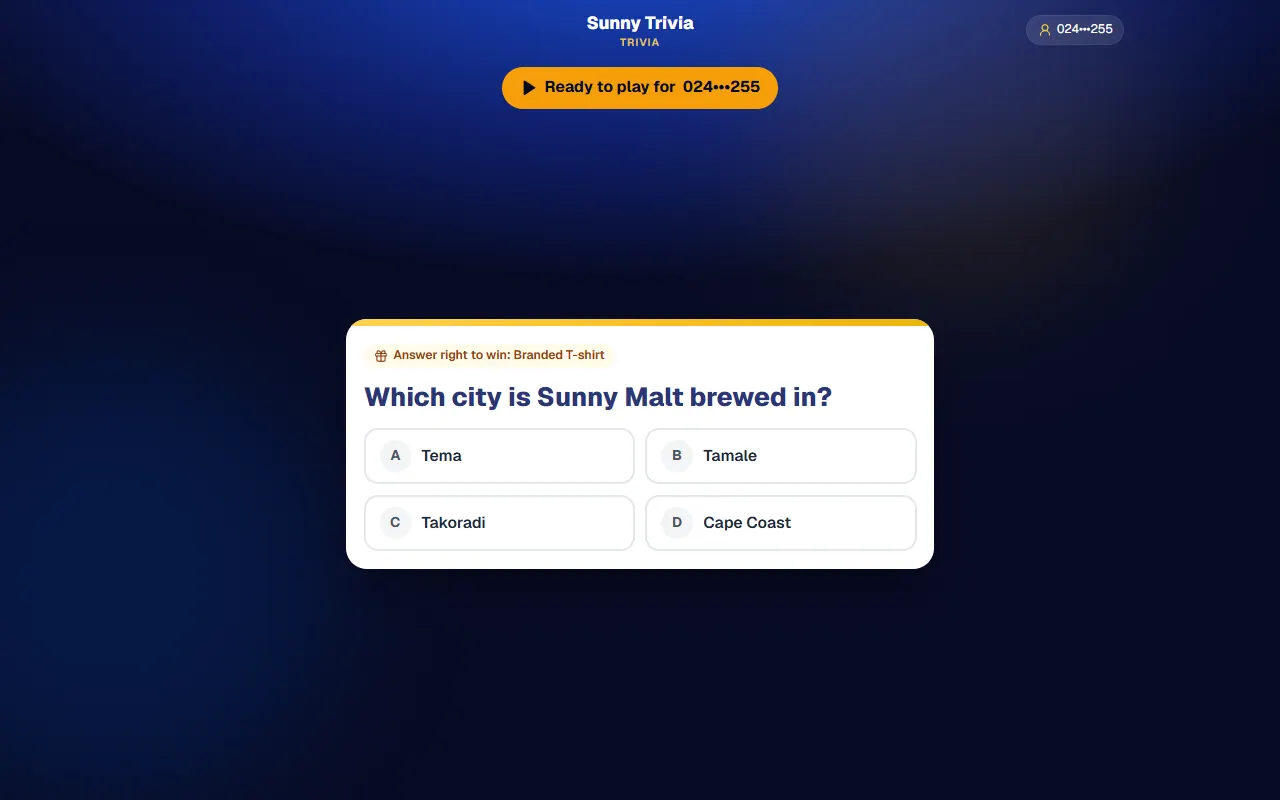
  2. Unlocked. A promoter unlocks a play on their phone. The screen shows Ready to play for and the shopper's number, partly hidden. See Unlock a game.
  3. Playing. The shopper plays. See What shoppers see.
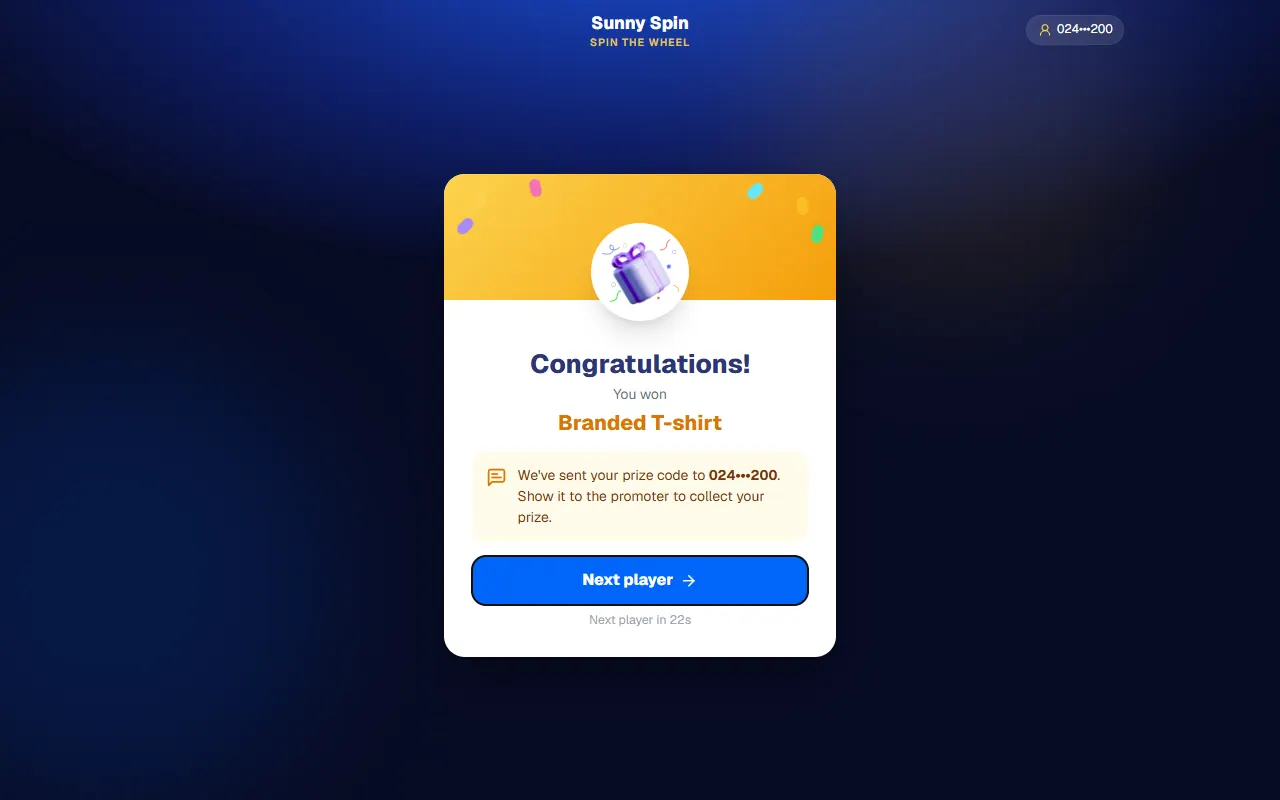
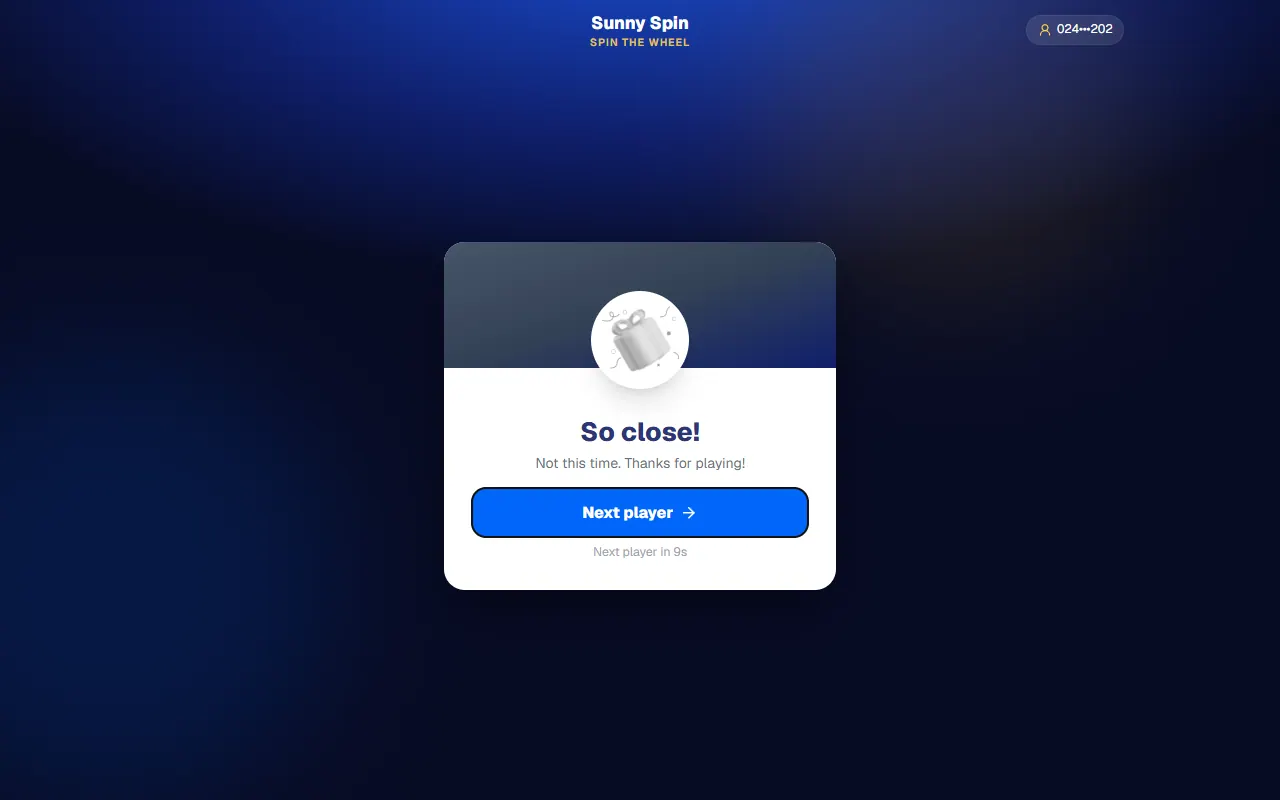
  4. The result. A winner sees what they won, and their prize code is sent by SMS. Someone who didn't win sees So close!
  5. Next player. The screen goes back to waiting by itself after a few seconds, or when someone taps Next player.

The server decides each result, using the odds your manager set. Nothing on the screen can change it.

Good to know

  • The screen needs internet the whole time. If it goes offline, it says so.
  • One screen, many games. The screen plays whichever game a promoter unlocks. You can also fix it to one game. See Game screen controls.
  • Prizes are collected from a promoter. The winner shows the code from their SMS. See Hand over a prize.
2 of 4

What shoppers see

Each game on the game screen, and what a winner and a non-winner see.

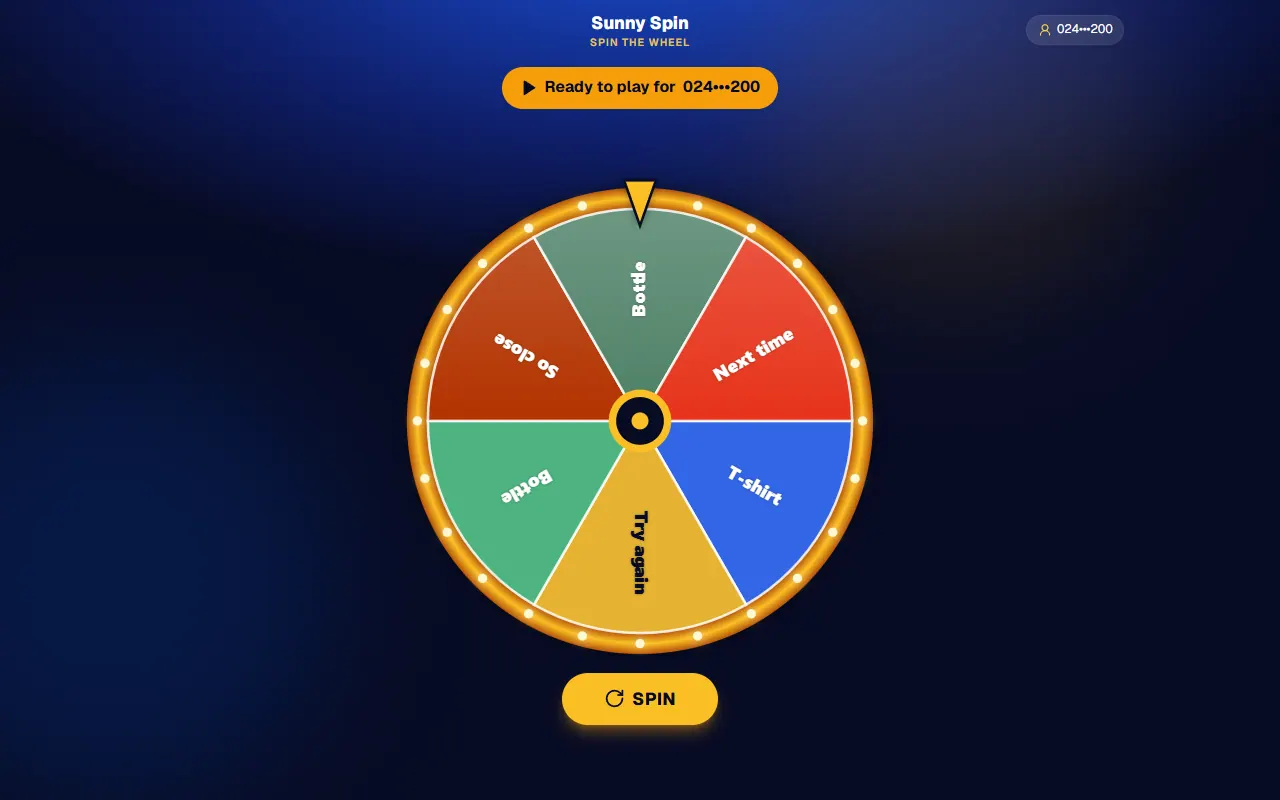
Knowing what the shopper sees helps you guide them. Every game starts the same way: after you unlock a play, the screen shows Ready to play for and their number, partly hidden.

Ready to play for the shopper

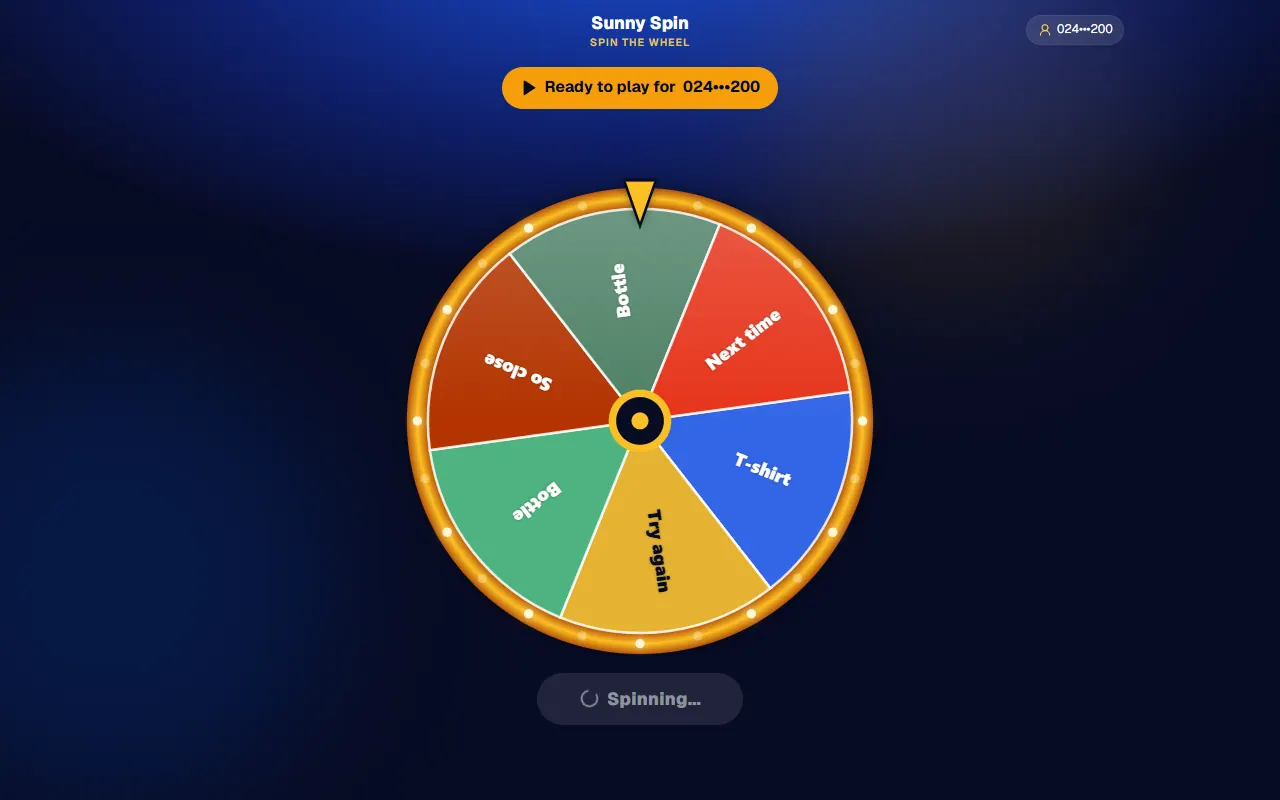
Spin the Wheel

The shopper taps to spin. The wheel slows and stops on a segment.

The wheel spinning
The wheel spinning

Trivia

The shopper sees one question about the brand and taps an answer. If time runs out, the question counts as lost. Your manager sets how long they have.

A Trivia question
A Trivia question

Mystery Box

The shopper taps any box. What's inside is drawn after they pick, so no box is luckier than another.

The result

A win shows Congratulations! and the prize. The prize code is sent to the shopper's phone by SMS. They show it to you to collect.

A win: the prize code is sent by SMS

No win shows So close!, with the message your manager chose.

No prize this time
No prize this time

The screen moves on to the next player by itself.

3 of 4

Game screen controls

See all games, fix the screen to one game, rename it, or sign it out.

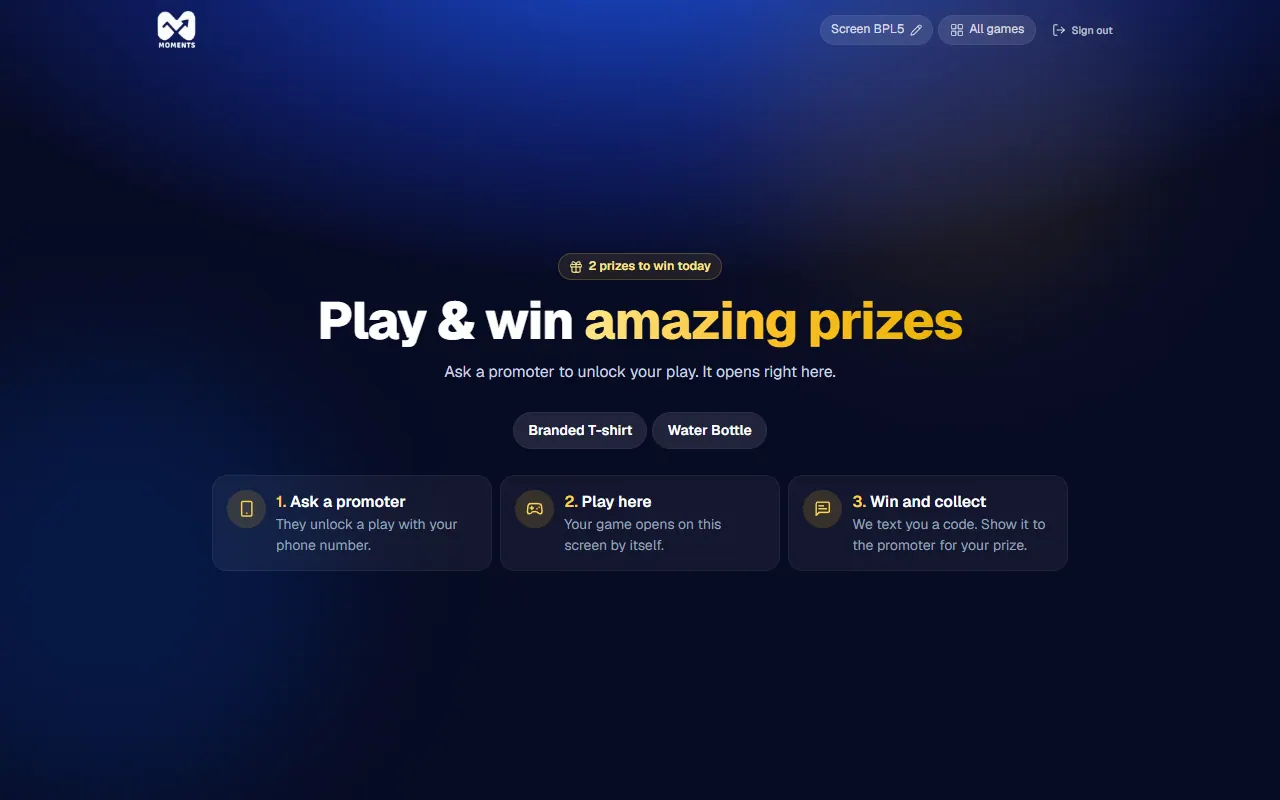
The controls are small and at the top of the screen, so shoppers don't tap them by accident.

See all games, or fix the screen to one game

Tap All games to open the lobby. It shows the activation's games and their prizes.

The lobby: the activation's games and their prizes

Normally, the screen plays whichever game a promoter unlocks. To show one game all the time, tap that game in the lobby. The screen stays on it. To go back to every game, tap Back to the game station.

Rename the screen

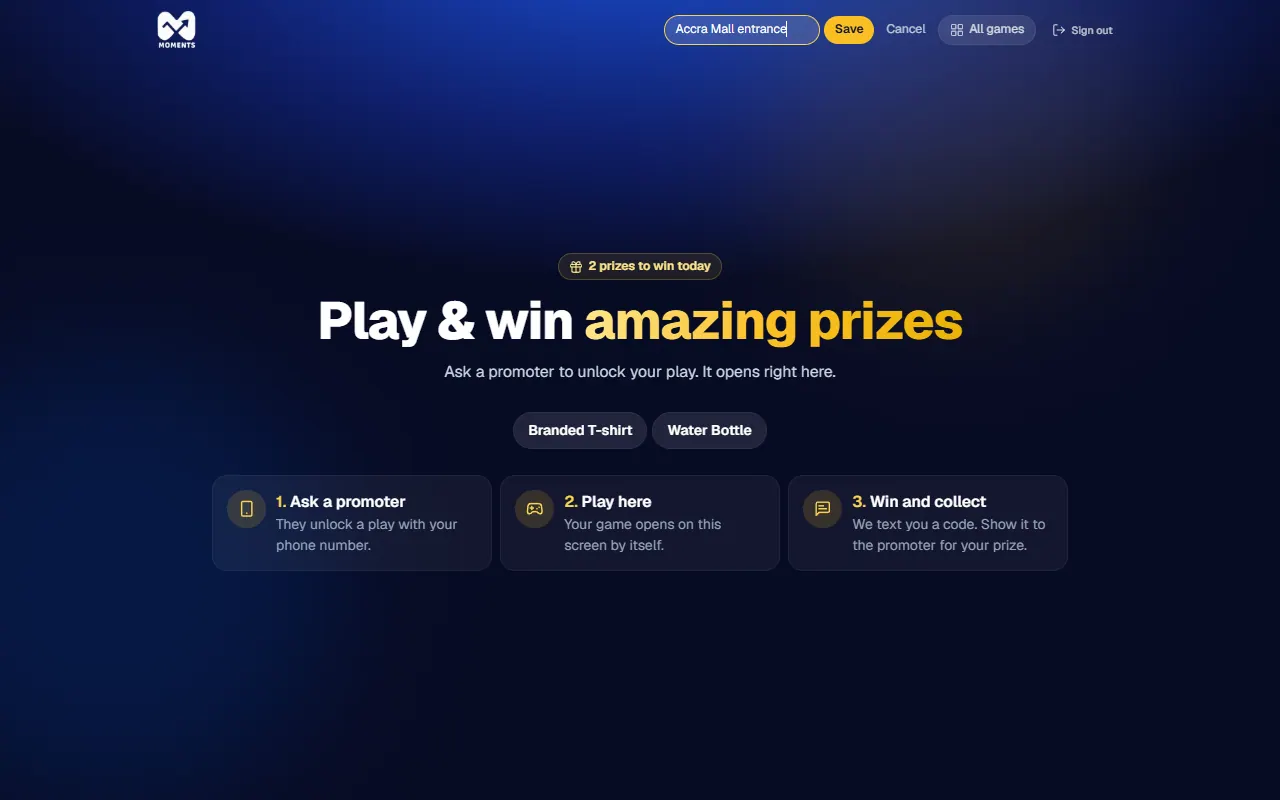
If your stand has more than one screen, give each a name. Promoters see it when they choose where to send a play.

  1. Tap the screen's name at the top, next to the pencil.
  2. Type a name, for example "Front stand", then tap Save.
Name the screen
Name the screen

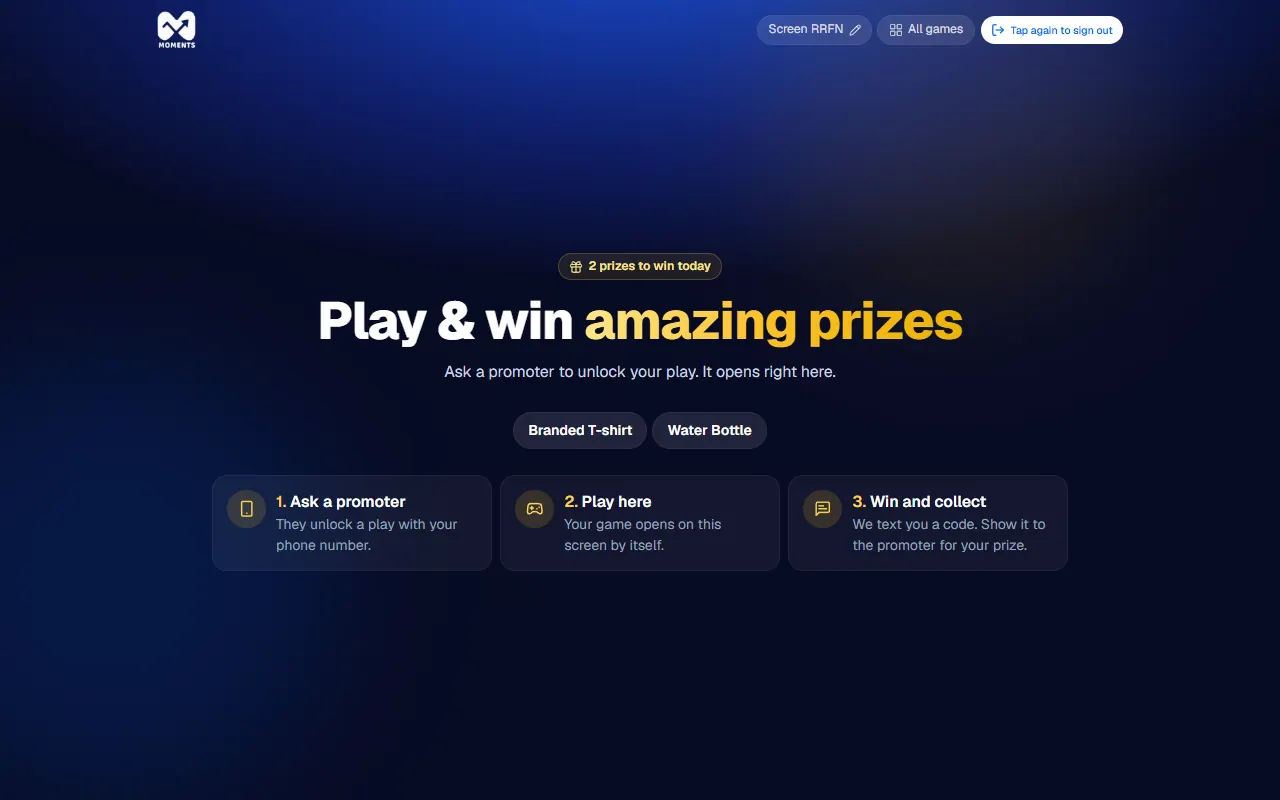
Sign the screen out

Tap Sign out, then Tap again to sign out. The second tap stops shoppers signing it out by mistake.

Signing out takes a second tap

4 of 4

Game screen problems

What each message on the game screen means, and what to do.

The screen saysWhat to do
That code didn't workThe screen code was already used, or more than 10 minutes passed. On your phone, tap Set one up for a new code
Games aren't on right nowThe activation is paused, not started, or over. See "Games aren't on right now"
No games are on right nowNo game is switched on for this activation. Ask your manager
This game is played on shoppers' own devices, not on this screenThis game is sent to shoppers' phones by SMS. See Send a game to a shopper's phone
All prizes have been given outThe game's prizes have run out. Ask your manager to add more
You're offlineCheck the Wi-Fi or mobile data. The screen carries on once it's back

A play doesn't appear on the screen

  1. Check the screen shows the game station, not the sign-in page. If it's signed out, set it up again.
  2. If your stand has more than one screen, check which one you sent the play to under Play on.
  3. The play waits 10 minutes. After that, unlock a new one.