← Back to Your account

Moments Analytics Help

Your account

Sign in, reset your password, and turn on two-step sign-in.

Admin and Viewers Portals · 20 October 2026 · momentsanalytics.com/help/account

  1. 1. Sign in to the Admin Portal or Viewers Portal
  2. 2. Reset your password
  3. 3. Set your password from an invitation
  4. 4. Change your details or password
  5. 5. Turn on two-step sign-in
  6. 6. "Access Denied", signed out, or a list won't load
  7. 7. I can't sign in

1 of 7

Sign in to the Admin Portal or Viewers Portal

Sign in with your work email and password, and a code if you use two-step sign-in.

You areSign in at
An admin or manager at an agency or brandadmin.momentsanalytics.com
A brand viewer (the client)viewers.momentsanalytics.com

Promoters sign in to the Promoter Portal with their phone number instead.

Steps

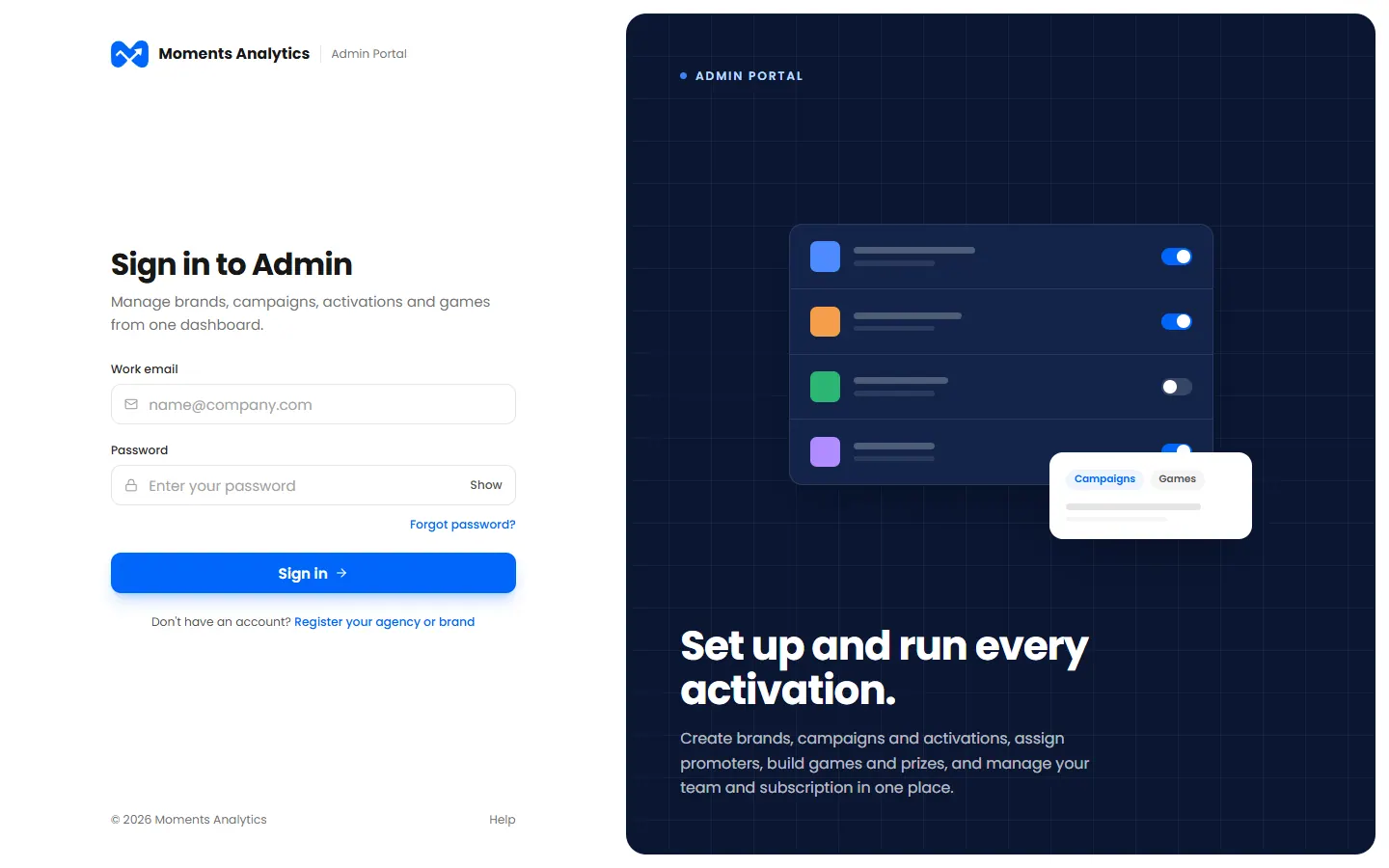
  1. Open the right portal for your role.
  2. Type your Work email and Password.
  3. Click Sign in.

    The Admin Portal sign-in page
    The Admin Portal sign-in page
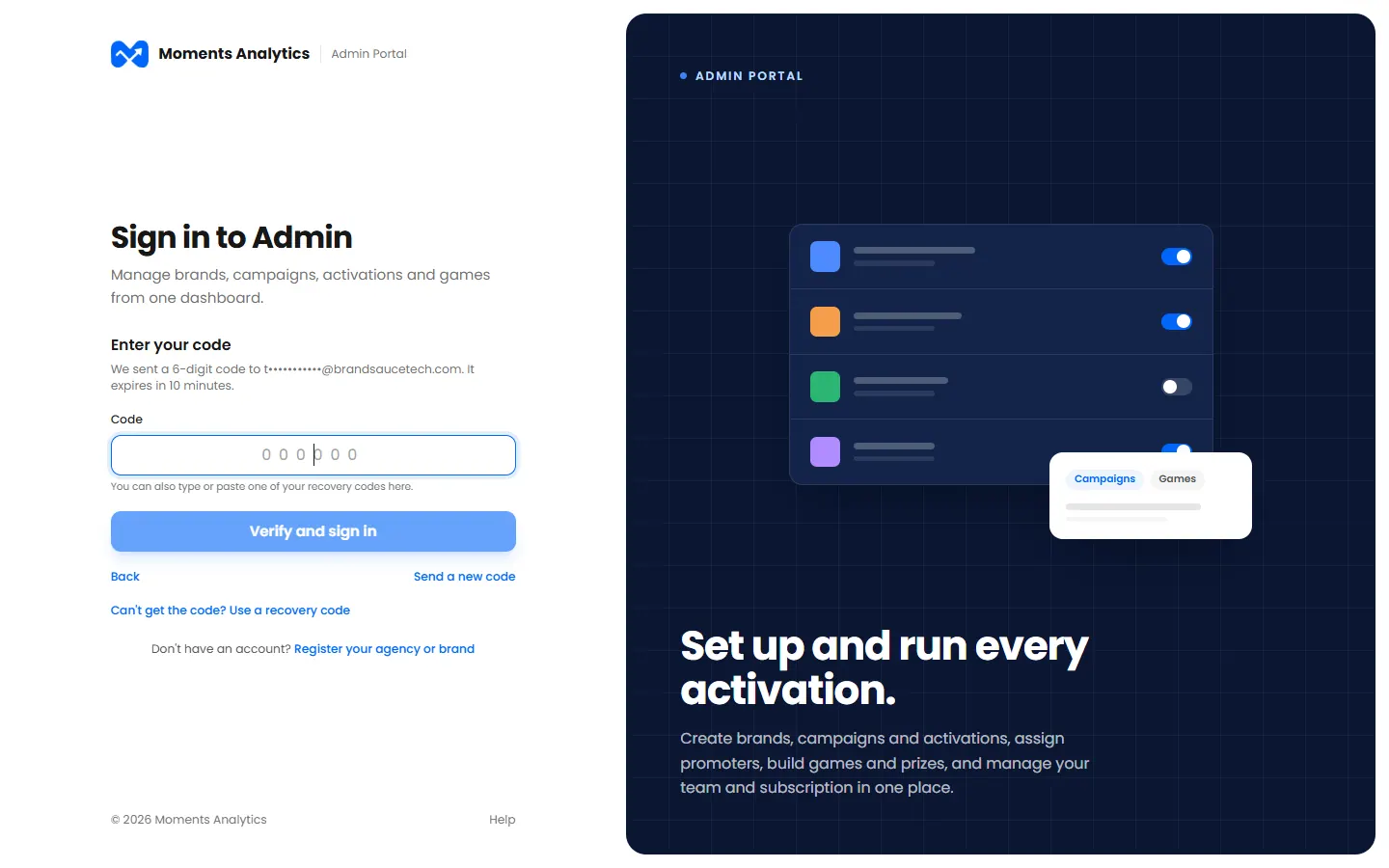
  4. If you use two-step sign-in, type the 6-digit code we send you by email or SMS, then click Verify and sign in.

    Two-step sign-in: enter the code sent by email
    Two-step sign-in: enter the code sent by email

What happens next

Your dashboard opens. You stay signed in on this computer until you sign out, or until you haven't used it for a long time.

Can't get the code?

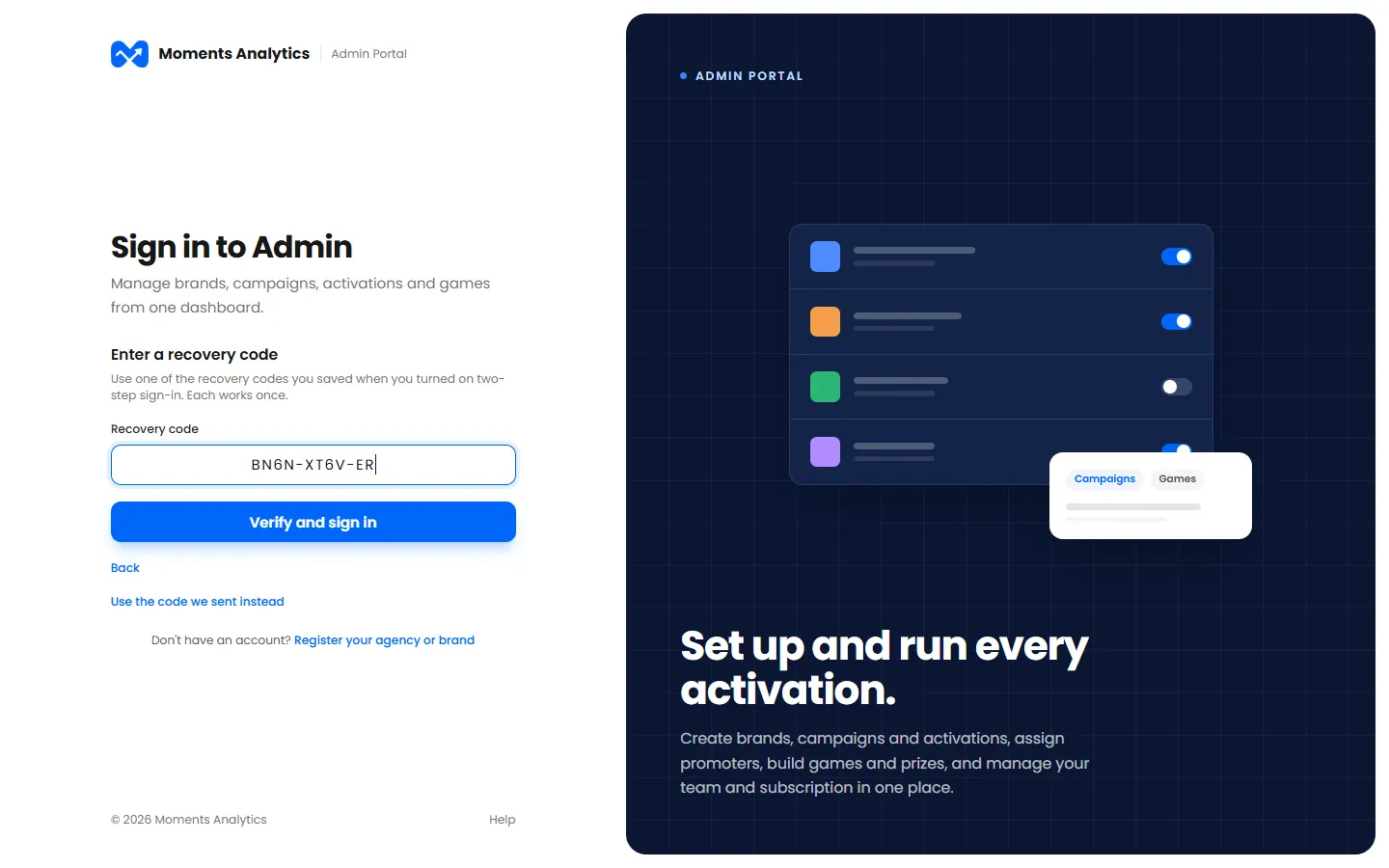
Click Can't get the code? Use a recovery code, and type one of the recovery codes you saved when you turned two-step sign-in on. Each one works once.

Signing in with a recovery code

If it doesn't work

2 of 7

Reset your password

Forgotten your password, or locked out? Get a link by email to set a new one.

If you've forgotten your password, or your account is locked after too many wrong tries, set a new one. Resetting it also unlocks your account.

Steps

  1. On the sign-in page, click Forgot password?
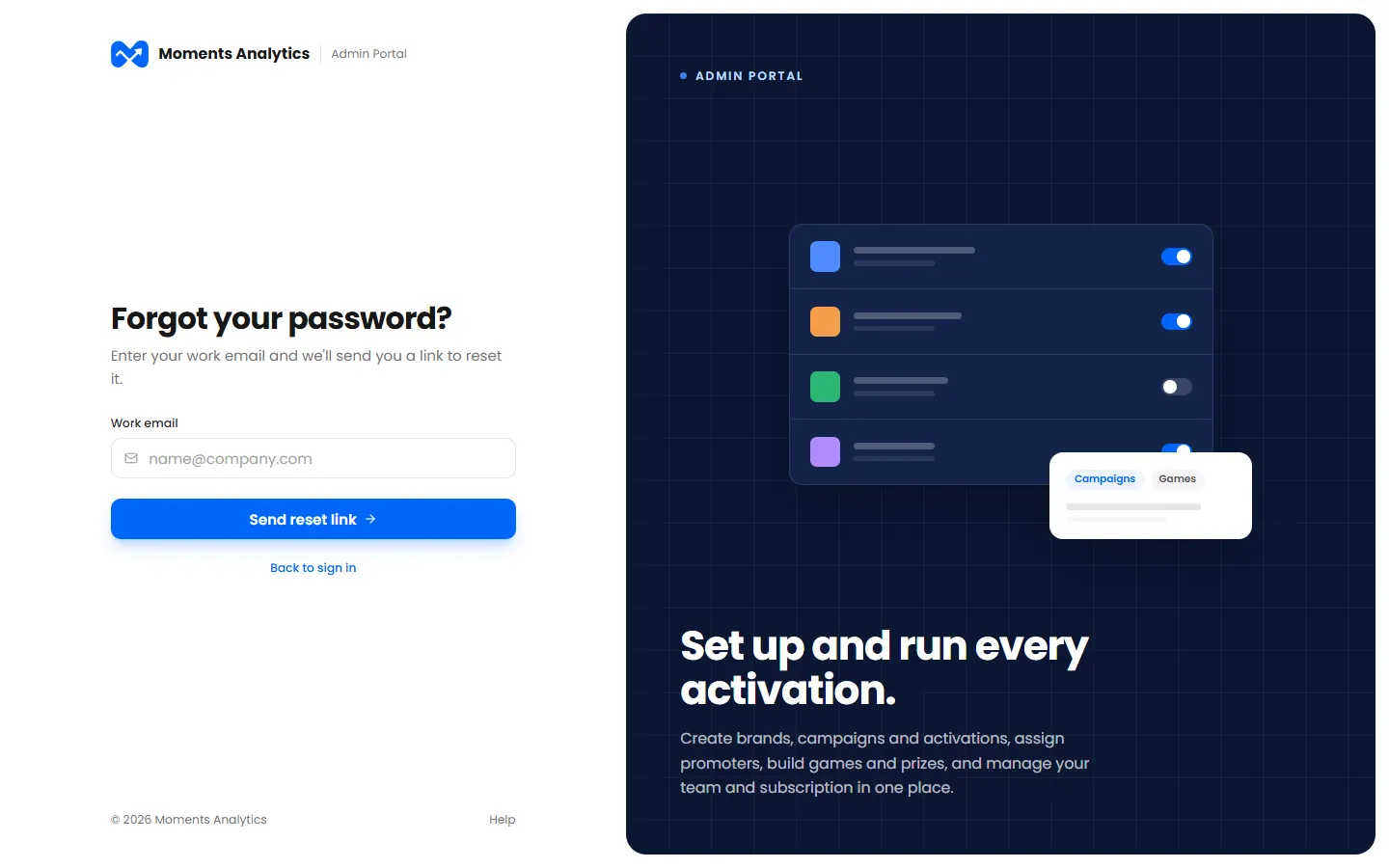
  2. Type your Work email and click Send reset link.

    Forgot your password? Enter your work email
    Forgot your password? Enter your work email
  3. Open the email from Moments Analytics and click the link. It works for 30 minutes.
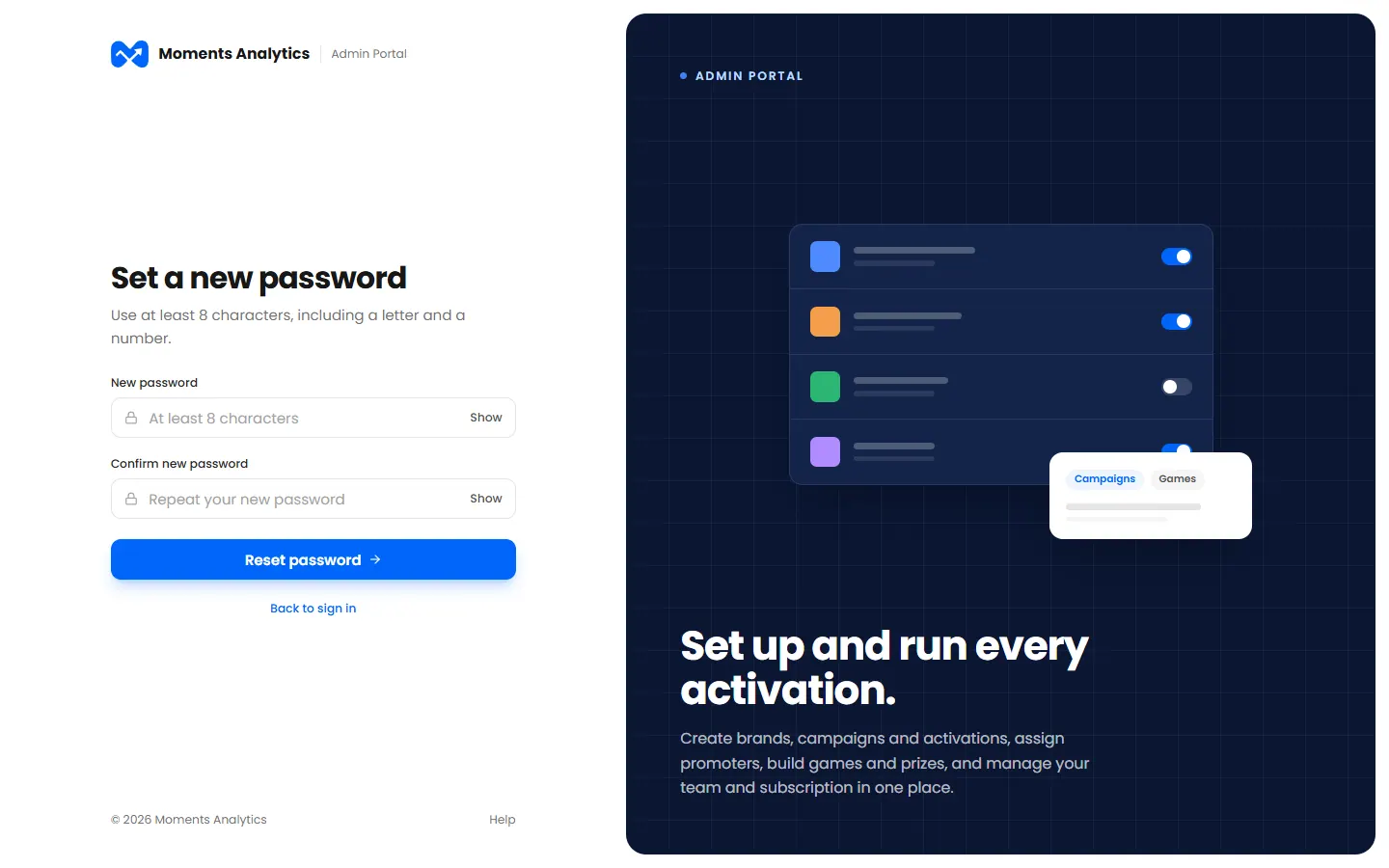
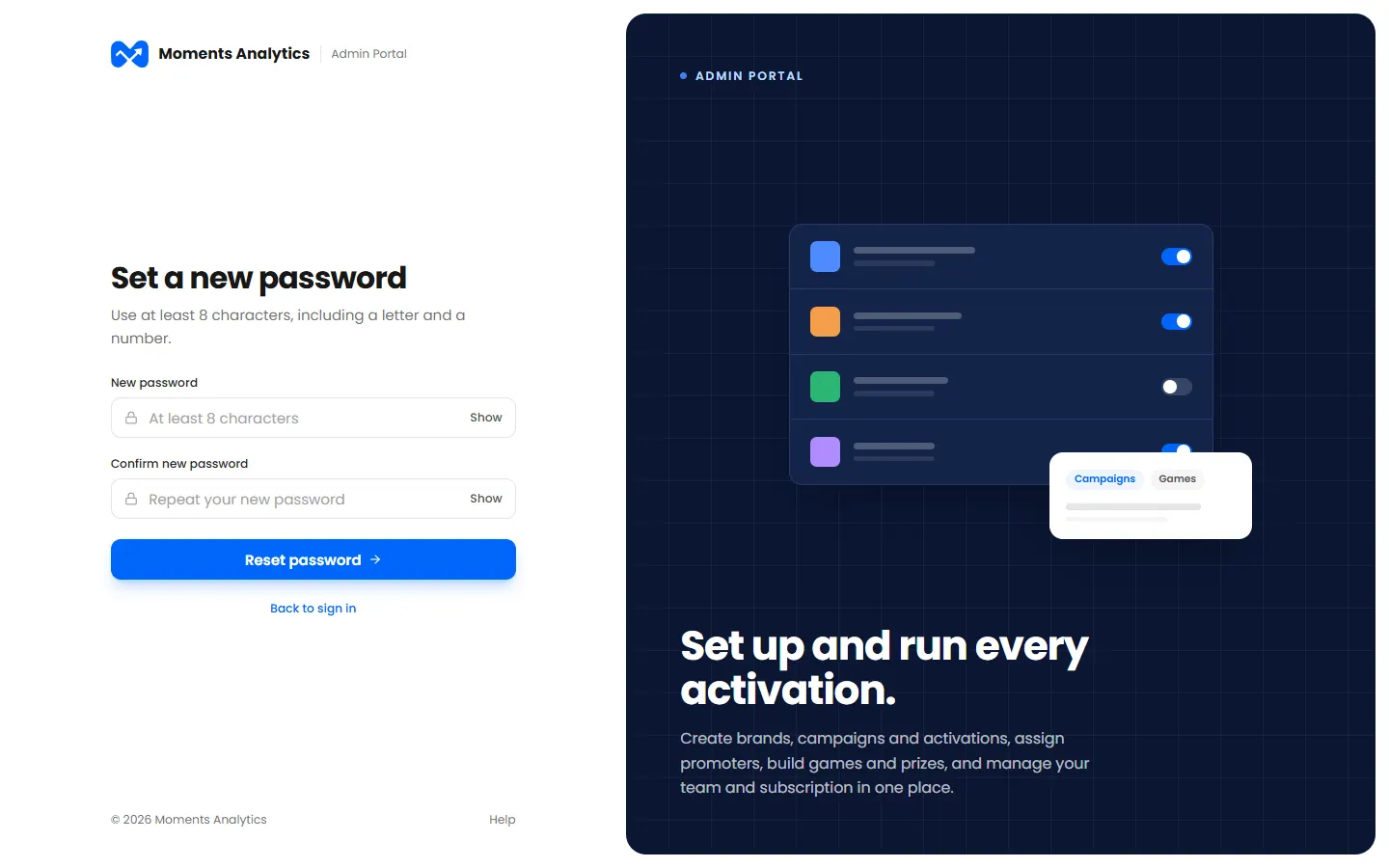
  4. Type your new password twice, and click Reset password.

    Set a new password, from the email's link
    Set a new password, from the email's link

A password needs at least 8 characters, with a letter and a number.

What happens next

You can sign in with your new password. For your safety, you're signed out on your other devices.

If the email doesn't arrive

  • Check your spam or junk folder.
  • Check that you typed the email you sign in with. For your privacy, the page looks the same whether or not that email has an account.
  • The link lasts 30 minutes. If it has expired, start again.

3 of 7

Set your password from an invitation

New to Moments Analytics? Use the link in your invitation email to set your password.

When an admin adds you, you get an invitation email from Moments Analytics. Use it to set your password.

Steps

  1. Open the invitation email and click the link. It works for 72 hours.
  2. Type a password twice, and click Reset password.

    A new user sets their password from the invitation email
    A new user sets their password from the invitation email
  3. Sign in with your email and your new password. See Sign in.

A password needs at least 8 characters, with a letter and a number.

Ask the admin who added you to resend your invitation.

4 of 7

Change your details or password

Update your name and phone, change your password, or sign out everywhere.

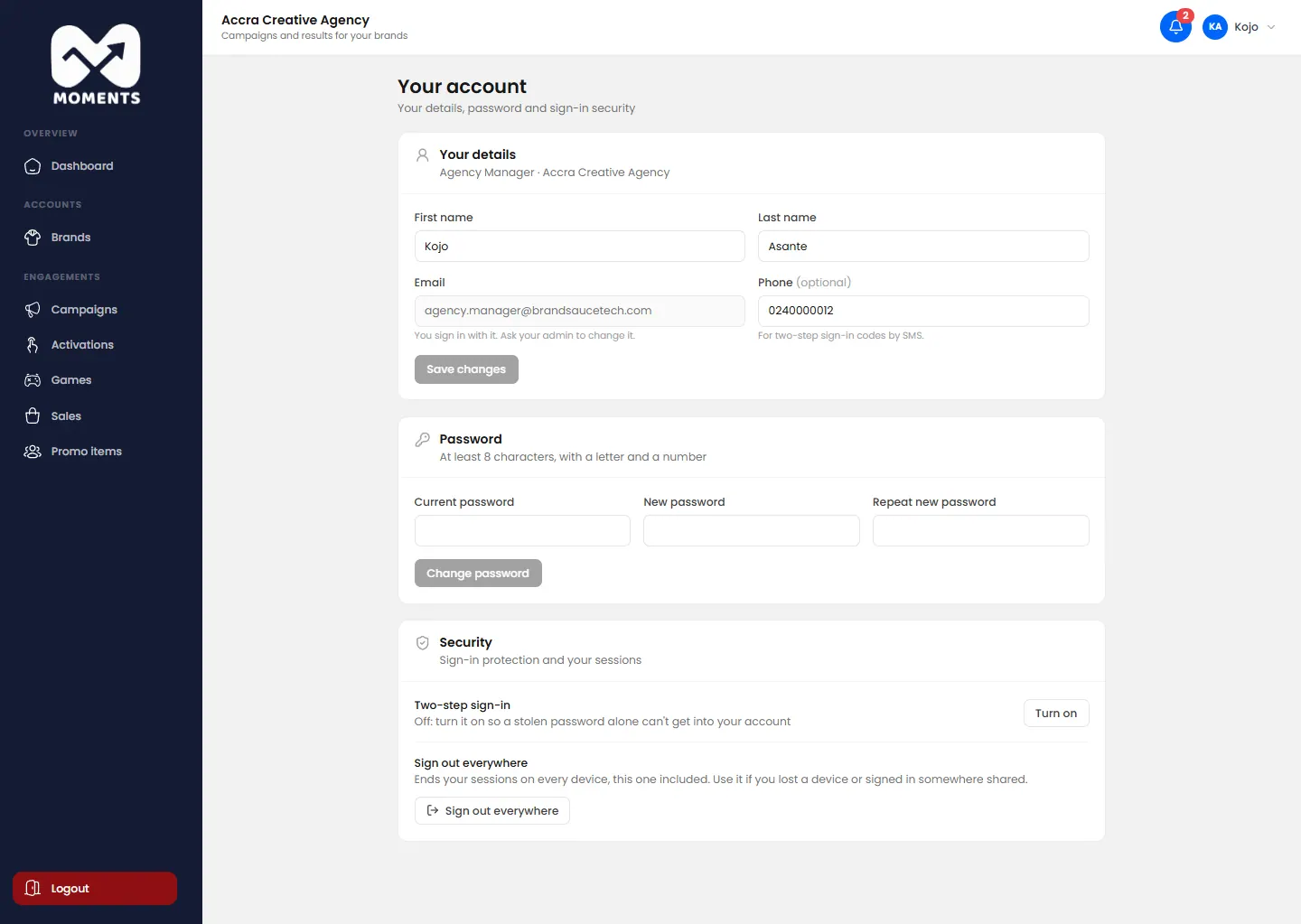
Click your name at the top right, then Your account.

Your account: details, password, two-step sign-in and sign out everywhere

Change your name or phone

  1. Under Your details, change your First name, Last name or Phone.
  2. Click Save changes.

Your phone is optional. It's used for two-step sign-in codes by SMS. You can't change your email here: ask your admin.

Change your password

  1. Under Password, type your Current password.
  2. Type the New password twice.
  3. Click Change password.

A password needs at least 8 characters, with a letter and a number. When you change it, you're signed out on your other devices.

Sign out everywhere

Use this if you've lost a device, or signed in on a shared computer.

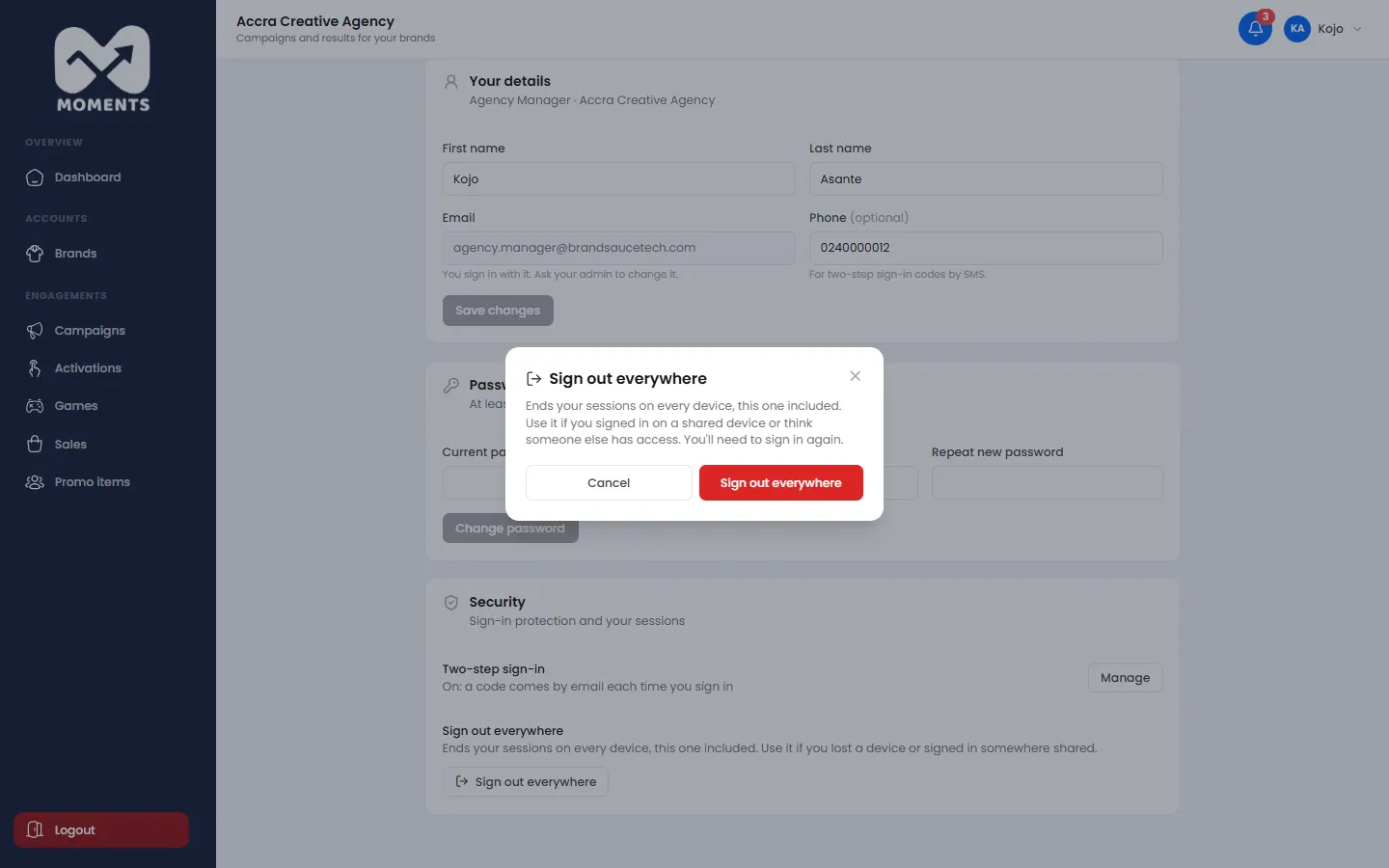
  1. Under Security, click Sign out everywhere.
  2. Confirm.
Sign out everywhere asks to confirm

You're signed out on every device, including this one. Sign in again to carry on.

Sign out

Click your name at the top right, then Sign out. Or click Logout at the bottom of the menu.

Brand viewers

In the Viewers Portal, your details are under Your account in the menu. Your agency or brand changes your email.

5 of 7

Turn on two-step sign-in

Add a code by email or SMS to your sign-in, so a stolen password alone can't get in.

With two-step sign-in, you type a 6-digit code after your password. The code comes by email or SMS, so someone who learns your password still can't sign in.

Steps

  1. Click your name at the top right, then Your account.
  2. Under Security, next to Two-step sign-in, click Turn on.
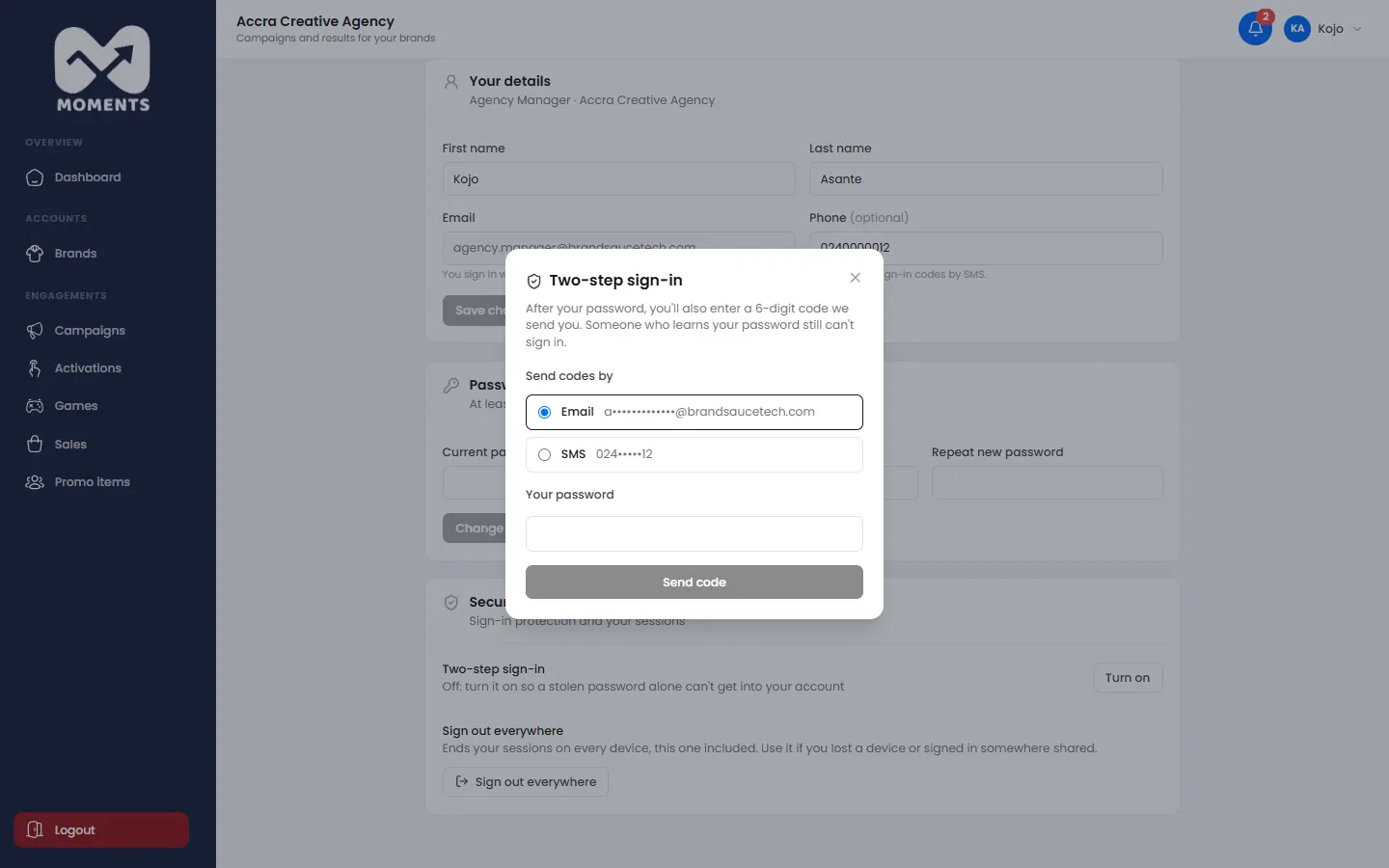
  3. Choose to Send codes by Email or SMS.
  4. Type Your password and click Send code.

    Turning on two-step sign-in: choose email or SMS, and confirm with your password
    Turning on two-step sign-in: choose email or SMS, and confirm with your password
  5. Type the code we sent you.
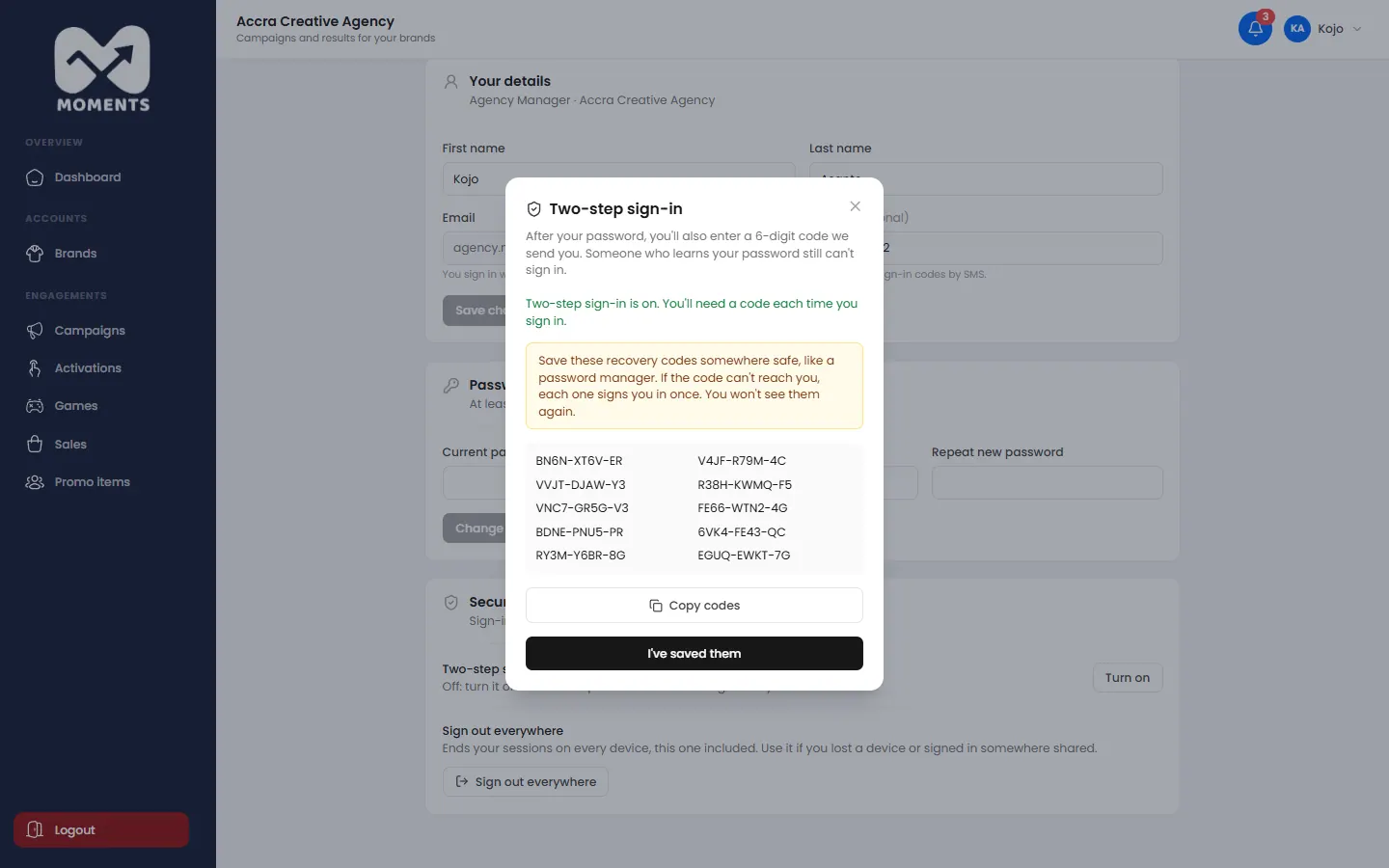
  6. Save your recovery codes. Copy them, or write them down, and keep them somewhere safe. Then click I've saved them.

    Recovery codes, shown once
    Recovery codes, shown once

To use SMS, add your phone under Your details first.

What happens next

Each time you sign in, you'll also type a code. See Sign in.

Get new recovery codes, or turn it off

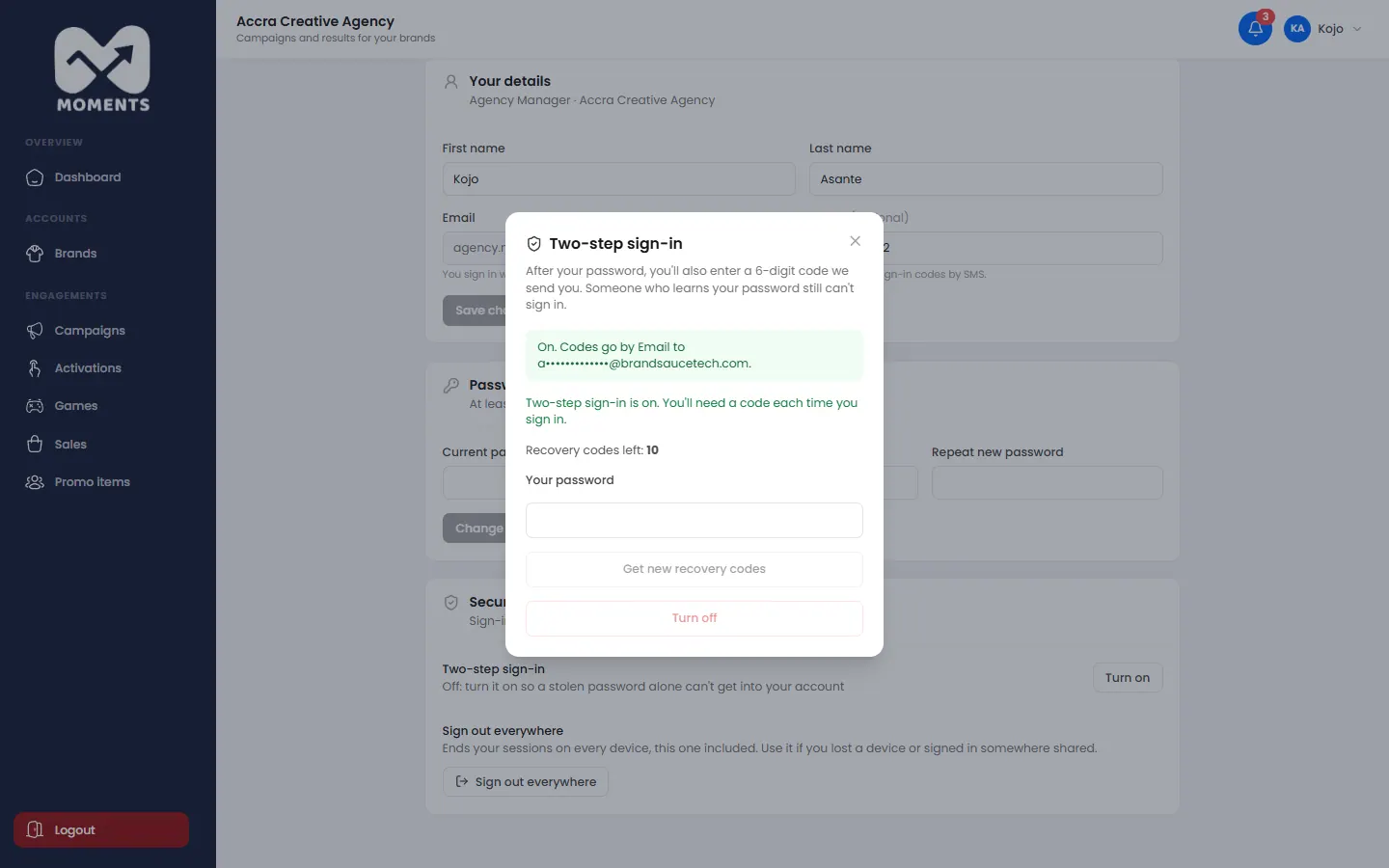
Under Security, you can get new recovery codes. The old ones stop working. You can also turn two-step sign-in off, which needs your password.

Two-step sign-in is on

If your organisation requires two-step sign-in, you always need a code to sign in, even if you turn your own setting off. The code comes by email unless you've chosen SMS.

6 of 7

"Access Denied", signed out, or a list won't load

Pages you might land on, and what to do about each one.

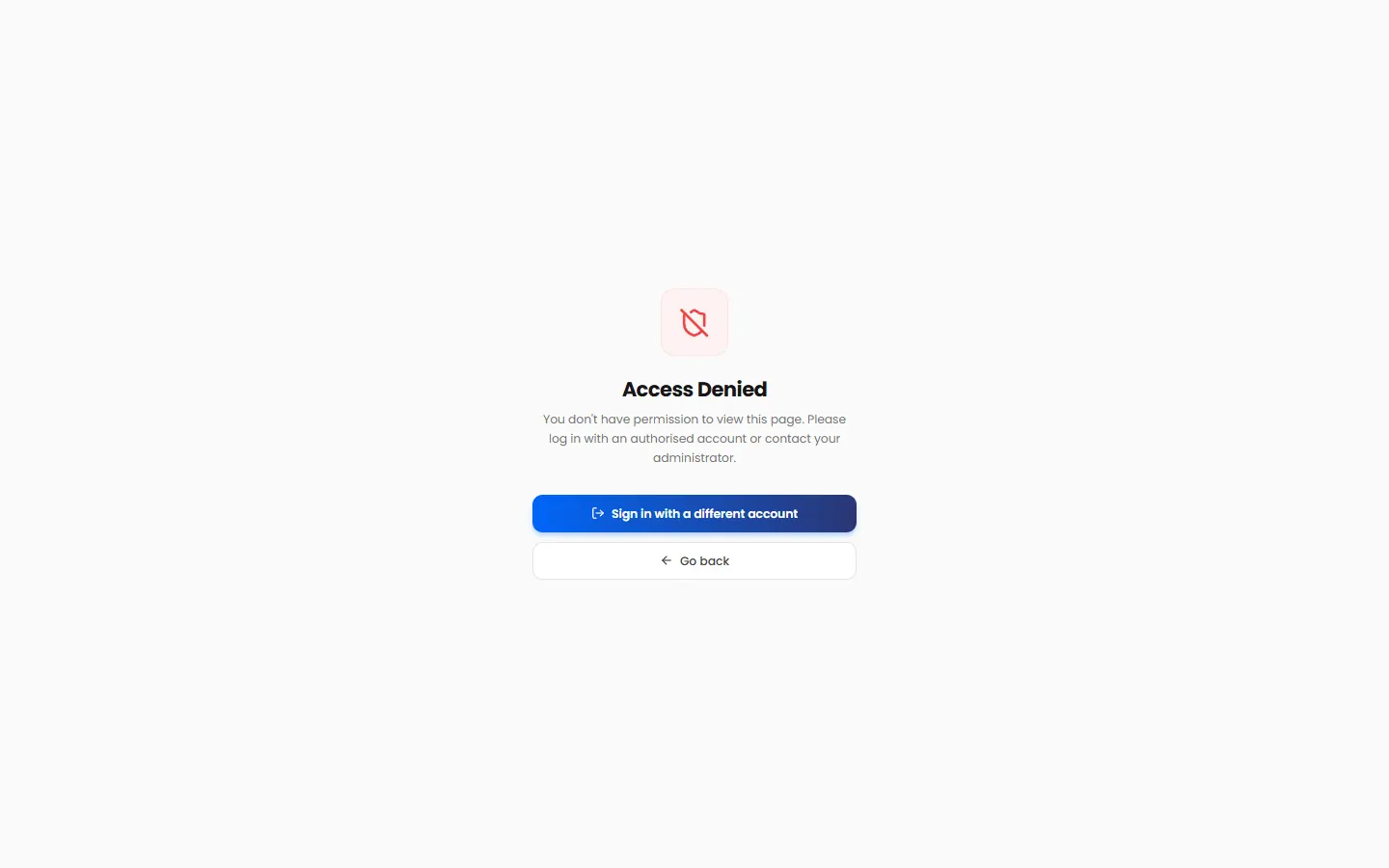
"Access Denied"

Your role doesn't include this page. For example, managers can't open Billing or Users.

The Access Denied page
  • Click Go back to return to your dashboard.
  • If you need the page, ask your admin. See Who can do what.
  • Signed in with the wrong account? Click Sign in with a different account.

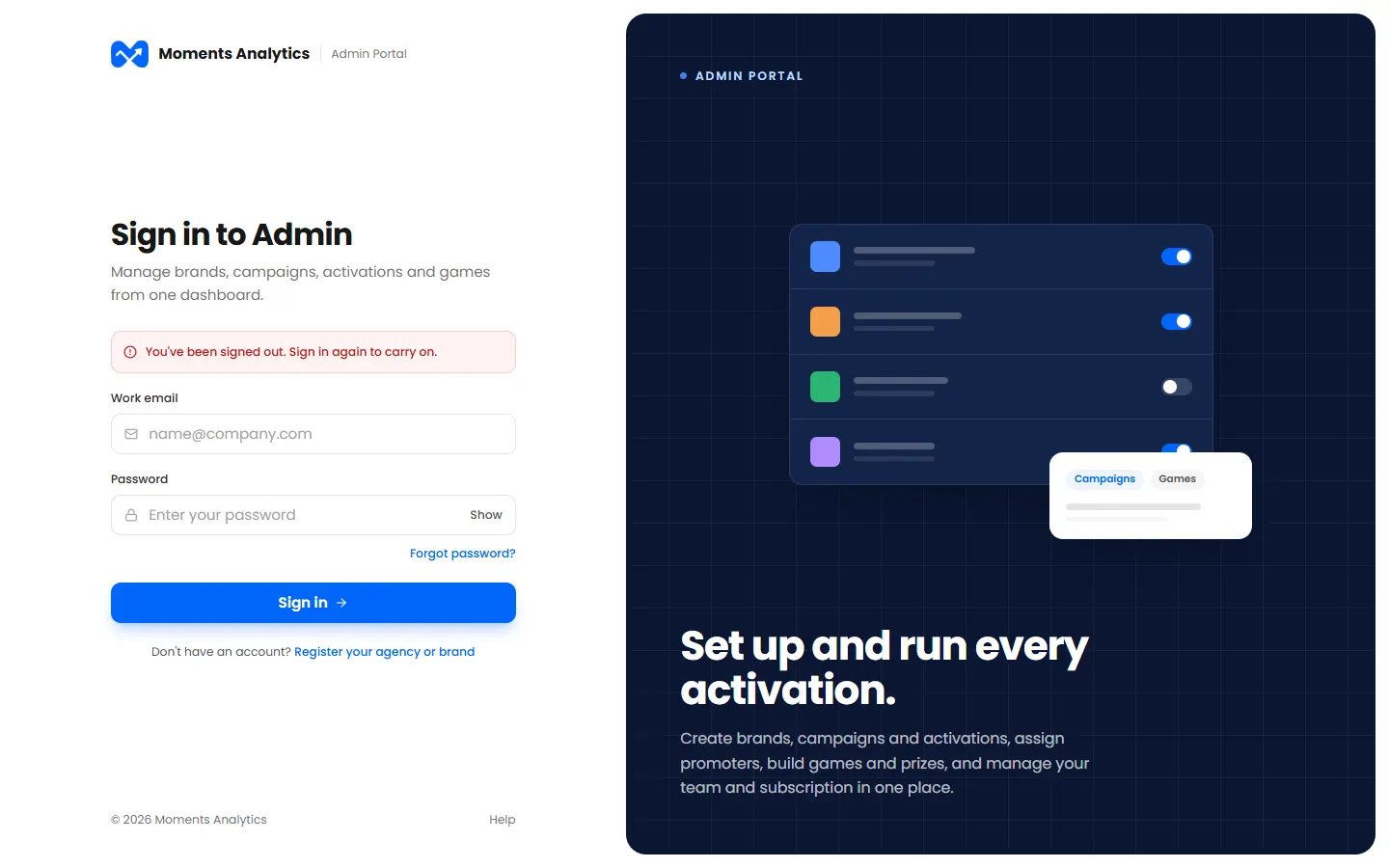
"You've been signed out"

Your session ended, so you need to sign in again. It happens when you, or someone using your account, clicks Sign out everywhere, or after a long break. Anything you saved is still there.

Signed out because the session ended

If you didn't sign out everywhere and it keeps happening, change your password.

A list won't load

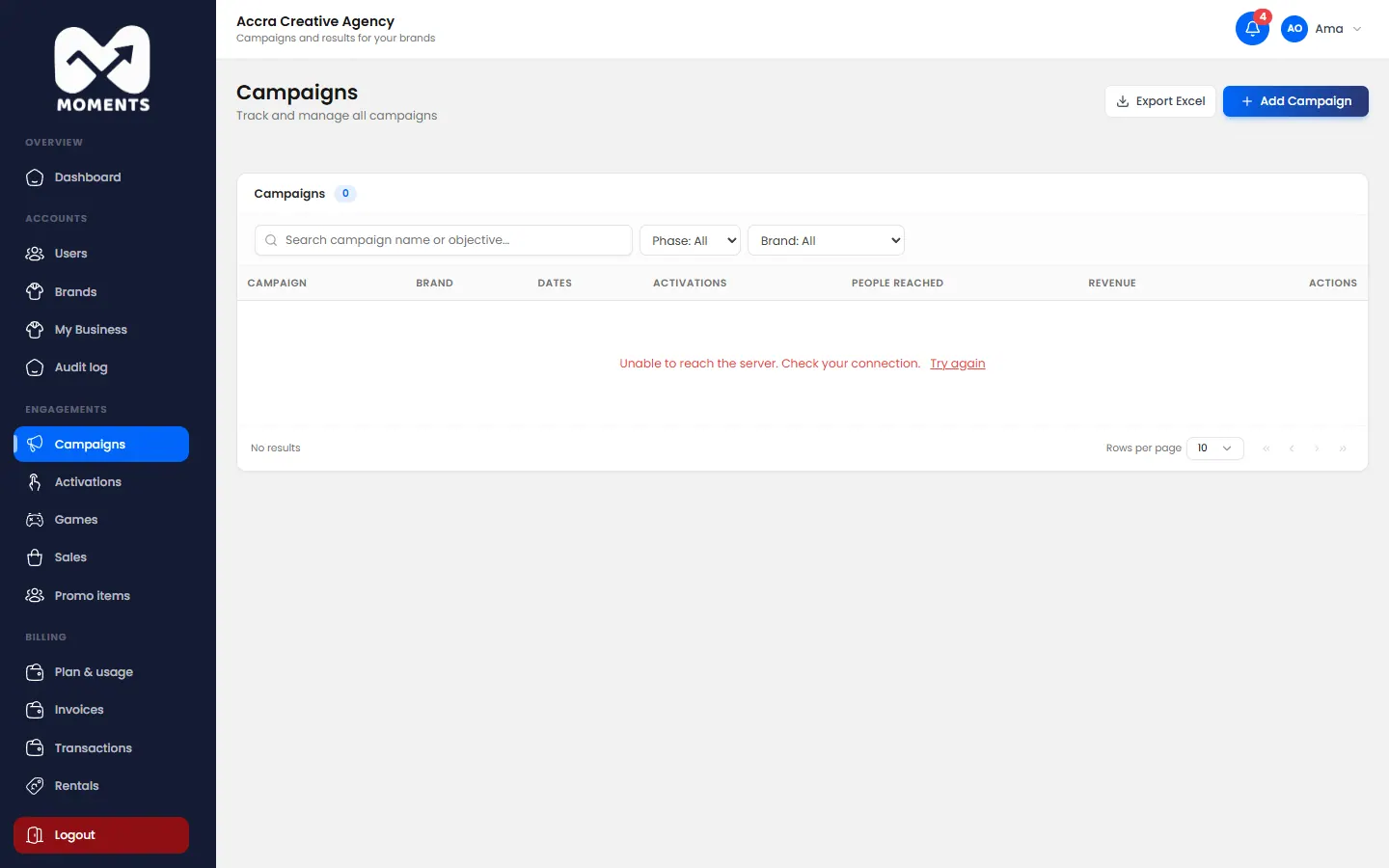
You see Try again when a list couldn't load, usually because the connection dropped.

A list that couldn't load: Try again

Check your internet connection, then click Try again.

7 of 7

I can't sign in

What each sign-in message means, and what to do about it.

Find the message you see on the sign-in page.

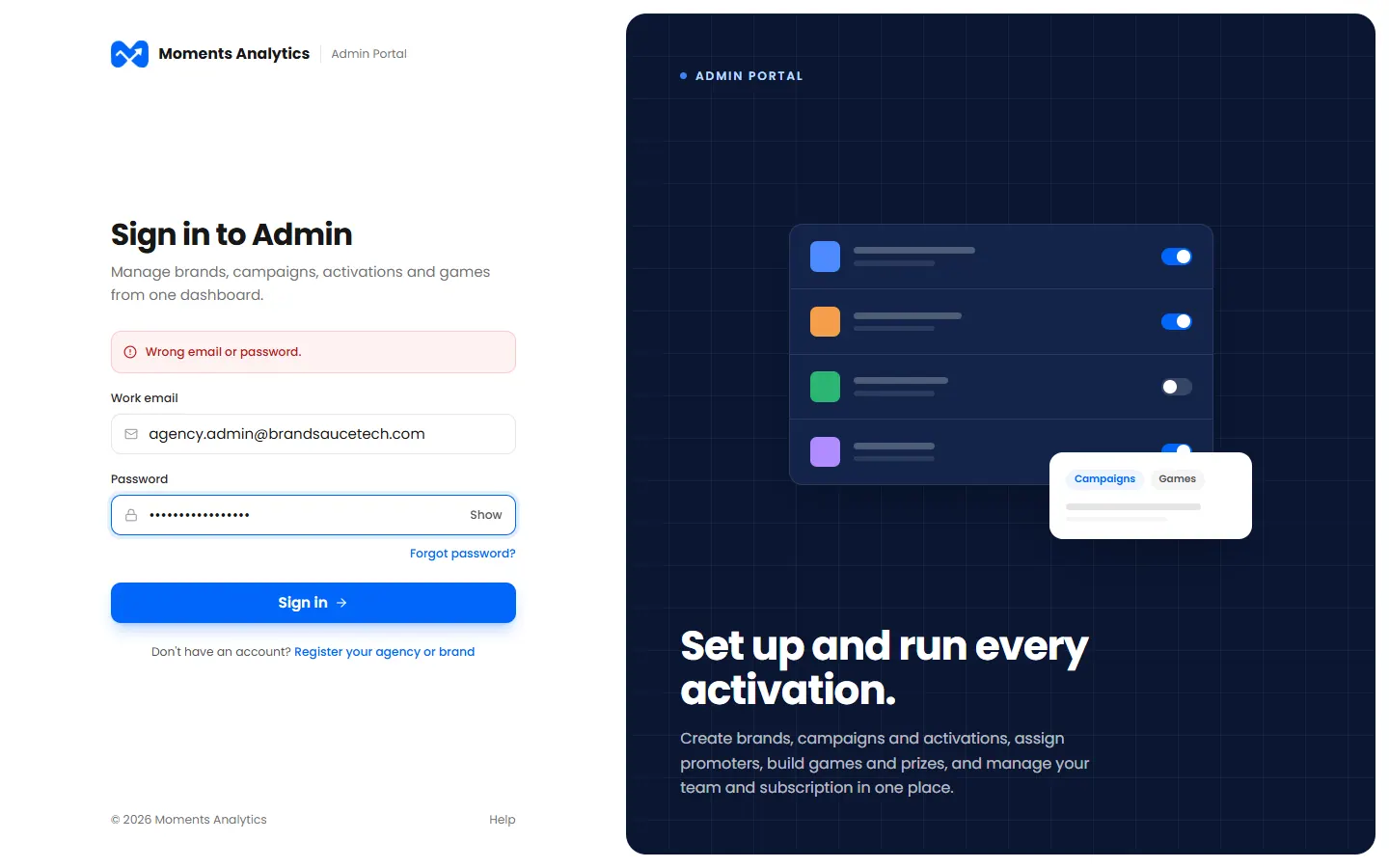
"Wrong email or password."

One of them is wrong. For your safety, we don't say which.

A wrong password
A wrong password
  • Check the email. Use the one you were invited with.
  • Click Show to check the password as you type it.
  • Still stuck? Reset your password.

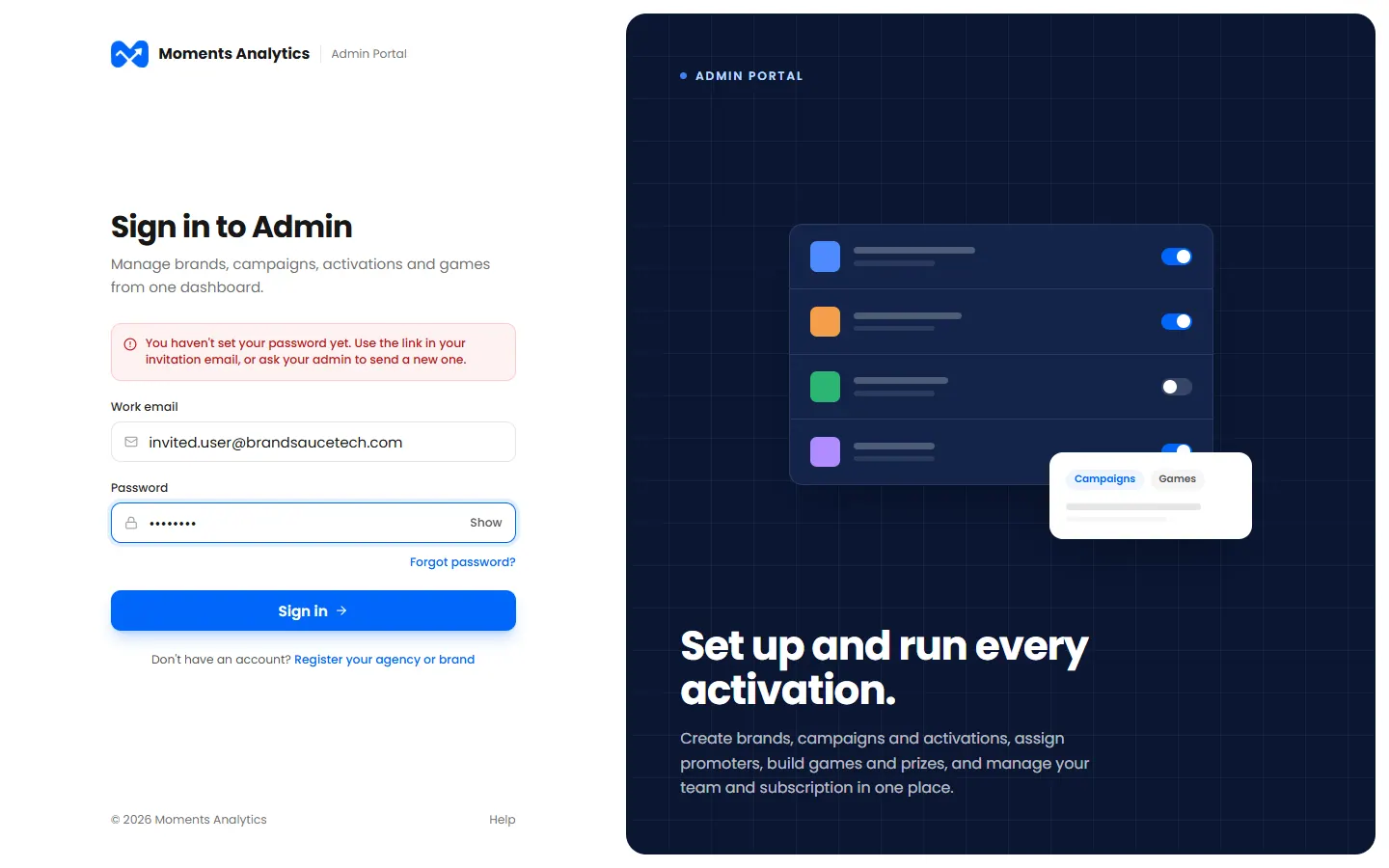
"You haven't set your password yet"

You've been invited, but haven't chosen a password. Use the link in your invitation email. See Set your password from an invitation.

Someone invited who hasn't set a password yet

The link works for 72 hours. If it has expired, ask your admin to send a new one.

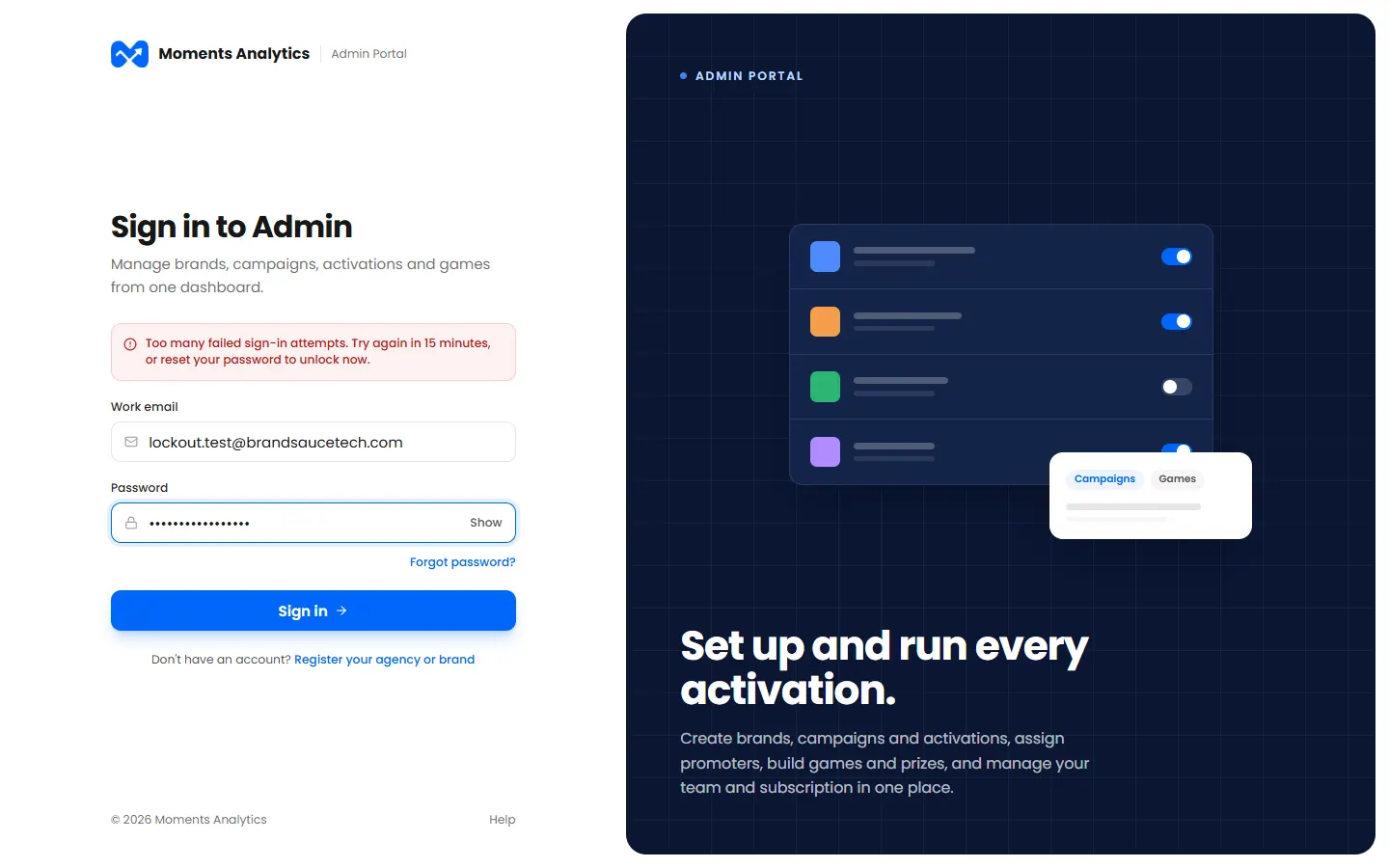
"Too many failed sign-in attempts"

After 5 wrong passwords in a row, your account is locked for 15 minutes. We also email you about it.

Locked after 5 wrong passwords

Wait 15 minutes, or reset your password to unlock it now. If you didn't make those attempts, reset your password anyway.

"Too many attempts, please try again after 15 minutes"

There were too many tries from your internet connection. Wait 15 minutes, then try again.

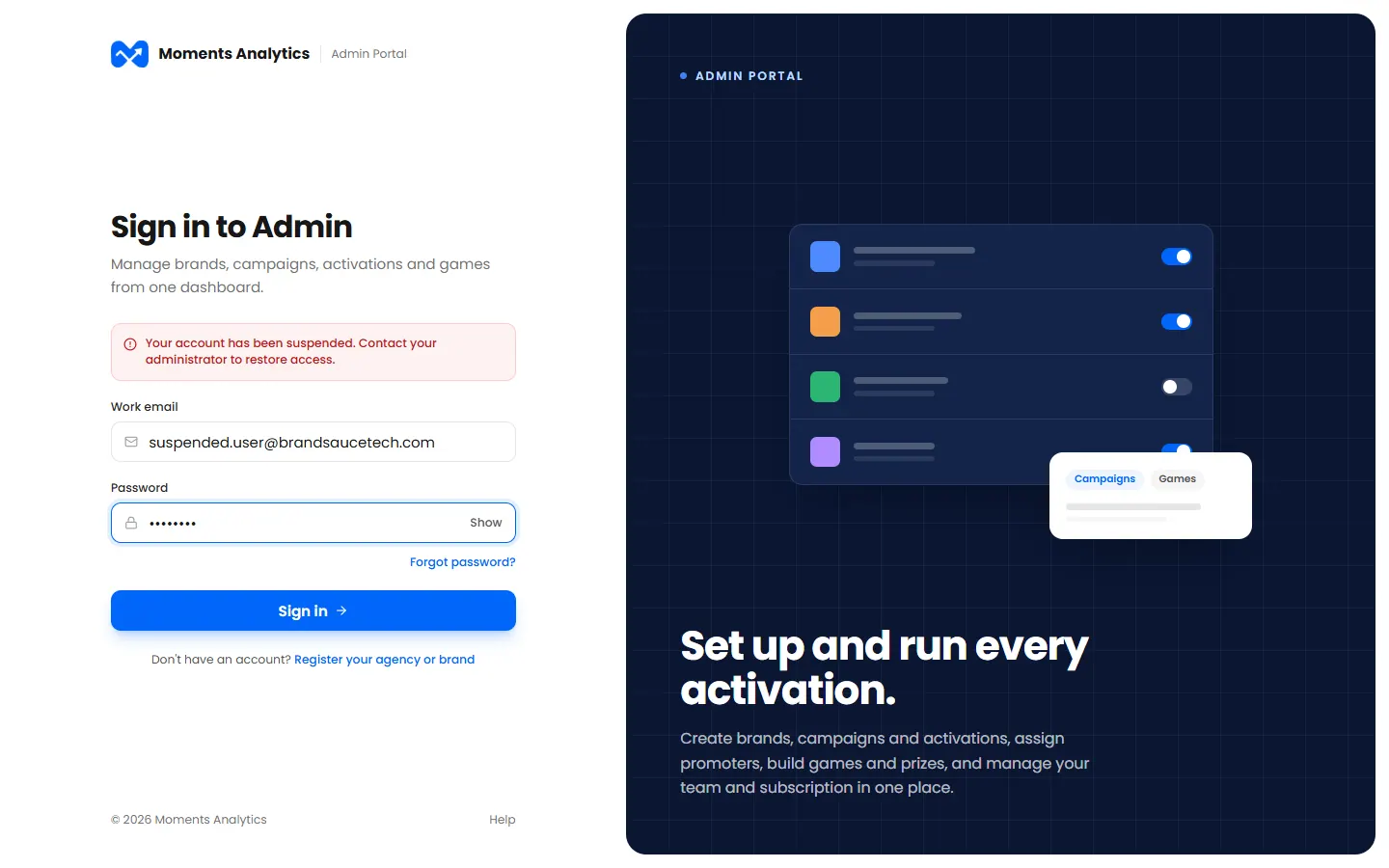
"Your account has been suspended" or "deactivated"

An admin in your organisation has stopped your account. The message may say why.

A suspended user is told why

Contact your admin. Only they can restore it.

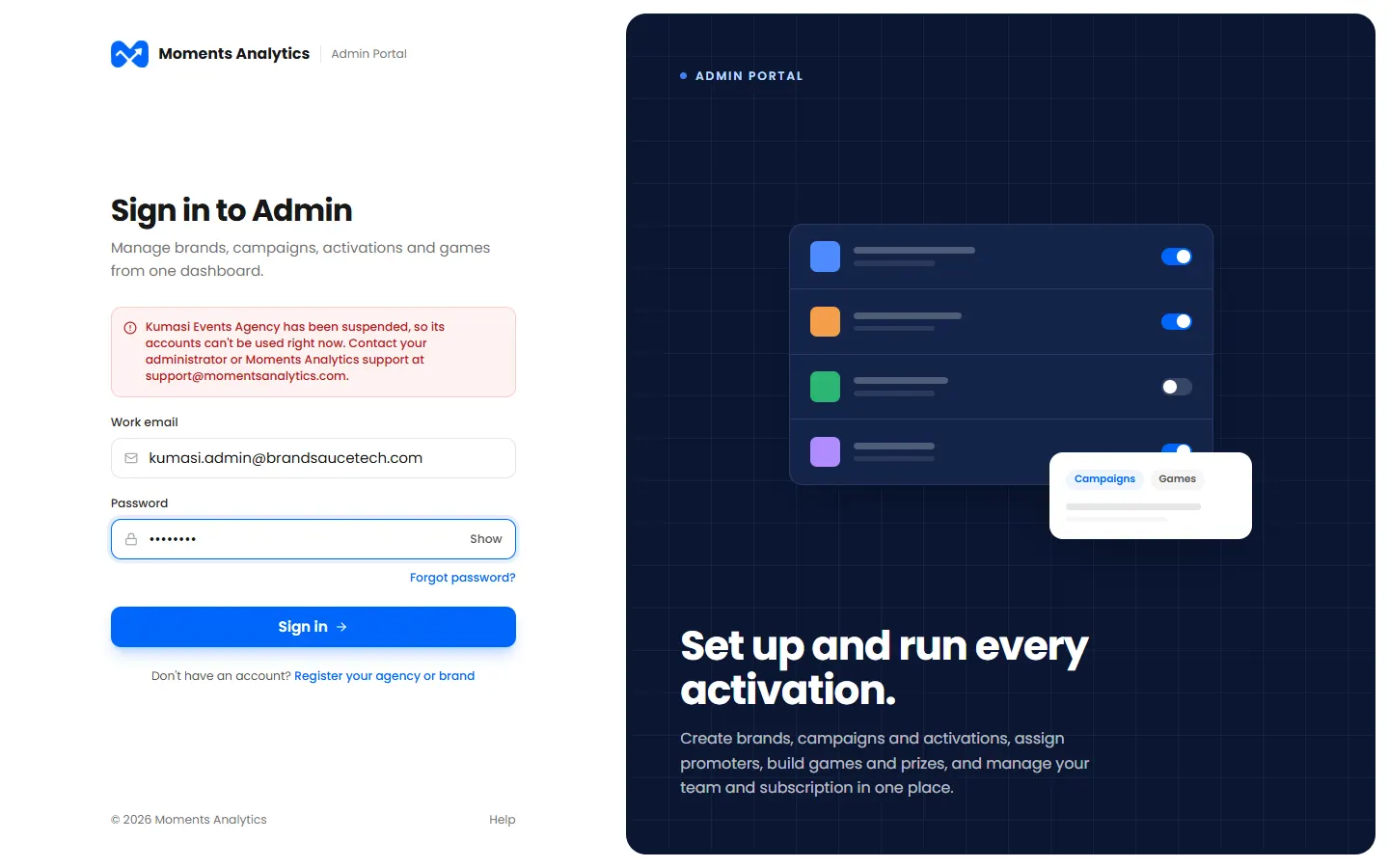
"… has been suspended, so its accounts can't be used right now"

Your whole agency or brand has been suspended or deactivated, so nobody in it can sign in.

Someone from a suspended agency

Contact your admin, or Moments Analytics support at support@momentsanalytics.com.

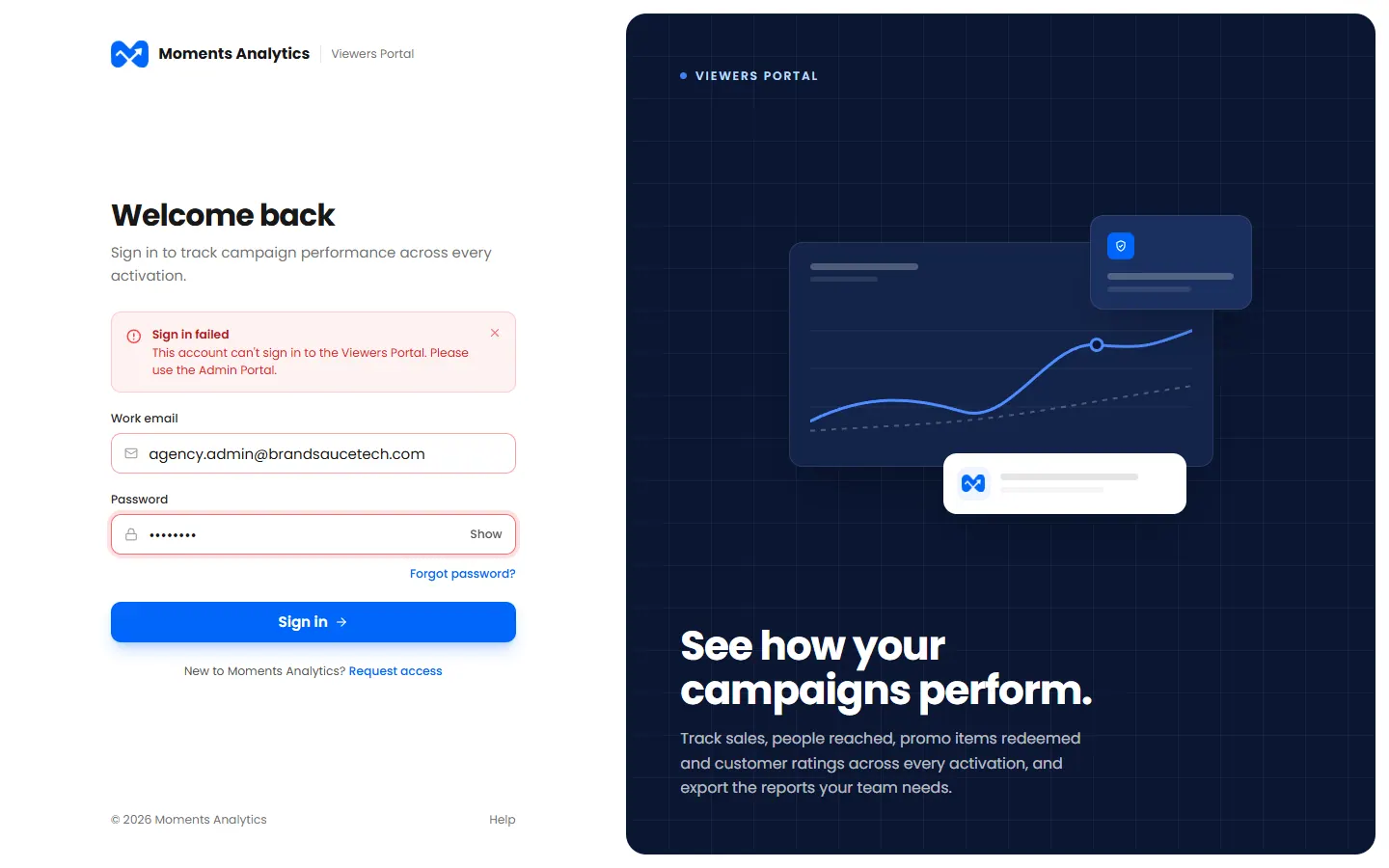
"This account can't sign in to the Viewers Portal"

You're on the wrong portal for your role. Admins and managers use admin.momentsanalytics.com. Brand viewers use viewers.momentsanalytics.com.

An agency admin on the Viewers Portal is told which portal to use

Two-step sign-in messages

MessageWhat to do
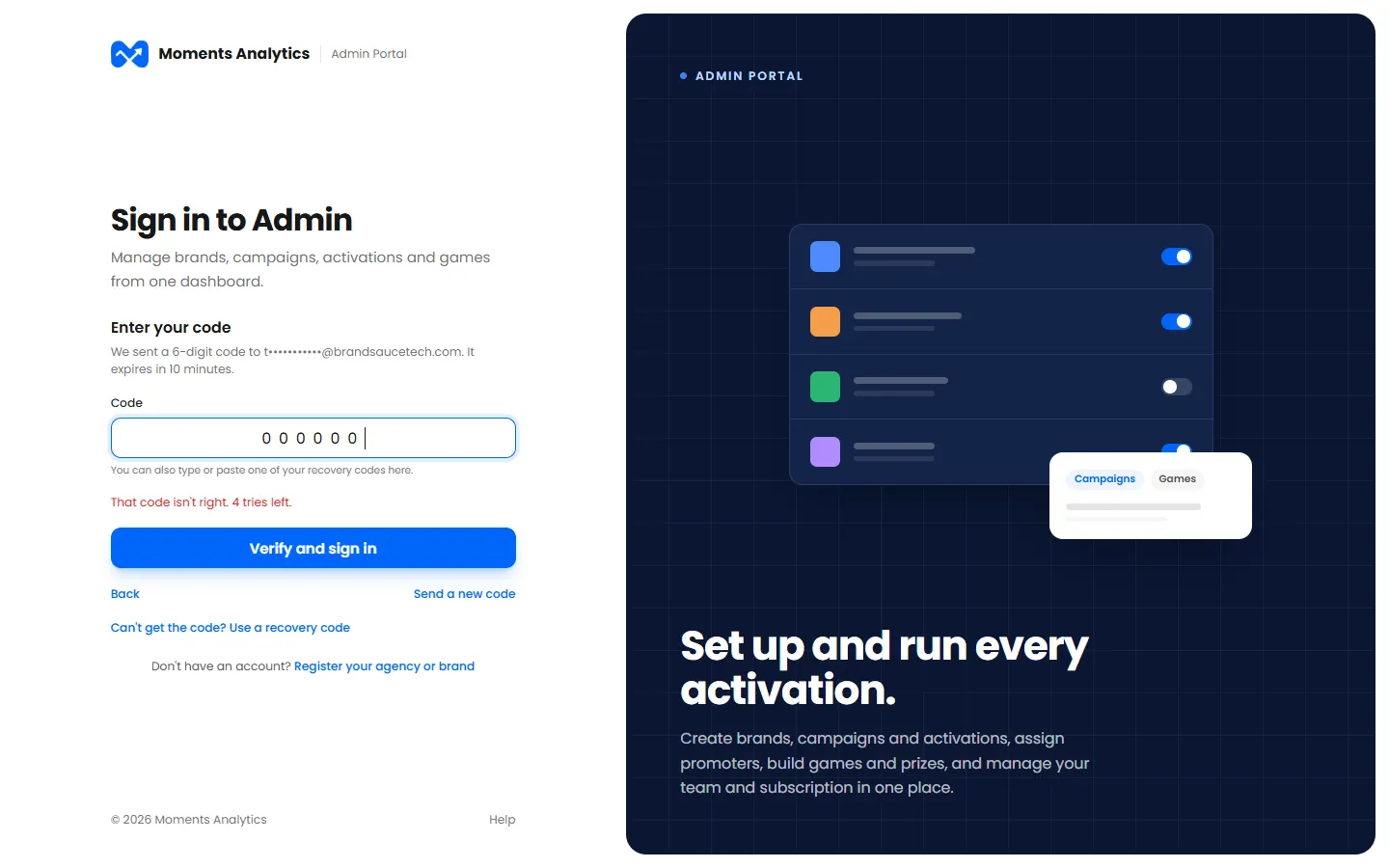
That code isn't right. 2 tries left.Type the code again, from the newest email or SMS
That code has expired. Send a new one.Click Send a new code
Too many wrong codesGo back and sign in again
That recovery code isn't right, or it's been usedEach recovery code works once. Try another one
A wrong code, with the tries left

Lost your phone and your recovery codes? Ask your admin. Brand viewers can ask their agency.